


Match smarter. Work faster. Protect data.
Resource Matching helps you identify potential duplicate candidates before they enter your workflow. It compares submitted information against existing records and guides you to confirm the correct profile so you can make confident decisions while protecting data integrity.
Why Resource Matching matters
You use Resource Matching to:
- Reduce manual effort by identifying possible matches automatically
- Prevent duplicate records and maintain clean, accurate data
- Review risks early, including candidate history and DNR flags
- Support compliance by requiring match resolution before moving forward
- Maintain consistency by preserving accurate identifiers across suppliers and workflows
✅ Cleaner data. Faster workflows. Fewer errors.
Who uses it
- Program office users
- Suppliers
How it works
Resource Matching displays automatically at key steps in the workflow, such as when candidates are submitted or reviewed.
- Scans existing records in Enterprise
- Compares key identifiers, like name, email, and IDs
- Displays possible matches
- Requires you to confirm or resolve the match
The system guides you—but you always make the final decision.
Important: matching is a safeguard
Resource Matching does not fix or merge records for you.
- It identifies potential matches
- It prevents you from continuing until you resolve them
- You must confirm the correct record or proceed appropriately
Your decision ensures data accuracy and compliance.
Supported resource types
Resource Matching helps identify potential duplicate records for supported worker types managed through Enterprise workflows.
This includes Independent Contractors where applicable to your program configuration. Resource Matching supports consistent identity management, duplicate prevention, and accurate workforce records across suppliers, assignments, and onboarding activities.
Resource Matching helps maintain identity continuity regardless of where a worker enters the process.
What you see in Resource Matching
Resource Matching follows the same process in every workflow. When a potential duplicate is detected, the Resource Matching dialog displays to help you review and compare records before continuing.
The structure is consistent. What changes is how much detail you see based on your organization’s setup and your role.
Resource Matching displays:
- A message with next-step guidance
- The Submitted Candidate section (your reference record)
- A list of matching candidates
- A Search option to refine results
- Action controls (OK, Cancel, Continue Adding Resource)
✅ The layout stays the same—only the level of detail varies.
🔷See how the views vary
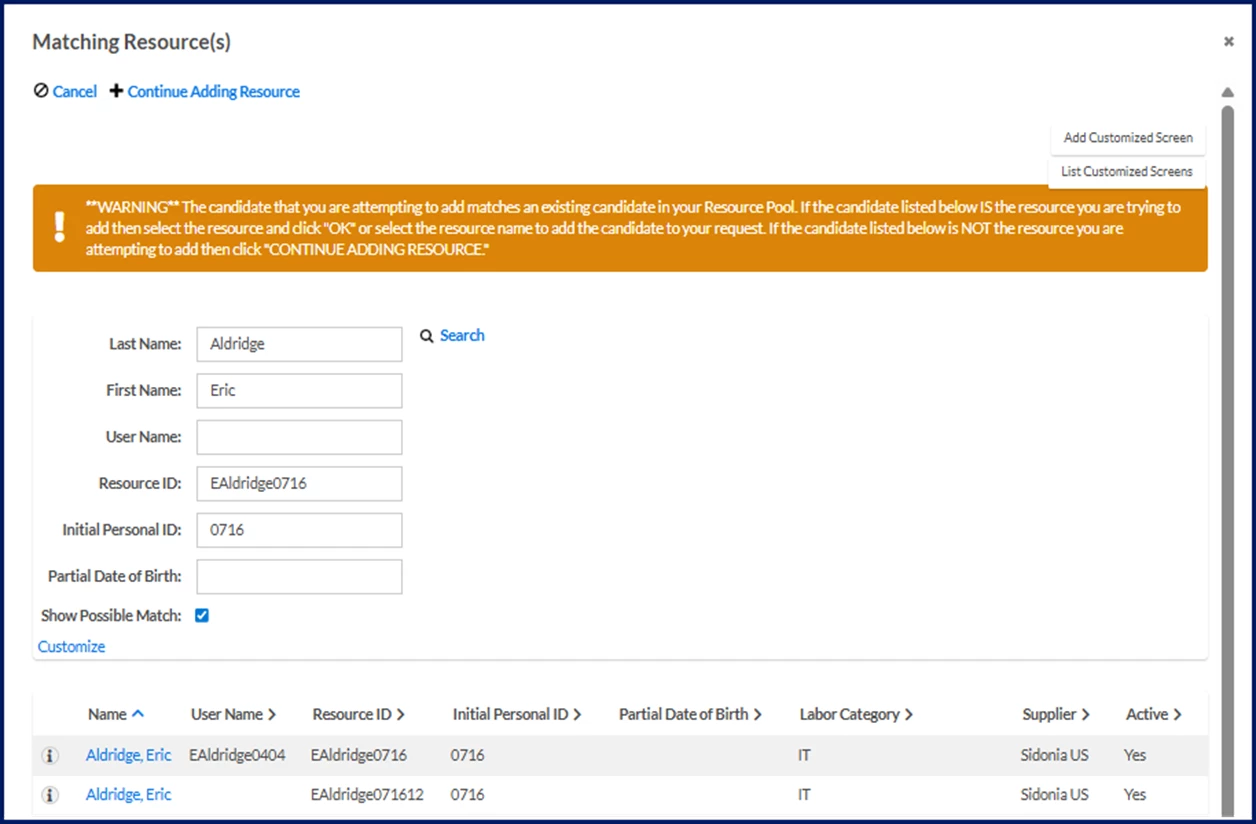
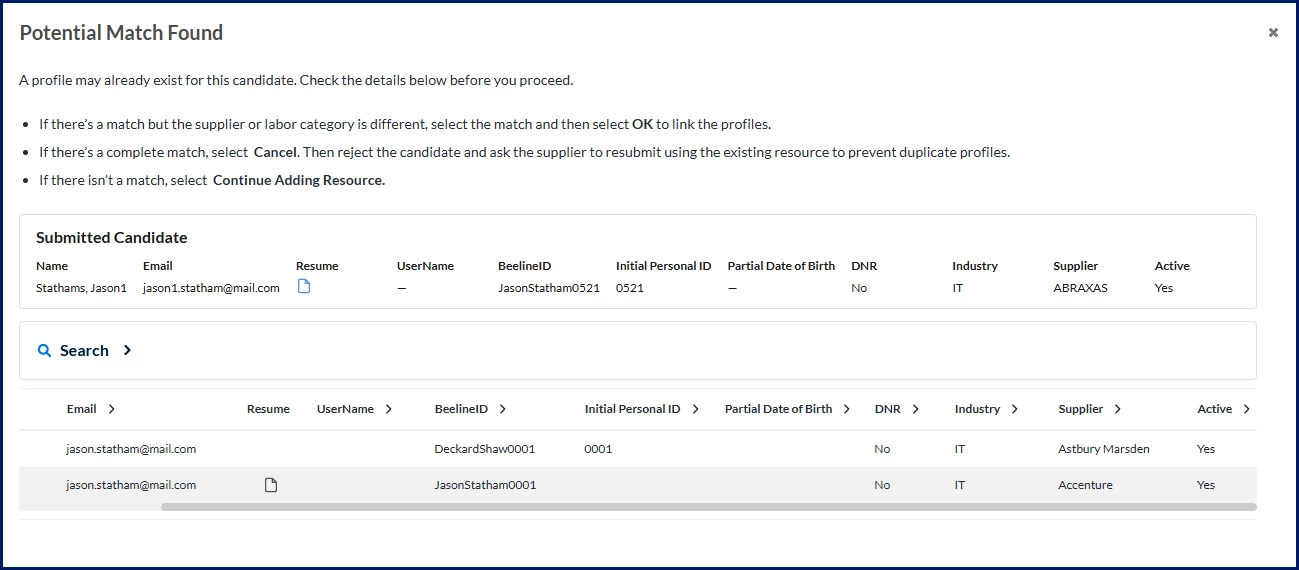

Each level builds on the same underlying matching logic. What changes is how information is displayed and how much context is available.
Configuration settings determine which view is enabled and what data is available for comparison. If you don’t see certain fields or features, your current view may not include them.
| View | Configuration | What you see | How it helps |
|---|---|---|---|
| Essential (default) | Available to all users by default Instructional content on the Matching Resources view can be customized by your program. | Basic candidate details and core identity fields | Supports quick decisions |
| Enhanced | Requires on/off setup Instructional content on the Potential Match Found view cannot be customized. To learn how to enable this view, see Enhanced Resource Matching: Self-service setup | Additional candidate fields, expanded record details and clearer guidance | Improves validation with more context |
| Intelligence (Resource Matching Intelligence) | Requires on/off setup and an AI package Instructional content on the Potential Match Found view cannot be customized. To learn how to enable this view, see Resource Matching Intelligence: Self-service setup | Enhanced details plus Match Confidence, AI insights, and prioritized results | Speeds review with AI-supported insights |
✅ Different view. Same decision process.
Regardless of what you see, the process is the same:
- Review the submitted candidate
- Compare matching records
- Resolve the match before continuing
How to compare records
Resource Matching evaluates identity signals such as name (including phonetic similarity) and unique identifiers. Strong alignment across these signals increases match likelihood, while missing or conflicting data lowers confidence. Additional signals like email and username are used in Resource Matching Intelligence only.
You compare key details across records to confirm whether they represent the same individual. Confirm consistency across multiple fields before deciding—never rely on a single field.
- Name—drives candidate selection through trigger-based matching. Primary identifier; check spelling, order, variations, and alternate formats.
- Email—strong supporting identifier
- Beeline ID—may reveal duplicate profiles
- Initial Personal ID—supports validation
- Supplier and industry—provide important context
Quick decision guide
You must resolve the match before continuing.
| Scenario | Action |
|---|---|
| Same person (different supplier/industry) | Select match → OK |
| Exact duplicate | Cancel → Disqualify |
| No match | Continue Adding Resource |
| DNR flagged | Select match → OK → Disqualify |
Why your decision matters
Take time to review carefully. Your choice affects downstream data:
- Your decisions in Resource Matching affect more than just the current step.
- Correct matching helps preserve a worker's Beeline ID across suppliers, assignments, and workflows, improving continuity and reporting accuracy.
- Matching correctly keeps IDs consistent across systems.
- Duplicate records can impact tenure, invoicing, and reporting.
- DNR matches enforce compliance and risk controls.
- Incorrect matches can create downstream data issues that require manual correction.
Getting started
Go to Resource Matching: Getting Started to:
- Review and compare candidate records
- Select the correct action
- Complete the matching process
✅ Follow the same steps regardless of which view you see
Get it right—and fix it when needed
Resource Matching requires both careful decision-making and quick correction when issues occur. Use these resources based on where you are in the process.
- Avoid common mistakes: Learn how to evaluate matches, reduce risk, and make the right decision the first time.
- Resolve errors and data issues: Troubleshoot system errors and correct data issues to restore accurate records and keep workflows moving.
✅ Start with prevention. If something goes wrong, use the troubleshooting guide to resolve it quickly and confidently.
Frequently asked questions
Which view does my organization use?
Your view is determined by your program's configuration. If you're unsure which view is enabled, contact your program administrator. You can also look at what you see in the Resource Matching dialog — if you see Match Confidence scores or AI insights, you're using Intelligence. If you see expanded record details but no AI insights, you're using Enhanced. If you see basic candidate details only, you're using Essential.
Can my organization switch between views?
Yes. Essential is available by default. Enhanced and Intelligence require on/off setup by your program administrator. Intelligence also requires an AI package. Contact your administrator to request a change.
Why do I see different fields than a colleague?
The view your organization has configured determines which fields appear. If a colleague sees more detail than you do, they may be in a different role or your program may have customized the instructional content for your view. Configuration settings control what data is available for comparison.
Does the matching process change depending on the view?
No. The decision process is the same regardless of which view you're in — review the submitted candidate, compare matching records, and resolve the match before continuing. What changes is how much detail and context is available to support your decision.
What is Resource Matching Intelligence?
Resource Matching Intelligence is the most advanced view. It adds Match Confidence scores, AI-generated insights, and prioritized results to help you review matches faster and with greater confidence. It requires both on/off setup and an AI package.
| Persona Clients, program office users, suppliers | Modules Artificial Intelligence Contingent Staffing Services Procurement Resource Tracking | Documentation release Beeline Enterprise | Q2 2026 | Feedback? Email us: |