

Topics on this page
As a client, program office user, or system administrator, you can choose which options appear in Interview Manager and which interview notifications your users receive as the interview moves forward.
You can also set up automated Interview Manager messages using Enterprise’s Advanced Notification Templates. These messages can be triggered by different interview actions—like when an attendee is removed or an interview is accepted. In addition, you can let Enterprise update attendees’ Outlook calendars automatically by adding a calendar event when an interview time is accepted.
How to steps
Information in this article reflects a standard Enterprise configuration. Your Enterprise platform is based on your organization’s configuration. Settings and/or data visibility rules may vary slightly from what is described.
Managing settings
To streamline your users' experience, you can choose which interview methods are available from Interview Manager to your users via Self-Service. You can activate or deactivate interview methods, like phone, BlueJeans©, Cisco Webex®, Google Hangouts™, LogMeIn® GoToMeeting®, Microsoft® Skype®, Microsoft® Teams®, or Zoom©.
TIP: You cannot add other interview methods, delete an existing method, nor rename an existing method.
To configure which interview methods are available from the Interview Manager, complete these steps from your Enterprise dashboard.
- Select Settings > VMS Settings> Contingent Staffing. A Configuration: Contingent Staffing page displays.
- Select the Interview Manager Settings link. An Interview Manager Interview Type List Screen page displays.
- Optional: Look for the interview method you want using the Interview Type field and the Search link.
- To turn on or activate an interview method, take these actions:
- Locate the interview method you want to activate from the Interview Types list.
- Select Activate. A dialog box displays asking you to confirm that you want to activate the interview type.
- Select OK. A message displays that the item you selected was activated.
TIP: You can activate more than one interview method simultaneously.
- To turn off or deactivate an interview method, take these actions:
- Locate the interview method you want to deactivate from the Interview Types list.
- Select Deactivate. A dialog box displays asking you to confirm that you want to deactivate the interview type.
- Select OK. A message displays that the item you selected was deactivated.
TIP: You can deactivate more than one interview method simultaneously.
Setting up Outlook calendar invite notifications
When a user accepts an interview time, automated email notifications can be sent that trigger an event to be automatically added to the recipients’ calendars.
Currently, candidate attachments aren’t supported while creating an interview and generating an Outlook calendar invite notification. So, you must turn off candidate attachments when you set up this feature.
To allow Outlook calendar write- backs and enhanced invite notifications, complete these steps from your Enterprise dashboard.
- Select Settings > VMS Settings > Contingent Staffing. A Configuration: Contingent Staffing page displays.
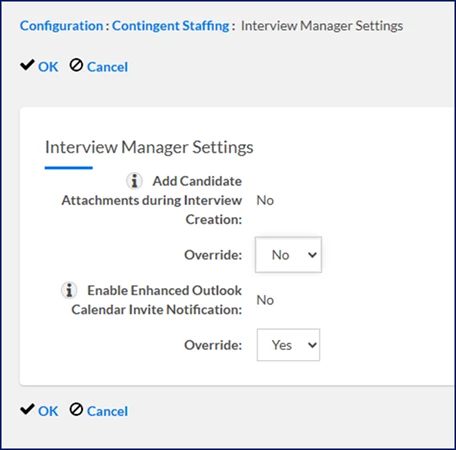
- Select Interview Manager Settings. An Interview Manager Settings page displays.
- Select Edit.
- From the Add Candidate Attachments during Interview Creation list, select No.
- From the Enable Enhanced Calendar Writeback Override list, select Yes.
-
Select OK.
- Make sure your program also has the Interview Manager – Interview Accepted Advanced Notification Template set up and active.
When an interview time is accepted, Enterprise can write back to attendees’ Outlook calendars and automatically add a calendar event.
Including Interview data in ANTs
As a program office user, you can use Advanced Notification Templates (ANTs) to:
If your program uses the Interview Manager component, you can use these notification templates related to interview actions.
|
|
|
|
|
|
|
|
To customize email notifications for interview actions, complete these steps from your Enterprise dashboard.
Although you can have multiple Interview Manager-related notifications you can set up, the steps are the same regardless of the template you choose.
- Select Preferences > VMS Settings > Client Communications.
- Select Advanced Notification Templates.
- From the Template list near the bottom of the page, locate the Interview Manager-related template you want to modify.
- Select Edit.
- Make your changes to the desired sections, such as the Body, Body Template Field Visibility and more.
- Select OK.
Your template is updated and the changes you made are automatically included in email notifications generated by Enterprise related to interview actions completed in Interview Manager.
Including links in interview email notifications
When setting up your Interview Manager – Interview Accepted Advanced Notification Template, you can add clickable video‑conference links for interviews that use a Video Conference Interview Type, like Teams or Webex.
To do this, make sure your template includes the Interview Type field.
Once set up, all interview participants will receive an email when the interview is confirmed. When the Interview Type is a video conference, the email and calendar invite will include an actionable link attendees can use to join the interview directly.
Important: This feature works only with native Beeline Enterprise Video Conference Interview Types.
If you have renamed a Video Conference Interview Type using a Term Key, you’ll need to submit a Service Request to support adding links.
To accomplish your task, complete these steps from your Enterprise dashboard.
- Select Settings > VMS Settings > Contingent Staffing. A Configuration: Contingent Staffing page displays.
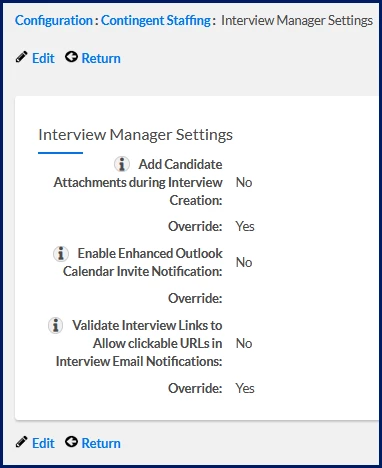
- Select Interview Manager Settings. An Interview Manager Settings page displays.
- Select Edit.
- From the Video Conference Hyperlinks in Notifications list, select Yes.
- Select OK.
| Persona Clients, program office users, system administrators | Modules Artificial Intelligence | Documentation release Beeline Enterprise | Q1 2026 | Feedback? Email us: |