


Stay informed on new features and take the right next step with confidence.
The Feature Enablement Dashboard provides a centralized view of recently released features and their status in your environment. From a single location, you can explore new capabilities, determine whether features are enabled or available for self-service enablement, and access the guidance you need to make informed adoption decisions.
Why it matters
The Feature Enablement Dashboard helps you:
- View recently released features in one location.
- Understand feature value at a glance.
- Quickly determine whether a feature is available in your environment.
- Identify which features can be enabled through self-service.
- Access setup and enablement guidance.
- Make informed decisions about feature adoption.
Who it's for
Program Office users.
Prerequisites
Before using the dashboard:
- You must have access to the Preferences menu.
- You must have the appropriate Program Office permissions to view feature information.
- Available features and options may vary based on your organization's configuration.
How it helps
The dashboard makes it easy to stay informed and prepared by allowing you to:
- View recently released features in a single dashboard.
- Quickly locate features using search and filtering options.
- Review feature descriptions and categories.
- Understand feature availability and configuration status.
- Identify features that can be enabled without administrative assistance.
- Access feature-specific instructions and documentation.
Understanding the dashboard
The Feature Enablement Dashboard includes several tools and indicators to help you evaluate available features.
Dashboard components
The Feature Enablement Dashboard contains the following key components:
| Component | Purpose |
|---|---|
| Search features | Find features by name. |
| Filter | Narrow results by status, self-service availability, and tags. |
| Export | Download dashboard information. |
| Category sections | Organize features into functional groups. |
| Collapse All | Collapse all category sections. |
| Feature column | Displays the feature name. |
| Description column | Explains feature functionality and value. |
| Category column | Identifies the functional area associated with the feature. |
| Status column | Indicates whether the feature is enabled or disabled. |
| Self-Service column | Indicates whether Program Office users can enable the feature themselves. |
| Learn More icon | Opens feature-specific guidance, documentation, and configuration instructions when available. |
Understanding feature indicators
The dashboard uses status indicators, self-service markers, and feature badges to provide important information about each feature at a glance.
Feature categories
Features are organized into expandable categories based on functionality. Categories help you browse related features and quickly identify capabilities relevant to your program.
Use the expand and collapse controls to show or hide category contents as needed.
Status
| Status | Description |
|---|---|
| Enabled | The feature is currently active in your environment. |
| Disabled | The feature is available but not currently enabled. |
Self-Service
A checkmark in the Self-Service column indicates that authorized users can enable the feature without administrative assistance. Features without a checkmark may require additional administrative configuration.
Feature badges
Some features display badges that identify release status or licensing requirements. A feature can display multiple badges. For example, a feature may be both New and Premium.
| Badge | Description |
|---|---|
| New | Indicates a recently released feature. |
| Premium | Indicates a feature that may require additional licensing, entitlements, or subscription options. |
How to steps
Information in this article reflects a standard Enterprise configuration. Your Enterprise platform is based on your organization’s configuration. Settings and/or data visibility rules may vary slightly from what is described.
To accomplish your task, complete these steps from your Enterprise dashboard.
Reviewing and evaluating features
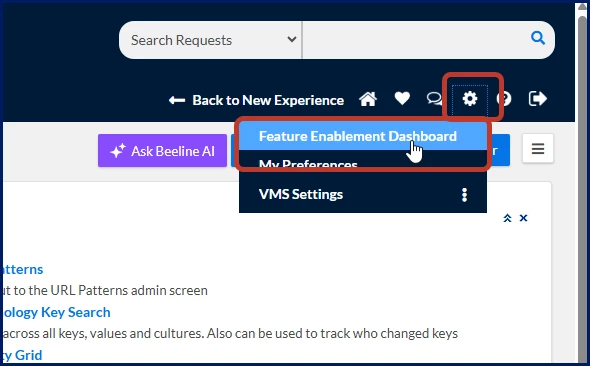
- Select Preferences > Feature Enablement Dashboard.
The Feature Enablement Dashboard displays. The following example highlights the primary areas of the dashboard, including feature categories, status indicators, self-service information, and available actions.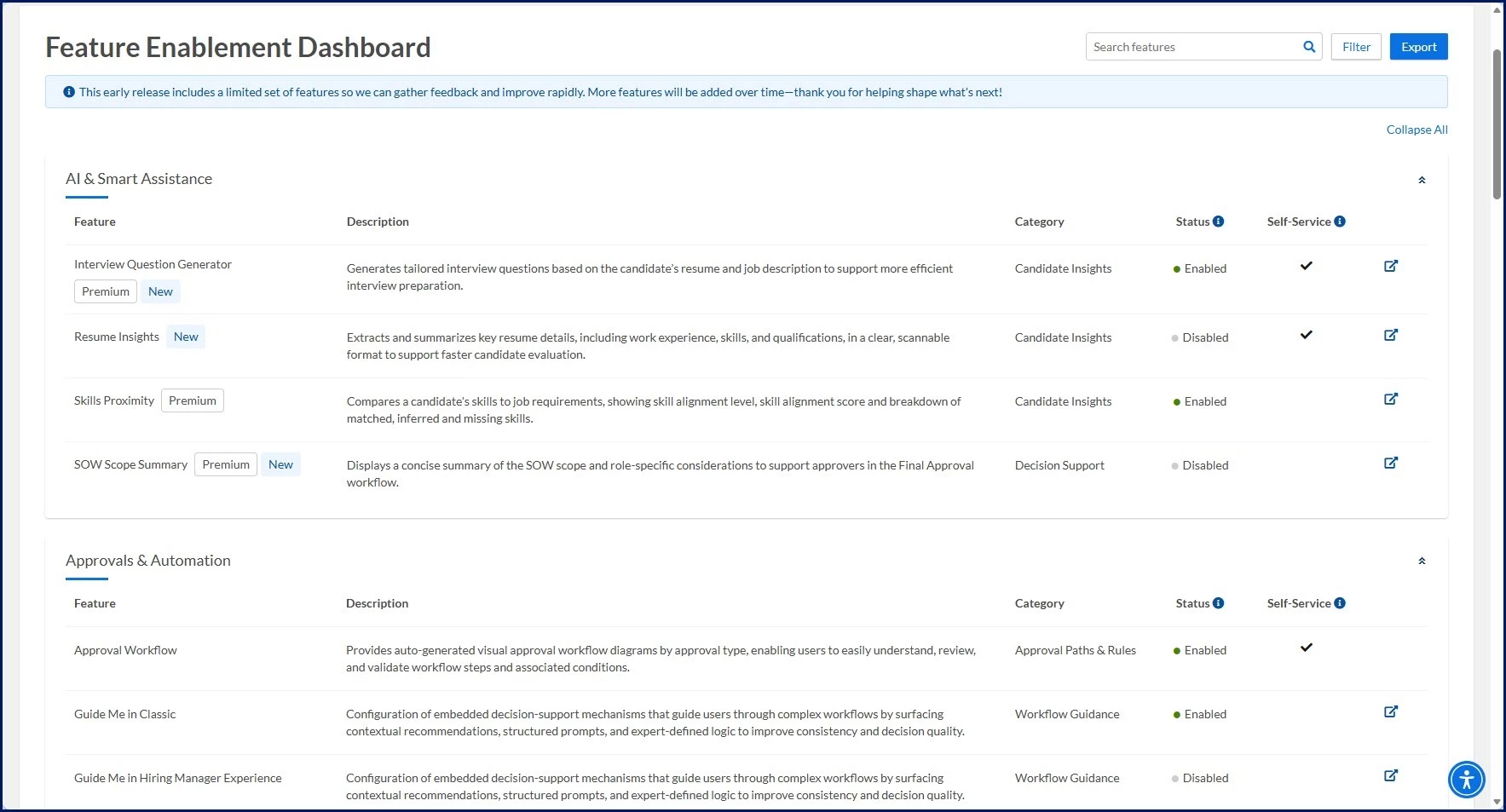
- Use the Search features field or available Filter options to locate relevant features.
- Review the Feature, Description, and Category columns to understand the feature's purpose and potential value.
- Review the Status column to determine whether the feature is currently enabled or disabled.
- Review the Self-Service column to understand whether you can enable the feature directly.
- Select the Learn More icon to open feature-specific guidance, documentation, and configuration instructions when available.
- Follow any enablement steps provided for self-service features.
- Begin using the feature once it has been enabled and configured.
Searching for a feature
The search field allows users to quickly locate specific features without browsing through all categories.

To search for a feature:
- Enter all or part of a feature name in the Search features field.
- Select the Search icon or press Enter.
- Matching features display in the results area.
- Clear the search text to return to the full feature list.
Tip: Search results update the displayed feature list, helping you quickly locate recently released features or specific functionality.
Filtering features
Use the Filter option to narrow results and focus on the features most relevant to your needs.
| Filter Category | Option | Description |
|---|---|---|
| Status | Enabled | Displays features that are currently active in your environment. |
| Status | Disabled | Displays features that are available but not currently enabled. |
| Self-Service | Yes | Displays features that authorized users can enable themselves. |
| Self-Service | No | Displays features that require additional administrative assistance or configuration. |
| Tags | New | Displays recently released features. |
| Tags | Premium | Displays features that may require additional licensing, entitlement, or subscription options. |
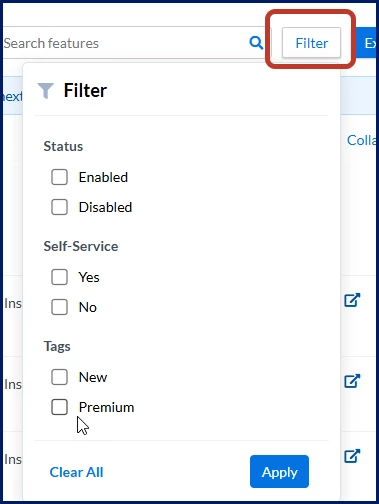
To filter features:
- Select Filter.
- Select one or more filter criteria.
- Select Apply.
- Review the filtered results.
- Select Clear All to remove filters and return to the full feature list.
Example: Select Disabled and Self-Service = Yes to identify features that are available for self-service enablement but are not currently enabled.
Exporting dashboard information
Use Export to download dashboard information as a .xlsx file for offline review and planning purposes.
- Select Export.
- Save or open the exported file according to your browser settings.
- Review the exported information as needed.
Tips for evaluating features
Prioritizing features based on business value can help maximize the benefits of new functionality. When reviewing newly released features, consider:
- Your current business processes.
- Program-specific requirements.
- User adoption goals.
- Potential operational efficiencies.
- Configuration or training requirements.
Next steps
Use the Feature Enablement Dashboard regularly to stay informed about new functionality, evaluate feature readiness, and identify opportunities to improve efficiency across your program.
Frequently asked questions
How do I find a specific feature?
Use the Search features field to search by feature name or use Filter to narrow the list based on status, self-service availability, or tags.
What do the New and Premium tags mean?
New identifies recently released functionality. Premium identifies features that may require additional licensing or entitlement.
How can I find features that are available but not enabled?
Use the Filter menu and select Disabled under Status.
How can I identify self-service features?
Use the Self-Service filter or look for the checkmark displayed in the Self-Service column.
Why don't I see the same features as another user?
Feature visibility may vary based on permissions, role assignments, licensing, or your organization's configuration.
Why is the Learn More icon unavailable?
Some features don’t have feature-specific guidance or configuration instructions available. When related documentation isn’t available in the knowledge base, the Learn More icon doesn’t display.
Can I enable every feature shown in the dashboard?
No. Some features are informational only, while others may require administrative support or additional configuration.
How often is the dashboard updated?
The dashboard is updated as new features become available to your organization. Feature Status values, such as Enabled and Disabled, are updated daily. The features displayed may vary based on deployment schedules and your organization's configuration.
What should I do if I need additional help?
Contact your organization's support team or administrator if you need assistance evaluating, enabling, or configuring a feature.
| Persona Clients, program office users | Modules Cross-platform | Documentation release Beeline Enterprise | Q3 2026 | Feedback? Email us: |