


Topics on this page
Update multiple SOW templates at once—faster, safer, and with consistent results.
Managing Statement of Work (SOW) templates shouldn’t slow you down. With self-service bulk edit, you can update multiple templates in one place, apply changes consistently, and reduce manual effort. You spend less time on repetitive admin work, minimize errors, and keep your projects aligned—so your team can focus on delivering results.
Why it matters
- Save time by updating multiple templates in a single action instead of one by one
- Ensure consistency by applying the same rules, fields, and structure across templates
- Reduce errors by eliminating repetitive manual edits
- Maintain alignment between scope, deliverables, and budgets
- Support scalability as your program grows without increasing admin effort
Who it’s for
- Program office users who need to apply updates across multiple templates quickly
- System administrators responsible for maintaining template accuracy and consistency
- Clients and managers who rely on standardized SOW structures for project success
How it helps
- Centralizes updates so you can manage changes in one place instead of many
- Standardizes templates to keep processes aligned and predictable
- Improves collaboration by ensuring all stakeholders work from consistent information
- Clarifies deliverables, milestones, and responsibilities to reduce ambiguity
- Aligns budgets with scope to prevent overruns and inefficiencies
- Enables scalability by allowing more users to create SOWs confidently
- Reduces administrative effort so teams can focus on higher‑value work
- Provides a flexible framework where you can include standard fields, add custom fields, set default content, and filter milestone options to meet your business needs
- Provides a structured framework for managing vendors and project-based work while reducing risk and improving outcomes
How to steps
Before you begin
Before using bulk edit, make sure you:
- Have access to SOW template management in your Beeline Enterprise VMS
- Understand your organization’s project types and template setup
- Know which fields or rules need to be updated
- Have permission to modify SOW templates
- Understand Project Types, SOWs and Enterprise templates
Information in this article reflects a standard Enterprise configuration. Your Enterprise platform is based on your organization’s configuration. Settings and/or data visibility rules may vary slightly from what is described.
To accomplish your task, complete these steps from your Enterprise dashboard.
The system enforces field dependencies, helping you maintain valid configurations while applying updates across templates
- Select Preferences > VMS Settings > Statement of Work. A Statement of Work page displays.
- Select SOW Template Bulk Edit. A SOW Template Bulk Edit page displays.
- To update the variables associated with an SOW template, select the checkbox next to one or more of the fields in these sections.
- Summary
- Export Templates
- Signature Page Templates
- Main Drivers
- Category Filter
- Milestone Type Filter
- Behaviors
- Supplier Information
- Project Agreement Statuses
- Reasons
- Legal Acceptance
- Client Custom Fields
- Vendor Custom Fields
-
Optional. Some fields are interdependent and are inactive until you select the primary parent field or become mandatory based on your selection. For example, when you select the Project Type checkbox in the Main Drivers section, all checkboxes in the Reasons section are automatically selected.
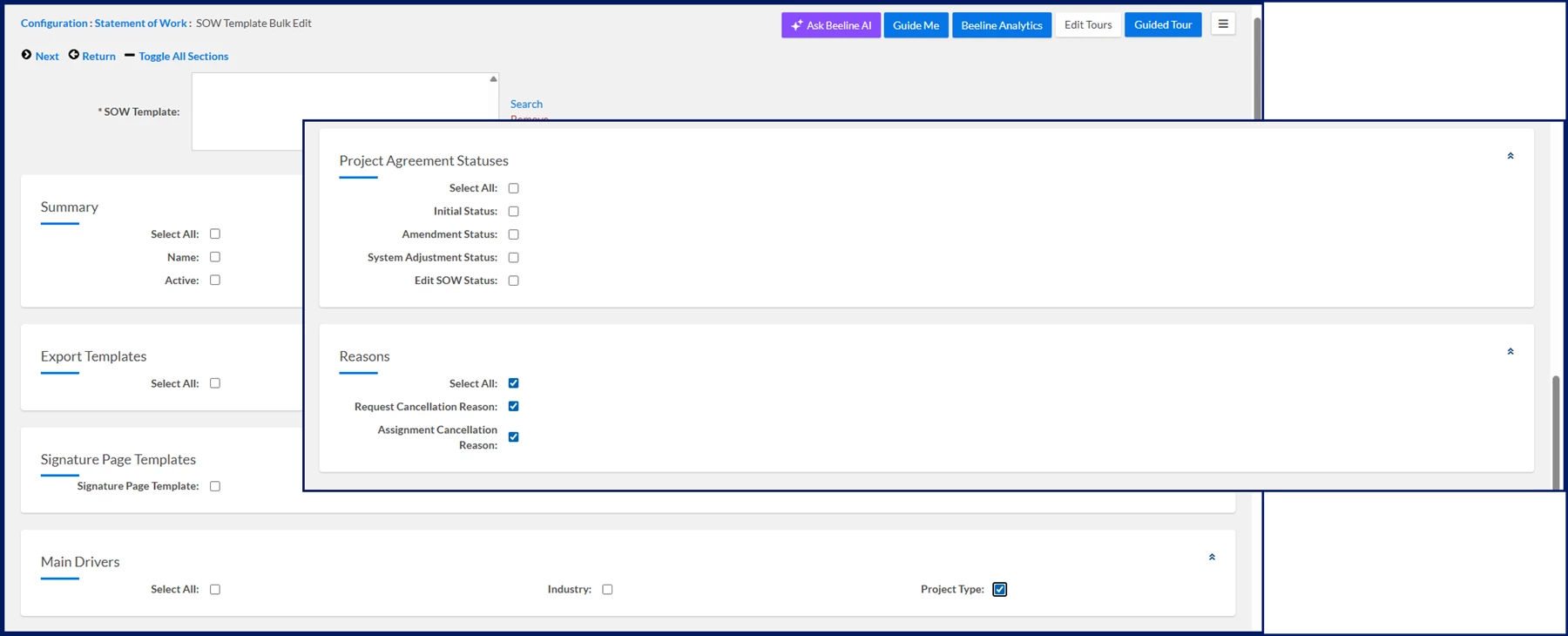
TIP: You can change the Assignment Cancellation and Request Cancellation reasons without selecting the Project Type checkbox.
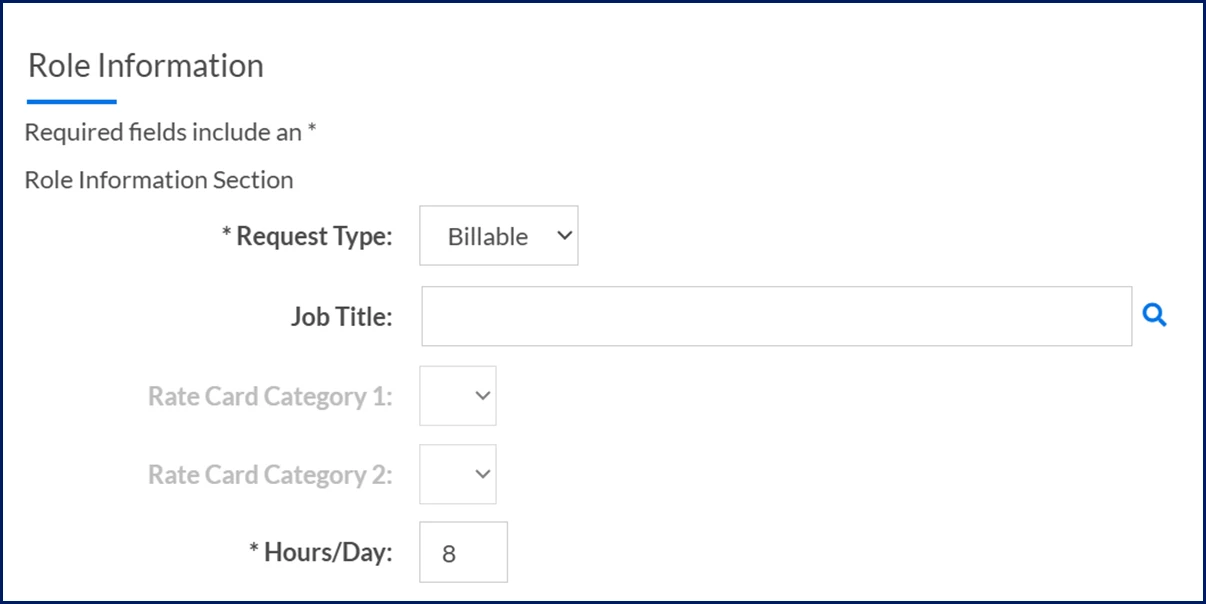
- Optional. Some fields are parent values that make other fields available. For example, based on the project settings, a Role Information section displays when you select the Project Type checkbox in the Main Drivers section.
- Select Next.
- Based on the checkboxes in the sections you selected, you’re directed to additional pages so that you can modify details for the SOW template you selected.
- After you’ve provided specifics for the details you want to modify, select OK to close the SOW Template Bulk Edit page and apply your changes.
Understanding Project Types, SOWs and Enterprise templates
In Beeline Enterprise, projects, project types, statements of work (SOW), and SOW templates are interconnected structures that align to your business processes and workflows. Here's a quick breakdown of how they’re related.
- A project defines the business need.
- A project type provides the business rules and logic for what data is collected. It defines the nature or category of work for which contingent workers are engaged.
- An SOW is created to fulfill part (or all) of a project using external resources.
- An SOW template is used to create SOWs efficiently and consistently within a program.
Exploring SOW templates
As your users create an SOW, they can quickly select the applicable SOW Template based on the project type they’re initiating. The SOW Template guides them through the process and helps them define project-specific activities, deliverables, and timelines for a supplier providing services to the client.
As an Enterprise administrator, you manage SOW Templates to reflect your organization’s evolving processes and business rules. Your program may have multiple SOW Templates associated with a Project Type, but there’s usually a one-to-one relationship.
The Beeline Enterprise standard configuration includes these four common Services Procurement Project Types.
|
|
|
|
| Persona Clients, program office users, system admins | Modules Services Procurement | Documentation release Beeline Enterprise | Q2 2026 | Feedback? Email us: |