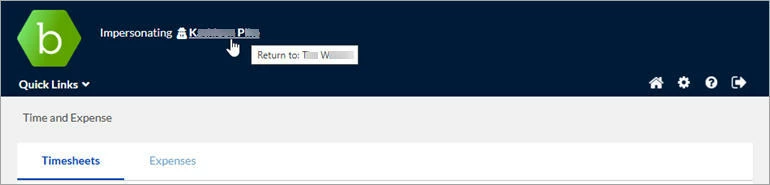
Which users you can impersonate depends on your assigned Beeline Enterprise user role and the associated security permissions. In general, you can only impersonate a user within the same organization and at the same or a lower level in your organization hierarchy.
This content reflects non-client specific Beeline Enterprise functionality which may vary from what you see when logged into Beeline Enterprise depending on any client-specific settings or adjustments.
To impersonate a user, complete these steps
- Navigate to your Beeline Enterprise Home screen.
- Click the Admin drop-down arrow located in the Header Menu bar and select User Administration. The Supplier: User List screen displays.
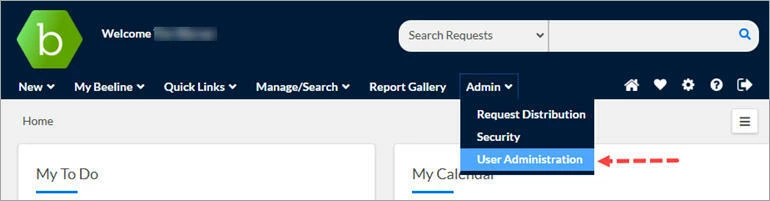
- Enter identifying information in the various List Screen fields for the user you need to locate, then, click Search.
- Locate the user in the results list and click the checkbox to the left of their name.
- Click Proxy in the action bar. (NOTE: An alternate label may be Impersonate.)
- The screen refreshes and displays content as if you were that user. Notice that the Welcome salutation above the Header Menu bar changes to display Impersonating along with the name of the user being impersonated.
All actions in Beeline Enterprise are date, time, and user stamped. This includes actions taken while in impersonation mode. The user stamp indicates the name of both the active user and the impersonated user. Date, time, and user stamp information displays in the bottom right-hand corner of the screen and is retained in the archival database for audit purposes.
- To stop impersonating a user, simply select their name displayed above the Header Menu bar next to the Impersonating label.