


Suppliers are responsible for managing their own Supplier users who need access to Beeline Enterprise. Tasks related to adding a new supplier user, activating or deactivating supplier users, resetting their password, and unlocking their user account require Supplier Admin rights.
This content reflects non-client specific Beeline Enterprise functionality which may vary from what you see when logged into Beeline Enterprise depending on any client-specific settings or adjustments.
To deactivate/reactivate a supplier user profile record, complete these steps.
- Navigate to your Beeline Enterprise Home screen.
- Click to expand the Admin drop-down menu located in the Header Menu bar and select User Administration. The User List Screen displays.
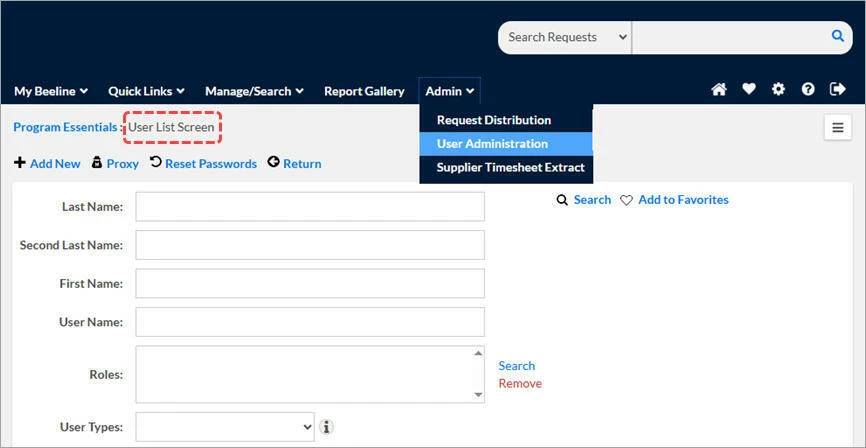
- Enter identifying information for the user, then click Search.
- Click directly on the name in the results list. The View User Details – Summary page displays.
- Click Edit. The Edit User – Details page displays.
- Check the status of the Active checkbox in the User Information section.
- A checkmark indicates an Active profile.
- A blank checkbox indicates an Inactive profile.
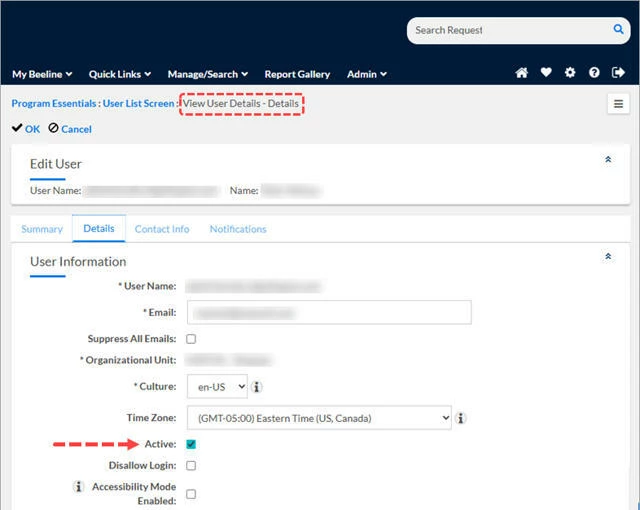
- Set the profile record to the status of your choice.
- Click OK. A status message indicates the changes were saved.
Caution: If you inactivate a user while they are logged in, changes will only take affect after that user logs out.