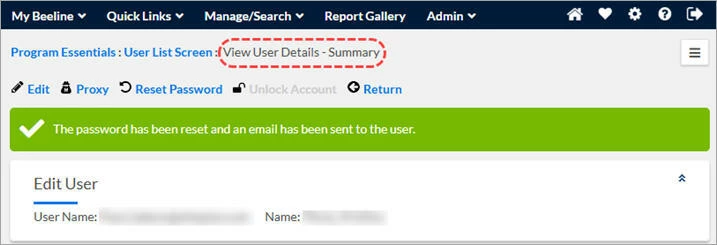
Supplier users with admin rights can reset their users’ passwords. Being able to get assistance from a Supplier Admin is a quick and efficient way to restore system access and manage your internal staff and resource pool.
This content reflects non-client specific Beeline Enterprise functionality which may vary from what you see when logged into Beeline Enterprise depending on any client-specific settings or adjustments.
- Navigate to your Beeline Enterprise Home screen.
- Click the Admin drop-down arrow located in the Header Menu bar and select User Administration. The User List Screen displays.
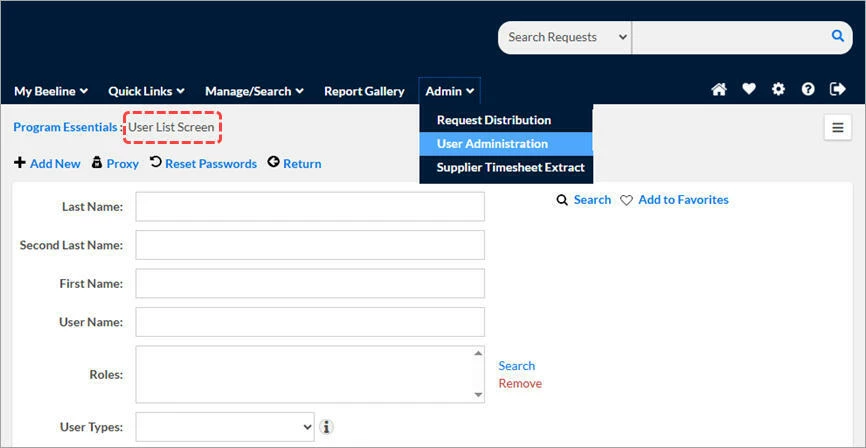
- Enter identifying information for the user that needs the password reset, then click Search.
- Click directly on the name in the results list. The View User Details – Summary page displays.
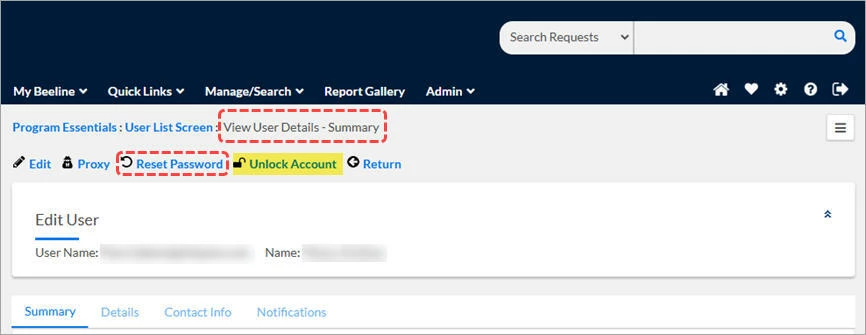
 | It’s always wise to check the Account Status section when processing a password reset request since the user may be unaware that they might have locked their account by too many failed password attempts. The lock icon in the action bar displays as “closed” for locked accounts. Or scroll down to the Account Status section and check the Is Locked Out status. 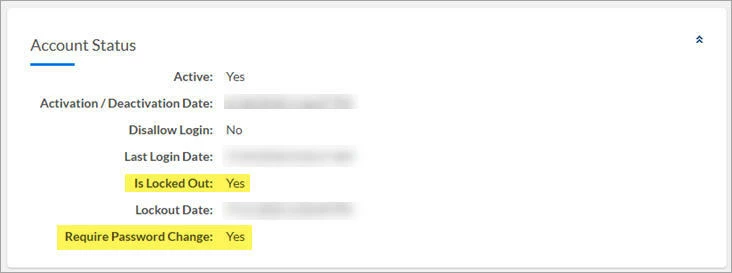 |
- Verify that the Email field in the Information section reflects the user’s current email address. The password reset notification will be sent to this email address!
- Click Reset Password. A confirmation dialog window displays.
Caution: If the Reset Password link is inactive (“grayed out”) for a Resource user, you’ll need assistance from the Program Office to complete this task. - Click OK to confirm. A status message displays to indicate that the password was reset and an email sent to the user with instructions on how to reset their password.