


To schedule a report:
The Schedule Reports feature allows the report creator to designate when and to whom a report will be delivered. Follow the prompts carefully when setting up the schedule options and reach out to the client’s Program Office if you need assistance.
Be sure to complete all format changes to your report before you select this option.
- Navigate to the Report Gallery and locate the report tile for the report you plan to schedule.
- Click Run (bottom left corner). The Report Builder screen displays for ad hoc (base) reports while the Create Report screen displays for standard reports.
- Click Schedule Report. A Schedule Report dialog window opens.
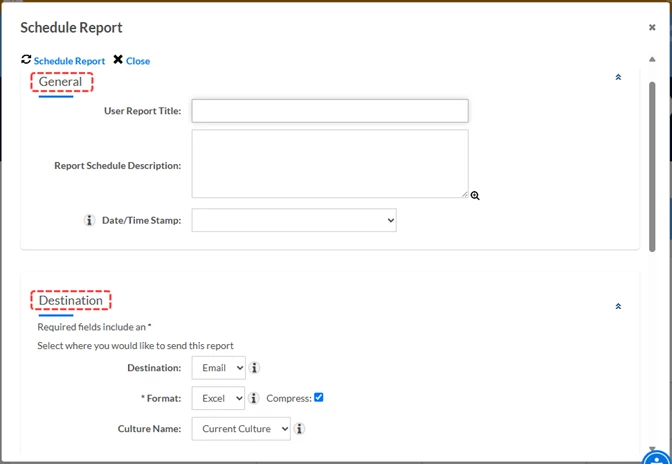
- In the General section, enter a report title and description.
- Confirm that the Destination is to the delivery method of your choice.
- Use the Format drop-down arrow to select the format of your choice. NOTE: Choices may be limited based on report type.
- Optional: Adjust the Culture Name if needed. (NOTE: This option is typically used by large, global based programs.
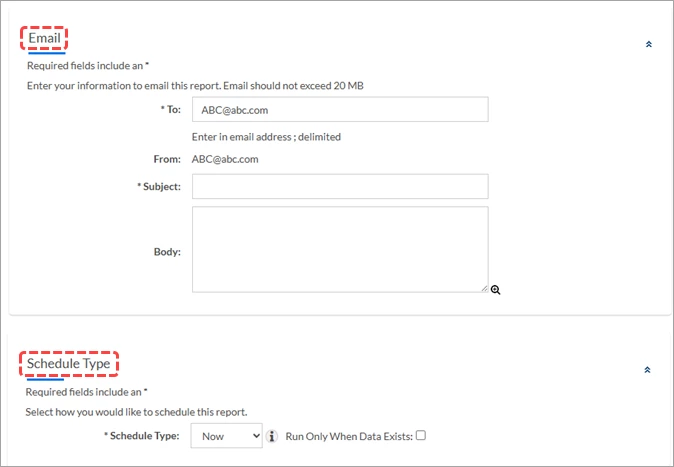
- Enter the email address of the user to whom you wish to send this report. If you plan to send it to multiple users, separate the email addresses with a semicolon (;).
Be AWARE: Report data is based on the data visibility settings of the person who schedules the report. Reports sent to users with higher visibility rights will only see data that reflects the sender—not the recipient.
- Enter an email title in the Subject field.
- Enter an email message in the Body field.
- Use the Schedule Type drop-down arrow to select how frequently the report will be sent.
- Optional: Check “Run Only When Data Exists” to ensure that a report is sent only when there is data.
- Review all fields and adjust as needed.
- Click Schedule Report. The dialog window closes.
To manage your scheduled reports:
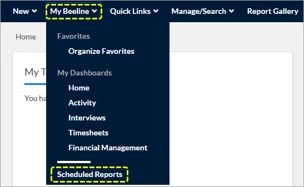
- Navigate to My Beeline > Scheduled Reports.
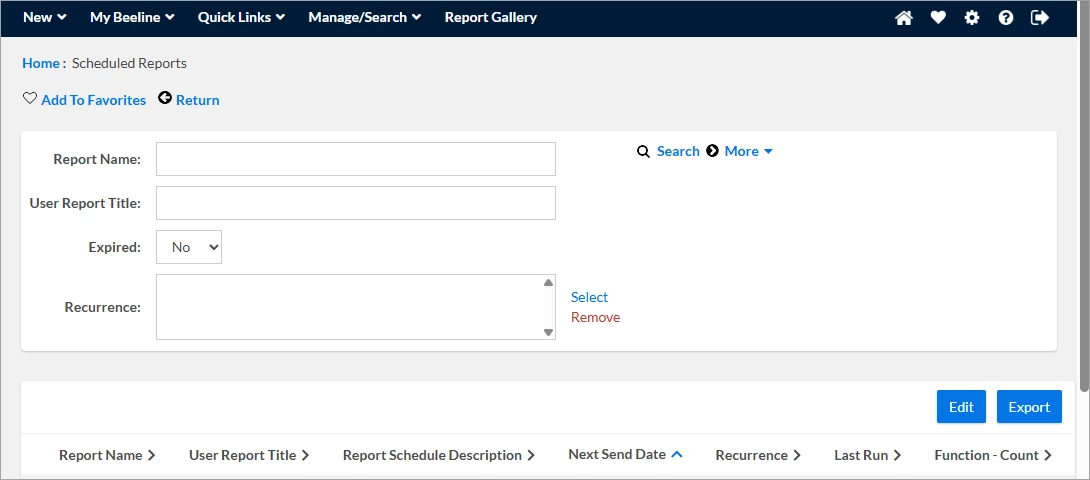
- From the Scheduled Reports screen, you can view, edit, copy, or cancel your scheduled reports.
| Persona | Module | Date Updated | Feedback? Email us: |
| Supplier | Beeline | Beeline Enterprise |