


This topic provides instructions only for System Admins with a System Integrator Certification.
Topics on this page
Update multiple project types in minutes—not hours
Managing project types across regions, industries, and active projects can quickly become complex and time-consuming. Bulk editing lets you update multiple project type settings at once from a single interface—so you stay consistent, reduce manual work, and apply changes instantly across active projects.
Bulk editing gives you a faster, more reliable way to manage project configurations at scale—so you can spend less time on setup and more time driving outcomes.
Why it matters
- Saves time by eliminating repetitive manual updates
- Reduces errors caused by editing project types one at a time
- Keeps project configurations consistent across geographies and industries
- Ensures updates apply immediately to all active projects tied to selected project types
Who it’s for
- System Admins with a System Integrator Certification
How it helps
- Edit multiple project types in one workflow instead of updating each individually
- Apply standardized settings across regions to maintain consistency
- Reduce administrative effort with fewer manual steps
- Minimize errors by avoiding repetitive data entry
- Keep all active projects aligned with the latest configuration changes
How to steps
Before using bulk edit, make sure you:
- System Admin role with Services Procurement access in your Beeline Enterprise VMS
- Understand your organization’s project types and template setup
- Existing project types configured in your system
- Know which fields or rules need to be updated
- Awareness of field dependencies (for example, enabling milestone settings before related options)
- Understand Project Types, SOWs and Enterprise templates
Information in this article reflects a standard Enterprise configuration. Your Enterprise platform is based on your organization’s configuration. Settings and/or data visibility rules may vary slightly from what is described.
To simultaneously update multiple Services Procurement Project Type parameters, complete these steps from your Enterprise dashboard.
- Select Preferences > VMS Settings > Project Management. A Project Management page displays.
- In the Administration section, select Project Type Bulk Edit. A Bulk Project Type Edit page displays.
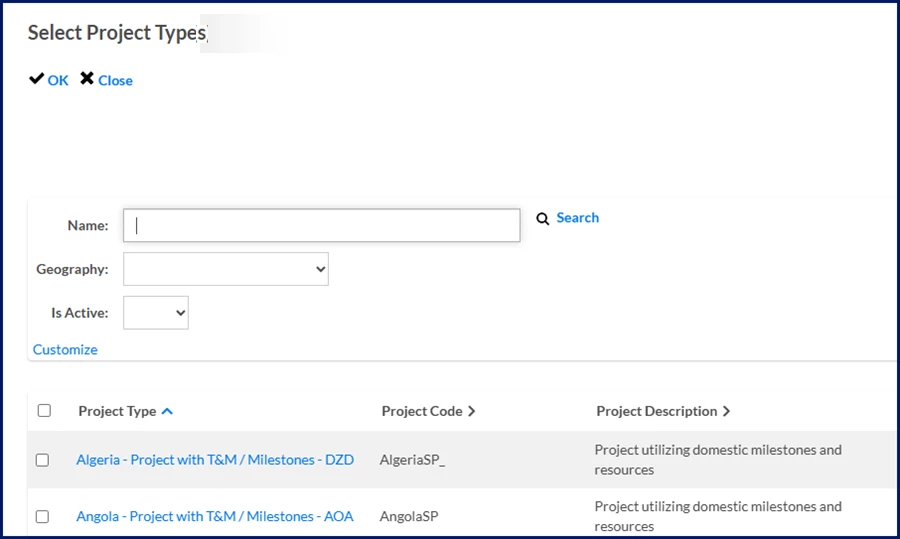
- Select the Project Types Search link to open the Select Project Types dialog displays.
- Select the Project Type checkbox for the type of project you want to modify, and then select OK to close the Select Project Types dialog and return to the Bulk Project Type Edit page.
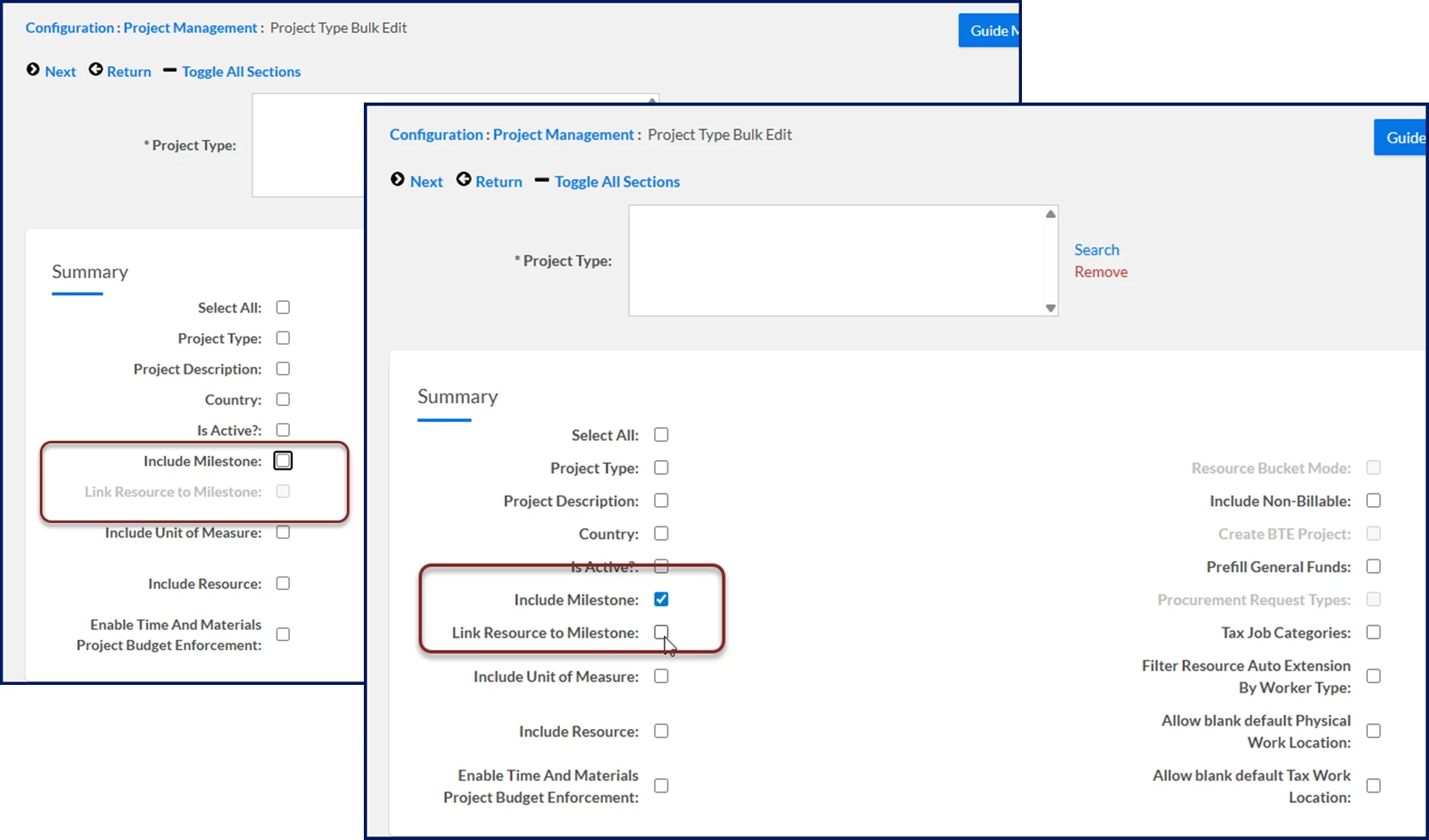
- Optional. To update the variables associated with a project type, select the checkbox next to one or more of the fields in these sections.
- Summary
- Validation Action
- Project Fields
- Client Defined View
- TM Cap
- Project Manager Defaulting
- Project Force Flags
- Project Amendment to Assignment Only Force Flags
- Filtering
Some fields are interdependent and are inactive until you select the primary parent field. For example, you cannot select the Link Resource to Milestone checkbox until you select the Include Milestone checkbox in the Summary section.
- Select Next.
- Based on the checkboxes in the sections you selected, you’re directed to additional pages so that you can modify details for the procurement project type you selected.
- After you’ve provided specifics for the details you want to modify, select OK to close the Bulk Project Type Edit page and apply your changes.
Understanding Project Types, SOWs and Enterprise templates
In Beeline Enterprise, projects, project types, statements of work (SOW), and SOW templates are interconnected structures that align to your business processes and workflows. Here's a quick breakdown of how they’re related.
- A project defines the business need.
- A project type provides the business rules and logic for what data is collected. It defines the nature or category of work for which contingent workers are engaged.
- An SOW is created to fulfill part (or all) of a project using external resources.
- An SOW template is used to create SOWs efficiently and consistently within a program.
| Project | Project Types | Statement of Work | SOW Template |
|---|---|---|---|
| A business initiative or objective that requires specific outcomes. May involve multiple SOWs if different suppliers or workstreams are required. The SOW is tied to the project to define and manage the work being outsourced. | A project type defines the nature or category of work for which contingent workers are engaged. | A formal contract that outlines the scope, deliverables, timelines, and payment terms for a specific body of work. Cost is made up of the individual milestones and the budget set aside for billable resources. | A predefined structure used to efficiently create accurate, consistent and compliant content across multiple SOWs. On the SOW template, you can include standard field, add custom fields, set default content, filter down the options available for milestone types, and more. |
Exploring Project Types
In Enterprise, in addition to defining the nature or category of work for which contingent workers are engaged Project Types also provide these guidelines.
- Define the business rules and logic for what data is collected when an SOW is created and how the SOW is handled as it progresses.
- Help identify the scope, duration, and contingent labor resource needs.
- Guide sourcing strategies, such as choosing to use a supplier vs a freelance platform.
- Influence compliance and risk management, such as ensuring workers are correctly classified and contracts are legally vetted.
The Beeline Enterprise standard configuration includes these four common Services Procurement Project Types. Your program may have multiple SOW templates associated with a Project Type, but usually there is a one-to-one relationship.
| Project type | Description | Payments |
|---|---|---|
| Milestone only | Deliverable-based projects that focus on specific outcomes or milestones. For example, launching a website or completing a software module. | Usually tied to the completion of phases or deliverables. |
| Unit of Measure Milestone | For statement of work (SOW)-based and services-based engagements, Enterprise supports Unit of Measure (UOM) projects. The UOM is a core project attribute that defines how a project is scoped, priced, and managed. UOM projects in Enterprise are built on the Milestone-only project type, where the deliverable/UOM is a unique milestone type. UOMs are typically categorized by purpose—such as Inventory, Cost, Manufacturing, Purchasing, or Sales. UOM projects in Enterprise focus on units purchased to accomplish tasks. The UOM types are defined in the SOW template associated with the project. | Usually tied to the completion of UOMs. |
| Time & Materials (T&M) only | Time-based projects where resources are required for a fixed duration, such as a Senior Developer, Project Manager, or Analyst billed at a negotiated rate. | Typically made for the actual time worked plus any materials or expenses incurred, rather than deliverables or outcomes. |
| T&M and Milestone | Blends the flexibility of T&M billing with the structure and accountability of milestone-based payments. This hybrid model is often used in complex or phased projects where both ongoing effort and specific deliverables are important. The T&M portion may apply to discovery, planning and support. While the Milestone portion focuses on accountability and completion of specific deliverables. | Can be made for actual time worked plus any materials, for expenses incurred, and/or when specific deliverables or phases are completed. |
Finding out about Project Type Parameters
The Services Procurement Project Types available in Enterprise include numerous parameters, so you can ensure that projects are handled correctly across the geographies and industries in which you operate. As an Enterprise system administrator, you can use Project Type parameters to ensure that variables essential for managing your ongoing projects (such as taxes, billable or nonbillable resources, PO numbers, cost centers, and much more) are correctly defined and captured.
| Persona Certified System Integrators | Modules Services Procurement | Documentation release Beeline Enterprise | Q2 2026 | Feedback? Email us: |