


Persona
Clients, program office users and system administrators
How to steps
Information in this article reflects a standard Enterprise configuration. Your Enterprise platform is based on your organization’s configuration. Settings and/or data visibility rules may vary slightly from what is described.
As a program office user, you may be responsible for managing user profiles in Beeline Enterprise. Sometimes you may need to make a user’s profile inactive or make a new user’s profile active.
You can easily manage user profiles from the Users page. From the Users page, you can access all users from a single list—regardless of user group, such as clients, MSPs, resources, and suppliers.
To accomplish your task, complete these steps from your Enterprise dashboard.
-
From the top Navigation menu, select Admin > Security. A Security Administration page displays.
-
From the left Navigation panel, select the Users folder.
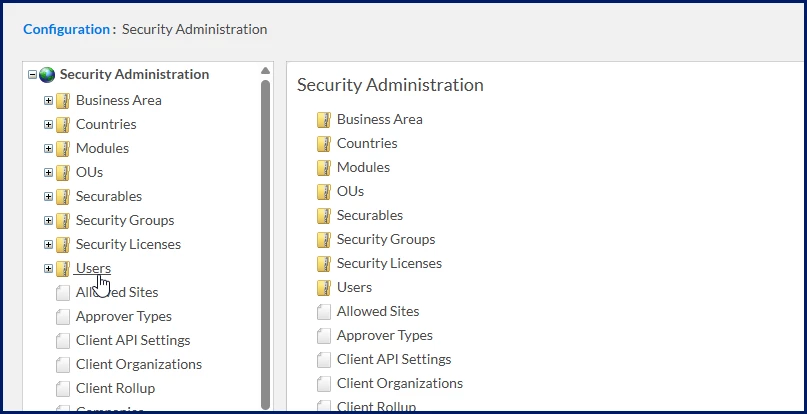
A Users page displays.
-
Use the fields on the Users page to enter identifying information about the user, and then select Search.
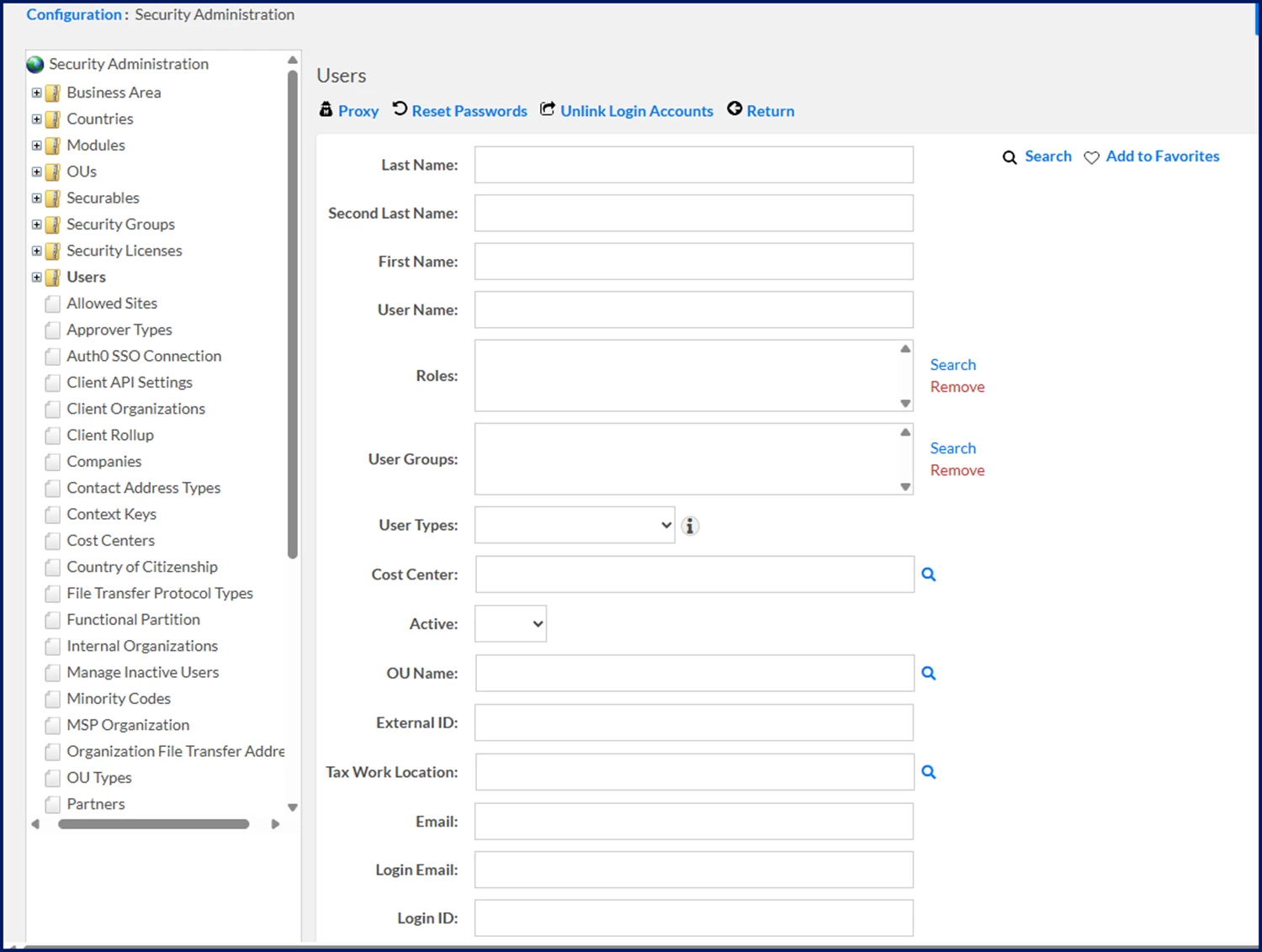
Search Results display at the bottom of the Users page.
-
From the Search Results, select the Name link for the user whose profile you want to manage.
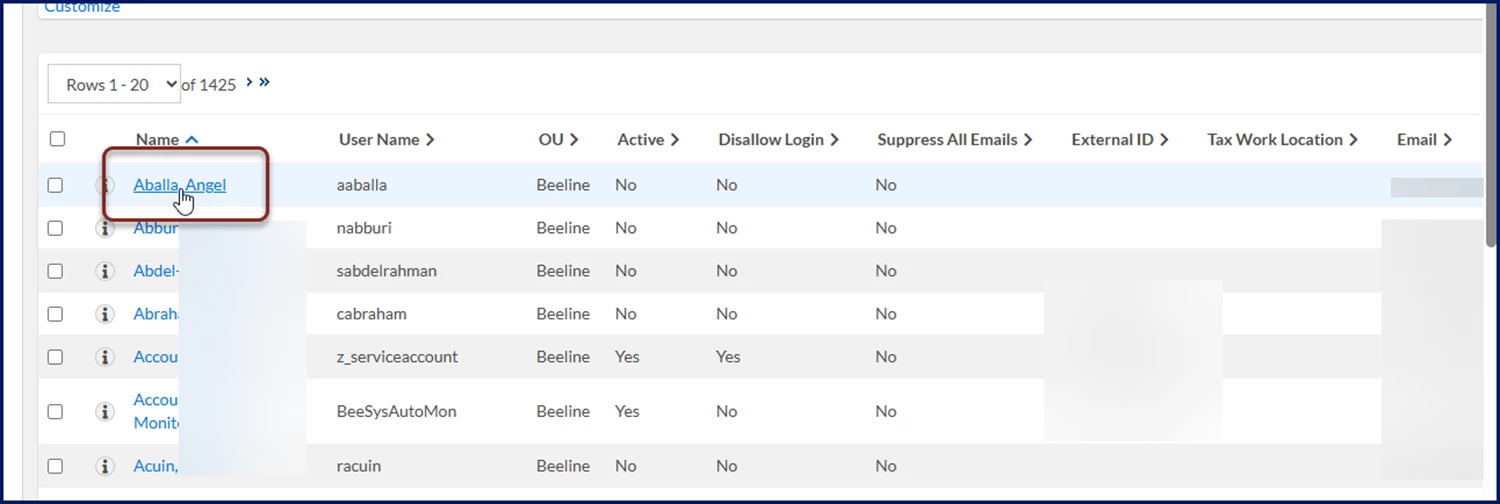
A View User Details - Summary page displays.
-
Select Edit. A View User Details - Details page displays. You can instantly view the status of the user’s profile.
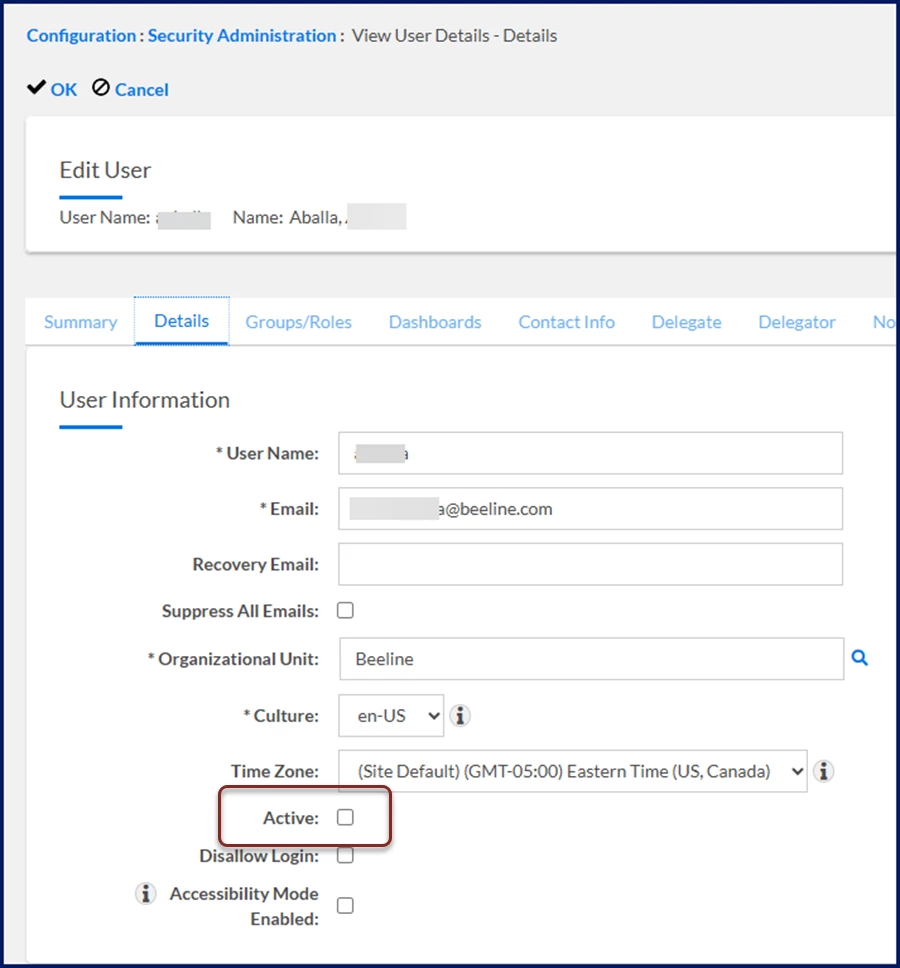
If the Active checkbox is selected, the user’s profile is enabled. If the Active checkbox isn’t selected, the user’s profile is inactive.
-
To activate a user’s profile, select the Active checkbox.
-
To deactivate a user’s profile, clear the Active checkbox.
-
Select OK. A message displays confirming your changes were saved.
TIP: If you make a user’s profile inactive while they’re logged in to Enterprise, your changes are applied as soon as that user logs out of Enterprise. -
Select Return to go back to the Users page.
-
Select the site logo in the upper left corner to return to your Enterprise dashboard.
Documentation release: Beeline Enterprise | Q3 2025