


Import screen
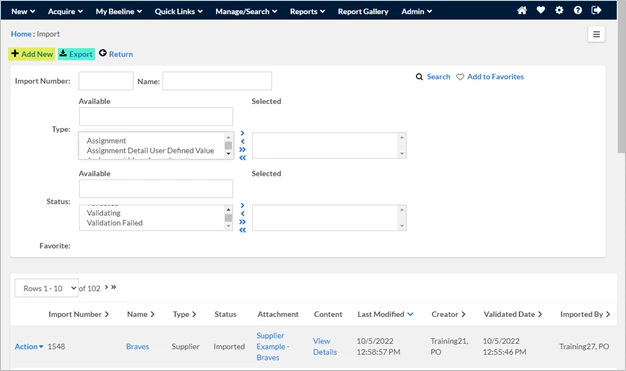
The Import screen is the portal to all Web Import Tool activity in Beeline Enterprise. The row below the screen title includes the action buttons (for example, Add New, Export, and Return). The top section of the screen displays search options/filters for locating previously imported data files. The list in the bottom section displays your “working” data files. Note that you can search by Import Number and Name but otherwise the functionality is standard Beeline Enterprise. Once you click the Add New button, you will advance to screens where the functionality is specific to validation and import processes. Take care to review and verify all data entered and all setting adjustments as they have the potential to impact data in your production environment, which in turn can impact Beeline Enterprise reports and analytics visualizations.
BE AWARE – The retention timeframe for these files is managed by the attachment clean-up process. This is based on a 30-day cycle where older files are automatically deleted from Beeline Enterprise server. However, processed file data is only retained for 14 days.
As a “best practice”, we recommend that you download and store copies of all your import files in a location that is accessible to all your Program Office staff who have Web import Tool access rights. These files can be used to track your system updates and as a sample file to create new import files—however, care should be taken that all new files reflect CURRENT data and not just a copy/paste of a previously used file.
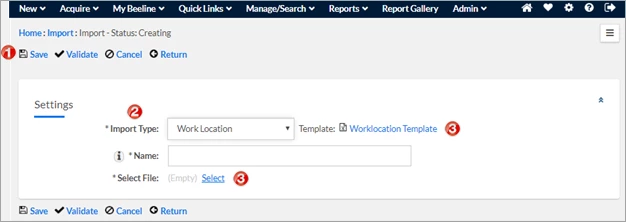
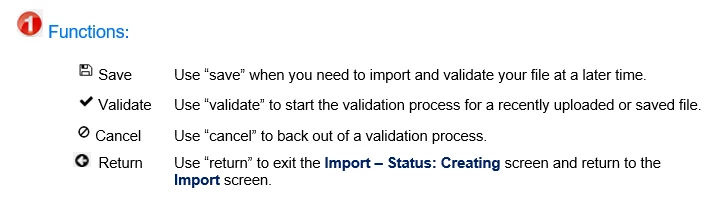
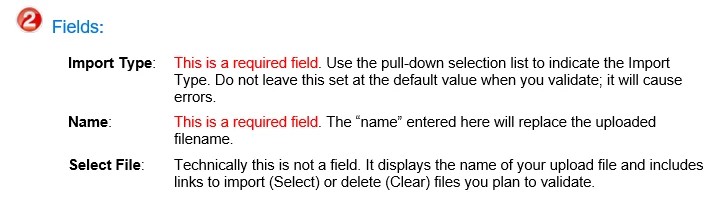
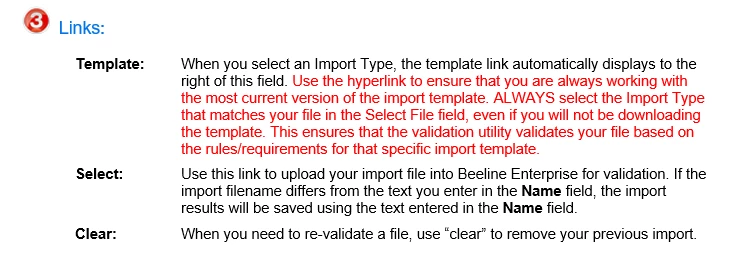
Import – Status: Creating (screen details)
Import Results (screen details)
|

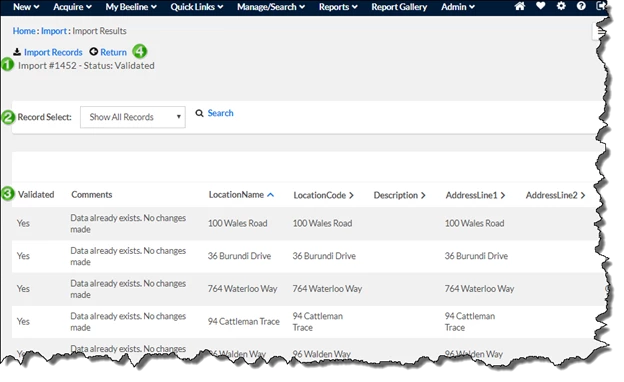
| The import number and current file status displays at the top of the Import Results screen. Import numbers are auto assigned during the validation process and are unique identifiers of import files. The file status updates as your import file works its way through the validation process steps. |
|

| The Record Select feature allows you to filter your validation results by: Show All Records, Show Valid Records, or Show Failed Records. When working with large import files, this can simplify resolving validation-related issues. |
|

| Each row from your import file displays as a separate line item in your results list. The list includes two new columns for Validated and Comments. The Validated column is a Yes or No value to indicate if the item validated or not. The Comments column indicates a successful validation or items that need to be corrected when the validation fails. All other displayed columns will be an exact match to the Import Type selected on the Import – Status: Creating screen during the upload process—which is why the Import Type should never be left at the default setting! Successfully validated line items should be reviewed before import to ensure the information is accurate. Validation does not confirm the accuracy of the data; only that it conforms to Beeline Enterprise data format/logic requirements. |
|

| Click the Return button to exit the Import Results screen and return to the Import screen. Using this link is preferred rather than using the <back> arrow on your Web browser. An Import Records button will display at the top of the screen for users with the Validate with Import Rights permission when the validated file is ready for import. |
♦ More details and instructions for working with import template files can be found in the Web Import Tool Guide located here.
| Persona | Module | Date Posted | Feedback? Email us: |
| Admin / Manager | All | Beeline Enterprise |