


Submit multiple candidates in one step
When you need to fill multiple openings, you can submit multiple candidates using either the standard Submit Candidate workflow or Submit Multiple Candidates. Both options allow you to submit more than one candidate, but each option is designed for different submission scenarios.
Jump to what you want
Ways to submit multiple candidates
| Method | Best for | Key capabilities |
|---|---|---|
| Submit Candidate | Submitting one or more candidates from resource profiles | Select existing resource profiles, create new resource profiles, or import resource profiles before submitting candidates. |
| Submit Multiple Candidates | Reviewing and submitting multiple candidates from a single workspace | Select resources from an import file or resource list, review candidate information in a grid, update candidate details, and submit candidates in a single action. |
Recommended for high-volume submissions: Use Submit Multiple Candidates when you need to submit large numbers of candidates. The Candidate Selection grid provides a more efficient way to review, update, validate, and submit multiple candidates from a single workspace.
Choose the right submission method
| If you want to... | Use... | Why |
|---|---|---|
| Submit one or a few candidates using the standard workflow | Submit Candidate | Select existing resource profiles and submit them through the standard candidate submission process. |
| Create a missing resource profile before submission | Submit Candidate | Supports creating a new resource profile directly from the Select Profiles to Submit page. |
| Import resource profiles before submission | Submit Candidate | Supports importing resource profiles directly from the Select Profiles to Submit page. |
| Submit multiple candidates to the same request | Submit Candidate or Submit Multiple Candidates | Both workflows support submitting more than one candidate. |
| Submit a large number of candidates | Submit Multiple Candidates | Provides a dedicated Candidate Selection grid for reviewing and submitting multiple candidates from a single workspace. |
| Select candidates from a previously created resource import | Submit Multiple Candidates | Lets you load candidates directly from an existing resource import. |
| Locate resources that are not available in the default list | Submit Multiple Candidates | Supports Advanced Search All. |
| Update candidate information before submission | Submit Multiple Candidates | Lets you review and update candidate information from the Candidate Selection grid. |
| Review validation results before submission | Submit Multiple Candidates | Displays validation feedback before candidates are submitted. |
| Manage background check requirements during submission | Submit Multiple Candidates | Displays required and optional background check information during submission. |
Why it matters
- Fill high-volume requests more efficiently.
- Reduce the time and effort required to submit candidates.
- Improve submission accuracy before candidates enter the workflow.
- Increase visibility into candidate processing progress.
- Streamline candidate onboarding activities.
- Spend less time on administrative tasks and more time filling positions.
Who it's for
- Suppliers who regularly submit large volumes of candidates.
- Program office users who manage high-volume staffing programs.
Availability and setup
You can submit multiple candidates using either the standard Submit Candidate workflow or Submit Multiple Candidates.
Submit Candidate
No additional setup is required.
Submit Multiple Candidates
To use Submit Multiple Candidates:
- Submit Multiple Candidates must be available for your organization. Adding this feature requires a Service Request ticket to enable it and configure the appropriate request types.
- The request must support the Submit Multiple Candidates workflow.
How it helps
- Submit multiple candidates using either the Submit Candidate or Submit Multiple Candidates workflow.
- Select existing resource profiles, create new profiles, or import profiles during the submission process.
- Reuse resource imports when additional candidates are needed.
- Review candidate information from a single workspace before submission.
- Update candidate information before candidates enter the workflow.
- View required and optional background check information during submission.
- Monitor candidate processing results and resolve issues as needed.
Submit Multiple Candidates considerations
- Supports submitting multiple candidates to a single request.
- Works best for high-volume requests where multiple openings share the same job requirements.
- Candidate submission limits may be configured by your organization and can vary by request type or labor category.
- Does not support candidate rate negotiations.
- May not support some candidate fields, including attachments, skills matching, and certain client-defined fields.
- May not support some validations, such as tenure and DNR validations.
Before you begin
Submit Candidate
- Use a request that is in an Open status.
- Ensure the request has been released to suppliers.
- If needed, import resource profiles before submitting candidates. You can access Resource Import from Manage/Search > Resource Pool or from the Select Profiles to Submit page.
Submit Multiple Candidates
- Use a request that is in an Open status.
- Ensure the request has been released to suppliers.
- Verify any required background check requirements have been completed.
Information in this article reflects a standard Enterprise configuration. Your Enterprise platform is based on your organization’s configuration. Settings and/or data visibility rules may vary slightly from what is described.
To accomplish your task, complete these steps from your Enterprise dashboard.
Submit multiple candidates using Submit Candidate
Use this option when you want to submit one or more candidates from resource profiles.
- From the Simple Search option at the upper right of your dashboard, select Search Requests, enter the request number, and then select the request you want. A Request Details page displays.
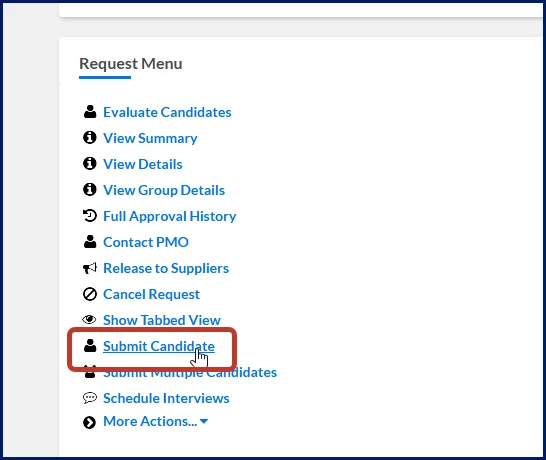
- From the Request Menu, select Submit Candidate.
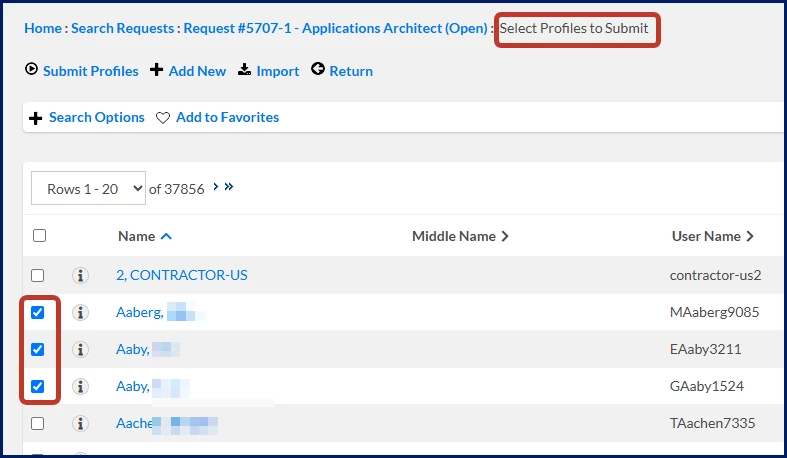
The Select Profiles to Submit page displays. - Optional. If you can’t locate the resource profile you need, use Search Options to refine the results.
- Select one or more resource profiles.
What this does: Lets you choose the candidates you want to submit to the request.
Why this matters: You can submit multiple candidates simultaneously using existing resource profiles.
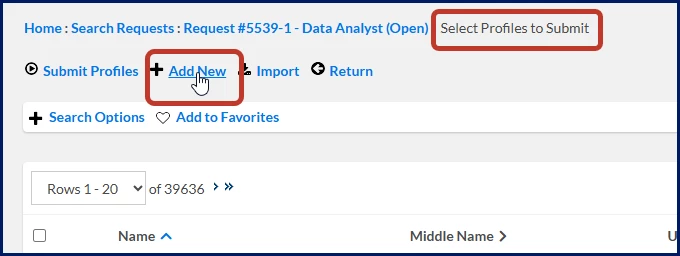
- Optional. If the resource profile you need is not available:
- Select Add New to create a resource profile.
OR - Select Import to import resource profiles.
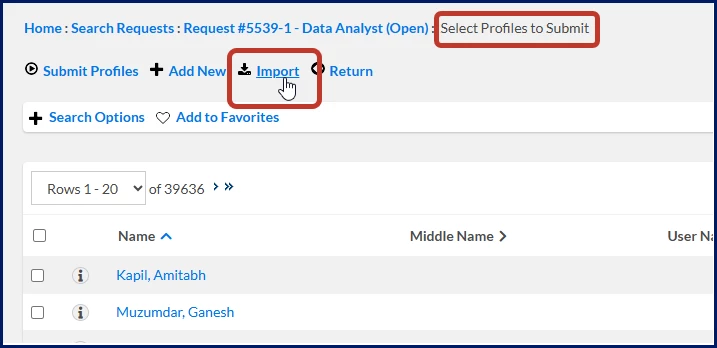
TIP: Always review existing resource profiles before creating a new profile to help avoid creating duplicate records.
- Select Add New to create a resource profile.
- Select Submit Profiles. The Submit Profiles page displays.
- Complete the required submission information. Required fields vary by request type and may include:
- Supplier
- Rates
- Background checks
- Request-specific fields
What this does: Captures the information required to complete candidate submission.
Why this matters: Complete and accurate information helps avoid submission and processing issues.
-
Select Submit.
-
If validation errors occur, correct the identified issues and resubmit the candidates.
Result
The selected resource profiles are submitted as candidates through the standard candidate submission workflow.
Submit multiple candidates using Submit Multiple Candidates
Use this option to review and submit multiple candidates from a single workspace.
- From the Simple Search option at the upper right of your dashboard, select Search Requests, enter the request number, and then select the request you want. A Request Details page displays.
- From the Request Menu, select Submit Multiple Candidates.
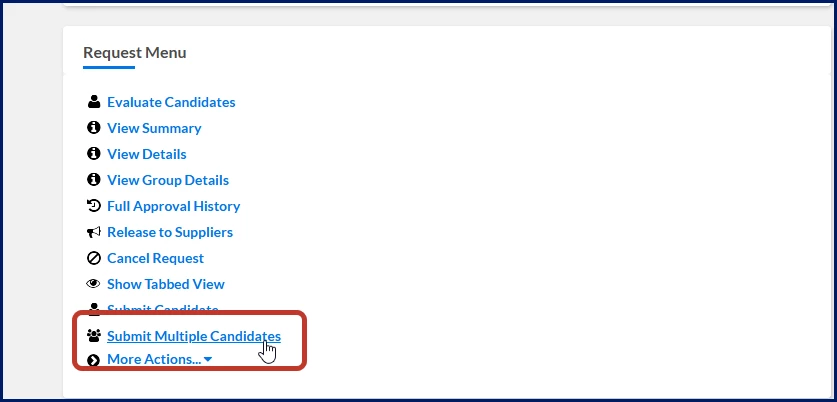
The Submit Multiple Candidates page displays.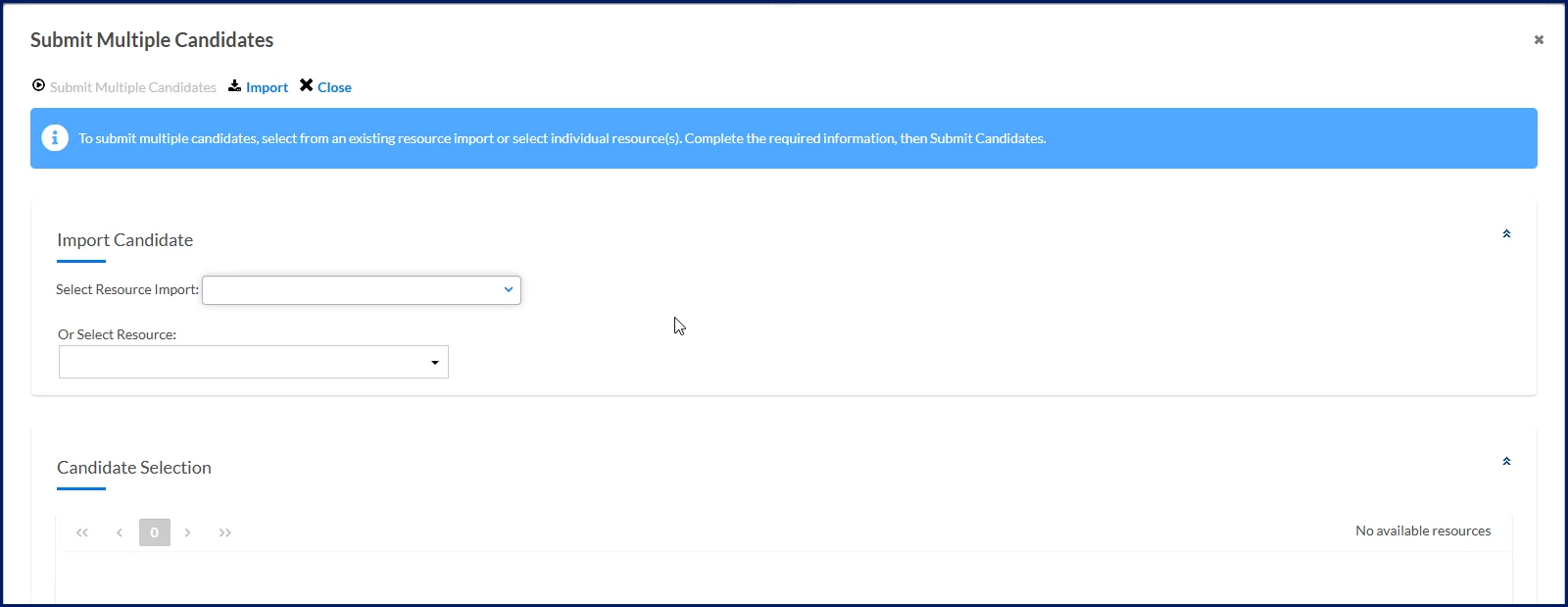
- Add candidates using one of the following methods:
-
Select Import to create a new resource import.
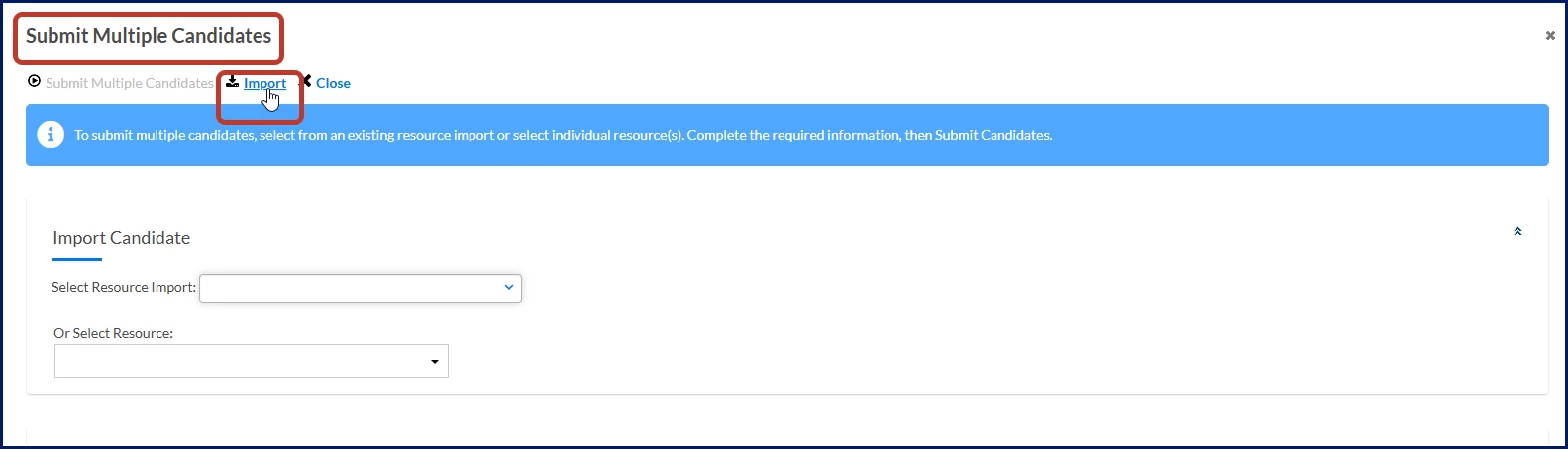
The Resource Import page displays.
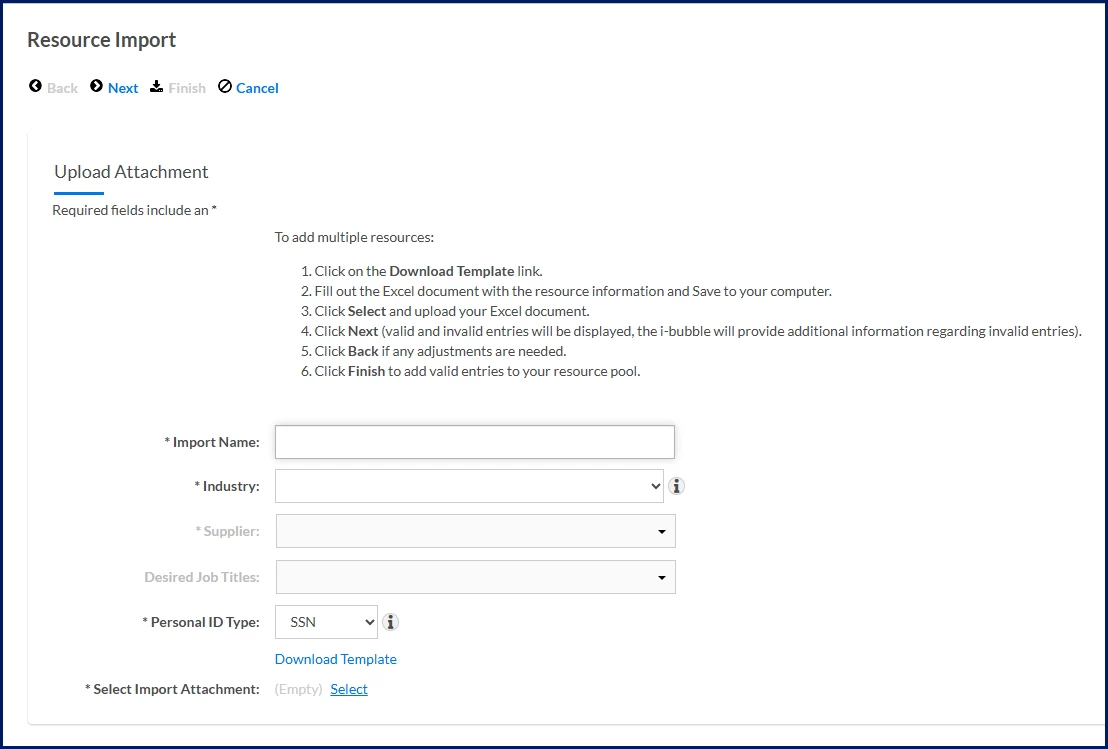
OR
-
Select a previously created resource import from Select Resource Import.
TIP: Only previously created resource imports are available in the Select Resource Import list. If an import isn't available, create a new resource import or select resources individually.
OR - Select one or more resources from Or Select Resource.
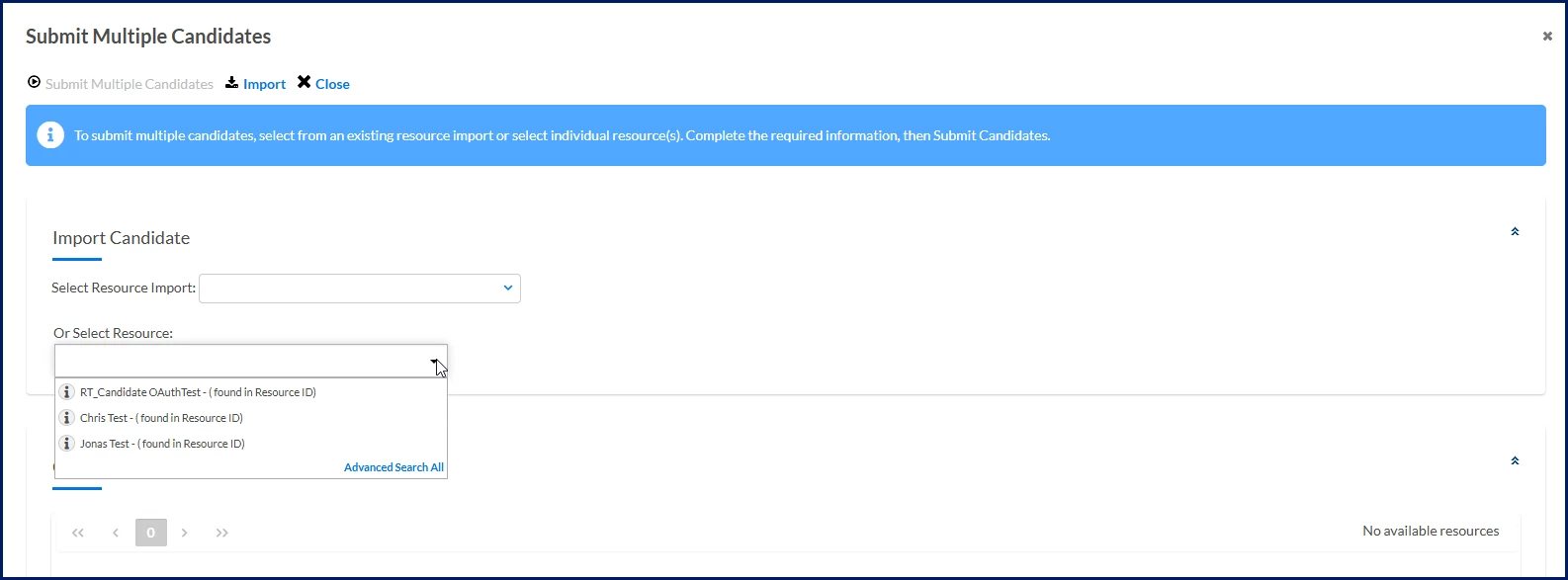
What this does: Adds candidates to the Candidate Selection grid.
Why this matters: You can use an existing resource import, create a new import, or select individual resources based on how candidates are managed in your organization.
-
- Optional. If you selected Or Select Resource and the resource you need is not available:
- Select Advanced Search All. The Search Resources page displays.
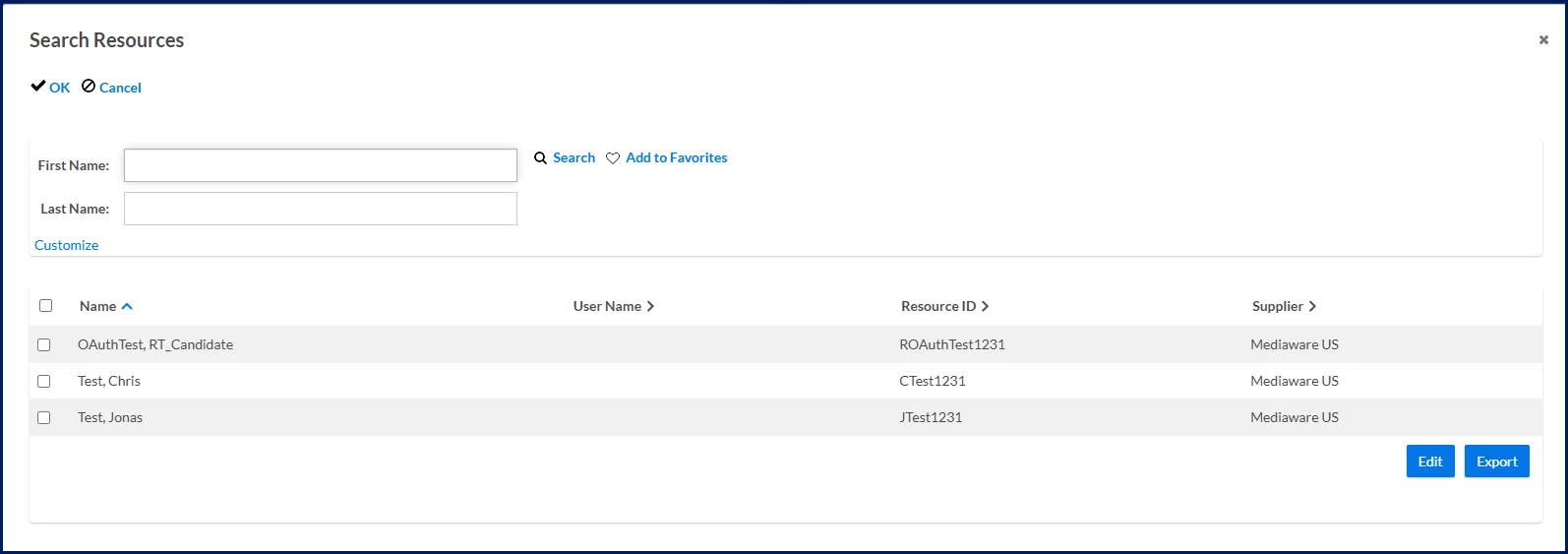
- Search for the appropriate resource.
- Select one or more resources.
- Select OK to close the Search Resource dialog and return to the Submit Multiple Candidates page.
- Select Advanced Search All. The Search Resources page displays.
- Review the candidates displayed in the Candidate Selection grid. Depending on your configuration, the grid may include:
- Candidate name
- Initial private ID
- Date available
- Resource type
- Former employee indicator
- Former contractor indicator
- Background check information
- Client-defined fields (CDFs)
- Update candidate information as needed.
What this does: Lets you review and update candidate information before submission.
Why this matters: Reviewing candidate information before submission helps improve accuracy and reduces processing issues.
- Complete any required background checks.
What this does: Displays required and optional background check requirements for the selected candidates.
Why this matters: Completing required background checks helps ensure candidates meet submission requirements.
- Resolve any validation issues.
What this does: Identifies missing or invalid information before submission.
Why this matters: Correcting issues before submission helps prevent processing errors and rework.
- Select Submit Candidates.
What this does: Submits all selected candidates in a single action.
Why this matters: Submitting multiple candidates simultaneously reduces manual effort and speeds candidate submission.
- Monitor processing results and resolve any issues as needed.
Result
The selected candidates are submitted through the Submit Multiple Candidates workflow. Successfully processed candidates continue through the staffing process, while candidates with errors can be reviewed and corrected individually.
Frequently asked questions
Why would I use Submit Multiple Candidates instead of Submit Candidate?
Submit Multiple Candidates allows you to review and submit multiple candidates from a single workspace and supports selecting candidates from resource imports or resource searches.
Why don't I see the resource profile I want to submit?
Use Search Options on the Select Profiles to Submit page or use Advanced Search All in the Submit Multiple Candidates workflow to locate additional resources.
Where can I access Resource Import?
You can access Resource Import from:
- Manage/Search > Resource Pool
- The Select Profiles to Submit page by selecting Import
Resource profiles imported through either path are added to the Resource Pool and can be selected during candidate submission.
Can I submit an unlimited number of candidates?
Candidate submission limits may be configured by your organization. Limits can vary by request type and labor category.
Why don't I see background checks?
Background checks depend on request configuration. Some requests may display required background checks, optional background checks, or no background checks at all.
Can I submit candidates to multiple requests at the same time?
No. Submit Multiple Candidates supports submitting multiple candidates to a single request.
Learn more
Need to add a worker before submitting them as a candidate?
- Create or import a Resource Profile: Create a new resource profile, upload multiple resource profiles, and make workers available for candidate submission.
| Persona Program office users, suppliers | Modules Contingent Staffing Services Procurement | Documentation release Beeline Enterprise | Q2 2026 | Feedback? Email us: |