Sometimes you may need to add a miscellaneous fee with a repeated payment. For example, suppliers often collect a management fee for their services, such as a finder’s or payroll fee. Most suppliers build that fee into their bill rate for a worker. However, some suppliers want a monthly flat-rate fee paid to them. That monthly fee can be set up as a recurring fee paid to the supplier and billed to the client.
Adding recurring miscellaneous fees streamlines managing miscellaneous fees. Recurring miscellaneous fees are automatically generated within a designated timeframe based on a schedule you define. Recurring miscellaneous fees retain all tax and fee options associated with the miscellaneous fee. Plus, you can use a single approval workflow to process a series of recurring miscellaneous fees.
You can add a recurring miscellaneous fee to an active assignment. When an assignment is terminated early (prior to the original end date) all outstanding occurrences of a recurring fee are automatically canceled. You cannot add a recurring miscellaneous fee to an inactive assignment.
All occurrences of a recurring fee are generated when you create a schedule so that those fees can be approved or rejected as a single unit. Although all recurring fees are generated and approved as a group, each miscellaneous fee is invoiced based on the interval you define. You can define daily, weekly, and bi-weekly invoicing intervals.
To add a recurring miscellaneous fee to an active assignment, complete these steps from your default dashboard.
From the Simple Search option at the upper right of your dashboard, enter an assignment ID or a resource name for the active assignment to which you want to add a miscellaneous fee. An Assignment page displays.
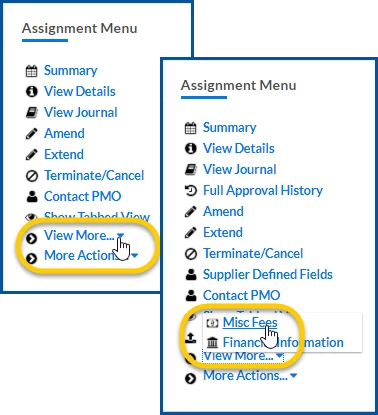
From the AssignmentMenu in the lower left corner, select More Actions>Add Misc Fee. A MiscFeeEdit page displays.
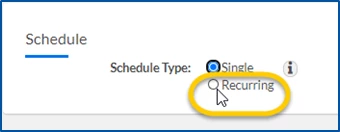
In the Schedule section, select the Recurring option for the ScheduleType. Additional fields display in the Schedule section so you can define details for the recurring miscellaneous fee.
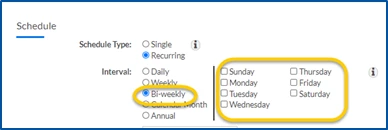
From the Interval options, select the period when the fee recurs. Such as, daily, weekly, and more.
Optional. Some Interval options require you to define additional criteria. Select the additional criteria for the Interval option you selected. For example, when you select Bi‑weekly as your Interval option, you must select the day or days of the week that apply.
Daily. Generates miscellaneous fees every day (7 days a week) or every weekday (Monday through Friday) during the recurrence period you designate.
Weekly. Generates miscellaneous fees once a week on the day of the week you specify during the recurrence period you designate.
Bi-weekly. Generates miscellaneous fees every 2 weeks on the day of the week you specify during the recurrence period you designate.
Calendar Month. Generates miscellaneous fees once a month during the recurrence period you designate.
Annual. Generates miscellaneous once a year during the recurrence period you designate.
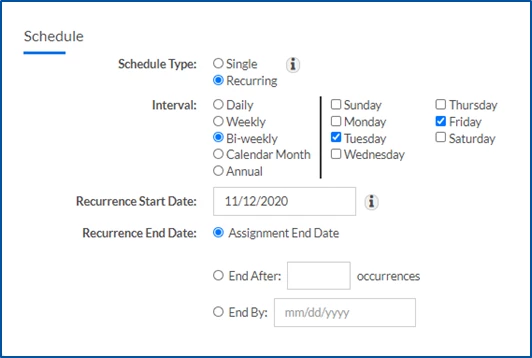
Use the Recurrence StartDate calendar to select the first date the recurring miscellaneous fee is generated.
From the Recurrence End Date section, select one of these options to define the last date the recurring miscellaneous fee is generated.
Assignment End Date—stops the recurring miscellaneous fee when the assignment ends.
End After # occurrences—stops the recurring miscellaneous fee after the number of times you specify.
End By date—stops the recurring miscellaneous fee on the date you specify.
From the FeeCategory list, select the kind of miscellaneous fee you want to apply.
From the FeeCategory list, select the applicable code for the miscellaneous fee.
If your page refreshes and displays additional fields, make sure the values in the Units and the Amount fields are correct.
Use the EffectiveDate calendar to select the date to which the miscellaneous fee applies.
In the Note field, enter an explanation for miscellaneous fee.
Select OK.
Optional. If your selections create more than one miscellaneous fee, a message displays asking you to confirm your actions. Select OK. A message displays informing you your changes were saved, and you’re returned to the Assignment page.
Select Return to close the Assignment Edit –MiscFee page and return to the assignment record.
Please complete the following fields as part of your Beeline Community registration. Unless noted as private, this information will be displayed on your user profile within the community.