You can add a single nonrecurring miscellaneous fee to an active assignment. For example, you might pay a one-time reimbursement to your Supplier for the cost of a background check.
Occasionally, you might need to add a miscellaneous fee to an expired assignment. When you add a miscellaneous fee to an expired assignment, make sure the effective date for the fee is within the dates for the assignment. For example, you can add a conversion fee 90-days after the end of an assignment with an effective date during the date range of the assignment.
To add a miscellaneous fee to an active assignment, complete these steps from your default dashboard.
From the Simple Search option at the upper right of your dashboard, enter an assignment ID or a resource name for the active assignment to which you want to add a miscellaneous fee. An Assignment page displays.
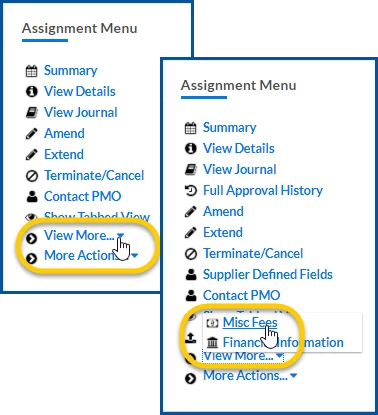
From the AssignmentMenu in the lower left corner, select More Actions>Add Misc Fee. A MiscFeeEdit page displays.
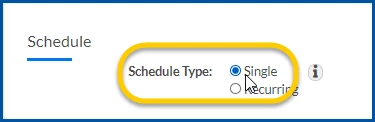
In the Schedule section, select the Single option.
From the FeeCategory list, select the kind of miscellaneous fee you want to apply.
From the FeeCategory list, select the applicable code for the miscellaneous fee.
If your page refreshes and displays additional fields, make sure the values in the Units and the Amount fields are correct.
Use the EffectiveDate calendar to select the date to which the miscellaneous fee applies.
Use the Effective Date Calendar to add the date to which the fee applies.
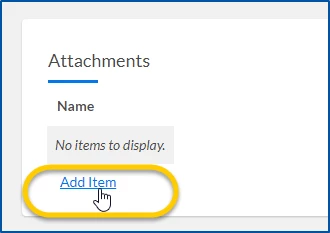
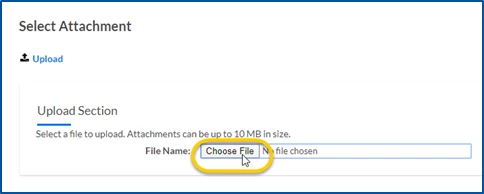
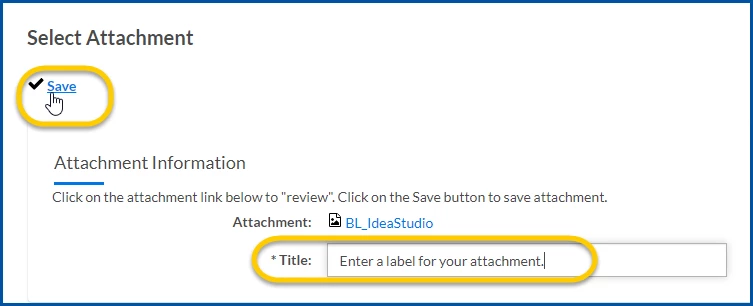
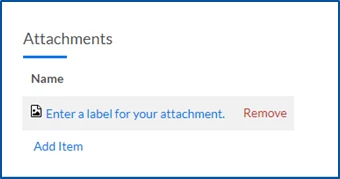
Optional: To include an attachment, take these actions: a. In the Attachments section, select AddItem. A Select Attachment dialog displays. b. Select ChooseFile, and then navigate to the file you want to attach. c. Select Upload. You file is uploaded. d. In the Title field, enter a label for your attachment. e. Select Save. Your file is attached to the miscellaneous fee you’re adding. f. Repeat steps a through e to include additional attachments.
In the Note field, enter an explanation for miscellaneous fee.
Select OK.
A message displays informing you your changes were saved, and you’re returned to the Assignment page.
Please complete the following fields as part of your Beeline Community registration. Unless noted as private, this information will be displayed on your user profile within the community.