


Catch issues early, fix faster, and keep invoices flowing.
Automated data validations help you prevent invoicing failures by checking your financial data before and during invoice processing. With pre-validation and recurring validations, you quickly identify issues, isolate risky records and keep accurate data moving forward—so your billing runs stay on track with less manual effort.
Your Beeline Enterprise Invoicing solution includes these two types of automated data integrity checks to help you minimize invoicing failures: pre-validation and recurring validations.
Automated data validations help identify financial records that may cause invoicing failures before they impact billing and continue monitoring key records throughout the invoicing lifecycle.
Why they matter
- Reduce invoice failures by validating data before it impacts billing
- Keep clean records moving while isolating problematic ones automatically
- Detect and fix errors early with continuous checks and clear visibility
- Minimize rework with targeted error notifications and dashboards
- Improve billing accuracy across timesheets, expenses, fees, and milestones
Who it’s for
- Finance and billing teams who manage invoice processing
- Program managers responsible for financial data quality
- Operations teams tracking timesheets, expenses, and milestones
- Administrators who configure and monitor enterprise invoicing workflows
How it helps
- Automatically remove invalid records before invoice processing so you submit cleaner, error-free batches.
- Continuously validate financial records so you catch and fix issues even after approval.
- Surface errors through notifications and dashboards so you can act quickly and confidently.
- Keep valid records moving forward while isolating or flagging issues to avoid full batch failures.
- Provide clear visibility into validation results so you can monitor data quality and stay in control.
How it works
| Step | What happens | Outcome |
|---|---|---|
| Validate before processing | Pre-validations check data just before invoice batch execution | Identifies issues before they affect billing |
| Monitor continuously | Recurring validations review financial records at scheduled intervals | Detects issues throughout the lifecycle |
| Handle invalid records | System extracts or flags records without changing approval status | Keeps processing clean while preserving data state |
| Notify users | Errors appear in email logs, dashboards, and validation widgets | Directs users to issues needing action |
| Reprocess corrected data | Updated records enter the next invoice batch after correction | Ensures accurate billing once issues are resolved |
🔷Explore the details
| Pre-validations | Recurring | |
|---|---|---|
| Data | Timesheets, expenses, miscellaneous fees, milestones, and units of measure | Timesheets, expenses, miscellaneous fees, milestones, and units of measure |
| Integrity validations | Pre-validations automatically validate your financial data immediately before your scheduled invoice batch is processed. | Financial records submitted for processing are automatically checked for specific data integrity points at recurring intervals. |
| Record disposition | Extracted Financial records that could cause failures in scheduled invoice batches are automatically identified and removed from a scheduled batch. Once extracted, the record remains in an Approved status. Accurate records are processed in your scheduled batch. | Flagged Invalid records are immediately flagged but are not removed from a scheduled invoice batch. The record remains in an Approved status but will continue to cause an error and trigger a notification. |
| Notifications | Error log emails notify you about invalid data so responsible personnel can review, revise, and reapprove records as needed. | Errors automatically display in the Financial Management dashboard and the Recurring Validations widget. |
| Data reprocessing | How quickly corrected records are added to your next scheduled invoice batch depends entirely on how fast you and your team remediate errors and, when necessary, reapprove financials. | Invalid records with recurring errors will continue to error out until you correct the data. After you correct the error, the record will be included your next scheduled invoice batch |
| Visibility | Visibility into the Recurring Validations widget, the Financial Management dashboard and financial data respect your existing Enterprise configuration. | |
Information in this article reflects a standard Enterprise configuration. Your Enterprise platform is based on your organization’s configuration settings and/or data visibility rules and may vary slightly from what is described.
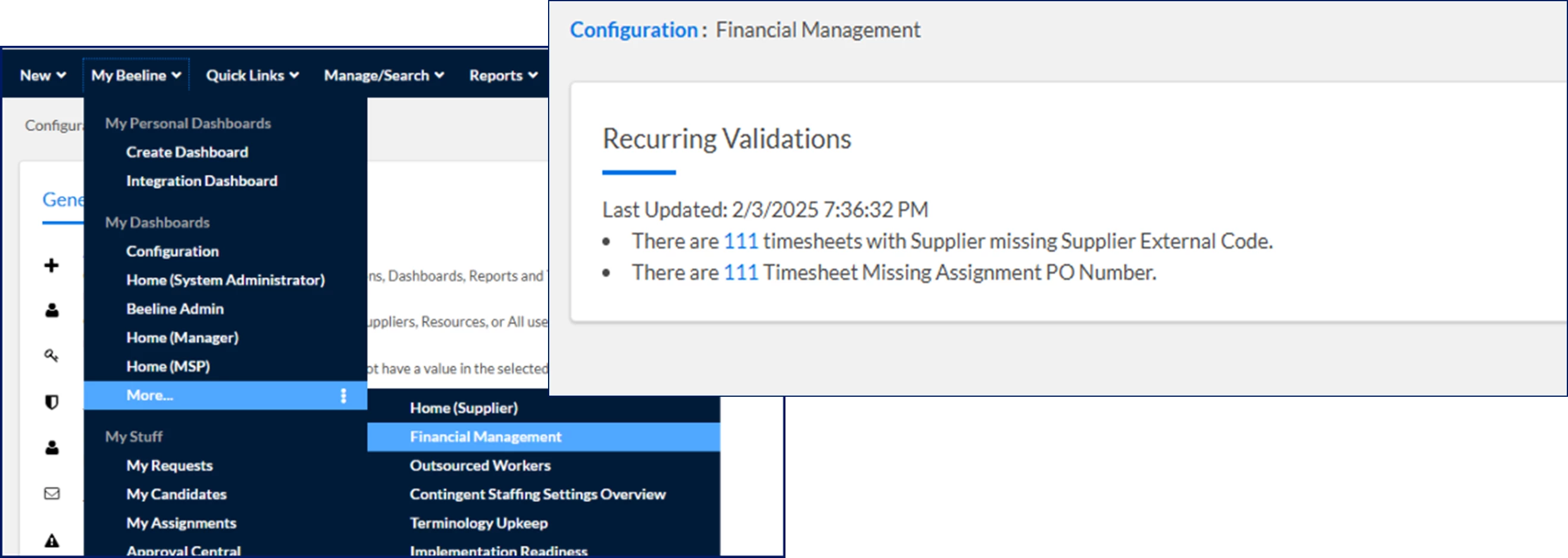
Navigating to the Financial Management dashboard
To get to the Financial Management dashboard, complete these steps from your Enterprise dashboard.
- Select My Beeline > My Dashboards > More > Financial Management.
Adding the Recurring Validations widget
To add the Recurring Validations widget, complete these steps from your Enterprise dashboard.
- Select My Beeline > My Personal Dashboards > Create Dashboard.
- In the Dashboard Name field, add a label for your dashboard.
- Select a format for your dashboard from the Choose Layout section.
- Select Create.
- Drag and drop the Recurring Validations widget from the General section in the Widget Library to the location you want in your dashboard.
- Select the Save icon.
Timesheet validations
Timesheet pre-validations and recurring
These validations run before invoice batch processing and during recurring validation reviews, helping identify data issues that could prevent successful invoicing or impact approved financial records after submission.
Inactive cost center on timesheet
Validation type: Pre-validation and recurring
Issue: A timesheet contains entries billed to an inactive cost center.
Why this happens: The cost center used for invoicing is inactive. Depending on your configuration, the invoicing cost center may originate from the assignment, the timesheet, a cost allocation value on the assignment, or a cost allocation value on the timesheet.
🔷 Resolution
If the cost center should be active
- Reactivate the cost center.
- Navigate to Admin > Security > Cost Centers.
- Review and update the cost center status.
If the invoicing cost center came from the assignment
- Amend the assignment.
- Update the cost center to an active value.
- Use an effective date earlier than the week ending on the submitted timesheet.
- Save the assignment.
If the invoicing cost center came from the timesheet
- Select an active cost center on the timesheet.
- Resubmit the timesheet for approval.
If the invoicing cost center came from an assignment cost allocation string
- Amend the assignment.
- Update the cost allocation string with an active cost center.
- Use an effective date earlier than the assignment start date.
- Save the assignment.
If the invoicing cost center came from a timesheet cost allocation string
- Correct the allocation details.
- Update the cost center to an active value.
- Resubmit the timesheet if required.
Missing funding model timesheet
Validation type: Pre-validation and recurring
Issue: A funding model is required and active but is missing from the submitted timesheet.
Why this happens: The supplier associated with the timesheet is not configured with the funding model required for invoice processing.
🔷 Resolution
- Review the supplier identified in the validation message.
- Associate the required funding model with the supplier record.
- Save the supplier record.
- Allow the timesheet to process during the next invoice batch.
Missing supplier external code timesheet
Validation type: Pre-validation and recurring
Issue: The supplier associated with the timesheet does not have an external code defined.
Why this happens: An external supplier code is required for invoice processing.
🔷 Resolution
- Navigate to Admin > Security.
- Select Suppliers.
- Locate the supplier identified in the validation.
- Open the supplier record.
- Select Edit.
- Enter a value in the External Code field.
- Save the supplier record.
- Allow the timesheet to process during the next invoice batch.
Overtime entry when OT Calc on
Validation type: Pre-validation and recurring
Issue: Overtime was entered on a timesheet when automatic overtime calculation is enabled.
Why this happens: The assignment is configured to automatically calculate overtime, but overtime earning codes remain available during time entry. This configuration mismatch can result in unsupported overtime submissions.
🔷 Resolution
Work with your Client Operations Manager (COM) to determine the appropriate configuration.
- Review the overtime configuration for the program.
- Determine whether overtime should be calculated automatically or entered manually.
- Reprocess the impacted timesheet after the configuration is corrected.
If automatic overtime calculations are intended:
- Remove overtime earning codes from time entry.
If manual overtime entry is intended:
- Disable automatic overtime calculation.
Timesheet daily double-time not found on rate card
Validation type: Pre-validation and recurring
Issue: Daily double-time is configured but a daily double-time rate wasn't found on the rate card.
Why this happens: Either automatic overtime calculations are enabled and the double-time calculation is incorrect, or the required double-time rate does not exist on the assignment rate card.
🔷 Resolution
If the double-time calculation is incorrect
- Amend the assignment.
- Review the overtime rule configuration.
- Correct the overtime rule.
- Use an effective date earlier than the submitted timesheet.
- Save the assignment.
If the double-time calculation is correct
- Open the assignment rate card.
- Add the required double-time rate.
- Save the assignment.
- Reprocess the timesheet.
Timesheet daily overtime not found on rate card
Validation type: Pre-validation and recurring
Issue: Daily overtime is configured but a daily overtime rate wasn't found on the rate card.
Why this happens: Either automatic overtime calculations are enabled and the overtime calculation is incorrect, or the required overtime rate does not exist on the assignment rate card.
🔷 Resolution
If the overtime calculation is incorrect
- Amend the assignment.
- Review the overtime rule configuration.
- Correct the overtime rule.
- Use an effective date earlier than the submitted timesheet.
- Save the assignment.
If the overtime calculation is correct
- Open the assignment rate card.
- Add the required overtime rate.
- Save the assignment.
- Reprocess the timesheet.
Timesheet earning code not found on rate card
Validation type: Pre-validation and recurring
Issue: The earning code designated on the timesheet is not available on the assignment rate card.
Why this happens: The earning code submitted on the timesheet does not exist on the active rate card used for invoicing.
🔷 Resolution
If the earning code on the timesheet is incorrect
- Update the timesheet using the correct earning code.
- Resubmit the timesheet for approval.
If the earning code on the timesheet is correct
- Amend the assignment.
- Add the earning code to the assignment rate card.
- Use an effective date earlier than the submitted timesheet period.
- Save the assignment.
- Reprocess the timesheet.
Timesheet missing PO number
Validation type: Pre-validation and recurring
Issue: The assignment associated with the timesheet is missing a purchase order (PO) number.
Why this happens: A PO number is required for invoice processing but is missing from the assignment associated with the submitted timesheet.
🔷 Resolution
- Open the assignment associated with the timesheet.
- Amend the assignment.
- Enter the required PO number.
- Use an effective date earlier than the submitted timesheet period.
- Save the assignment.
- Allow the timesheet to process during the next invoice batch.
Timesheet missing required assignment CDF
Validation type: Pre-validation and recurring
Issue: Required assignment client-defined field (CDF) values are missing.
Why this happens: One or more mandatory assignment CDFs required for invoicing have not been populated.
🔷 Resolution
- Amend the assignment.
- Populate the required CDF values.
- Use an effective date earlier than the submitted timesheet.
- Save the assignment.
- Allow the timesheet to process during the next invoice batch.
Timesheet missing required cost center CDF
Validation type: Pre-validation and recurring
Issue: Required cost center CDF values are missing.
Why this happens: One or more mandatory cost-center-related CDFs required for invoicing have not been populated.
🔷 Resolution
If the required CDF value is missing from the assigned cost center
- Add the required CDF value to the cost center.
- Save the cost center record.
- Allow the timesheet to reprocess during the next invoice batch.
If another valid cost center should be used
- Amend the assignment.
- Update the assignment to use a cost center that contains the required CDF values.
- Use an effective date earlier than the submitted timesheet.
- Save the assignment.
- Allow the timesheet to process during the next invoice batch.
Timesheet missing required project name CDF
Validation type: Pre-validation and recurring
Issue: Required project-related CDF values are missing.
Why this happens: One or more mandatory project-related CDFs required for invoicing have not been populated.
🔷 Resolution
- Locate the project associated with the timesheet.
- Amend the project.
- Add the required project CDF values.
- Save the project.
- Allow the timesheet to reprocess during the next invoice batch.
Timesheet missing required supplier CDF
Validation type: Pre-validation and recurring
Issue: Required supplier-related CDF values are missing.
Why this happens: One or more mandatory supplier-related CDFs required for invoicing have not been populated.
🔷 Resolution
- Locate the supplier identified in the validation.
- Update the supplier record with the required CDF values.
- Save the supplier record.
- Allow the timesheet to process during the next invoice batch.
Timesheet weekly double-time not found on rate card
Validation type: Pre-validation and recurring
Issue: Weekly double-time is configured but a weekly double-time rate wasn't found on the rate card.
Why this happens: Either the overtime configuration is incorrect, or the required weekly double-time rate does not exist on the assignment rate card.
🔷 Resolution
If the double-time calculation is incorrect
- Amend the assignment.
- Review and correct the overtime rule.
- Save the assignment.
If the double-time calculation is correct
- Open the assignment rate card.
- Add the required weekly double-time rate.
- Save the assignment.
- Allow the timesheet to process during the next invoice batch.
Timesheet weekly overtime not found on rate card
Validation type: Pre-validation and recurring
Issue: Weekly overtime is configured but a weekly overtime rate wasn't found on the rate card.
Why this happens: Either the overtime configuration is incorrect, or the required weekly overtime rate does not exist on the assignment rate card.
🔷 Resolution
If the overtime calculation is incorrect
- Amend the assignment.
- Review and correct the overtime rule.
- Save the assignment.
If the overtime calculation is correct
- Open the assignment rate card.
- Add the required weekly overtime rate.
- Save the assignment.
- Allow the timesheet to process during the next invoice batch.
Timesheet with invalid assignment status
Validation type: Pre-validation and recurring
Issue: The timesheet was rejected because it is associated with an assignment that was canceled, voided or rejected.
Why this happens: The assignment associated with the timesheet is no longer eligible for invoicing because the assignment was canceled, voided or rejected after the timesheet was submitted or approved.
🔷 Resolution
If the assignment status is correct
- Determine whether an active replacement assignment exists.
- Resubmit the timesheet against an active assignment if permitted by your organization's business process.
- Complete any required approvals.
If the assignment status was changed in error
- Review the assignment status.
- Restore the assignment to a valid status, if appropriate
- Confirm the assignment is eligible for invoicing.
- Reprocess the timesheet.
Timesheet with a voided assignment invoice
Validation type: Pre-validation and recurring
Issue: Approved timesheets are sometimes submitted with voided, cancelled, or rejected assignment details.
Why this happens: Assignment amendments, billing changes, assignment termination, or start-date or end-date changes may have caused assignment details to become invalid after approval.
🔷 Resolution
If the assignment was terminated
- Resubmit the timesheet under an active assignment.
- Complete any required approvals.
If billing details changed
- Reverse or correct the billing changes.
- Resubmit the timesheet.
- Reapprove the timesheet.
If the assignment start date changed
- Update the start date so it falls on or before the first day reported on the timesheet.
- Save the assignment.
- Resubmit and reapprove the timesheet.
Timesheet pre-validations only
These validations run immediately before invoice batch processing begins, helping identify and isolate records that could cause invoice failures before they affect billing.
Missing assignment GL code timesheet
Validation type: Pre-validation
Issue: The timesheet is missing the assignment's General Ledger (GL) code.
Why this happens: A GL code required for invoice generation is not available from the assignment associated with the submitted timesheet.
🔷 Resolution
If the GL code should originate from another related record according to your organization's configuration, update the appropriate source record and verify the correct GL code is available for invoicing.
- Review the assignment associated with the timesheet.
- Verify whether a GL code is required based on your organization's invoicing configuration.
- Amend the assignment and add the required GL code.
- Use an effective date earlier than the submitted timesheet period.
- Save the assignment changes.
- Reprocess or resubmit the timesheet as required by your organization's approval process.
Timesheet after assignment end date
Validation type: Pre-validation
Issue: A timesheet contains work dates that fall after the assignment's current end date.
Why this happens: An early termination, supplier change, mass amendment, or assignment end-date change shortened the assignment after timesheets were approved for dates beyond the revised assignment end date.
🔷 Resolution
If the assignment end date was changed in error
- Review the assignment associated with the timesheet.
- Confirm the assignment should remain active for the affected work dates.
- Amend the assignment and update the end date to include the impacted timesheet period.
- Save the assignment changes.
- Allow the timesheet to be included in the next invoice batch.
If the assignment end date is correct
- Review the timesheet entries that occur after the assignment end date.
- Determine whether the work should be associated with a different active assignment.
- Correct or remove the invalid time entries according to your organization's business process.
- Resubmit and reapprove the timesheet if required.
- Allow the corrected timesheet to be included in the next invoice batch.
If the assignment was terminated and no replacement assignment exists
- Reject the timesheet.
- Review the impacted work with the program office or assignment owner.
- Determine whether the hours should be corrected, reassigned, or excluded from invoicing.
Additional considerations
- This validation evaluates whether submitted work dates occur after the assignment's current end date.
- Assignment amendments made after timesheet approval may trigger this validation during invoice processing.
- Review assignment end-date changes, supplier transitions, and mass updates when investigating this issue.
Timesheet missing supplier AP code
Validation type: Pre-validation
Issue: The timesheet is missing the required supplier Accounts Payable code.
Why this happens: The supplier legal entity associated with the timesheet does not have a valid AP code available for invoice processing.
🔷 Resolution
Add or import the Accounts Payable (AP) code to the supplier legal entity associated with the timesheet.
- Navigate to Admin > Security > Suppliers.
- Locate the supplier identified in the validation message and review the supplier record.
- Add the AP code.
- Save the supplier record.
- Allow the timesheet to process during the next invoice batch.
Timesheet missing volume discount calendar
Validation type: Pre-validation
Issue: The supplier on the timesheet does not have a volume discount configured for the timesheet date.
Why this happens: Invoice processing requires a valid volume discount calendar for the supplier on the transaction date.
🔷 Resolution
Clients and Program Office Users
- Create a Service Request ticket and then contact your Client Operations Manager.
Finance System Admins with a Finance System Integrator Certification
Verify that a volume discount calendar exists for the supplier and covers the timesheet transaction date.
- From your Enterprise dashboard, select Admin > Security > Suppliers.
- Locate the supplier identified in the validation message.
- Review the supplier's volume discount configuration and confirm that an active volume discount calendar exists for the timesheet date.
- If a volume discount calendar is missing or inactive, add or update the appropriate volume discount configuration
- Allow the timesheet to reprocess in the next invoice batch.
Timesheet supplier external code missing for invoice payable entity sequence by setting
Validation type: Pre-validation
Issue: The supplier associated with the timesheet does not have an external code defined for invoice processing.
Why this happens: Invoice payable entity processing requires a supplier external code, but no value is available on the supplier's security record.
🔷 Resolution
Add or import the supplier’s external code to their Admin/Security record.
- Navigate to Admin > Security.
- Select Suppliers from the Security Administration page.
- Locate and review the supplier identified in the validation message.
- Select Edit on the View Organization Details page.
- Add the required value to the External Code field.
- Select OK to save the supplier record.
- Allow the timesheet to reprocess during the next invoice batch.
Validate cost allocation units for timesheet
Validation type: Pre-validation
Issue: Cost allocation strings on the timesheet are invalid.
Why this happens: One or more cost allocation components associated with the timesheet are inactive, invalid, unavailable, or otherwise unsupported for invoice processing.
🔷 Resolution
- Review the cost allocation values associated with the timesheet.
- Identify the allocation component identified in the validation message.
- Verify that all allocation components are active and available for the timesheet period.
- Correct any invalid cost allocation values.
- Select OK to save the updated allocation information.
- Resubmit and reapprove the timesheet if required.
Validate timesheet cost allocation template
Validation type: Pre-validation
Issue: The Cost Allocation template associated with the timesheet is no longer supported.
Why this happens: The assignment or timesheet references a Cost Allocation template that is inactive, retired, or no longer valid for invoice processing.
🔷 Resolution
- Review the Cost Allocation template associated with the assignment or timesheet.
- Determine whether the template is still active and available for invoicing.
- Update the assignment to use a supported Cost Allocation template.
- Ensure the effective date precedes the submitted timesheet period.
- Select OK to save the assignment changes.
- Resubmit and reapprove the timesheet if required.
Expense validations
Expense pre-validation and recurring
These validations run before invoice batch processing and during recurring validation reviews, helping identify data issues that could prevent successful invoicing or impact approved financial records after submission.
Expense missing required assignment CDF
Validation type: Pre-validation and recurring
Issue: Required assignment CDF values are missing from the expense.
Why this happens: The associated assignment does not contain mandatory CDF values required for invoicing.
🔷 Resolution
- Amend the assignment.
- Populate the required CDF values.
- Use an effective date earlier than the submitted expense.
- Save the assignment.
- Allow the expense to reprocess during the next invoice batch.
Expense missing required cost center CDF
Validation type: Pre-validation and recurring
Issue: Required cost center CDF values are missing from the expense.
Why this happens: Mandatory cost-center-related CDF values required for invoicing have not been populated.
🔷 Resolution
If the required CDF value is missing from the assigned cost center
- Add the required CDF value to the cost center.
- Save the cost center record.
- Allow the expense to reprocess during the next invoice batch.
If another valid cost center should be used
- Amend the assignment.
- Update the assignment to use a cost center that contains the required CDF values.
- Use an effective date earlier than the submitted expense.
- Save the assignment.
- Allow the expense to process during the next invoice batch.
Expense missing required project name CDF
Validation type: Pre-validation and recurring
Issue: Required project-related CDF values are missing from the expense.
Why this happens: Mandatory project-related CDF values required for invoicing have not been populated.
🔷 Resolution
- Locate the project associated with the expense.
- Amend the project.
- Add the required project CDF values.
- Save the project.
- Allow the expense to reprocess during the next invoice batch.
Expense missing required supplier CDF
Validation type: Pre-validation and recurring
Issue: Required supplier-related CDF values are missing from the expense.
Why this happens: Mandatory supplier-related CDF values required for invoicing have not been populated.
🔷 Resolution
- Locate the supplier identified in the validation.
- Update the supplier record with the required CDF values.
- Save the supplier record.
- Allow the expense to reprocess during the next invoice batch.
Missing funding model expense
Validation type: Pre-validation and recurring
Issue: A funding model is required and active but is missing from the submitted expense.
Why this happens: The supplier associated with the expense is not configured with the funding model required for invoice processing.
🔷 Resolution
- Associate the required funding model with the supplier identified in the validation.
- Save the supplier record.
- Allow the expense to reprocess during the next invoice batch.
Voucher across billing period
Validation type: Pre-validation and recurring
Issue: The voucher contains line items that span multiple billing periods.
Why this happens: Invoice processing requires expenses within a voucher to align to a single billing period.
🔷 Resolution
- Create separate vouchers that align expenses to a single billing period.
- Move expense line items into the appropriate voucher.
- Submit each voucher for approval.
- Allow the corrected vouchers to process in the next invoice batch.
If you are unsure which billing period applies
- Create single-day vouchers for the affected expenses.
- Submit each voucher for approval.
- Allow the approved corrected vouchers to reprocess in the next invoice batch.
Expense with invalid assignment status
Validation type: Pre-invoice and recurring
Issue: The expense was rejected because it is associated with an assignment that was canceled, voided or rejected.
Why this happens: The assignment associated with the expense is no longer eligible for invoicing because the assignment was canceled, voided or rejected after the timesheet was submitted or approved.
🔷 Resolution
If the assignment status is correct
- Determine whether an active replacement assignment exists.
- Resubmit the expense against an active assignment if permitted by your organization's business process.
- Complete any required approvals.
If the assignment status was changed in error
- Review the assignment status.
- Restore the assignment to a valid status, if appropriate
- Confirm the assignment is eligible for invoicing.
- Reprocess the expense.
Expense pre-validation only
These validations run immediately before invoice batch processing begins, helping identify and isolate records that could cause invoice failures before they affect billing.
Missing assignment GL code expense
Validation type: Pre-validation
Issue: The expense is missing the assignment's General Ledger (GL) code.
Why this happens: A GL code required for invoice generation is not available from the assignment associated with the submitted expense.
🔷 Resolution
If the GL code should originate from another related record according to your organization's configuration, update the appropriate source record and verify the correct GL code is available for invoicing.
- Review the assignment associated with the expense.
- Verify that a valid GL code exists on the assignment.
- Amend the assignment and add the required GL code if necessary.
- Use an effective date earlier than the expense transaction date.
- Select OK to save the assignment changes.
- Allow the expense to reprocess in the next invoice batch.
Expense missing supplier AP code
Validation type: pre-invoice
Issue: The expense is missing the required supplier Accounts Payable code.
Why this happens: Invoice processing requires AP code information that is unavailable for the associated supplier.
🔷Resolution
Add or import the Accounts Payable (AP) code to the supplier legal entity associated with the expense.
- Navigate to Admin > Security > Suppliers.
- Locate the supplier identified in the validation message and review the supplier record.
- Add the AP code.
- Save the supplier record.
- Allow the expense to reprocess during the next invoice batch.
Validate cost allocation units for expense
Validation type: Pre-validation
Issue: Cost allocation strings on the expense are invalid.
Why this happens: One or more cost allocation components associated with the expense cannot be validated for invoice processing.
🔷 Resolution
- Review the cost allocation values associated with the expense.
- Identify any inactive, expired, or invalid allocation components.
- Correct the allocation values as needed.
- Save the updated allocation information.
- Resubmit or reprocess the expense according to your organization's business process.
Validate expense cost allocation template
Validation type: Pre-validation
Issue: The Cost Allocation template associated with the expense is no longer supported.
Why this happens: The expense references a Cost Allocation template that is inactive, unavailable, or no longer valid for invoicing.
🔷 Resolution
- Review the Cost Allocation template associated with the expense.
- Determine whether the template is active and supported.
- Update the expense or related assignment to use a valid template.
- Save the changes.
- Allow the expense to reprocess in the next invoice batch.
Milestone validations
Milestone pre-validation and recurring
These validations run before invoice batch processing and during recurring validation reviews, helping identify data issues that could prevent successful invoicing or impact approved financial records after submission.
Missing funding model milestone
Validation type: Pre-validation and recurring
Issue: A funding model is required and active but is missing from the submitted milestone.
Why this happens: The supplier associated with the milestone is not configured with the funding model required for invoice processing.
🔷Resolution
- Identify the supplier referenced in the validation message.
- Review the supplier's financial configuration.
- Associate the required funding model with the supplier record identified in the validation.
- Save the supplier record.
- Allow the milestone to reprocess during the next invoice batch.
Milestone pre-validation only
These validations run immediately before invoice batch processing begins, helping identify and isolate records that could cause invoice failures before they affect billing.
Milestone duplicate supplier invoice number
Validation type: Pre-validation
Issue: The milestone payment is associated with a supplier invoice number that appears to be a duplicate.
Why this happens: Duplicate supplier invoice numbers are not permitted under current invoice validation rules.
🔷 Resolution
-
Review the supplier invoice number identified in the validation message and determine whether the invoice number is intentionally duplicated.
- If the invoice number was entered incorrectly, cancel the milestone payment. Then recreate the milestone payment with a new unique supplier invoice number as required by your business process.
Milestone missing required project CDF
Validation type: Pre-validation
Issue: Required project-related CDF values are missing from the milestone payment.
Why this happens: Mandatory project-related CDF values required for invoicing have not been populated.
🔷 Resolution
Add project CDF data to the project identified in the error message.
- Search for and open the project.
- Go to the project profile.
- Select Manage Project.
- Choose Amend SOW or Amend Project.
- Update the applicable fields.
- Submit the amendment for any required approvals or vendor review.
- Allow the milestone payment to reprocess during the next invoice batch.
Milestone missing required supplier CDF
Validation type: Pre-validation
Issue: Required supplier-related CDF values are missing from the milestone.
Why this happens: Mandatory supplier-related CDF values required for invoicing have not been populated.
🔷 Resolution
- Locate the supplier identified in the validation.
- Update the supplier record with the required CDF values.
- Save the supplier record.
- Allow the milestone to reprocess during the next invoice batch.
Milestone missing supplier AP code
Validation type: Pre-validation
Issue: The milestone payment is missing the required supplier Accounts Payable code.
Why this happens: Invoice processing requires AP code information that is unavailable for the associated supplier.
🔷 Resolution
Add or import the Accounts Payable (AP) code for the supplier legal entity associated with the milestone.
- Navigate to Admin > Security > Suppliers.
- Locate the supplier identified in the validation message and review the supplier record.
- Add the AP code.
- Save the supplier record.
- Allow the milestone payment to reprocess during the next invoice batch.
Milestone missing supplier invoice number
Validation type: Pre-validation
Issue: The milestone payment is missing a supplier invoice number.
Why this happens: Invoice generation requires a supplier invoice number, but no value is available on the milestone record.
🔷 Resolution
- Cancel the milestone payment identified in the error.
- Recreate the milestone payment with a new unique supplier invoice number as required by your business process.
- After the supplier invoice number is added, save the changes
- Allow the milestone payment to reprocess during the next invoice batch.
Milestone missing volume discount calendar
Validation type: Pre-validation
Issue: The supplier associated with the milestone payment doesn’t have a volume discount calendar configured for the calendar year in which the milestone payment was invoiced.
Why this happens: A valid volume discount calendar cannot be found for the supplier on the date associated with the milestone.
🔷 Resolution
Clients and Program Office Users
- Create a Service Request ticket and then contact your Client Operations Manager.
Finance System Admins with a Finance System Integrator Certification
Verify that a volume discount calendar exists for the supplier and covers the milestone transaction date.
- From your Enterprise dashboard, select Admin > Security > Suppliers.
- Locate the supplier identified in the validation message.
- Review the supplier's volume discount configuration and confirm that an active volume discount calendar exists for the milestone date.
- If a volume discount calendar is missing or inactive, add or update the appropriate volume discount configuration
- Allow the milestone payment to reprocess in the next invoice batch.
Milestone supplier external code missing for invoice payable entity sequence setting
Validation type: Pre-validation
Issue: The supplier associated with the invoice does not have an external code defined.
Why this happens: Invoice payable entity processing requires a supplier external code, but no value is available on the supplier's security record.
🔷Resolution
Add or import the supplier’s external code to the supplier identified in the error to their Admin/Security record.
- Navigate to Admin > Security.
- Select Suppliers from the Security Administration page.
- Locate and review the supplier identified in the validation message.
- Select Edit on the View Organization Details page.
- Add the required value to the External Code field.
- Select OK to save the supplier record.
- Allow the milestone payment to process during the next invoice batch.
Missing project GL code milestone
Validation type: Pre-validation
Issue: The milestone is missing the project's General Ledger (GL) code.
Why this happens: A GL code required for invoice generation is not available on the project associated with the milestone.
🔷 Resolution
if the GL code should originate from another related record according to your organization's configuration, update the appropriate source record and verify the correct GL code is available for invoicing.
- Review the project associated with the milestone.
- Verify that a valid GL code exists on the project.
- Add or update the required GL code.
- Save the project changes.
- Allow the milestone payment to reprocess during the next invoice batch.
Validate cost allocation units for milestone
Validation type: Pre-validation
Issue: Cost allocation strings on the milestone are invalid.
Why this happens: One or more cost allocation components associated with the milestone cannot be validated for invoice processing.
🔷 Resolution
- Review the cost allocation values associated with the milestone.
- Identify invalid or inactive allocation components.
- Correct any unsupported allocation values.
- Save the updated milestone information.
- Allow the milestone payment to reprocess during the next invoice batch.
Validate milestone cost allocation template
Validation type: Pre-validation
Issue: The Cost Allocation template associated with the milestone is no longer supported.
Why this happens: The milestone references a Cost Allocation template that is inactive, retired, or unavailable for invoice processing.
🔷 Resolution
- Review the Cost Allocation template associated with the milestone.
- Verify that the template remains active and supported.
- Replace the unsupported template with a valid template.
- Save the milestone changes.
- Allow the milestone payment to reprocess during the next invoice batch.
Miscellaneous Fee validations
Miscellaneous fee pre-validation and recurring
These validations run before invoice batch processing and during recurring validation reviews, helping identify data issues that could prevent successful invoicing or impact approved financial records after submission.
Miscellaneous fee missing required assignment CDF
Validation type: Pre-validation and recurring
Issue: Required assignment CDF values are missing from the miscellaneous fee.
Why this happens: The associated assignment does not contain mandatory CDF values required for invoicing.
🔷 Resolution
- Amend the assignment.
- Populate the required CDF values.
- Use an effective date earlier than the submitted miscellaneous fee.
- Save the assignment.
- Allow the miscellaneous fee to reprocess during the next invoice batch.
Miscellaneous fee missing required cost center CDF
Validation type: Pre-validation and recurring
Issue: Required cost center CDF values are missing from the miscellaneous fee.
Why this happens: Mandatory cost-center-related CDF values required for invoicing have not been populated.
🔷 Resolution
If the required CDF value is missing from the assigned cost center
- Add the required CDF value to the cost center.
- Save the cost center record.
- Allow the miscellaneous fee to reprocess during the next invoice batch.
If another valid cost center should be used
- Amend the assignment.
- Update the assignment to use a cost center that contains the required CDF values.
- Use an effective date earlier than the submitted miscellaneous fee.
- Save the assignment.
- Allow the miscellaneous fee to process during the next invoice batch.
Miscellaneous fee missing required project name CDF
Validation type: Pre-validation and recurring
Issue: Required project-related CDF values are missing from the miscellaneous fee.
Why this happens: Mandatory project-related CDF values required for invoicing have not been populated.
🔷 Resolution
- Locate the project associated with the miscellaneous fee.
- Amend the project.
- Add the required project CDF values.
- Save the project.
- Allow the miscellaneous fee to reprocess during the next invoice batch.
Miscellaneous fee missing required supplier CDF
Validation type: Pre-validation and recurring
Issue: Required supplier-related CDF values are missing from the miscellaneous fee.
Why this happens: Mandatory supplier-related CDF values required for invoicing have not been populated.
🔷 Resolution
- Locate the supplier identified in the validation.
- Update the supplier record with the required CDF values.
- Save the supplier record.
- Allow the miscellaneous fee to reprocess during the next invoice batch.
Missing funding model miscellaneous fee
Validation type: Pre-validation and recurring
Issue: A funding model is required and active but is missing from the submitted miscellaneous fee.
Why this happens: The supplier associated with the miscellaneous fee is not configured with the funding model required for invoice processing.
🔷 Resolution
- Identify the supplier referenced in the validation message.
- Review the supplier's financial configuration.
- Associate the required funding model with the supplier record identified in the validation.
- Save the supplier record.
- Allow the miscellaneous fee to process during the next invoice batch.
Miscellaneous fee with invalid assignment status
Validation type: Pre-validation and recurring
Issue: The miscellaneous fee was rejected because it is associated with an assignment that was canceled, voided or rejected.
Why this happens: The assignment associated with the miscellaneous fee is no longer eligible for invoicing because the assignment was canceled, voided or rejected after the timesheet was submitted or approved.
🔷 Resolution
If the assignment status is correct
- Determine whether an active replacement assignment exists.
- Resubmit the miscellaneous fee against an active assignment if permitted by your organization's business process.
- Complete any required approvals.
If the assignment status was changed in error
- Review the assignment status.
- Restore the assignment to a valid status, if appropriate
- Confirm the assignment is eligible for invoicing.
- Reprocess the miscellaneous fee.
Miscellaneous fee pre-validation only
These validations run immediately before invoice batch processing begins, helping identify and isolate records that could cause invoice failures before they affect billing.
Miscellaneous fee missing supplier AP code
Validation type: Pre-validation
Issue: The miscellaneous fee payment is missing the required supplier Accounts Payable code.
Why this happens: Invoice processing requires AP code information that is unavailable for the associated supplier.
🔷 Resolution
Add or import the Accounts Payable (AP) code for the supplier legal entity associated with the miscellaneous fee.
- Navigate to Admin > Security > Suppliers.
- Locate the supplier identified in the validation message and review the supplier record.
- Add the AP code.
- Save the supplier record.
- Allow the miscellaneous fee payment to reprocess during the next invoice batch.
Miscellaneous fee supplier external code missing for invoice payable entity sequence by setting
Validation type: Pre-validation
Issue: The supplier associated with the miscellaneous fee does not have an external code defined.
Why this happens: Invoice payable entity processing requires a supplier external code, but no value is available on the supplier's security record.
🔷 Resolution
Add or import the supplier’s external code to their Admin/Security record.
- Navigate to Admin > Security.
- Select Suppliers from the Security Administration page.
- Locate and review the supplier identified in the validation message.
- Select Edit on the View Organization Details page.
- Add the required value to the External Code field.
- Select OK to save the supplier record.
- Allow the miscellaneous fee to reprocess during the next invoice batch.
Missing assignment GL code miscellaneous fee
Validation type: Pre-validation
Issue: The miscellaneous fee is missing the assignment's General Ledger (GL) code.
Why this happens: A GL code required for invoice generation is not available from the assignment associated with the miscellaneous fee.
🔷 Resolution
If the GL code should originate from another related record according to your organization's configuration, update the appropriate source record and verify the correct GL code is available for invoicing.
- Review the assignment associated with the miscellaneous fee.
- Verify that a valid GL code exists on the assignment.
- Amend the assignment and add the required GL code if necessary.
- Use an effective date earlier than the miscellaneous fee transaction date.
- Save the assignment changes.
- Allow the miscellaneous fee to reprocess during the next invoice batch.
Validate cost allocation units for miscellaneous fee
Validation type: Pre-validation
Issue: Cost allocation strings on the miscellaneous fee are invalid.
Why this happens: One or more cost allocation components associated with the miscellaneous fee cannot be validated for invoice processing.
🔷 Resolution
- Review the cost allocation values associated with the miscellaneous fee.
- Identify invalid, inactive, or unsupported allocation components.
- Correct the allocation values as needed.
- Save the updated information.
- Allow the miscellaneous fee to reprocess during the next invoice batch.
Recurring only validations
Inactive cost center expense or miscellaneous fee
Validation type: Recurring
🔷Understand the details
Issue
An expense or a miscellaneous fee has entries billed to an inactive cost center. The cause of the error varies based on how the cost center was captured for invoicing. For example, from an assignment, a cost allocation value on an assignment, or a cost allocation value on an expense or a miscellaneous fee.
Potential solutions
- If you determine the cost center is actually correct and should be active, you must reactivate the cost center. Select Admin > Security, and then select Cost Centers to review your cost center data. To activate a cost center, complete these steps from the Security Administration > Cost Centers page.
- Locate and open the cost center you want to reactivate from the list at the bottom of the Cost Centers page. A View Cost Center Details page displays.
- Select Edit. An Edit Cost Center page displays.
- Select the Active checkbox, and then select OK.
- If the invoicing cost center came from an assignment, amend the assignment so that the cost center is active with an effective date earlier than the submitted expense or voucher.
- If the invoicing cost center came from a cost allocation string on an assignment, amend the cost center string on the assignment to an active cost center with an effective date earlier than the assignment start date. Find out how in this article.
- If the invoicing cost center came from an expense, the contingent talent or the program office must choose a different, active cost center for the expense entry, and then resubmit the expense.
- If the invoicing cost center came from a cost allocation string on a miscellaneous fee, amend the cost center string on the assignment to an active cost center with an effective date earlier than the miscellaneous fee submit date.
Inactive cost center milestone payment
Validation type: Recurring
🔷Understand the details
Issue
A milestone payment has entries billed to an inactive cost center. The cause of the error varies based on how the cost center was captured for invoicing. For example, from a cost center or a cost allocation value on a project or a milestone payment.
Potential solutions
- If the invoicing cost center came from a milestone payment approval, amend the milestone so that the cost center is active with an effective date earlier than the submitted milestone payment.
- If the invoicing cost center came from a cost allocation string on a milestone payment approval, amend the cost center string on the milestone to an active cost center with an effective date earlier than the submitted milestone payment.
- If the invoicing cost center came from a milestone, amend the milestone so that the cost center is active with an effective date earlier than the submitted milestone payment.
- If the invoicing cost center came from a cost allocation string on a milestone, amend the cost center string on the milestone to an active cost center with an effective date earlier than the submitted milestone payment.
- If the invoicing cost center came from the project, amend the project so that the cost center is active with an effective date earlier than the submitted milestone payment.
- If the invoicing cost center came from a cost allocation string on a project, amend the cost center string on the project to an active cost center with an effective date earlier than the submitted milestone payment.
| Persona Clients, program office users | Modules Invoicing | Documentation release Beeline Enterprise | Q3 2026 | Feedback? Email us: |