


Topics on this page
Using the Master Hierarchy feature, you can group projects under a single initiative and define your own hierarchies. With Master Hierarchy, you can efficiently track and report on collections of project events and activities and have visibility into spend and budget activities.
After you submit your master hierarchy, it’s routed for approval. Once it’s approved and in an Activestatus, you can manage hierarchy details.
Understanding the Master Hierarchy page
The Master Hierarchy page gives you a comprehensive view of all linked engagements and is loaded with information and tools you can use to access additional details. Review the following table to learn about the page.
| Item | Description |
|---|---|
| Status link | Shows you the current status of the master hierarchy. Select the link to view the approval history. 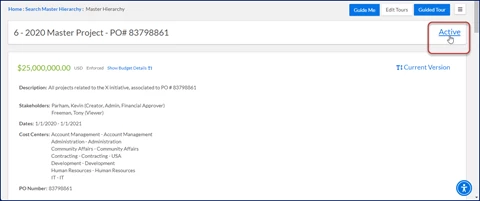 An Approval History page displays. 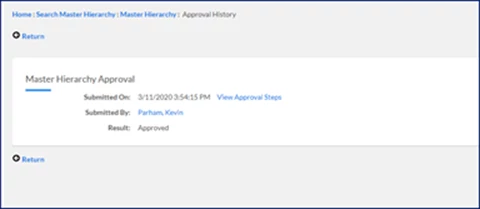 If you want approval workflow details, Select View Approval Steps to see specifics on a View Approval Details page. Or select Return to go back to the Master Hierarchy page. |
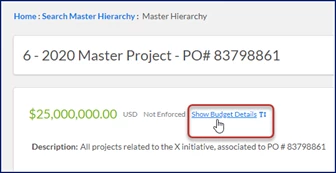
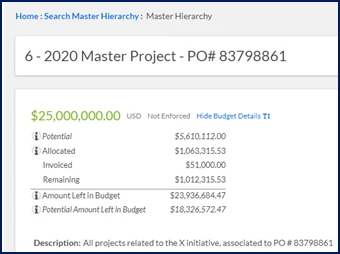
| Show Budget Details link | Displays specifics about the budget. You can quickly see these details:
|
| Current Version link and arrows | Use to view information about earlier versions if your master hierarchy was changed. You can see exactly what was changed and by whom. 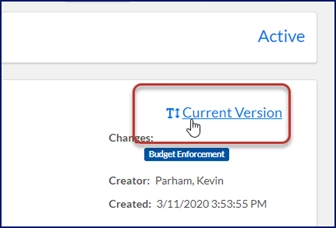 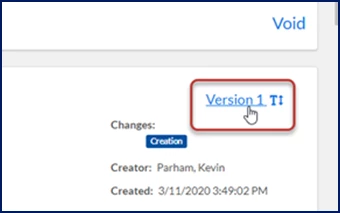 |
| Competitive Bid grid | Comprises competitive bids and child bids in an expandable grid with drill-down links. Child bids are hidden by default and you must select the Expand arrow to view the child bids for any given parent bid. You cannot link or unlink a child bid; you can only link or unlink a parent competitive bid in any status. TIP: If a competitive bid was linked before the bid was accepted, then the bid's associated SOW will display in the SOW grid. If a competitive bid was linked after the bid was accepted, then the bid's associated SOW won’t display in the SOW grid. 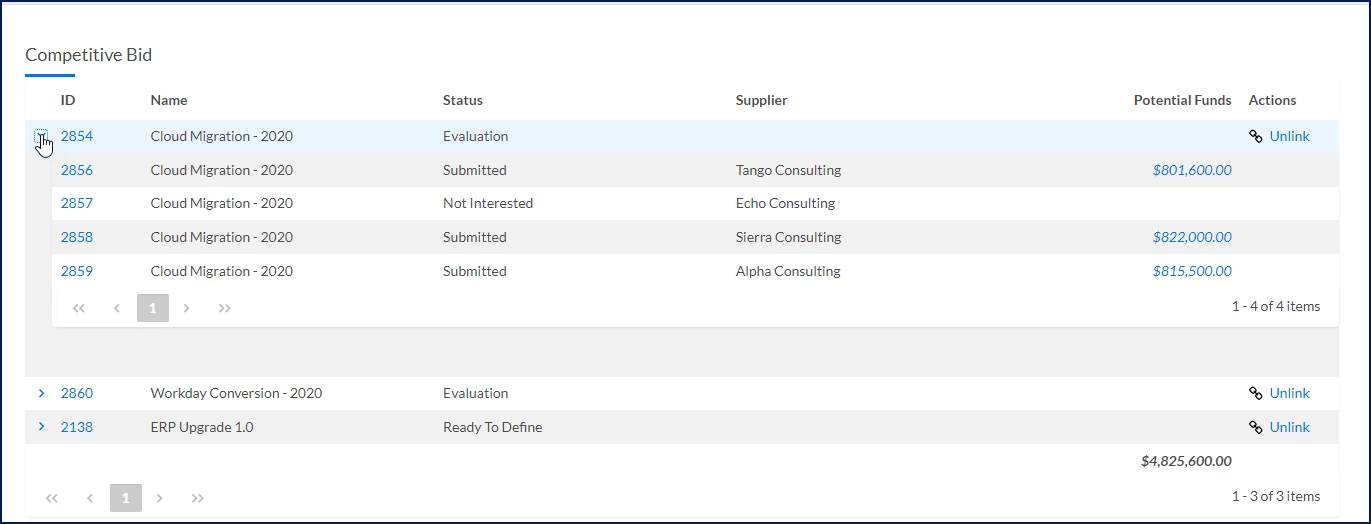 The sum total shown near the bottom of the grid includes the funds from bids in a Pending Vendor Compliance or Submitted status. Parent bids don’t have a budget amount. Draft/Expired/Not Interested bids aren’t included. Accepted bids move to SOWs and aren’t included. You can select the links in the grid to access more information about an engagement. Selecting the ID link for a bid opens it in a dashboard. Selecting the Potential Fund link opens a Fixed Price Milestone dialog with more information about the engagement financials. 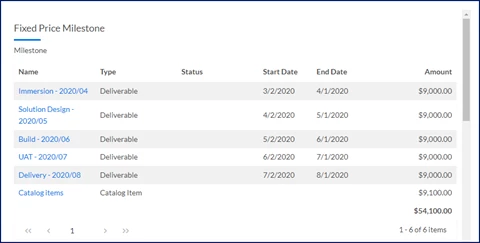 |
| SOW grid | Comprises linked statements of work (SOWs) that were never promoted to a project and SOW amendments to projects that haven’t been canceled. 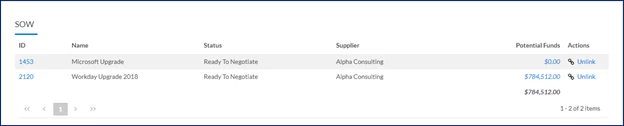 |
| Project grid | Comprises linked projects in an Active, an Open, a Pending, a Saved, a PendingClose, or a Closed status. 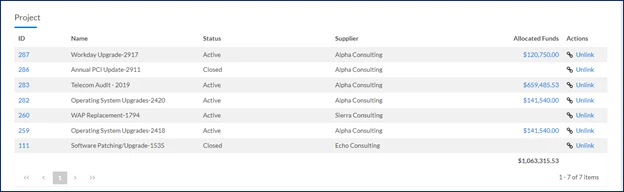 |
Updating a master hierarchy
You can link competitive bid, SOW and project engagements from the Master Hierarchy page or using the Link Master Hierarchy option on the competitive bid, sow or project profile pages. Plus, you can also link closed projects to a hierarchy so you can create, view, and manage a comprehensive list of engagements regardless of the project status.
You must be a client user in the organizational unit where the hierarchy was created and have admin permissions to link engagements or make changes to a master hierarchy.
To link engagements to a master hierarchy, complete these steps from your Beeline Enterprise dashboard.
- Select Search Master Hierarchy from the Simple Search list and then select the Search icon to look for existing hierarchies. An Advanced Search page displays showing results near the bottom of the page.
- Select your hierarchy from the Results list. A Master Hierarchy page displays instantly showing you a summary of the hierarchy near the top of the page, then linked engagements and then linked attachments.
- Optional. Select the Status link to view the approval history of your master hierarchy.
- Optional. To view specifics about the budget, select the Show Budget Details link.
- Optional. If your master hierarchy has been changed, use the Current Version link and arrow to view information about earlier versions. You can see exactly what was changed and by whom.
- To link an engagement, take these steps:
- From the Engagement Types list below the hierarchy summary, select the kind of engagement you want to link, such as a project, SOW or competitive bid.
- Start entering text in the Search Engagements field to automatically display a list that matches your entry. Locate the specific engagement you want to add, and then select Link.
- To unlink an engagement, take these steps:
- Locate the engagement you want to remove on the Master Hierarchy page.
- Select Unlink.
- To update items in your hierarchy, take these steps:
- Select the Edit button near the bottom left corner of the Master Hierarchy page.
- Make whatever changes you need to make. For example, you can update the budget amount or add or remove cost centers, stakeholders, or attachments.
- Select Submit. Your changes are routed for approval and your hierarchy goes in a Pending status.
After your hierarchy is approved, it moves back to an Active status and can be used to efficiently track and report on a group of project events and activities under a single initiative.
Linking via dashboards
You can link engagements from the Master Hierarchy page or the Competitive Bid, SOW, or Project dashboards.
To link from a dashboard, complete these steps.
For SOWs, take these steps:
- Select Search SOWs from Simple Search list and then select the Search icon.
- Select the SOW from the search results on the Advanced Search page.
- Select Link Master Hierarchy.
For competitive bids, take these steps:
- Select Search Competitive Bids from Simple Search list and then select the Search icon.
- Select the bid from the search results on the Advanced Search page.
- Select Link Master Hierarchy.
For projects, take these steps:
- Select Search Projects from Simple Search list and then select the Search icon.
- Select the bid from the search results on the Advanced Search page.
- Expand the Manage Project menu, and then select Link Master Hierarchy.
Related articles
Documentation release: Beeline Enterprise | Q3 2024