


Scheduling interviews can be even easier—Beeline Enterprise offers a seamless integration with Google Calendar®. As an Interview Coordinator, you can instantly view real-time suggested interview times that fit the attendees’ schedules. Real-time API calls automatically check attendees’ availability, so proposed interview times align with attendees’ schedules.
Preparing for your Google Calendar integration
Using Beeline’s Google Calendar integration with Interview Manager requires some preparation on your part and a Service Request ticket.
Your system administrator must complete these tasks so they can provide Beeline with the appropriate credentials.
DISCLAIMER: The graphics shown in the following steps are examples only. They are not intended to represent Google’s user interface nor to represent your user experience.
| Task |
|---|
|
|
|
|
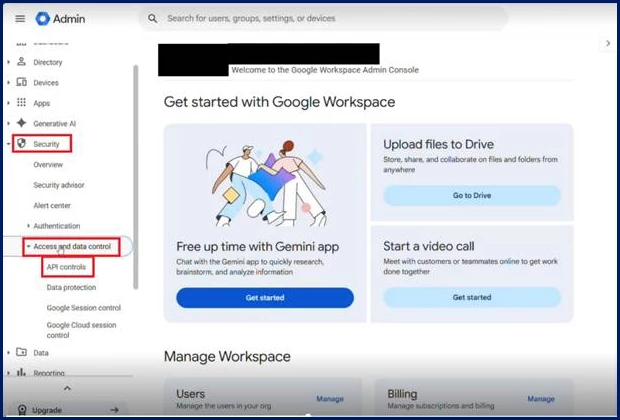
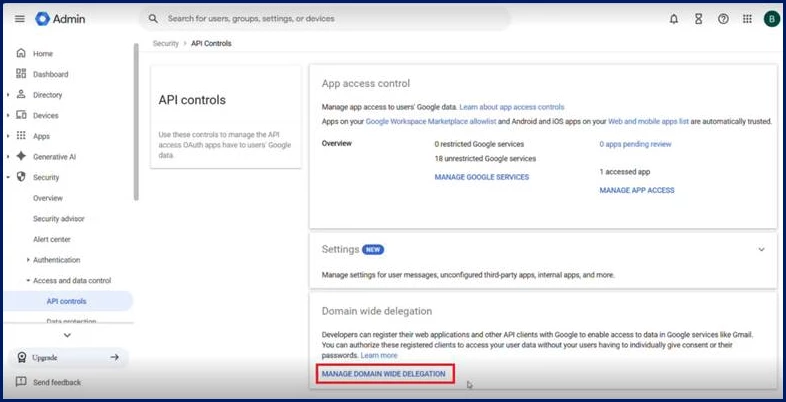
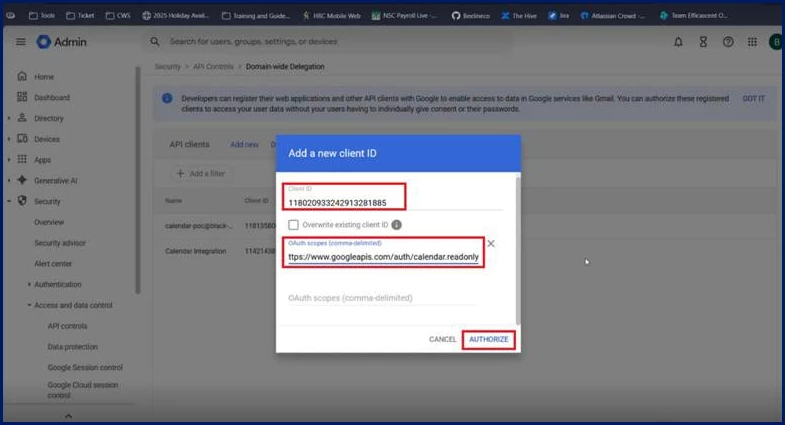
Information in this article reflects a standard Enterprise configuration. Your Enterprise platform is based on your organization’s configuration. Settings and/or data visibility rules may vary slightly from what is described.
To accomplish your task, complete these steps from your Enterprise dashboard.
- Select Admin > Configuration. A Configuration Administration page displays.
- From the left Navigation, select Interview Calendaring Subscription Entry. An Interview Calendaring Subscription Entry page displays.
- Select Add New.
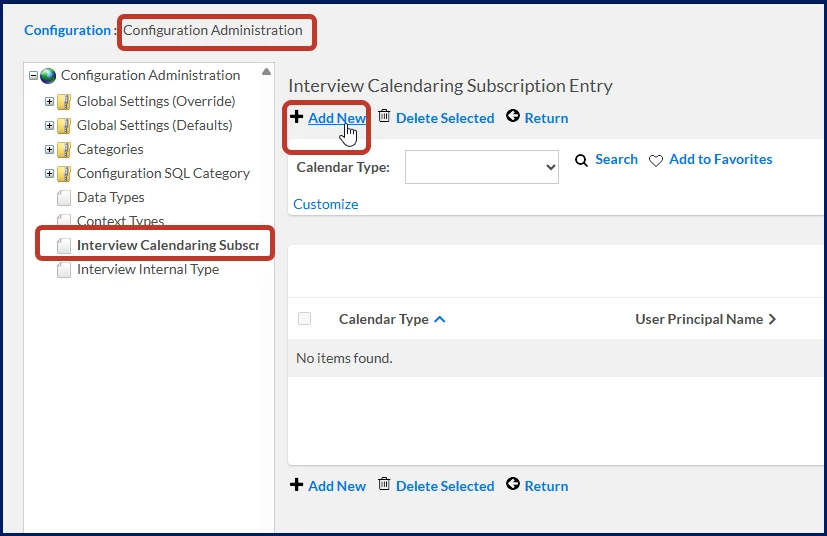
- From the Calendar Type list, select Google Calendar.
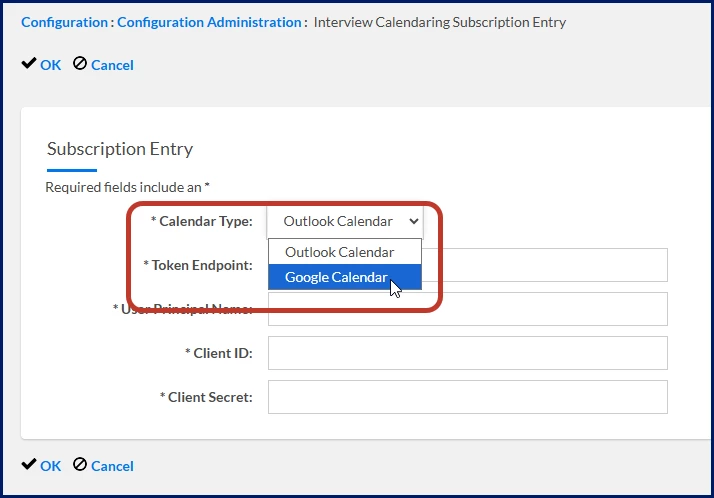
- In the User Principal Name field, enter any email address from the same domain as the workspace that granted access.
- Select OK to add the calendar subscription entry.
| Persona | Module | Date Posted | Feedback? Email us: |
| Clients, program office users, system admins | Contingent Staffing APIs & Integrations | Beeline Enterprise | Q2 2026 |