


Get the right assignment feedback at the right time
Assignment Assessment Questionnaires (AAQs) help you collect meaningful feedback throughout a contingent worker's assignment. Create customized questionnaires, automatically send them to key stakeholders, and collect the feedback needed to support assignment and workforce decisions.
Whether you're conducting milestone reviews, performance assessments, compliance checks, or assignment extension reviews, AAQs help you collect consistent feedback from the people closest to the work.
Jump to what you want
Why it matters
- Collect consistent feedback throughout an assignment, not just at the end.
- Support assignment and long-term engagement decisions with documented feedback.
- Standardize assignment reviews across your organization.
- Gain insights into assignment performance through reporting and analysis.
- Automate questionnaire delivery and review activities.
Who it's for
- Client administrators who manage contingent workforce programs.
- Program office users (MSPs and VMOs) who oversee assignment performance and compliance.
How it helps
- Create reusable questionnaires tailored to your review process.
- Schedule reviews at assignment milestones or defined intervals.
- Collect both scored and open-ended feedback from assignment stakeholders.
- Identify assignments that may require additional review or action.
- Analyze questionnaire responses through reporting and review tools.
How it works
Assignment Assessment Questionnaires follow a three-step process.
| Step | Outcome |
|---|---|
| Configure | Create a questionnaire template and define recipients, reviewers, questions, and business rules. |
| Complete | Recipients receive and complete questionnaires. |
| Review | Designated reviewers evaluate submitted responses. |
Common uses
Use Assignment Assessment Questionnaires for:
- 30-, 60-, and 90-day assignment reviews
- Long-term engagement reviews
- Assignment extension evaluations
- Bonus and performance reviews
- Offboarding reviews
- Warranty period reviews
- Compliance and training verification
- Custom assignment-specific feedback requests
Questionnaire recipients
You can send questionnaires to:
- Hiring Managers
- Project Managers
- Supplier Managers
- Timesheet Approvers
Questionnaire reviewers
Questionnaire reviewers evaluate completed responses and support assignment and workforce decisions. When you create a questionnaire template, you designate the reviewer responsible for evaluating submitted questionnaires.
For information about reviewing completed questionnaires, see Review Assignment Assessment Questionnaire responses.
Important behavior
Keep the following in mind when configuring Assignment Assessment Questionnaires:
-
Questionnaires are designed for assignment-related reviews, assessments, and verification activities.
-
You can send questionnaires to supported assignment stakeholders, including Hiring Managers, Project Managers, Supplier Managers, and Timesheet Approvers.
-
At least one geography must be selected before questionnaires can be generated.
-
Designated reviewers evaluate completed questionnaire responses.
-
Expiration dates control how long recipients have to complete questionnaires.
-
Questionnaire results support review and decision-making activities but do not automatically trigger workflows.
-
Text Box and Essay questions collect qualitative feedback and are not automatically scored.
-
Knockout questions can affect questionnaire results regardless of the overall score.
-
Supplier Managers can receive questionnaires only when the Supplier Manager field is enabled and populated.
Before you begin
To successfully complete this task, make sure the following prerequisites are met.
- Have the appropriate permissions to create, complete, or review questionnaires.
- Have access to Assignment Assessment Questionnaire settings to create and manage templates.
- Identify questionnaire recipients and reviewers to ensure feedback is collected and routed appropriately.
- Define your review criteria and objectives to determine what feedback you want to collect.
- Establish assignment selection criteria to target the right assignments, job classes, industries, or geographies.
- Configure Supplier Manager settings (optional) if Supplier Managers will receive questionnaires.
How to steps
Information in this article reflects a standard Enterprise configuration. Your Enterprise platform is based on your organization’s configuration. Settings and/or data visibility rules may vary slightly from what is described.
To accomplish your task, complete these steps from your Enterprise dashboard
Creating an assignment assessment questionnaire
Create a questionnaire template to collect assignment-specific feedback from key stakeholders.
-
Select Preferences > VMS Settings > Contingent Staffing. A Contingent Staffing page displays.
-
Select Assignment Assessment Questionnaire. A Questionnaire Administration page displays.
-
From the Manage Templates page, create a new template or select an existing template to edit.
What this does: Creates the foundation for your questionnaire.
Why this matters: Templates let you build standardized reviews that can be reused across assignments.From the Manage Templates page, you can:
- Create new templates
- Edit existing templates
- Activate or deactivate templates
- Copy templates for reuse
- Access completed questionnaires for review
-
Select New Template.
What this does: Creates a new questionnaire template.
Why this matters: Templates allow you to standardize reviews and reuse questionnaires across assignments.
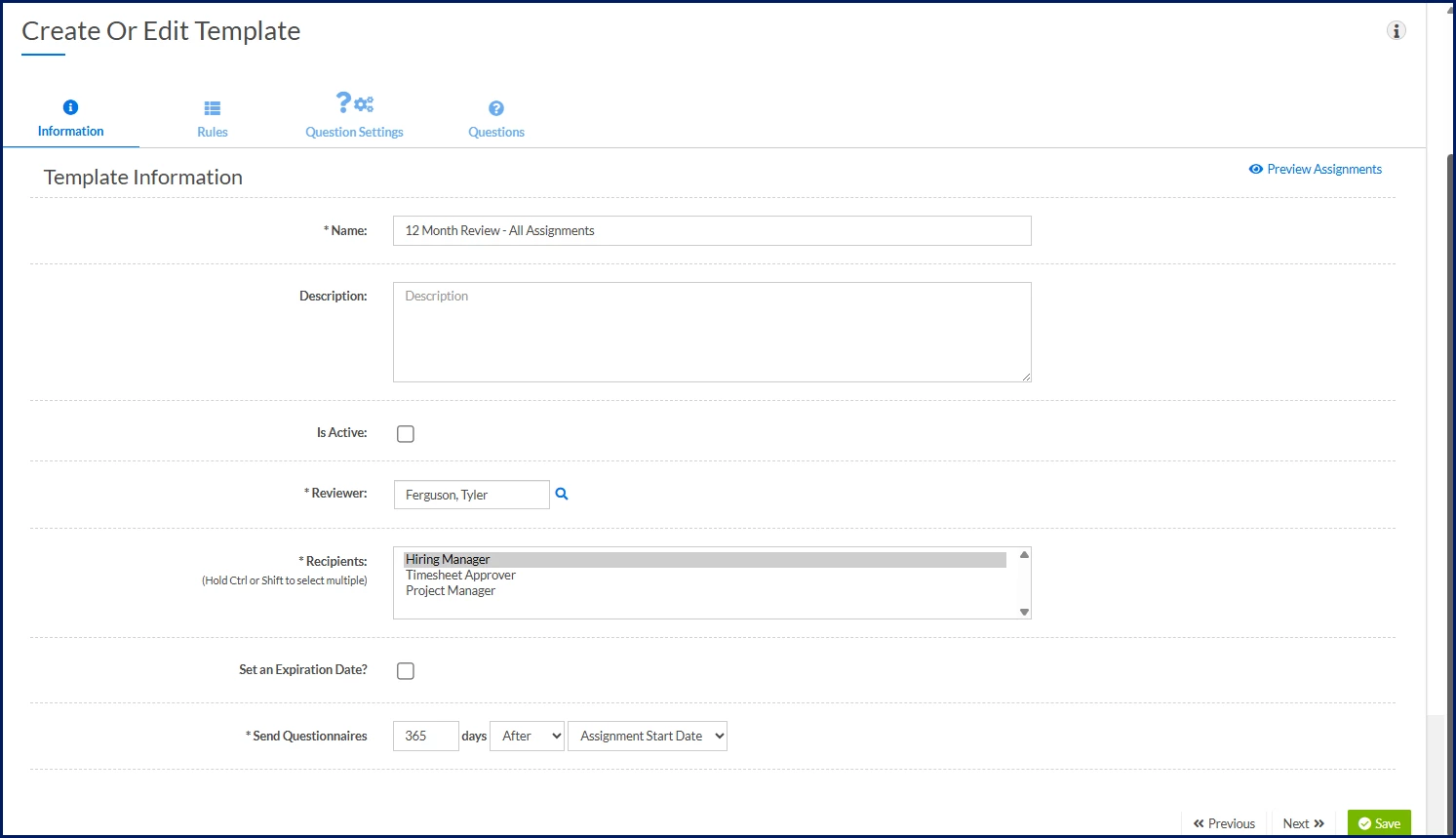
A Create or Edit Template page displays showing the Information tab.
-
Enter Name ⚠️
What this does: Identifies the questionnaire template.
Why this matters: Makes the template easier to locate, manage, and report on.
-
Optional. Enter Description
What this does: Provides additional context about the questionnaire.
Why this matters: Helps you and other template managers understand when the questionnaire should be used.
-
Optional. Select Is Active
What this does: Activates the template and enables questionnaire generation.
Why this matters: Allows qualifying questionnaires to be scheduled and delivered automatically.
-
Select Reviewer ⚠️
What this does: Assigns questionnaire review responsibility.
Why this matters: Ensures responses are routed to the appropriate reviewer for evaluation.
-
Select Recipients ⚠️
Available recipients include:
- Hiring Manager
- Project Manager
- Timesheet Approver
- Supplier Manager (if enabled)
What this does: Identifies who receives and completes the questionnaire.
Why this matters: Ensures feedback is collected from the appropriate assignment stakeholders.
-
Optional. Configure Set an Expiration Date
What this does: Defines how long recipients have to complete the questionnaire.
Why this matters: Encourages timely completion and keeps feedback relevant.
Recipients receive reminder notifications before the questionnaire expires.
After a questionnaire expires, recipients can no longer complete or submit the questionnaire. If a questionnaire expires without a response, the designated reviewer is notified.
-
Configure Send Questionnaires ⚠️
Configure:
- Number of days
- Before or After
- Assignment milestone date
What this does: Determines when questionnaires are automatically generated and sent.
Why this matters: Aligns questionnaires with key assignment milestones and business processes.
In simple terms: You're scheduling when the questionnaire should be delivered.
Examples include:
- 30 days after Assignment Start Date
- 90 days after Assignment Start Date
- 14 days before Assignment End Date
- 365 days after Assignment Start Date
Configuring assignment rules
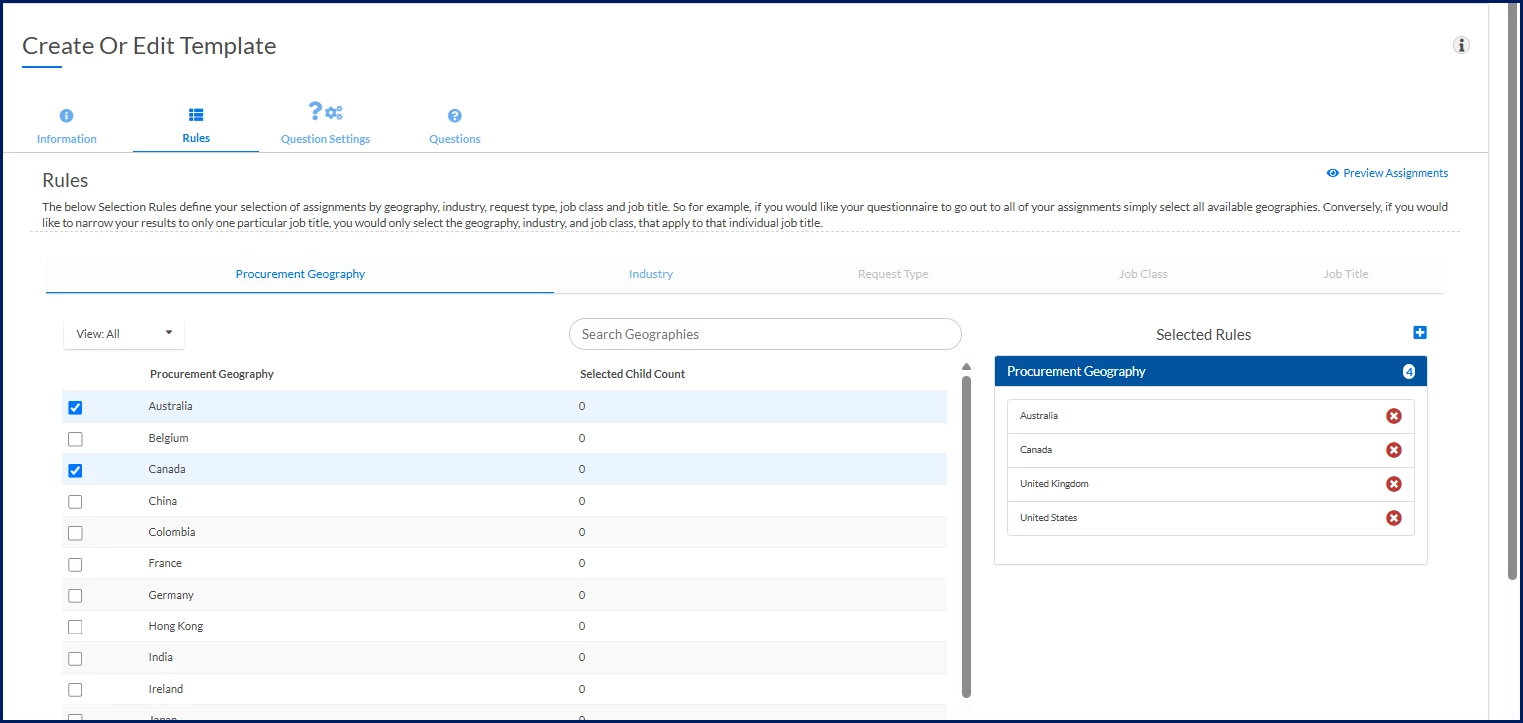
Use the Rules tab to define which assignments qualify for the questionnaire.
-
Select Geography ⚠️
What this does: Defines the assignments eligible for the questionnaire.
Why this matters: At least one geography must be selected before questionnaires can be generated.
-
Optional. Select Industry
What this does: Limits questionnaires to assignments within selected industries.
Why this matters: Helps target questionnaires more precisely.
-
Optional. Select Request Type
What this does: Limits questionnaires to specific request types.
Why this matters: Helps ensure questionnaires are generated only for relevant assignments.
-
Optional. Select Job Class
What this does: Narrows assignment eligibility based on job classification.
Why this matters: Helps focus reviews on specific worker populations.
-
Optional. Select Job Title
What this does: Targets questionnaires to specific assignment roles.
Why this matters: Allows more precise and relevant assessment programs.
Defining Question Settings
Use the Question Settings tab to define how questionnaire responses are scored and evaluated.
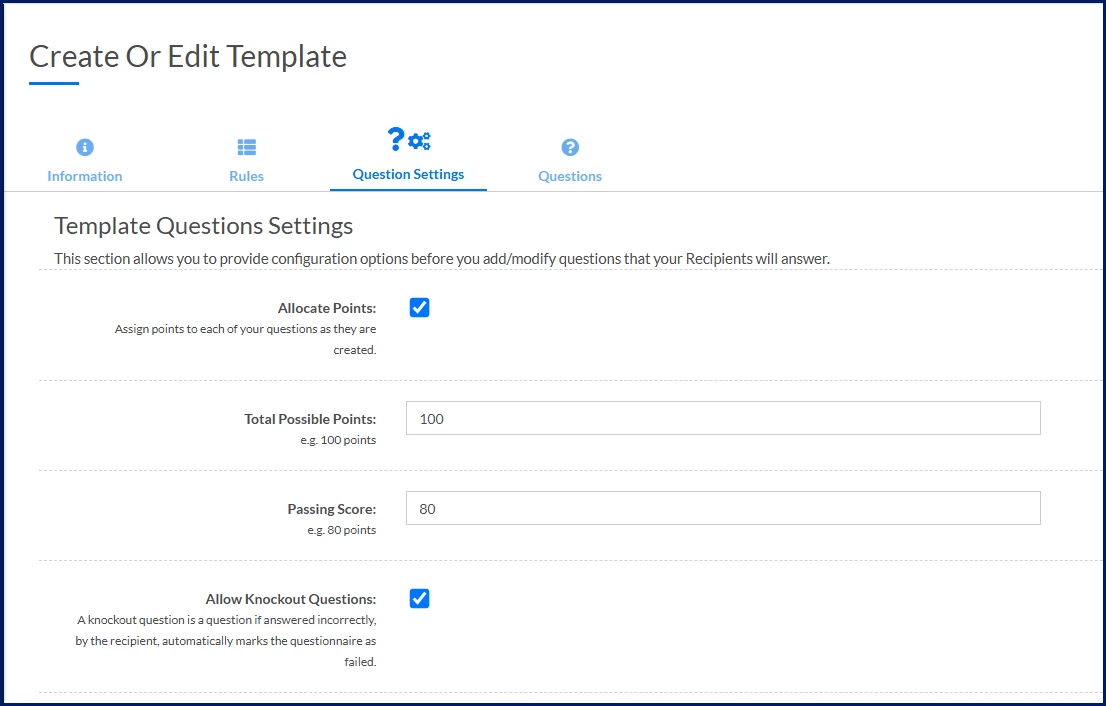
- Optional. Select Allocate Points
What this does: Enables scoring for questionnaire questions.
Why this matters: Allows responses to be evaluated using a point-based system.
In simple terms: Questions can be assigned a score.
- Optional. Enter Total Possible Points
What this does: Defines the maximum score a questionnaire can achieve.
Why this matters: Creates a consistent scoring framework across all respondents.
- Optional. Enter Passing Score
What this does: Establishes the threshold for a successful result.
Why this matters: Helps reviewers quickly identify questionnaires that may require follow-up.
In simple terms: You're defining the score needed to pass.
- Optional. Select Allow Knockout Questions
What this does: Enables questions that can override the overall questionnaire score when critical responses are selected.
Why this matters: Helps identify assignments that may require immediate review.
In simple terms: Certain answers can automatically flag a questionnaire for attention regardless of the overall score.
Building questions
Use the Questions tab to build the questionnaire and define how recipients respond.
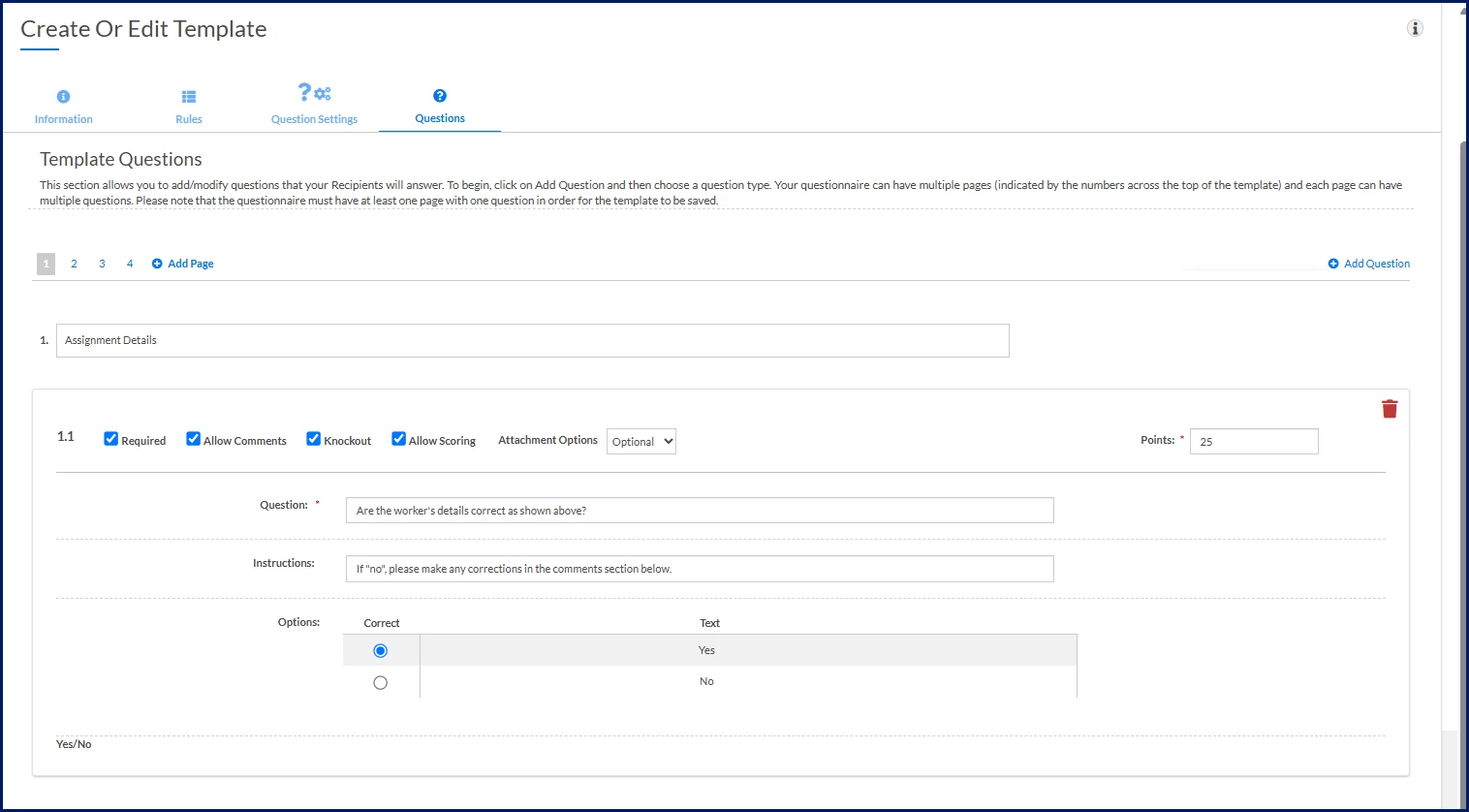
- Select Add Page
What this does: Creates a section within the questionnaire.
Why this matters: Helps organize related questions into logical groups.
- Enter a page name
What this does: Identifies the questionnaire section.
Why this matters: Improves organization and navigation, especially in longer questionnaires.
- Select Add Question ⚠️
Available question types include:
Question type Description Multiple Option - Multiple Choice Allows respondents to select multiple answers. Multiple Option - Single Choice Allows respondents to select one answer. Drop-down Presents predefined response options in a drop-down list. Yes/No Provides Yes and No response options. True/False Provides True and False response options. Text Box Collects short written responses. Essay Collects detailed written responses. What this does: Adds a question recipients must answer.
Why this matters: Questions define the feedback collected from recipients.
Scoring note
Text Box and Essay questions collect qualitative feedback and are not automatically scored.
If you plan to use questionnaire scoring, consider combining these question types with scored questions to collect both measurable results and detailed feedback.
-
Enter Question text ⚠️
What this does: Defines the information being requested.
Why this matters: Clear, specific questions improve response quality.
-
Optional. Enter Instructions
What this does: Provides additional guidance to recipients.
Why this matters: Helps improve consistency and accuracy in responses.
-
Optional. Select Required
What this does: Requires recipients to answer the question before submitting the questionnaire.
Why this matters: Ensures critical information is collected.
-
Optional. Select Allow Comments
What this does: Allows recipients to provide additional context.
Why this matters: Captures details that predefined responses may not fully explain.
-
Optional. Select Knockout
What this does: Marks the question as a knockout question.
Why this matters: Allows specific responses to trigger additional review regardless of questionnaire score.
In simple terms: This question can override the overall result when a critical response is selected.
-
Optional. Select Allow Scoring
What this does: Includes the question in score calculations.
Why this matters: Enables point-based evaluation of questionnaire responses.
-
Optional. Configure Attachment Options
Available options include:
- None
- Optional
- Required
What this does: Controls whether supporting documentation can or must be attached.
Why this matters: Allows reviewers to collect evidence or supporting information when needed.
-
Optional. Enter Points
What this does: Assigns a weight to the question.
Why this matters: Allows critical questions to contribute more heavily to the overall score.
In simple terms: Higher point values make a question more important in the final score.
-
Configure response options
What this does: Defines how recipients answer the question.
Why this matters: Supports consistent evaluation across questionnaires.
-
Select Save
What this does: Saves the questionnaire template.
Why this matters: Makes the template available for activation and questionnaire generation.
Important: A questionnaire must contain at least one page with at least one question before it can be saved.
Reporting on questionnaire results
Assignment Assessment Questionnaire data can be included in Assignment Definition reports to help you analyze feedback, identify trends, and gain insight into assignment performance.
Reporting can include:
- Questionnaire questions
- Question types
- Responses and answers
- Comments submitted by recipients
Use questionnaire reporting to:
- Track feedback across assignments.
- Support workforce and assignment decisions.
- Document long-term engagements.
- Identify opportunities to improve program performance.
Related tasks
Depending on your role, you may also want to:
- Complete an Assignment Assessment Questionnaire to provide assignment feedback as a questionnaire recipient.
- Review Assignment Assessment Questionnaire responses to evaluate submitted questionnaires and support assignment decisions.
Frequently asked questions
What does the Selected Child Count value represent on the Rules tab?
The Selected Child Count value shows the number of selected items in the next level of the assignment hierarchy. The child count helps you quickly verify how many items have been selected at the next level without expanding each section.
For example:
- If you select 3 Industries, the Geography row displays a child count of 3.
- If you select 10 Job Titles, the Job Class row displays a child count of 10.
The hierarchy follows this structure:
- Geography
- Industry
- Request Type (used to filter Job Classes but not part of the hierarchy)
- Job Class
- Job Title
- Industry
Can I create multiple questionnaire templates?
Yes. You can create multiple questionnaire templates to support different business needs, such as 30-, 60-, and 90-day reviews, long-term engagement reviews, assignment extension evaluations, offboarding reviews, compliance verification, and other assignment-specific assessments.
Why isn't a questionnaire being generated?
Verify that:
- The questionnaire template is active.
- At least one geography is selected.
- The assignment matches the configured rules.
- The questionnaire schedule criteria have been met.
Who can receive Assignment Assessment Questionnaires?
You can send questionnaires to stakeholders associated with an assignment, including:
- Hiring Managers
- Project Managers
- Supplier Managers
- Timesheet Approvers
These recipients receive questionnaires when assignments meet the configured scheduling and rule criteria.
Can I send questionnaires to Supplier Managers?
Yes. To send questionnaires to Supplier Managers, the Supplier Manager field must be enabled and a Supplier Manager must be assigned to the assignment. If the field is blank, the questionnaire cannot be delivered.
When are questionnaires sent?
You define when questionnaires are generated by configuring the Send Questionnaires setting on the template. For example, questionnaires can be sent before or after specific assignment milestones, such as the assignment start date or end date.
Can expired questionnaires be resent?
No. Expired questionnaires cannot be resent. If feedback is still required, create a new questionnaire by updating the template schedule or creating a new questionnaire instance.
Can I score questionnaire responses?
Yes. You can enable point-based scoring by selecting Allocate Points and configuring the total possible points and passing score for the questionnaire.
What are knockout questions?
Knockout questions are questions that can override the overall questionnaire score when a critical response is selected. They help identify assignments that may require immediate review or follow-up.
Are all question types scored automatically?
No. Text Box and Essay questions collect qualitative feedback and are not automatically scored. Consider combining these question types with scored questions when you want to collect both measurable results and detailed feedback.
Can I report on questionnaire responses?
Yes. Assignment Assessment Questionnaire data can be included in Assignment Definition reports. Reporting can include questionnaire questions, question types, responses, answers, and comments. Use questionnaire reporting to analyze feedback, support workforce decisions, and identify trends across assignments.
Can I send a questionnaire to a specific user?
No. Assignment Assessment Questionnaires are designed to be sent to recipients based on the questionnaire's configured recipient types, assignment rules, and scheduling criteria.
Recipients are selected automatically based on the assignment and recipient role, such as:
- Hiring Manager
- Project Manager
- Supplier Manager
- Timesheet Approver
If you need a questionnaire to be delivered to a Supplier Manager, ensure a Supplier Manager is assigned to the assignment and selected as a questionnaire recipient.
Can I send a questionnaire to a supplier?
Questionnaires can be sent to the assignment's Supplier Manager. To send a questionnaire to a Supplier Manager:
- Enable the Supplier Manager field.
- Assign a Supplier Manager to the assignment.
- Select Supplier Manager as a questionnaire recipient.
If a Supplier Manager is not assigned to the assignment, the questionnaire cannot be delivered because there is no recipient available.
Why isn't a questionnaire being sent to a Supplier Manager?
If the Supplier Manager field is blank, the questionnaire cannot be delivered to a Supplier Manager. Verify that:
- The Supplier Manager field is enabled.
- A Supplier Manager is assigned to the assignment.
What happens if a user qualifies under multiple recipient roles?
If a user qualifies as more than one recipient type on an assignment, the user receives only one questionnaire.
| Persona Clients, program office users | Modules Contingent Staffing | Documentation release Beeline Enterprise | Q2 2026 | Feedback? Email us: |