


Managing cost allocation on timesheets
As a timesheet approver, you can edit cost allocation details before you approve a timesheet. For example, you may need to remove a cost allocation code because it wasn’t valid on the date it was used.
Cost allocation is supported for all time-entry modes, such as time-in/time-out, hourly, daily, weekly, and monthly time tracking.
Based on your program’s in-house systems and business processes, you may encounter different cost allocation codes on each daily time entry or only a single cost allocation code for all entries in a given week. When a single cost allocation code applies to all entries in a given week, you can use the Cost Allocation View link on the Approve Timesheet dialog to see cost allocation summaries.
When different cost allocation codes for daily time or expense entries are supported, select the Gear icon that displays when you click into an entry from a Beeline Time & Expense page to open the Edit Cost Allocation dialog and change values.
Prerequisite: Your Enterprise site must be configured to allow you to edit cost allocation details.
Information in this article reflects a standard Enterprise configuration. Your Enterprise platform is based on your organization’s configuration. Settings and/or data visibility rules may vary slightly from what is described.
To manage cost allocation details before you approve a timesheet, complete these steps from your Enterprise dashboard.
This topic shows you how to edit cost data from Beeline Classic on a time-in/time-out timesheet that uses an amount cost distribution.
If you’re starting in the Hiring Manager Experience, use the Go to Classic link at the upper right of the Home page.
-
From your My To Do quadrant, select the link to timesheets pending approval.
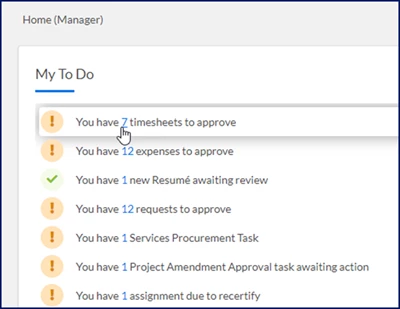
An Approval Central page displays.
-
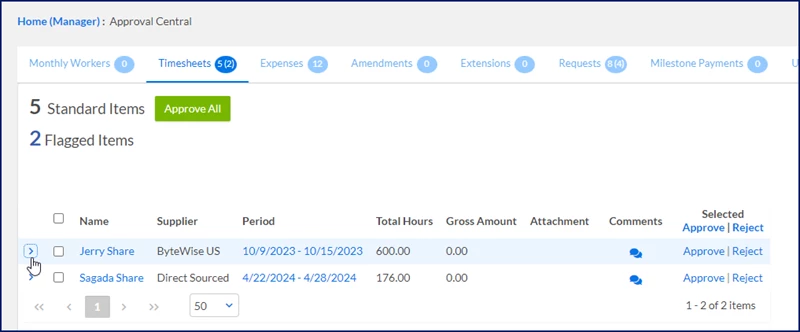
Expand the Arrow to the left of the contingent talent’s name for whom you want to review timesheets.
-
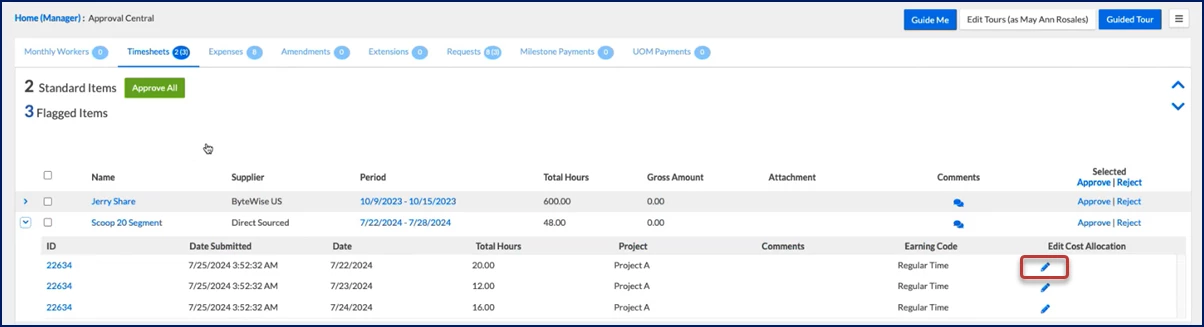
On the row showing the timesheet you want to review, select the Edit icon.
-
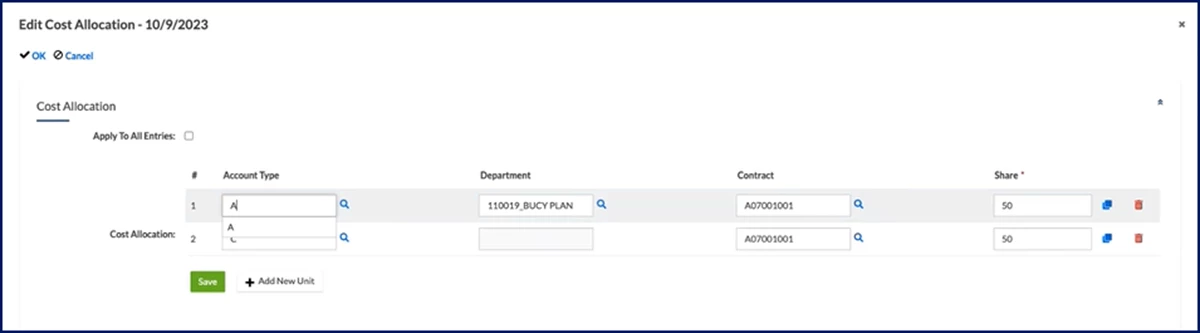
Select Edit. An Edit Cost Allocation dialog displays.
-
Alter the cost allocation details you want to.
TIP: You cannot alter the hours submitted on a timesheet; you must reject the timesheet.-
If the timesheet has a percentage cost distribution, you can update all cost segments and the share of an expense distributed to each cost allocation string. The dollar amount of the expense is distributed across the strings based on the assigned percentage.
-
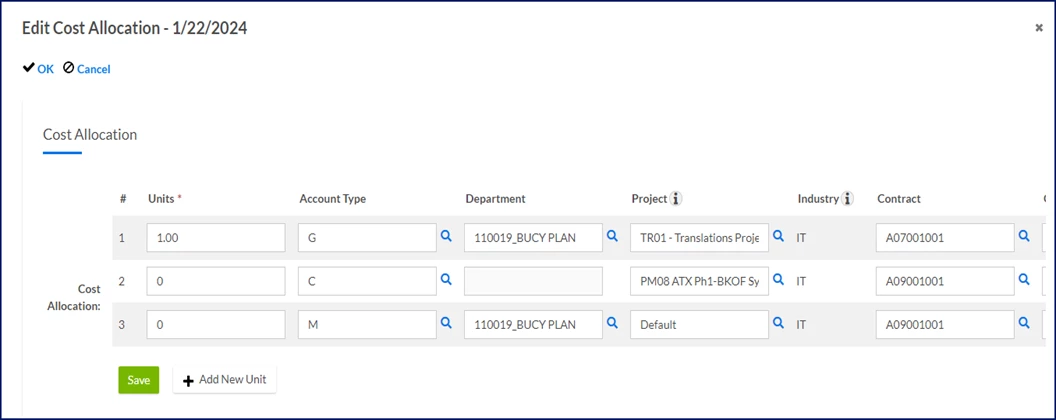
If the expense has a unit cost distribution, you can update all cost segments and the portion of an expense distributed to each cost allocation string.
-
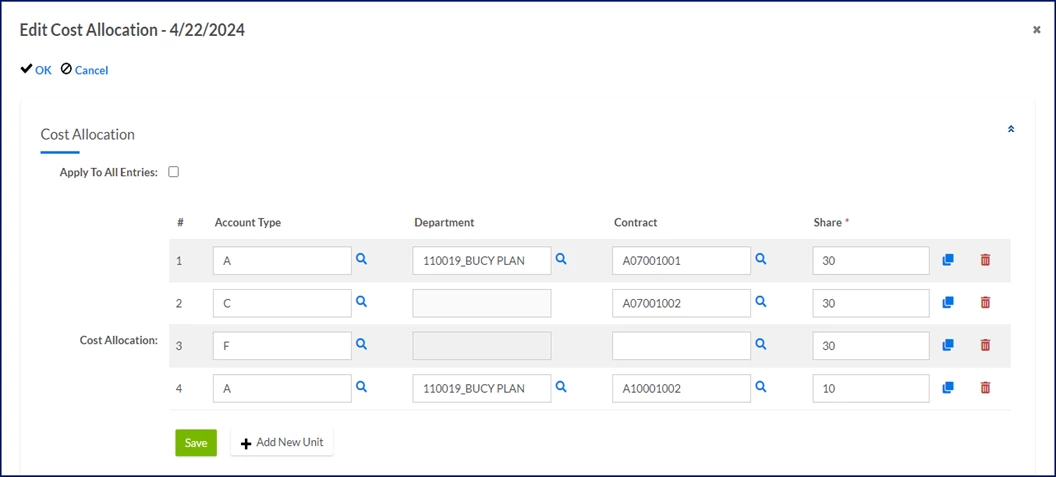
If the expense has an amount cost distribution, you can update cost segments and the monetary value of an expense distributed to each cost allocation string.
-
-
Optional. Use the Copy or Delete icons to duplicate or remove a string, respectively.
-
Select Save.
Documentation release: Beeline Enterprise | Q4 2024