


Build and manage document templates for manual and automated eSignature processes
Create and manage Docusign®-enabled templates for Talent Management workflows so you can reuse approved documents, reduce document preparation effort, and deliver a consistent signing experience. Configure templates to support candidate and assignment processes, automatically populate document data, and participate in automated eSignature workflows when enabled.
Creating templates for your eSignature documents helps ensure your organization captures the data needed to manage your contingent talent. You can set up and administer two types of templates: static and dynamic.
Why it matters
- Reduce the time spent creating and managing frequently used documents.
- Deliver a more consistent signing experience for candidates and contingent workers.
- Reuse approved document templates across Talent Management workflows.
- Support onboarding and compliance processes with standardized documents.
- Scale document management more efficiently as program volume grows.
Who it’s for
Program office users
How it helps
- Create reusable templates for commonly used workforce documents.
- Populate document content automatically by using Enterprise data and client-defined fields (CDFs).
- Make the right templates available to the right users by industry and request type.
- Generate consistent documents across Candidate and Assignment workflows.
- Reduce manual signer setup through template-based signatory assignments.
- Use templates in both traditional and automated document processes.
Availability and setup
- Available for organizations with the Docusign integration enabled.
- Managed through self-service template administration tools.
- Supported for Candidate and Assignment workflow types.
- Supported for static and dynamic document templates.
- Supported for Template-Based Document Automation when enabled through a Requires a Service Request and configured with the required workflow, approval-step, and template signatory settings.
Before you begin
- Verify that you have access to Preferences > VMS Settings > eSignature Settings.
- Verify that your organization's Docusign account is connected to Enterprise.
- Determine whether the template will support Candidate or Assignment workflows.
- Identify the industry and request types that should use the template.
- Prepare the document file you plan to upload.
- Plan to validate new templates in a non-production environment before deploying them to production.
- Identify any Enterprise fields or client-defined fields (CDFs) needed for document generation.
Understand template types
| Template type | Description |
|---|---|
| Static | Contains fixed content that doesn't use Enterprise data. Examples include non-disclosure agreements, policies, codes of conduct, and onboarding documents. |
| Dynamic | Uses Enterprise fields and client-defined fields (CDFs) to populate document content automatically during document generation. |
TIP: Talent Management templates apply to Candidate and Assignment workflows. They aren't used to ratify Statements of Work (SOWs).
Understand template behavior
The way a template behaves depends on how it's configured.
| Template configuration | Result |
|---|---|
| Template includes a default signatory assignment | The template can support Template-Based Document Automation and template-based signatory assignment. |
| Template doesn't include a default signatory assignment | The template remains available for manual document processing, and signatories must be assigned manually. |
| Static document added outside a configured template | Signatories must be assigned manually. |
Best practice: Configure signatory roles only when signer responsibilities are predictable and repeatable. Use manual signatory assignment when document recipients vary by situation.
Understand Default Signatory Information
Use Default Signatory Information to associate one or more signatory roles with a template.
When Template-Based Document Automation is enabled, Enterprise can apply these signatory assignments during document package generation.
Available signatory roles
| Role | Use when |
|---|---|
| Client | The document should be signed by a client representative associated with the workflow. |
| MSP | The document should be signed by an MSP representative associated with the workflow. |
| Resource | The document should be signed by the candidate or contingent worker associated with the workflow. |
Important
Configure Default Signatory Information only when the same signatory roles are consistently required. When signatory requirements vary, use manual signatory assignment.
Signing order
Use the Signing Order field to determine the sequence in which signatories are expected to review and sign the document.
Lower-numbered signing orders are completed before higher-numbered signing orders.
Important
Template-Based Document Automation doesn't automatically assign signatories to every document. Automated signatory assignment depends on template configuration. Templates without configured default signatory assignments continue to support manual processing.
Only templates with at least one selected signatory role appear during eSignature initiation when Auto Dispatch eSignature Handling is enabled.
Information in this article reflects a standard Enterprise configuration. Your Enterprise platform is based on your organization’s configuration. Settings and/or data visibility rules may vary slightly from what is described.
To accomplish your task, complete these steps from your Enterprise dashboard.
Create a static template
Use a static template when document content doesn't change based on worker, assignment, or requisition details.
-
Select Preferences > VMS Settings > eSignature Settings.
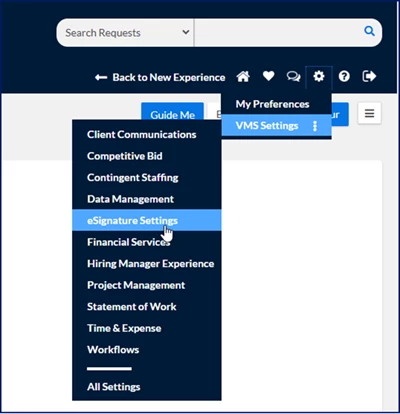
An eSignature Settings page displays.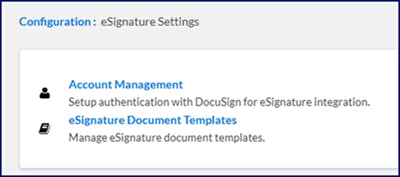
-
Select eSignature Document Templates. An eSignature Document Templates page displays showing existing templates towards the bottom of the page. You can see only templates for which you have visibility permissions.
- Select Add New. An eSignature Document Template Edit page displays.
What this does: Creates a new eSignature template.
Why this matters: Templates control how documents are generated and used within Talent Management workflows.
In simple terms: You're creating a reusable document template.
-
In the Name field, enter a title for your template.
-
Optional. In the Description field, add an explanation for how or when your template will be used.
-
Select an Industry.
What this does: Determines where the template is available.
Why this matters: Users see templates that match the workflow's industry.
In simple terms: You're deciding who can use the template.
- Optional. To limit the kind of requisition to which the template applies, select a requisition type from the Available Request Type list, and then use the Arrows to move the type to the Selected Request Type list.
TIP: When you don’t select a request type, the template is available to all requisition types associated with the industry you select. - Select Static from the Document Type list.
-
Select Candidate or Assignment from the Workflow Type list.
What this does: Associates the template with a workflow type.
Why this matters: Candidate templates aren't available in Assignment workflows, and Assignment templates aren't available in Candidate workflows.
In simple terms: You're deciding where the template can be used.
-
If Template-Based Document Automation is enabled for your organization, select one or more applicable signatory roles and specify the signing order for each role.
What this does: Associates signatory roles with the template.
Why this matters: Templates that include configured signatory roles support automated document workflows and ensure signatories can be assigned directly from the template.
In simple terms: You're identifying who should sign the document and the order in which they should sign it. - A Select Document dialog displays.
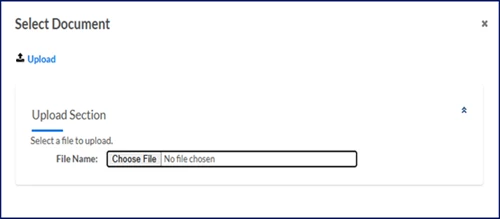
- Select Choose File. A File Explorer dialog opens.
- Select the document to upload.
- Select Open.
- Select Upload from the Select Document dialog.
- Make sure that the title and description are correct.
- After your file is uploaded, select Save to close the Select Document dialog.
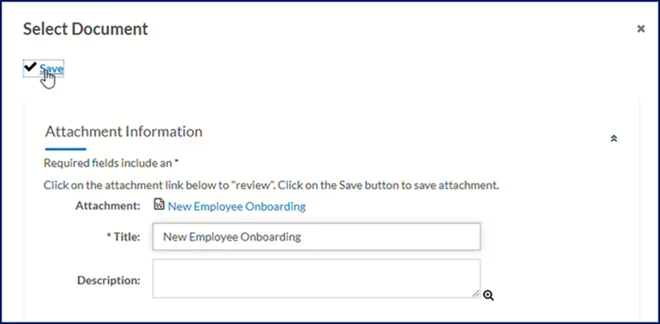
- Select OK.
What this does: Saves the template.
Why this matters: The static document you uploaded is saved in Enterprise, associated with the workflow type you chose and selectable during workflow steps.
Create a dynamic template
Use a dynamic template when document content should include information from Enterprise.
-
Select Preferences > VMS Settings > eSignature Settings. An eSignature Settings page displays.
- Select eSignature Document Templates.
- Select Add New.
- Enter a template name.
- Optional. Enter a description.
- Select an Industry.
- Optional. Select one or more Request Types.
- Select Dynamic from the Document Type list.
- Select Candidate or Assignment from the Workflow Type list.
What this does: Displays the available Dynamic Document Fields.
Why this matters: Available fields vary based on workflow type and your organization's configuration.
In simple terms: You're selecting the data that can be inserted into the document automatically.
A Dynamic Document Fields section displays towards the bottom of the page showing you standard Enterprise fields and client-defined fields (CDFs). - From the Dynamic Document Fields section on the eSignature Document Template Edit page, select the Copy icon next to the Merge Token you want to include in your template.
TIP: The fields available in the Dynamic Document Fields section vary based on your Enterprise configuration and match the kind of workflow you selected from the Workflow Type list.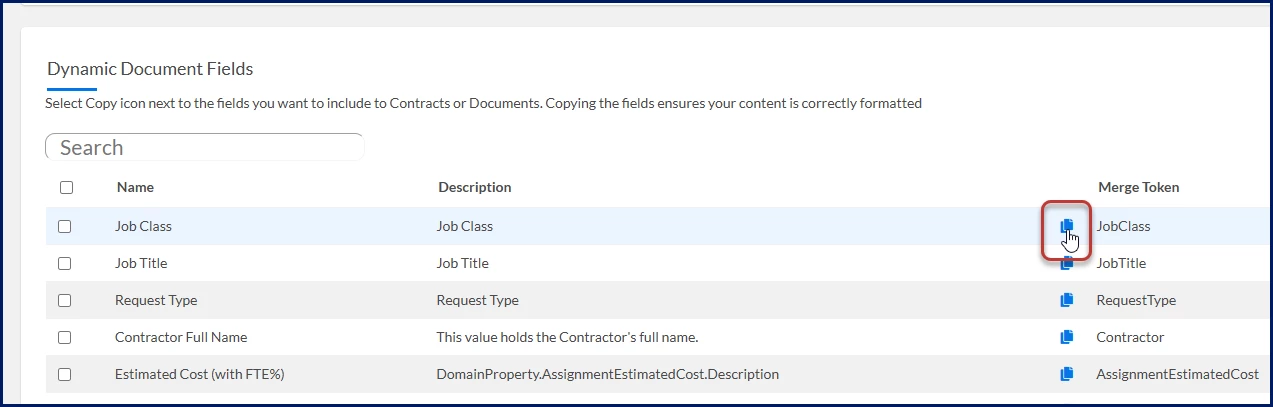
- Navigate to your eSignature Document Template on your device and then paste the field in the location you want.
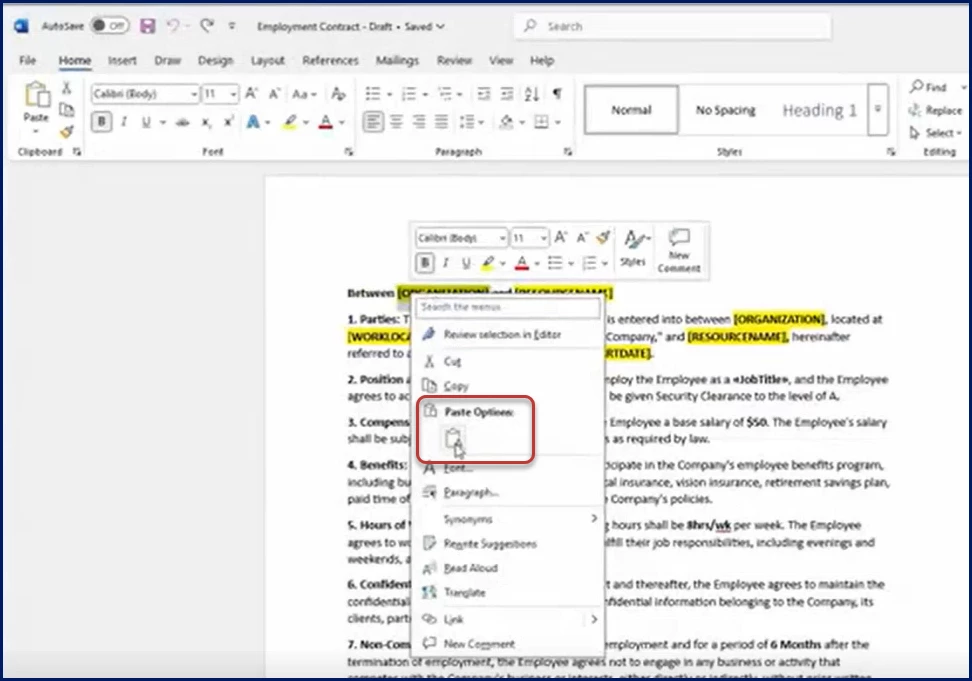
What this does: Creates a placeholder for Enterprise data.
Why this matters: Enterprise replaces the token with actual workflow information when generating the document.
In simple terms: You're telling Enterprise where information should appear. - Repeat steps 10 and 11 for each field you want to include.
- Save the document on your device.
- If Template-Based Document Automation is enabled for your organization, select one or more applicable signatory roles and specify the signing order for each role.
What this does: Associates signatory roles with the template.
Why this matters: Templates that include configured signatory roles support automated document workflows and ensure signatories can be assigned directly from the template.
In simple terms: You're identifying who should sign the document and the order in which they should sign it. - Choose Select Attachment.
- Upload the completed template.
- Select Save.
- Select OK.
What this does: Saves the template.
Why this matters: The template you created is saved in Enterprise, associated with the workflow type you chose and selectable during workflow steps.
About dynamic template fields
Building a dynamic template allows you to include variable details about an engagement in Enterprise. When you create a template, you can include client-defined fields (CDFs) your organization may be using and these standard Enterprise fields.
| Candidate workflows | Field description | Assignment workflows | Field description |
|---|---|---|---|
| Billing Term Category | Groups fees (such as the supplier’s, MSP, and Beeline) into a specific bucket linked to the request type. The category determines which fees can be invoiced on an assignment. | Address Line 1 | First line in the street address where the contingent talent is expected to work. Usually contains these components:
|
| Business Organization | Name of the organization associated with the request. | Address Line 2 | Secondary address information where the contingent talent is expected to work. Typically includes apartment numbers, suite numbers, building names, floor numbers, or other relevant details excluded from the physical street address. |
| Cost Center | Organization units within a company that incur costs without directly generating revenue. | Contractor | Full name of the contingent talent. |
| Duration | The planned length of the assignment. | Cost Center | Organization units within a company that incur costs without directly generating revenue. |
| End Date | Date the assignment is planned to stop. | End Date | Original date the assignment was scheduled to stop. |
| End Date Property | Date and timestamp the assignment is planned to stop. | End Date Property | Current date the assignment is scheduled to stop. |
| Estimated Cost | Expected spend associated with an assignment. | Effective Date | Date the assignment is planned to start. |
| Estimated Expenses | Expected costs associated with an assignment. | Estimated Cost | Expected spend associated with an assignment. |
| First Name | Candidate’s personal name. | Estimated Expenses | Expected costs associated with an assignment. |
| Hiring Manager | Individual responsible for recruiting the candidate associated with the requisition. | Extension Start Date | Date supplemental time begins on an assignment. |
| Hiring Manager's Email | Email address of the hiring manager associated with the candidate. | Full Date of Birth | Month, date and year a candidate was born. |
| Hours per Week | Number of hours each week that the resource is expected to work. | Hiring Manager | Individual responsible for recruiting the candidate associated with the requisition. |
| Job Class | Kind of job associated with the assignment, such as Information Technology, Nursing, or Programming. | Hours per Week | Number of hours each week that the resource is expected to work. |
| Job Description | General tasks, related duties and responsibilities the resource is expected to perform while on an assignment. | ID | Enterprise-generated number associated with the assignment. |
| Job Title | Name for a particular position in an organization. | Job Class | Kind of job associated with the assignment, such as Information Technology, Nursing, or Programming. |
| Last Name | Candidate’s surname. | Job Description | General tasks, related duties and responsibilities the resource is expected to perform while on an assignment. |
| Localized First Name | Candidate’s regionalized personal name. | Job Title | Name for a particular position in an organization. |
| Localized Last Name | Candidate’s regionalized surname. | MSP Owner | Name of the managed service provider associated with the assignment. |
| Localized Middle Name | Candidate’s regionalized personal name that precedes their surname. | Partial DOB | A portion of the candidate’s date of birth. |
| MSP Owner's Email | Email address for the managed service provider associated with the candidate. | Physical Work Location Address | Business address associated with the supplier. |
| Offer Bill Rate | The amount charged to clients for each unit of completed work as stipulated in the candidate’s offer. The bill rate includes the supplier’s markup. | Physical Work Location City | Municipality associated with the supplier’s business address. |
| Offer Hours/Week | Number of hours each week the resource is expected to work as stipulated in the candidate’s offer. | Physical Work Location Country | Region associated with the supplier’s business address. |
| Offer Start/End Dates | First and last dates of the assignment as stipulated in the candidate’s offer. | Physical Work Location State/Province | State or province associated with the supplier’s business address. |
| Partial DOB | A portion of the candidate’s date of birth. | Physical Work Location Line 1 | First line in the street address associated with the supplier’s business. Usually contains these components:
|
| Physical Work Location | Address where the resource is expected to work. | Physical Work Location Line 2 | Secondary address information associated with the supplier’s business address. Typically includes apartment numbers, suite numbers, building names, floor numbers, or other relevant details excluded from the physical street address. |
| Physical Work Location Country | Region where the contingent talent is expected to work. | Physical Work Location Postal Code | Code used to direct mail associated with the supplier’s business address. |
| Physical Work Location State/Province | State or province where the resource is expected to work. | Private ID | Enterprise-generated identification that is unique to each resource record. |
| Physical Work Location Address | Address where the resource is expected to work. | Procurement Skill | Skills required for an assignment. |
| Procurement Skill | Candidate’s skillset. | Rate Card Category 1 | Groups rate cards to limit rates available when a requisition is created to those in that category. This category is most often used to group rates by region. |
| Rate Card Category 1 | Groups rate cards to limit rates available when a requisition is created to those in that category. This category is most often used to group rates by region. | Rate Type | Drives how the rate associated with an assignment is handled (hourly, daily or monthly) and the supported time entry options. |
| Request # | Enterprise-generated number associated with the requisition. | Request Type | An option selected when the requisition was created. The request type determines which Enterprise rules are applied as the request is processed. Such as:
|
| Request Start Date | Date the assignment will begin. | RT Rate | Rate defined on the assignment for resource tracking. |
| Request Type | An option selected when the requisition was created. The request type determines which Enterprise rules are applied as the request is processed. Such as:
| Start Date Property | Current date the assignment is scheduled to begin. |
| Resource Full Name | Candidate’s first, middle and last names. | Supplier | Vendor associated with the assignment. |
| Start Date Property | Date and timestamp the assignment is scheduled to begin. | Supplier Billing Address City | Municipality to which a vendor’s payments are sent. |
| Supplier | Name of the vendor associated with the candidate. | Supplier Billing Address Country | Region to which a vendor’s payments are sent. |
| Supplier Billing Address City | Municipality to which a vendor’s payments are sent. | Supplier Billing Address Line 1 | First line in the street address where a vendor’s payments are sent. Usually contains these components:
|
| Supplier Billing Address Country | Region to which a vendor’s payments are sent. | Supplier Billing Address Line 2 | Secondary address information where a vendor’s payments are sent. Typically includes apartment numbers, suite numbers, building names, floor numbers, or other relevant details excluded from the physical street address. |
| Supplier Billing Address Line 1 | First line in a street address where a vendor’s payments are sent. Usually contains these components:
| Supplier Billing Address Postal Code | Code used to direct mail associated with the location where a vendor’s payments are sent. |
| Supplier Billing Address Line 2 | Secondary address information where a vendor’s payments are sent. Typically includes apartment numbers, suite numbers, building names, floor numbers, or other relevant details excluded from the physical street address. | Supplier Mailing Address City | Municipality to which a vendor’s invoices are sent. |
| Supplier Billing Address Postal Code | Code used to direct mail associated with the location where a vendor’s payments are sent. | Supplier Mailing Address Country | Region to which a vendor’s invoices are sent. |
| Supplier Mailing Address City | Municipality to which a vendor’s invoices are sent. | Supplier Mailing Address Line 1 | The first line in the street address where a vendor’s invoices are sent. Usually contains these components:
|
| Supplier Mailing Address Country | Region to which a vendor’s invoices are sent. | Supplier Mailing Address Line 2 | Secondary address information where a vendor’s invoices are sent. Typically includes apartment numbers, suite numbers, building names, floor numbers, or other relevant details excluded from the physical street address. |
| Supplier Mailing Address Line 1 | First line in the street address where a vendor’s invoices are sent. Usually contains these components:
| Supplier Mailing Address Postal Code | Code used to direct mail associated with the location where a vendor’s invoices are sent. |
| Supplier Mailing Address Line 2 | Secondary address information where a vendor’s invoices are sent. Typically includes apartment numbers, suite numbers, building names, floor numbers, or other relevant details excluded from the physical street address. | Supplier Mailing Address State | State or province to which a vendor’s invoices are sent. |
| Supplier Mailing Address Postal Code | Code used to direct mail associated with the location where a vendor’s invoices are sent. | Work Location | Site where the contingent talent is expected to work. |
| Supplier Mailing Address State | State or province to which the vendor invoices are sent. | Work Location City | Municipality where the contingent talent is expected to work. |
| Work Location Country | Region where the contingent talent is expected to work. | Work Location Country | Region where the contingent talent is expected to work. |
| Work Location Property | Premises where the contingent talent is expected to work. | Work Location Postal Code | Code used to direct mail associated with the site where the contingent talent is expected to work. |
| Work Location State | State or province where the contingent talent is expected to work. | Work Location Property | Premises where the contingent talent is expected to work. |
| Work Location State | State or province where the contingent talent is expected to work. |
Learn more
- About Docusign integrations
- Docusign integration: Managing your integration via self-service
- Docusign: Automate document setup and signatory assignment
- Docusign: Overseeing talent management documents
- Docusign: Understanding Talent Management integration errors
- Docusign: Gathering talent management analytics
| Persona Program Office | Modules Cross-platform | Documentation release Beeline Enterprise | Q3 2026 | Feedback? Email us: |