


Topics on this page
Invoice scheduling made simple—stay ahead, stay accurate
Most organizations follow regular cycles for invoicing and billing that directly impact financial planning, operational efficiency and supplier relationships. To help you efficiently and accurately generate invoice schedules that match your program’s business processes and workflows, you can use the Invoice Schedule Generator from self-service.
As an Enterprise administrator, you can create schedules that automatically generate recurring invoices based on criteria you define. Once you set up your schedule, rolling invoices are automatically scheduled for up to one year ahead.
Why it matters
The Invoice Schedule Generator streamlines managing invoice schedules across suppliers, services, and time periods. It offers a flexible billing schedule that accommodates your program’s needs. Using the Invoice Generator delivers these benefits to your organization.
- Ensure accuracy: Automate invoicing, standardize formats, and reduce errors.
- Boost efficiency: Eliminate manual work, minimize delays, and free up finance teams.
- Customize schedules: Flexible billing cycles, consolidated invoices, and contract alignment.
Persona
Clients and program office administrators
Terms you should know
Although invoice scheduling is a common process and concept, it’s important to understand how some basic terms are defined within Beeline Enterprise.
| Option | Description |
|---|---|
| Billing period preference | Defines a specific time frame or cycle within which an invoice is generated, such as daily, weekly, monthly, and more. Managing billing period preferences ensures accurate invoicing, better cash flow control, and helps clients plan their payments and budgets effectively. |
| Biweekly recurrence | Invoices are processed every two weeks. |
| Category name | Reflect the type or purpose of an invoice schedule. Invoice category names help ensure invoices are organized and processed correctly in Enterprise. To help you select the correct category, names typically include the geography, the invoice type (such as preliminary, final or accrual), the frequency (such as daily, weekly), and the type of items invoiced (such as expense, staff augmentation). |
| Client billing schedule | For long-standing clients using Enterprise’s original invoicing solution, billing schedules were set up during the implementation process. They define the type or purpose of an invoice, and help ensure invoices are organized and processed correctly in Enterprise. |
| Daily recurrence | Invoices are processed once a day. |
| Effective date | Generally the first day of the billing cycle (such as weekly, monthly and more) for the billing period end date. Align this date with the client's timesheet periods when scheduling invoices that include timesheets. Otherwise, billing for timesheets may be split across multiple invoices. Currently limited to a MM/DD/YYYY format. |
| Fiscal calendar (4-4-5) recurrence | Divides a fiscal year into quarters, and invoices are processed each quarter. Each quarter consists of 2 months with 4 weeks and 1 month with 5 weeks. So each quarter has 13 weeks and 52 weeks per year (occasionally 53 in leap years). |
| Fiscal calendar (4-5-4) recurrence | Divides a fiscal year into quarters, and invoices are processed each quarter. Each quarter consists of a First month with 4 weeks, a Second month with 5 weeks and a Third month with 4 weeks. This pattern repeats every quarter, resulting in 13 weeks per quarter and 52 weeks per year (occasionally 53 in leap years). |
| Fiscal calendar (5-4-4) recurrence | Divides a fiscal year into quarters, and invoices are processed each quarter. Each quarter consists of a First month with 5 weeks, a Second month with 4 weeks and a Third month with 4 weeks. This pattern repeats every quarter, resulting in 13 weeks per quarter and 52 weeks per year (occasionally 53 in leap years). |
| Invoice category | Defines the type or purpose of an invoice, and help ensure invoices are organized and processed correctly in Enterprise. They’re set up for a site during the implementation process. |
| Invoice run offset days | The number of days before, after or equal to the Billing Period Reference. You can enter positive (after), negative (before) or zero (equal to) numerals to align with your billing period preference. |
| Run definitions | Define the criteria and specifics of your invoice schedule. |
| Run time | The exact time of day when the system will create and send invoices. Think of it like setting an alarm—at that time, the invoice process starts automatically. |
| Recurrence type | The periodic interval at which the schedule runs. Use these types to align financial periods in your schedule with operational cycles. |
| Semimonthly recurrence | Invoices are processed twice a month, typically on the 1st and 15th, or the 16th and the last day of the month. |
| Weekly recurrence | Invoices are processed once a week. |
Key options for creating a schedule
The Invoice Schedule Generator feature streamlines scheduling invoices. When you create a new schedule, numerous options are available on the Edit Generator page. Below are the available options and Enterprise Best Practice Recommendations.
- Billing Period: Choose monthly, weekly, and more.
- Recurrence Type: Daily, weekly, biweekly, monthly, semimonthly, or fiscal calendars (4-4-5, 4-5-4, 5-4-4).
- Effective Date: When the schedule starts. Currently limited to a MM/DD/YYYY format.
- Invoice Run Offset: The number of days before, after or equal to the Billing Period Reference.
- Exclude Weekends: Optional.
- Run Time: Set in Eastern Standard Time (EST) 24-hour format.
- Categories: Select invoice types, such as expense, staff augmentation.
Naming best practices
As you’re creating your invoice schedules, keep these best practices in mind.
- Create as few invoice schedules as possible.
- Group as many schedules together as possible.
- Schedules are meant to be reusable, so avoid getting too granular with your schedule names.
- Include the frequency and the time the schedule runs.
- Build a name for Weekly schedules as follows: Weekly hyphen Day hyphen Time; where the hyphen is used as a separator.
- For example, Weekly-Thursday 09:00 or Weekly-Thursday 09:00and11:00
- Build a name for Monthly schedules as follows: Weekly hyphen Description of your schedule; where the hyphen is used as a separator.
- For example, Monthly-2 business days before EOM
Tips
- Understand the difference between Monthly invoicing and Calendar month invoicing.
- Monthly invoicing is a collection of weeks, either 4 or 5, per month.
- Monthly invoicing will align with a client's timesheet week ending date.
- Calendar month invoicing generates an invoice from the 1st to the 30th or 31st of the month.
- Calendar month invoicing will most often not align with a timesheet week ending date.
- Make sure invoice start and end dates align with the client's timesheet periods when scheduling invoices that include timesheets. Otherwise, billing for timesheets may be split across multiple invoices.
- For example, your client’s site timesheet workweek is set up as Sunday through Saturday. If you create an invoice schedule with starts on Saturday and ends on Friday, billing for timesheets will be split across two invoices.
- Sometimes you can’t match invoice start and end dates to the client's timesheet periods and timesheets will be split across more than one invoice.
- For example, your client uses weekly timesheets but uses Calendar monthly invoicing.
Prerequisite
Your Enterprise VMS must have Invoice Categories set up for your organization. Invoice Categories are configured for you by Beeline before implementing your site. If you have questions about or need to make changes to your Invoice Categories, open a Service Request ticket and then contact your Client Operations Manager.
How to steps
When you navigate to the Invoice Schedule Generator page, you can instantly view the name, recurrence type and the status (active or inactive) of invoice schedules already generated for your site. You can also quickly create a new invoice schedule tailored to your organization’s specific needs.
You can’t have two separate invoice schedules that include the same invoice category. If you want to process the same invoice category on multiple different schedules, create one schedule that includes two different run definitions.
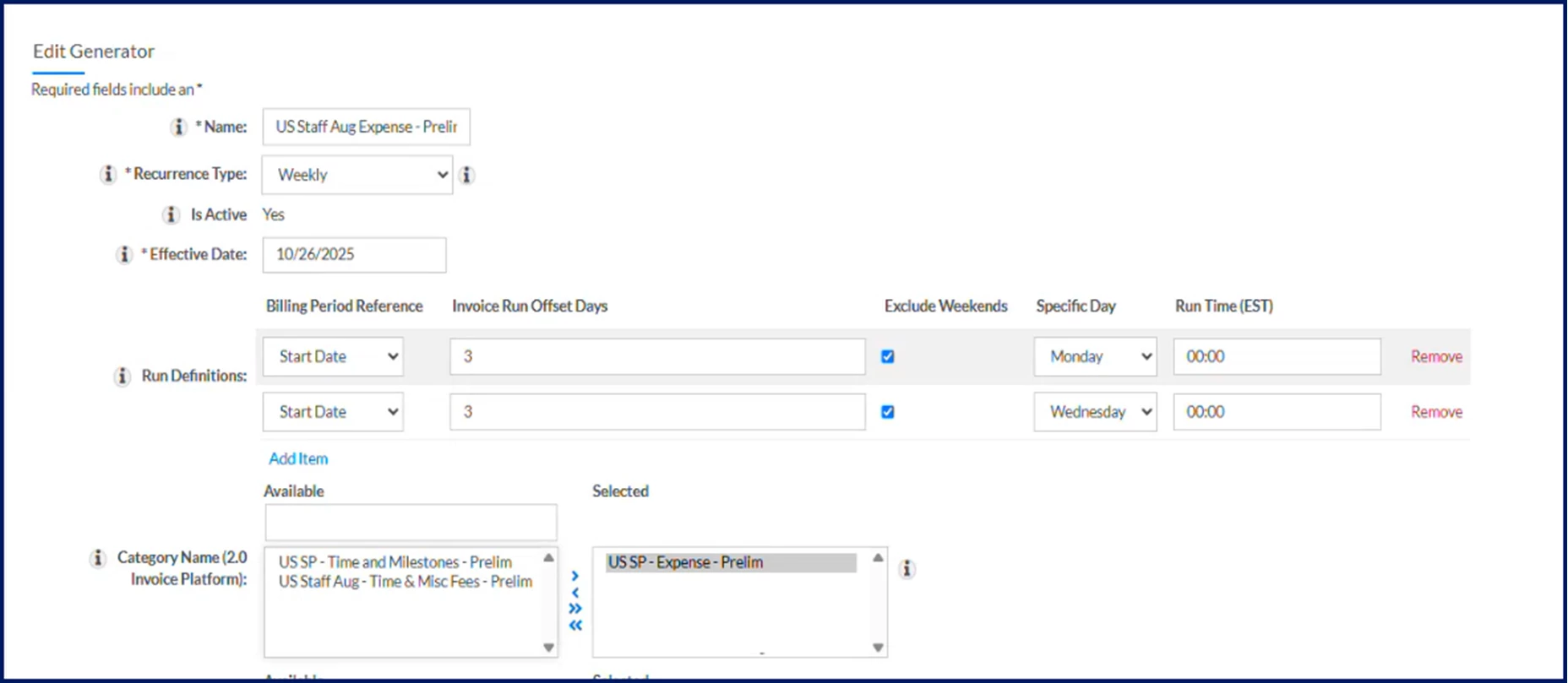
For example, you may want to run a preliminary invoice weekly on Mondays and Wednesdays. You’d create a single schedule with run definition details specified for each run time.
Information in this article reflects a standard Enterprise configuration. Your Enterprise platform is based on your organization’s configuration. Settings and/or data visibility rules may vary slightly from what is described.
Generating a schedule
Caution: Once you generate an invoice schedule, it cannot be deleted or edited.
To accomplish your task, complete these steps from your Enterprise dashboard.
- Select Preferences > VMS Settings > Financial Services. A Financial Services page displays.
- Select the Invoice Schedule Generator link. The Invoice Schedule Generator page displays showing existing invoice schedules.
- From the Navigation bar, select Add New. An Edit Generator page displays.
- In the Name field, enter a label for the schedule you’re generating.
- From the Recurrence Type list, choose one of the predefined types to align your schedule with operational cycles and help standardize reporting and cash flow management.
- Use the Effective Date calendar to set the date the schedule goes into effect. Currently limited to a MM/DD/YYYY format.
- In the Run Definition section, select Add New. Additional fields display so you can define the criteria and specifics of your invoice schedule.
- From the Billing Periods Reference list, select one of these options: Start Date, End Date, First Weekday, or Last Weekday. Your selection depends on the number of days before or after the billing period date when you want the invoice to run. You can enter positive or negative numerals to align with your program's needs and financial strategy.
- In the Invoice Run Offset Days field, enter the number of days before or after the billing period date when you want the invoice to run. You can enter positive or negative numerals.
- To omit weekends from your schedule, select the Exclude Weekends checkbox.
- From the Specific Day list, select the day of the week you want the schedule to run.
- In the Run Time (EST) field, enter the time of day you want the schedule to run.
Caution: Remember, the runtime uses a 24-hour clock based on Eastern Standard Time (EST). - To select the predefined invoice category you want in your schedule, take one of these steps:
- Use the Arrows to select the predefined invoice category you want from the Category Name (2.0 Invoice Platform) list. You can choose more than one category.
OR - Use the Arrows to select the predefined invoice category you want from the Client Billing Schedule (1.0 Invoice Platform) list. You can choose more than one category.
- Use the Arrows to select the predefined invoice category you want from the Category Name (2.0 Invoice Platform) list. You can choose more than one category.
- Select Next. A preview of your schedule displays.
- Optional. If you want to make changes to your schedule before you make it active, select Return to go back to the Edit Generator page and make adjustments.
- Select OK. A message informs you that invoices in a Not Started status associated with the schedule will be deleted.
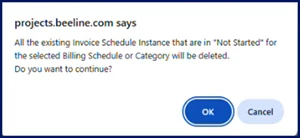
- Select OK. Invoices are automatically scheduled for up to one year ahead. Plus, new invoices will be automatically generated per the schedule you created.
Managing schedules
Although once you generate an invoice schedule, it cannot be deleted, you can make an active schedule inactive.
Caution: Once you deactivate an invoice schedule, it cannot be reactivated.
To accomplish your task, complete these steps from the Invoice Schedule Generator page.
- Locate and select the active schedule you want to update. An Edit page displays.
- Select Edit.
- Clear the Is Active checkbox.
- Select OK. A message informs you that invoices in a Not Started status associated with the schedule will be deleted.
- Select OK. All automatically generated schedules in a Not Started status associated with the schedule are deleted. The schedule remains in the list of schedules on the Invoice Schedule Generator page.
Reporting on your invoice schedules
If you want a list of your invoice schedules, you can quickly select Export from the Invoice Schedule Generator page. You can also access the Beeline Master Invoice Schedule report from the Report Builder to create a report with details on your invoice schedules.
To accomplish your task, complete these steps from your Enterprise dashboard.
-
Navigate to the Beeline Master Invoice Schedule report using one of these options:
- Select Report Gallery. Next, locate the report and then select Run.
OR - Select Admin > Reports. Enter the report name in the Report Name field on the Reports Administration page, and then select Search. Next, locate the report in the list at the bottom of the page, and then select Open with Report Builder.
- Select Report Gallery. Next, locate the report and then select Run.
- From the Output Type list, select a format for your report, such as Excel, chart, JSON API, and more.
- From the Fields tab, choose columns from the available invoice-related fields.
- From the Filters tab, choose any filters you want to apply.
- After you define filters, select Create Report.
Documentation release: Beeline Enterprise | Q1 2026