As a client, program office user or supplier, you can reconcile and align pro forma invoices to Beeline Enterprise data via self-service. After an invoice is generated externally, you can match detailed transactions (such as invoiced timesheets, expenses, miscellaneous fees, and milestones for contingent staffing or services procurement) in Enterprise to a supplier’s statutory invoice (which may not include specifics).
Validation scenarios
Before you update external invoice details, be sure to understand these restrictions and precautions. If you inadvertently make a mistake while entering data, the invoice must be manually corrected or reprocessed.
Supplier pro forma only
You cannot use the same external supplier invoice number for the same supplier. The supplier invoice number is a unique value provided by the issuing agency who validated the supplier’s invoice.
Supplier pro forma only
If you inadvertently use an external invoice number that has already been entered in Enterprise, an error message displays preventing you from proceeding. Contact your Client Operations Manager (COM) for assistance.
You cannot update a supplier’s external invoice details after the corresponding invoice feed has been generated. If you inadvertently make a mistake while entering data, the invoice must be manually corrected or reprocessed by the client.
You can make any number of modifications on the Supplier External Invoice Details page before you select Update and submit the invoice details.
How to steps
You can associate an external invoice with Enterprise data from the Supplier External Invoice Details and the MSP External Invoice Details page. Invoice batches displayed on that page have been validated and processed through Enterprise per the client’s master invoice schedule.
The information you can view on the Supplier External Invoice Details and the MSP External Invoice Details page varies based on your Enterprise user role and permissions. If you’re a client or program office user, you may see invoices for multiple suppliers or MSP under a single batch header ID. If you’re a supplier, you can view details only for invoices you submitted.
Information in this article reflects a standard Enterprise configuration. Your Enterprise platform is based on your organization’s configuration. Settings and/or data visibility rules may vary slightly from what is described.
Reconciling supplier invoices
To accomplish your task, complete these steps from your Enterprise dashboard.
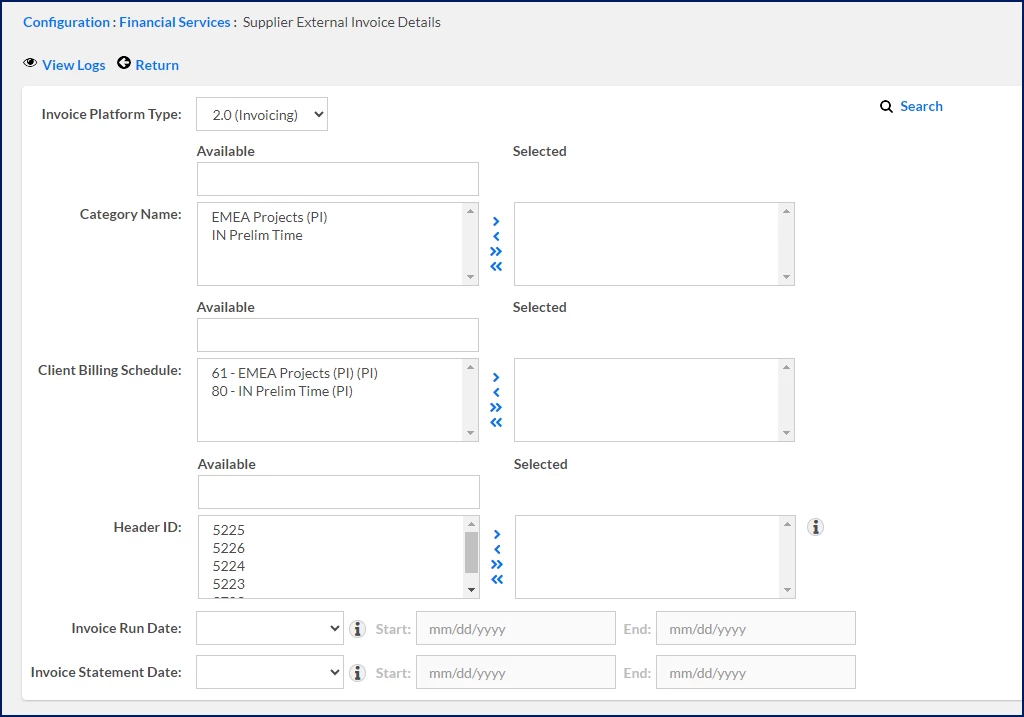
Select Supplier External Invoice Details. A Supplier External Invoice Details page displays showing all successfully processed pro forma invoices. TIP: The information you see is based on your role and Enterprise permissions.
Optional: If you don’t see the invoice you want, expand Search Options, and then use the fields on the Search page to locate the invoice. You can search by these criteria:
category name
client billing schedule
header ID
invoice run date
invoice statement date
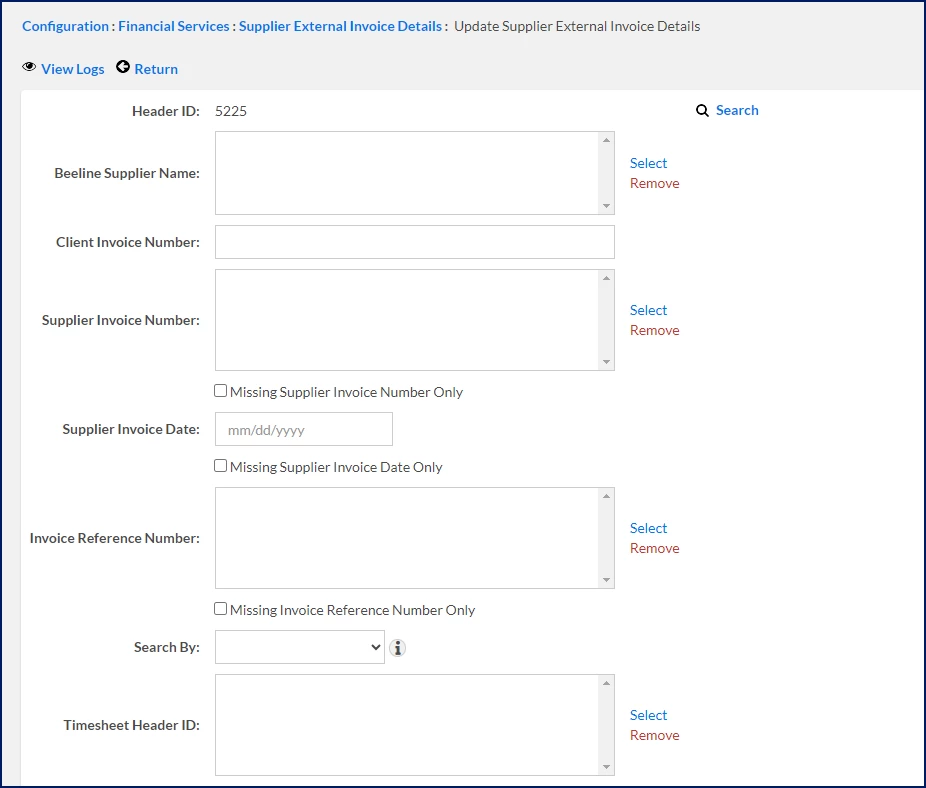
Select a batch header ID to drill down into the batch details. An Update Supplier External Invoice Details page displays showing data for the batch header ID you selected.
After you drill down into a batch header ID, you can search for the specific Enterprise records you want to associate with a supplier invoice. Search criteria vary based on whether the batch header ID is for contingent staffing or services procurement. You can search by these criteria:
supplier name
client invoice number
supplier invoice number
missing supplier invoice number
supplier invoice date
invoice reference number
missing invoice reference number
staff augmentation timesheet
expense
staff augmentation miscellaneous fee
SOW milestone
timesheet header ID
miscellaneous fee ID
assignment number
worker name
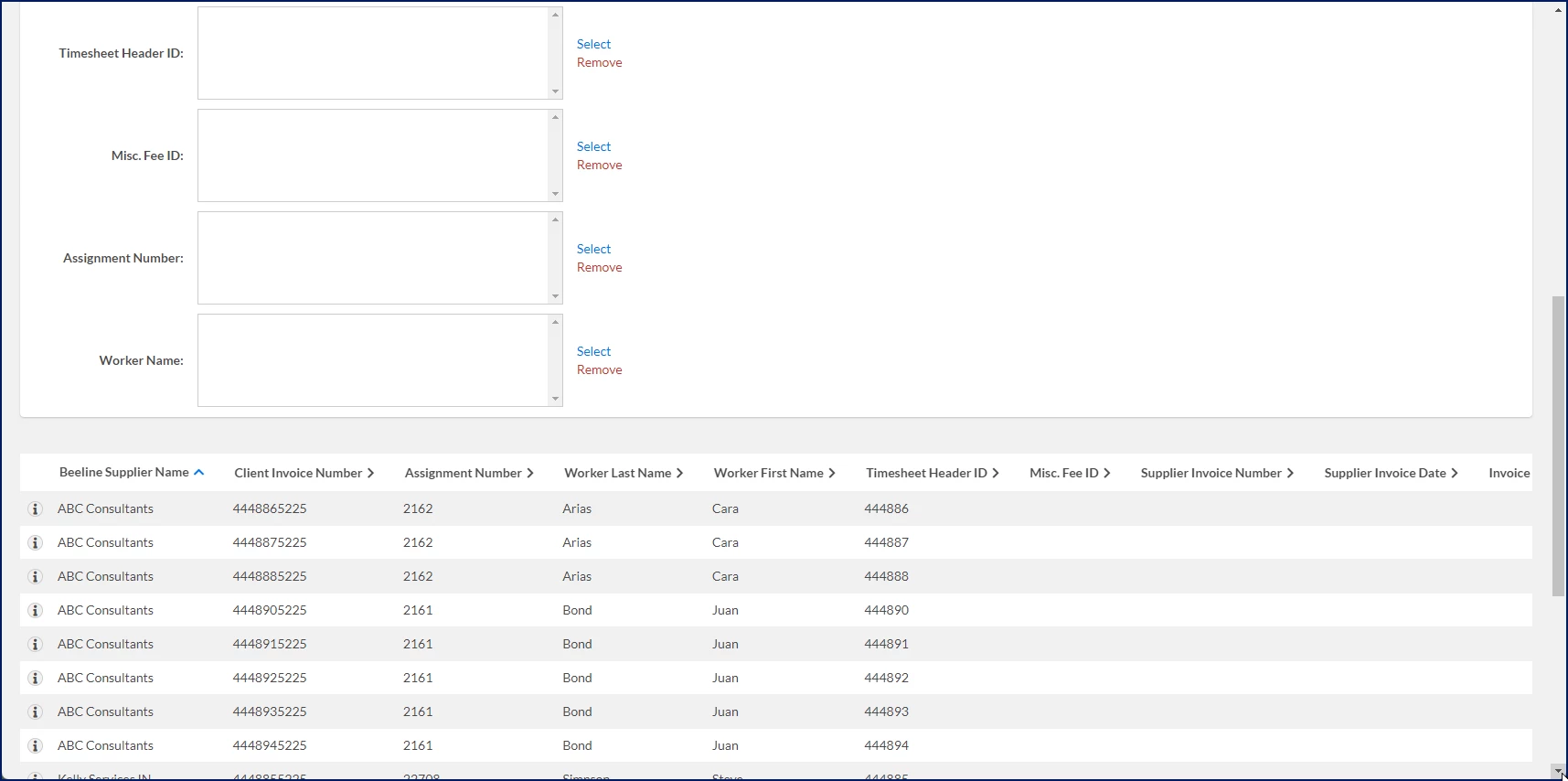
From the search results that display in the middle of the page, locate the client invoice number you want. You can view up to 50 results at a time in the Invoice Details list and scroll through additional pages when you have more than 50 results.
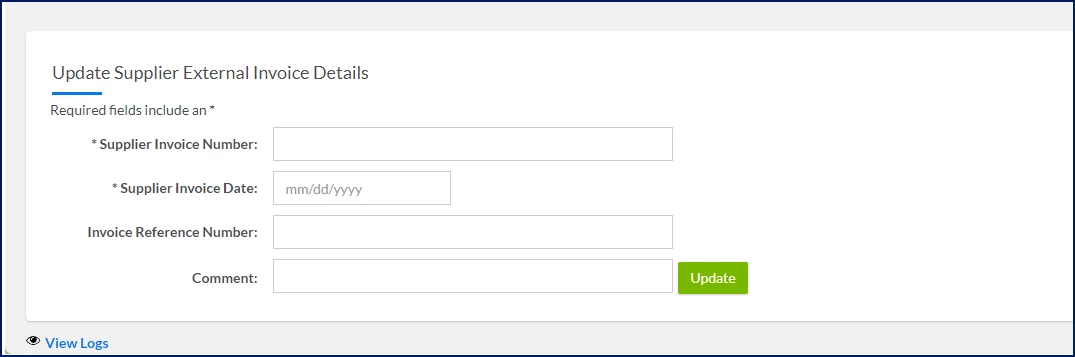
In the Update Supplier External Invoice Details section near the bottom of the page, enter the supplier’s invoice number in the Supplier Invoice Number field. You can enter up to 256 characters. TIP: Be sure to enter a unique value for each supplier.
Enter the date the invoice was submitted in the Supplier Invoice Date field.
Optional: In the Invoice Reference Number field, enter the number that helps the supplier associate an invoice to transactions in their in-house accounts receivable system.
Optional: Enter any notes in the Comments field.
Select Update. A message displays so you can confirm your action. Caution: You may see a message indicating the number of records you’re updating, or you may be alerted that you’re about to change the details of a supplier’s external invoice.
Make sure your entries in the Update Supplier External Invoice Details section are correct, and then select OK. Your updates are submitted. Invoice batches are validated for concurrent and/or conflicting updates, potential errors are prevented, and reprocessing is retried as required based on the invoices in the queue and the client’s Enterprise configuration. Feeds for successfully processed batches are also generated and sent to the client based on their pro forma configuration in Enterprise.
Optional: Select View Logs to examine details of your update results. A View Logs page displays showing invoices you updated. Invoices are listed chronologically by the submitted date.
Reconciling MSP invoices
To accomplish your task, complete these steps from your Enterprise dashboard.
Select MSP External Invoice Details. An MSP External Invoice Details page displays showing all successfully processed pro forma invoices. TIP: The information you see is based on your role and Enterprise permissions.
Optional: If you don’t see the invoice you want, expand Search Options, and then use the fields on the Search page to locate the invoice. You can search by these criteria:
category name
client billing schedule
header ID
invoice run date
invoice statement date
Select a batch header ID to drill down into the batch details. An MSP External Invoice Edit page displays showing data for the batch header ID you selected.
After you drill down into a batch header ID, you can search for the specific Enterprise records you want to associate with an MSP invoice. Search criteria vary based on whether the batch header ID is for contingent staffing or services procurement. You can search by these criteria:
Beeline supplier name
client invoice number 2
MSP invoice number
missing MSP invoice number
MSP invoice date
missing MSP invoice date
invoice reference number
missing invoice reference number
staff augmentation timesheet
staff augmentation miscellaneous fee
timesheet header ID
miscellaneous fee ID
assignment number
worker name
From the search results that display in the middle of the page, locate the client invoice number you want. You can view up to 50 results at a time in the Invoice Details list and scroll through additional pages when you have more than 50 results.
In the Update MSP External Invoice Details section near the bottom of the page, enter the MSP’s invoice number in the MSP Invoice Number field. You can enter up to 256 characters. TIP: Be sure to enter a unique value for each MSP.
Enter the date the invoice was submitted in the MSP Invoice Date field.
Optional: In the Invoice Reference Number field, enter the number that helps the MSP associate an invoice to transactions in their in-house accounts receivable system.
Optional: Enter any notes in the Comments field.
Select Update. A message displays so you can confirm your action. Caution: You may see a message indicating the number of records you’re updating, or you may be alerted that you’re about to change the details of a MSP’s external invoice.
Make sure your entries in the Update MSP External Invoice Details section are correct, and then select OK. Your updates are submitted. Invoice batches are validated for concurrent and/or conflicting updates, potential errors are prevented, and reprocessing is retried as required based on the invoices in the queue and the client’s Enterprise configuration. Feeds for successfully processed batches are also generated and sent to the client based on their pro forma configuration in Enterprise.
Optional: Select View Logs to examine details of your update results. A View Logs page displays showing invoices you updated. Invoices are listed chronologically by the submitted date.
Invoice statuses
After you submit an MSP invoice for updating, it’s processed through Enterprise. You may see invoices in these statuses.
Status
Description
Pending
The invoice is open, unresolved and awaiting processing. Enterprise checks for concurrent and/or conflicting updates and retries processing to resolve potential errors based on the error type and your configuration settings. Batches are processed approximately every 30 seconds.
Completed
Records in your financial database have been updated.
Please complete the following fields as part of your Beeline Community registration. Unless noted as private, this information will be displayed on your user profile within the community.