Add a one-time charge to an assignment
Use a miscellaneous fee when you need to record a one-time assignment-related charge that isn't captured through timesheets or expense reports. Miscellaneous fees can be used for costs such as background checks, conversion fees, administrative charges, or other assignment-related expenses.
Jump to what you want
Why it matters
Not all assignment-related costs are captured through standard time and expense processes. Organizations often need a way to record and track one-time charges separately so assignment-related financial records remain complete and accurate.
Adding miscellaneous fees helps support:
- Accurate tracking of assignment-related costs.
- Consistent documentation of non-standard charges.
- Financial reporting and audit requirements.
- Visibility into fees associated with assignments.
- Proper management of costs that fall outside timesheets and expense reports.
- Program Office users
- Financial operations teams
- Users responsible for managing assignment-related fees
- Users authorized to create miscellaneous fees
How it helps
Miscellaneous fees provide a way to manage one-time assignment-related charges directly within the assignment record. Using miscellaneous fees, you can:
- Create one-time charges for an assignment.
- Associate charges with fee categories and fee codes.
- Attach supporting documentation.
- Add notes explaining the purpose of a fee.
- Submit fees through your organization's approval process.
- Track fees throughout approval, invoicing, and processing.
Availability and setup
Managing miscellaneous fees from Enterprise requires a Service Request ticket and Enterprise configuration. The Miscellaneous Fee feature must be enabled in your organization's Enterprise configuration.
Your organization may also require:
- Permissions to create and manage miscellaneous fees.
- Approval workflows for fee processing.
- Fee categories and fee codes configured by your organization.
Understand one-time fees
A one-time fee creates a single charge for an assignment.
Use a one-time fee when a charge only needs to be applied once, such as:
- Background check fees
- Conversion fees
- Administrative charges
- Compliance-related charges
- Other non-recurring assignment expenses
If you need the same fee to occur repeatedly over time, use a recurring fee instead.
Important behavior
- One-time fees create a single fee record.
- Supporting documentation can be attached to a fee.
- Fees may require approval before processing.
- Additional fields may be displayed based on the selected fee category or fee code.
- Some organizations allow fees to be created on expired assignments when the fee's effective date falls within the assignment dates.
- Fee processing and visibility may vary based on your organization's configuration.
What this means in practice
When you create a miscellaneous fee, the fee enters your organization's approval and processing workflow.
After the fee is created, you can:
- Monitor its status.
- Review approval activity.
- Research processing details.
- Cancel the fee if business requirements change and the fee has not yet been processed.
Additional considerations
- Verify fee information before saving the fee.
- Select the correct fee category and fee code.
- Include supporting documentation when required by your organization's process.
- Add notes to help explain the purpose of the fee.
- Review the fee status after submission to monitor processing.
Before you begin
Ensure:
- You have permission to create miscellaneous fees.
- The assignment is eligible for miscellaneous fees.
- You know the fee category and fee code to apply.
- Any required supporting documentation is available.
- You understand the effective date associated with the fee.
How to add a fee
Information in this article reflects a standard Enterprise configuration. Your Enterprise platform is based on your organization's configuration. Settings and data visibility may vary slightly from what is described.
To accomplish your task, complete these steps from your Enterprise dashboard.
- From the Simple Search option at the upper right of your dashboard, enter an assignment ID or a resource name for the active assignment to which you want to add a miscellaneous fee. An Assignment page displays.
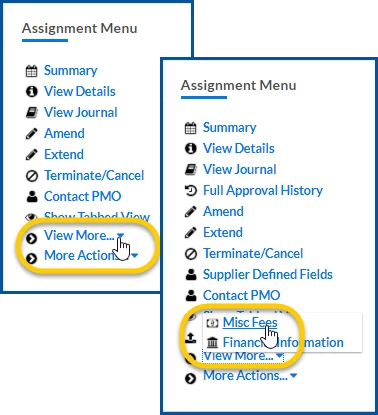
- From the Assignment Menu in the lower left corner, select More Actions > Add Misc Fee.

A Misc Fee Edit page displays.
- In the Schedule section, select Single.

What this does: Creates a one-time miscellaneous fee.
Why this matters: Single fees create one fee occurrence instead of a recurring series of fees.
In simple terms: You're creating a fee that will occur only once.
- From the Fee Category list, select the type of miscellaneous fee you want to apply. ⚠️
What this does: Identifies the type of fee being charged.
Why this matters: The selected category may affect available fee codes, approval processing, and reporting.
In simple terms: You're choosing the type of fee you're creating.
- From the Fee Code list, select the applicable fee code. ⚠️
What this does: Associates the fee with a specific charge code.
Why this matters: Fee codes help categorize charges for processing, invoicing, and reporting.
In simple terms: You're selecting the specific code used to identify the fee.
- If the page refreshes and displays additional fields, verify that the values in the Units and Amount fields are correct.
- Use the Effective Date calendar to select the date to which the fee applies. ⚠️
What this does: Defines the date associated with the fee.
Why this matters: The effective date determines when the fee applies to the assignment.
In simple terms: You're selecting the date the fee should be associated with.
- Optional. To add supporting documentation:
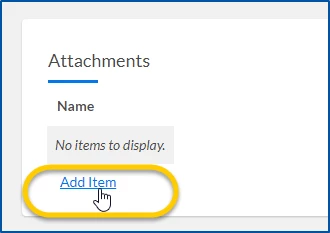
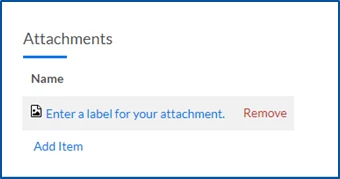
a. In the Attachments section, select Add Item.

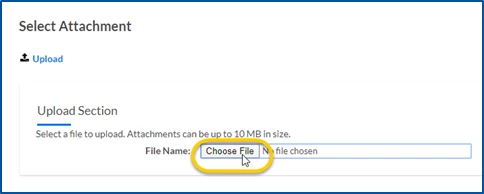
b. Select Choose File and locate the file you want to attach.

c. Select Upload.
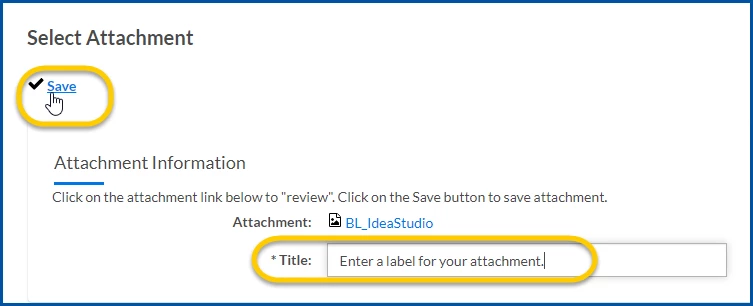
d. Enter a title for the attachment.
e. Select Save.

f. Repeat these steps to add additional attachments if necessary.
- In the Note field, enter an explanation for the fee.
- Select OK. A message confirms the fee was successfully saved, and you are returned to the assignment record.
Final result
The miscellaneous fee is created and routed through your organization's approval and processing workflow. Depending on your configuration, the fee may require approval before invoicing, and processing can occur.
Key takeaway
One-time miscellaneous fees help you record assignment-related charges that occur outside standard time and expense processes. When entered correctly, they support accurate financial tracking, approval workflows, invoicing, and reporting.
Frequently asked questions (FAQs)
When should I use a one-time fee?
Use a one-time fee when a charge only needs to be applied once and does not need to repeat on a schedule.
Can I add a fee to an expired assignment?
In some cases, yes. The fee's effective date must typically fall within the assignment dates. Your organization's configuration may affect availability.
Can I attach documentation to a fee?
Yes. Supporting documentation can be attached when creating the fee.
What happens after I save a fee?
The fee enters your organization's approval and processing workflow.
How do I check the status of a fee?
See Understanding processing & statuses for information about fee lifecycle statuses.
Can I cancel a fee after creating it?
Yes, provided the fee has not reached a status that prevents cancellation. See Canceling a fee for details.
What if I selected the wrong fee information?
Correct the fee if possible or cancel the fee and create a replacement fee according to your organization's process.
When should I use a recurring fee instead?
Use a recurring fee when the same charge needs to occur on a regular schedule over time. See Adding a recurring fee for more information.
Learn more
- About miscellaneous fees
- Tips on working with miscellaneous fees
- Understanding processing & statuses
- Adding a recurring fee
- Cancelling a fee
- Reprocessing a fee
- Importing assignment miscellaneous fees
- Researching miscellaneous fee details
| Persona Program office users | Modules Contingent Staffing Services Procurement | Documentation release Beeline Enterprise | Q3 2026 | Feedback? Email us: |