Sometimes you may need to troubleshoot why a fee isn’t approved and understand which phase is causing a delay. When you want to view the results of a specific workflow step, drilldown from the ViewApprovalDetails page to open an ApprovalHistoryResults page. From there, you can view details about the status of a step, the user that generated an action, and the date and timestamp the action occurred.
To view the results of a specific workflow step, complete these steps from your Enterprise dashboard.
From the Simple Search option at the upper right of your dashboard, enter an assignment ID or a resource name for the active assignment to which you want to add a miscellaneous fee. An Assignment page displays.
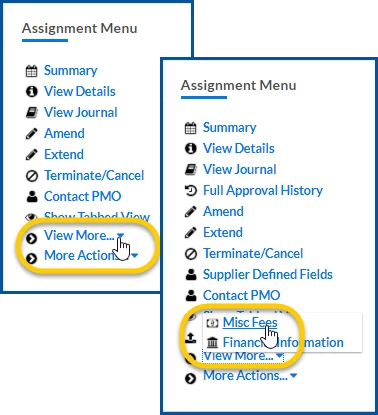
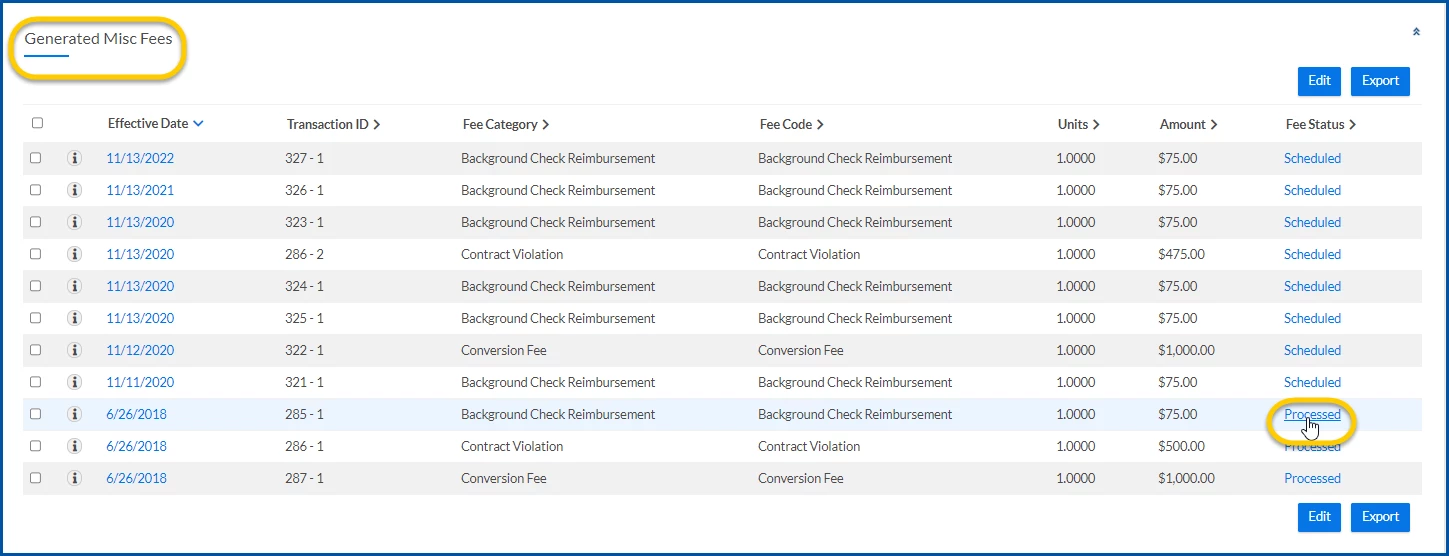
From the AssignmentMenu in the lower left corner, select ViewMore > Misc Fee. An Assignment Edit –MiscFee page displays.
Select the link in the FeeStatus column. A ViewApprovalDetails page displays.
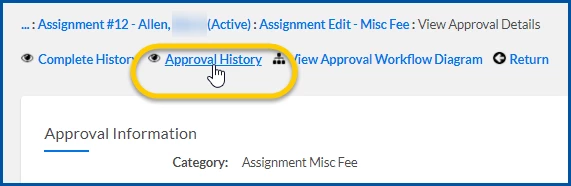
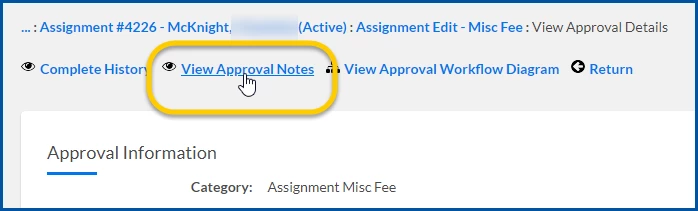
From the ViewApprovalDetails page, take one of these actions:
If you’ve chosen a fee in a Pending status, select ApprovalHistory.
OR
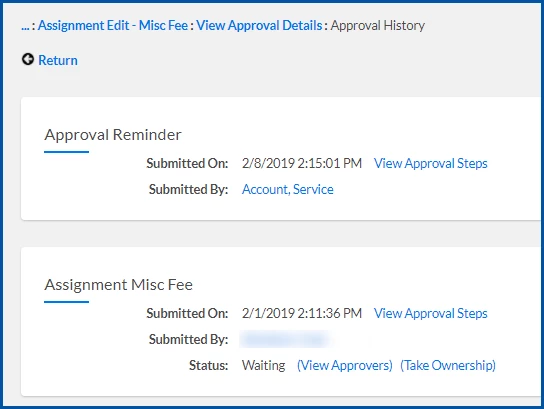
If you’ve chosen a fee in a Canceled, Processed, or Scheduled status, select ViewApprovalNotes. An ApprovalHistoryResults page displays showing you the results of each step in the approval workflow the fee is associated with.
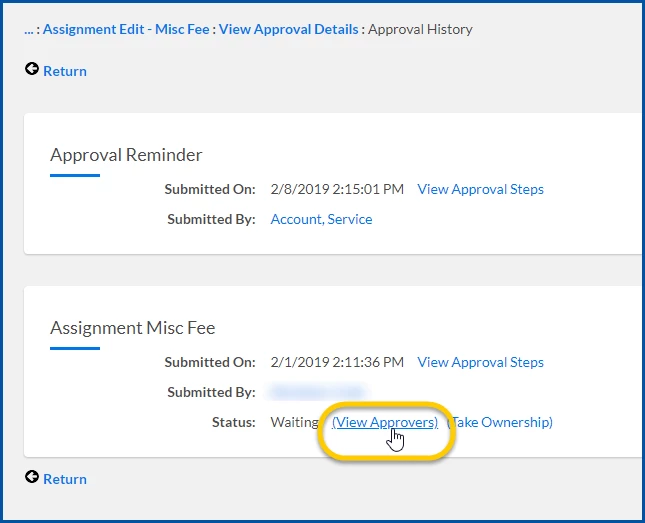
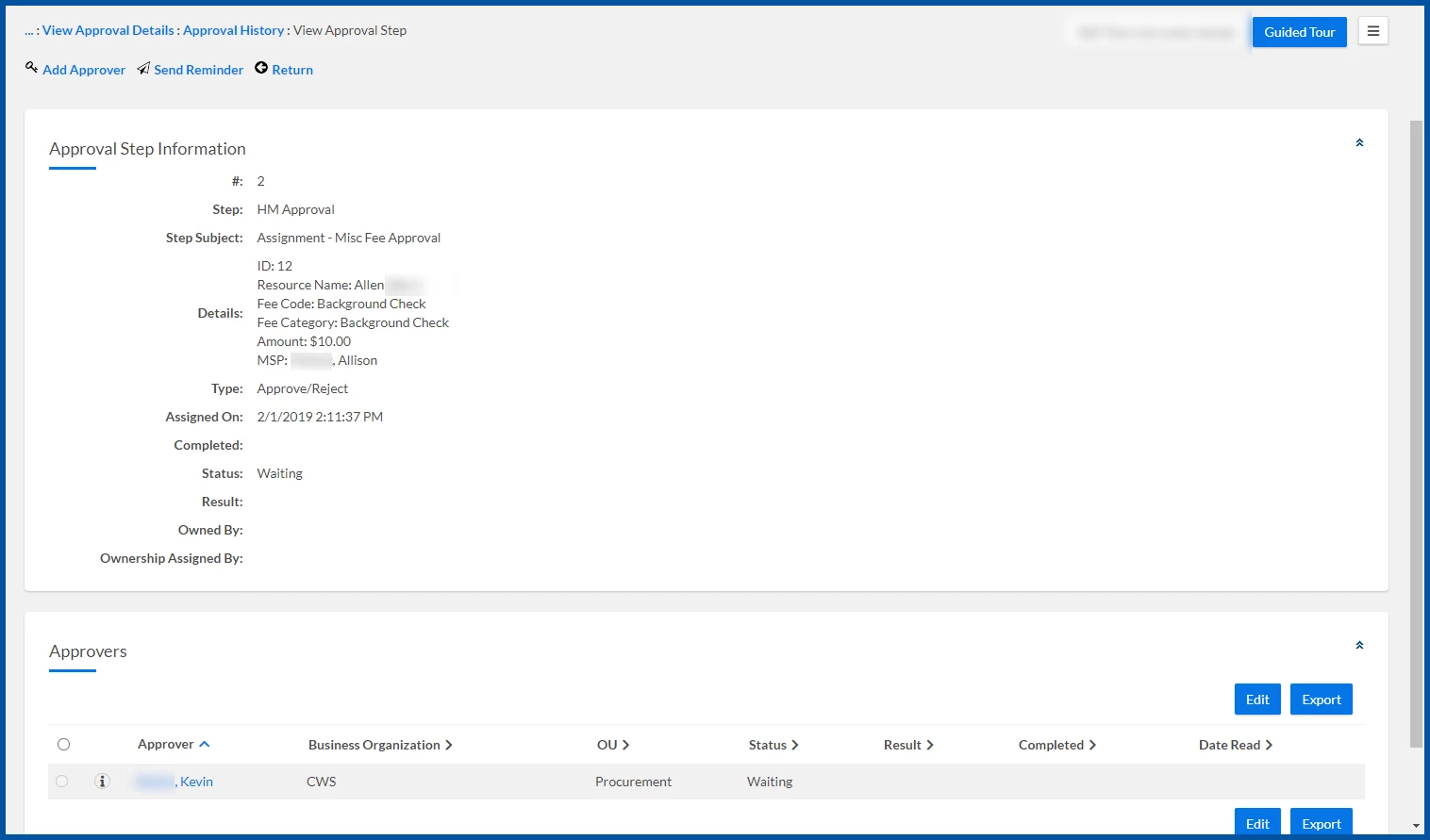
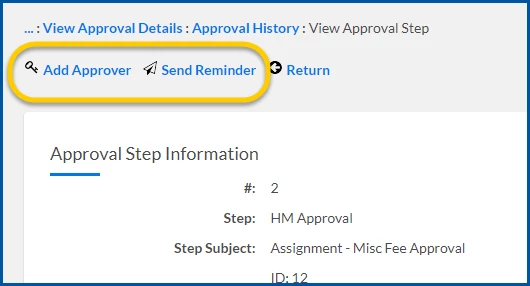
Optional. From the ApprovalHistory Results page, select the ViewApprovers link to open a ViewApprovalStep page. From the ViewApprovalStep page, you can see details about a specific approval step and which approvers are assigned to the step. From the ViewApprovalStep page, you can also take these actions:
Add an approver.
Send a reminder.
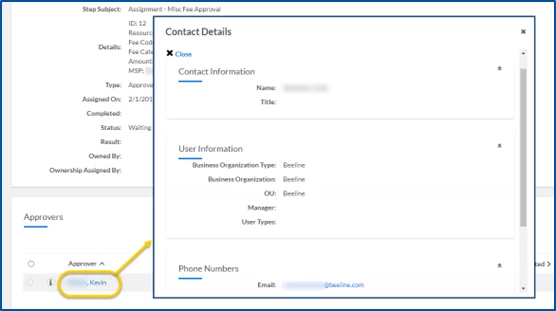
Drilldown and view contact information for a specific approver by selecting the Username link in the Approvers section.
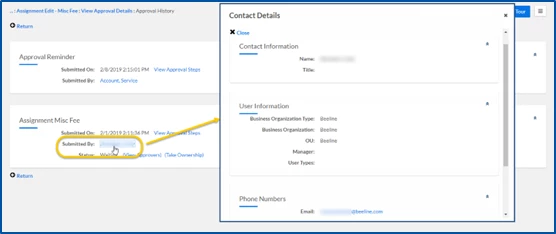
Optional. From the ApprovalHistoryResults page, select the SubmittedBy link to drilldown and view contact information for a specific user in case you need to reach out to them.
Select Return to go back to the ViewApprovalDetails page.
If you drilled down to get additional details, you may need to select Return more than once.
Please complete the following fields as part of your Beeline Community registration. Unless noted as private, this information will be displayed on your user profile within the community.