After you and your program office work with your COM to set up Beeline RTE features for your organization, timesheets submitted through Beeline Enterprise are processed using Beeline RTE.
Submitted timesheets are compared to the Classification Schedules set up for your organization to determine which schedule is the best match for the timesheet. Next, the timesheet is validated against the Classification Rules associated with the Classification Schedule. Classification Rules are automatically applied, and entries are automatically allocated to various earning codes and rate classifications.
TIP: You can manage earning code rates and applicable rate premiums from the System, Request, and Assignment rate card.
Hiring managers receive timesheets for approval already classified with overtime, shift, day of week, and holiday rules. In addition, hiring managers are viewing accurate rate details because relevant rate premiums based on the earning codes are applied.
Viewing timesheet estimates
As a hiring manager or a program office user, you can view a detailed breakdown of timesheet costs by earning code before you approve a timesheet. You must be a user with Timesheet Cost Estimation permissions to view timesheet estimates.
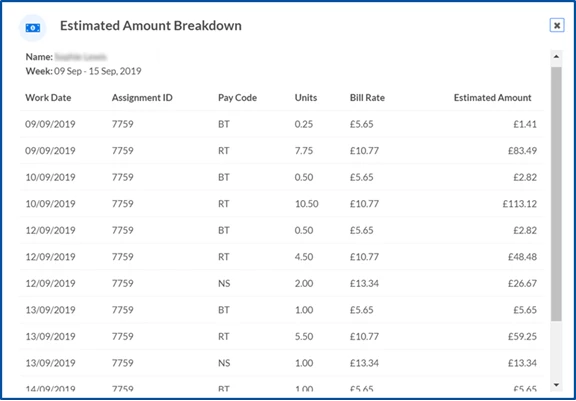
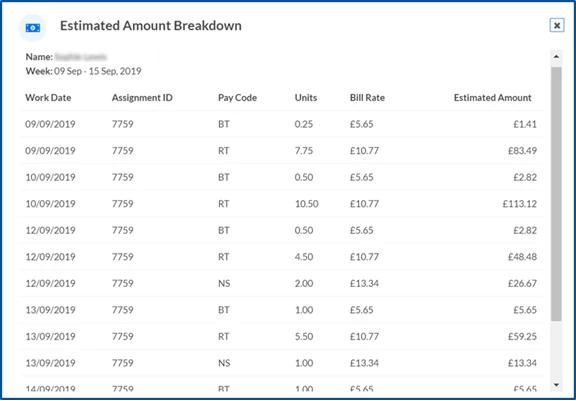
The Estimated Amount Breakdown dialog displays showing the earning codes, units and rates to be invoiced for a specific timesheet so you know what charges will be in the final invoice and how those expenses will impact your budget.
TIP: Fees, taxes and discounts excluded from timesheet estimates are calculated when the invoice is generated.
Viewing timesheet estimates from Approval Central
As a timesheet approver, timesheets requiring your approval display in the My To Do List quadrant of your default dashboard.
To view timesheet estimates from Approval Central, complete these steps from your Enterprise dashboard.
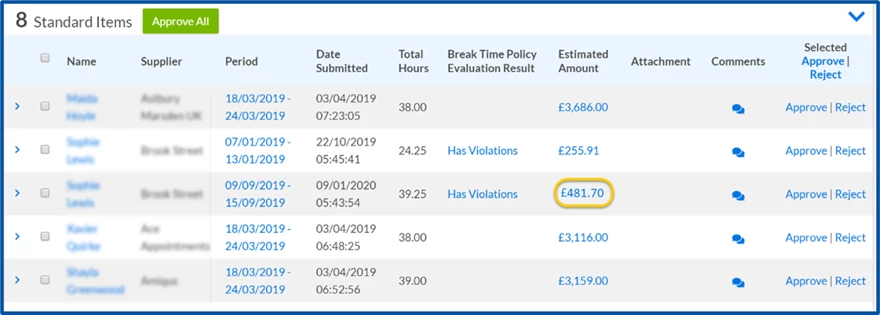
Select the Timesheets to Approve link. A Summary page displays showing you details of the timesheets you need to approve.
Select the Estimated Amount for which you want to view details. An Estimated Amount Breakdown dialog displays showing you details the earning codes, units and rates to be invoiced for a specific timesheet so you know what charges will be in the final invoice and how those expenses will impact your budget.
Viewing timesheet estimates from BTE
As a hiring manager or a program office user, you can quickly view timesheets and timesheet estimates from Beeline Time and Expense (BTE).
To view timesheet estimates from BTE, complete these steps from your Enterprise dashboard.
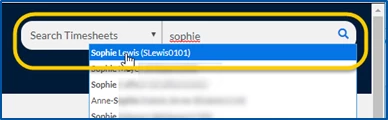
From the Simple Search option at the upper right of your dashboard, select Search Timesheet, enter the resource whose timesheet you want to view. A Time and Expense page displays.
Locate the timesheet you want to view.
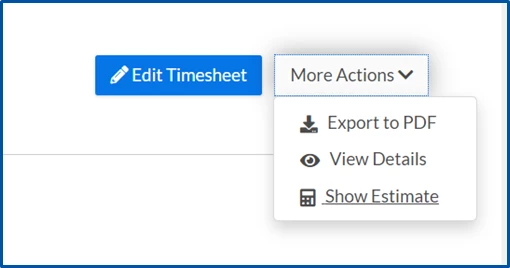
Click More Actions > Show Estimate. An Estimated Amount Breakdown dialog displays showing you details the earning codes, units and rates to be invoiced for a specific timesheet so you know what charges will be in the final invoice and how those expenses will impact your budget.
Please complete the following fields as part of your Beeline Community registration. Unless noted as private, this information will be displayed on your user profile within the community.