


In Report Builder, Operators are a way to limit the results criteria by taking a filter and then combining it with an operator.
For example: If I set my Filter to “Industry” and make the value for industry to “IT” and then select “Equals” as my Operator value, then my report results will only display data where the industry equals IT.
To navigate to Operators in Report Builder:
- Click Report Gallery in the Header Menu bar.
- Select the base/ad hoc report of your choice from the displayed tiles.
- Click Run in the lower left corner of the tile to open Report Builder. Notice that the default display for the selection list is “Fields”.
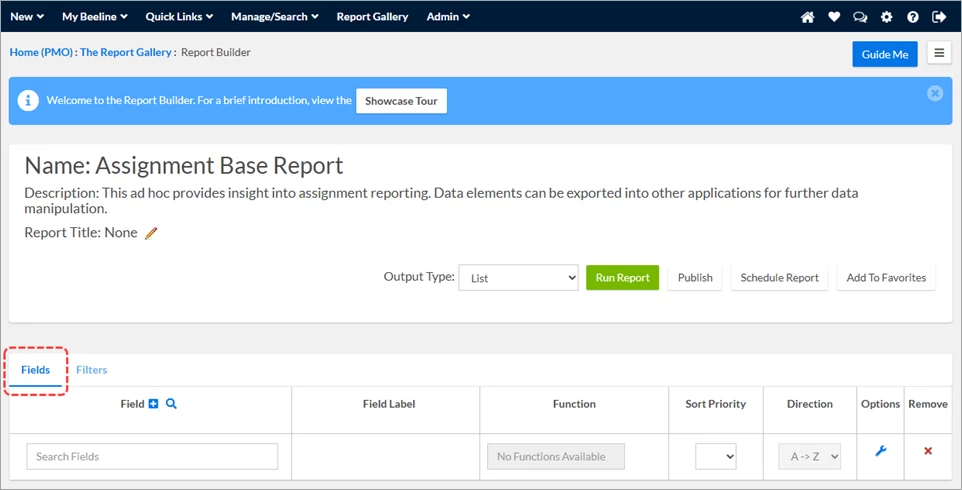
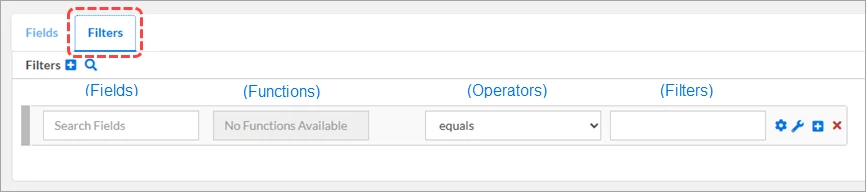
- Click Filters to switch the selection list. The selection list now displays as 4 columns. Starting from the left, they are Fields, Functions, Operators, and Filters.
♦ Top 5 Operators
| Operator | Conditions Allowed |
|---|---|
| ♦ Is in List - Use to create selection list for values you want to associate to the Operator. Set Operator to Is in list then use the Filter Select link to pick which values to use in your report’s selection list. | Multiple |
| Example: 
| |
| ♦ Is Greater Than or Equal To - Use to filter data in a field that is greater than or equal to the single condition selected. This operator is primarily used with data fields in conjunction with Is Less Than or Equal To -- restricting data between specific dates. | 1 |
| Example: 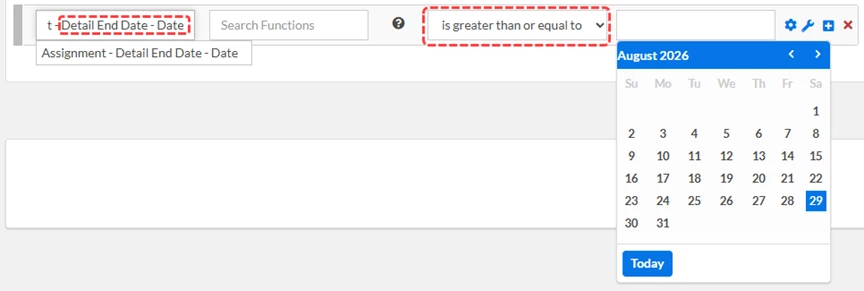
| |
| ♦ Is Less Than or Equal To - Use to filter data in a field that is less than or equal to the single condition selected. This operator is primarily used with data fields in conjunction with is Greater Than or Equal To -- restricting data between specific dates. | 1 |
| Example: 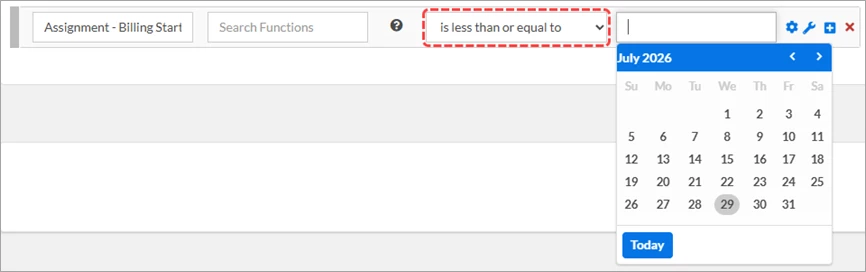
| |
| ♦ Equals - Use to select data that matches the condition entered. | |
| Example: 
| |
| ♦ Not Equal - Use to filter data in a field that does not equal the single condition selected. | |
| Example: 
| |
♦ Additional Operators
| Operator | Conditions Allowed |
|---|---|
| ♦ Contains - Use to include data in a field that contains a specified character or value | 1 |
| ♦ Does Not Contain - Use to exclude data in a field that does not contain a specified character or value. | 1 |
| ♦ Is Greater Than / ♦ Is Less Than - Use to filter data in a field that is greater or less than the single condition selected. This operator is primarily used with date fields. | 1 |
| ♦ Is Like - Use to include data in a field that is like a specified term or value. | 1 |
| ♦ Is Not Like - Use to exclude data in a field that is not like a specified term or value. | 1 |
| ♦ Is Null - Use to select data in a field that is missing data or is null. | N/A |
| ♦ Is Not Null - Use to filter out data in a field that is missing data or null. | N/A |
| ♦ Is Not in List - Use to filter out data in a field that is in the selected list of values. | Multiple |
| ♦ Is True - Checkbox value that will restrict data based on a True/False condition. | 1 |
| Persona | Module | Date Updated | Feedback? Email us: |
| Reporting Users | Report Builder | Beeline Enterprise |