


Manage/Search
Manage/Search can be used to find detailed information based on the category of Manage/Search selected. Each category incorporates a variety of filters so that the user can refine their search as needed. Search results are visible within Beeline Enterprise and can be exported in report format.
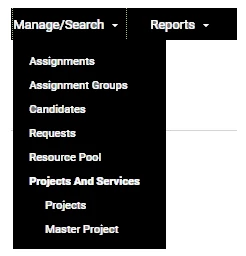
To use Manage/Search, click on the desired category from the menu list. Use the displayed filters to set your search parameters, then click Search. The search results will display at the bottom of your screen. Click Edit to adjust the column display and/or sort order for your results. This link is located on the right side of the screen, directly above and below your results list. Click Export to download your results into an Excel® spreadsheet.
Simple Search
Simple Search can be used to find a specific record or to search for a group of records similar to Manage/Search. To use this feature, select a category from the Simple Search pull-down selection list menu then type your search term in the text box. Results will start to display as you type.
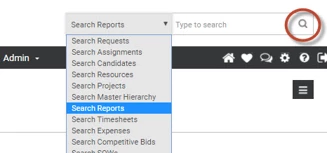
To go directly to a record, click on the record link as soon as it displays in your results.
To search for a list of records, click the advanced search icon (the magnifying glass) next to the text entry box. A search screen opens. Use the filter options at the top of the screen to refine your search. Click <Search> and the results will display at the bottom of the screen. Need more options? Expand the More drop-down selection list.
More advanced search options
The More drop-down selection list gives you additional options for enhancing your search results.
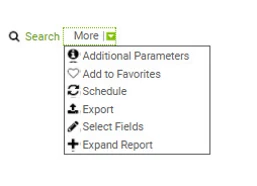
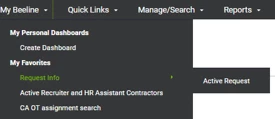
| ♦ Add to Favorites Use this option to convert your search results into a saved favorite report. As a “favorite”, it retains the criteria, functions, conditions, and sort parameters of your original search. Instead of needing to repeat your original search, you can now generate this report on demand which provides ease of access, saves time, and makes for consistent reporting across time. When you click the Add to Favorites link, you’ll be prompted to enter a name for your report. Use a title that is easy to recognize. Click OK to save. To retrieve your report, expand the My Beeline menu in the Header Menu and check under the My Favorites section. Be sure to complete all format changes to your results list before you select the “Add to Favorites” option. | 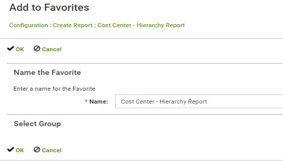
|
| ♦ Schedule Beeline Enterprise includes multiple options for scheduling reports to be delivered to the users of your choice. Details are provided in the “Scheduling and Emailing Ad Hoc Reports” Knowledge Base article. | 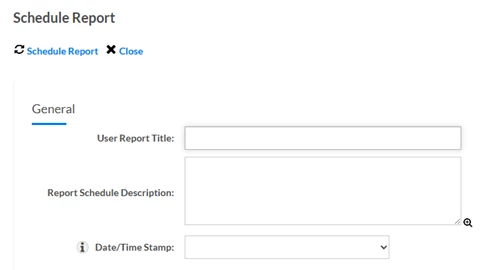
|
| ♦ Export Use this option to export your results data into an Excel® spreadsheet. Just follow the prompts once you select this option. | 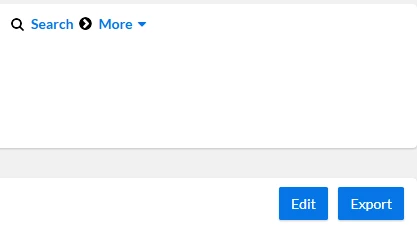
|
| ♦ Select Fields Need to adjust how the columns display in your results list? Use this option to customize your report. The section box lets you add or remove columns. The Specify Sort section lets you adjust the sort order of the selected columns. Just remember to click OK to save your changes. | 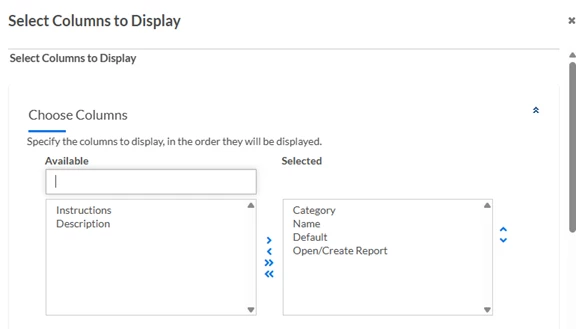
|
| ♦ Expand Report Need even more adjustments to your results list? Click Expand Report and your results list will be pulled into Report Builder with access to its full-range of features. From Simple Search to a full-feature report engine in just a few clicks. What could be simpler! Be sure to save all changes you make in Report Builder as a new “favorite” report. Once you leave this screen, your results list will revert back to its original configuration. | 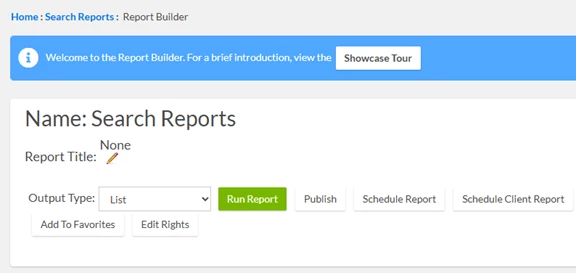
|