


As a hiring manager, you can leverage that information when creating requests after Beeline Enterprise is configured and your program office has added End Client data for your organization. You can pull end client data directly into your downstream workflows, such as requests, assignments, and resources.
You can use, view, or edit end client data in these workflows.
|
|
|
|
Adding an end client to a new request
You can take advantage of the end client data in Enterprise when you’re creating a new request.
To leverage end client data when you create a request, complete these steps from your Enterprise dashboard.
-
Select New > New Request.
-
From the Job Title list, select the job title you want. You must select a request type configured with end client data. A Create Request page displays.
-
Follow your organization’s business process for completing the information Create Request page, and then click Next. A Create New Request page displays.
-
Follow your organization’s business process for completing the required fields on the Create New Request page.
-
Navigate to the End Client section, and then select your client from the Client field.
TIP: The Client field leverages typeahead to help you quickly find the correct matching entry.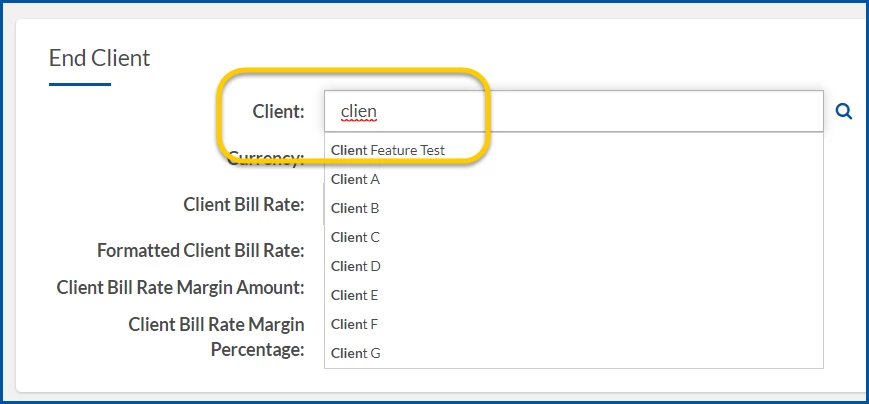
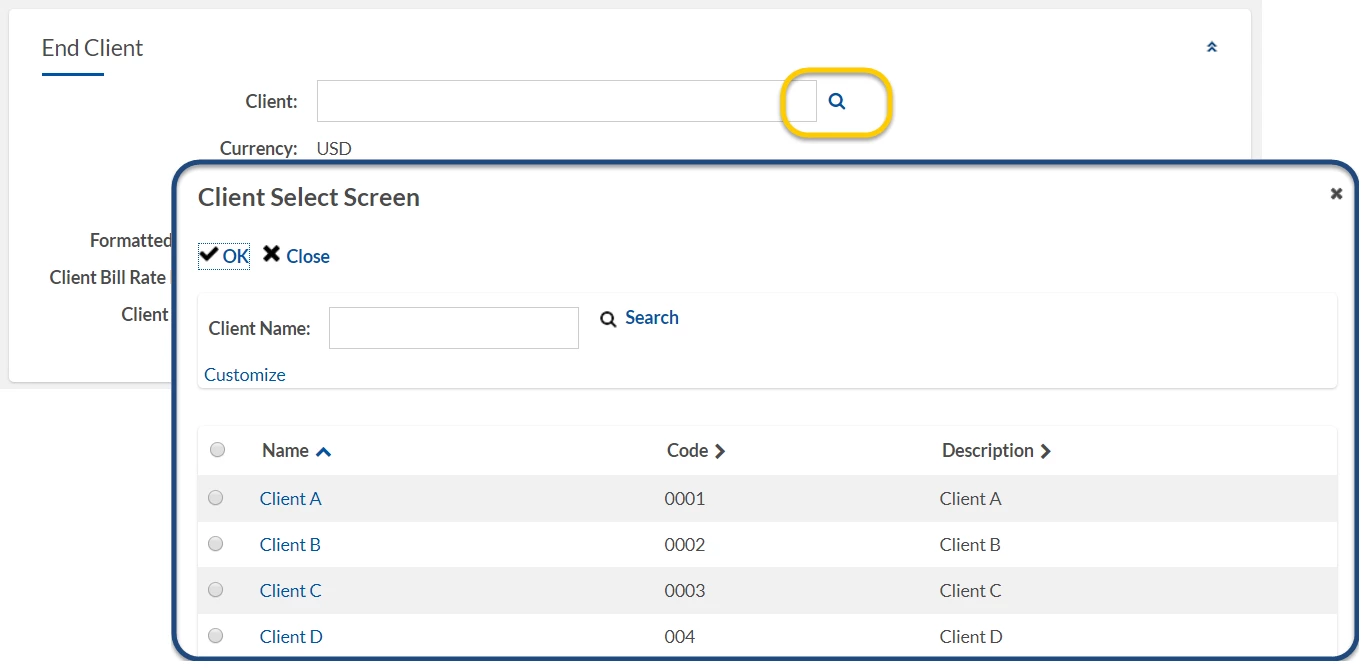
You can also use the Search icon next to the Client field to view a list of clients in the Client Select Screen.
-
In the Client Bill Rate field in the End Client frame, enter the amount you pay your client for services.
TIP: The value you enter in the Client Bill Rate field and the Bill Rate listed in the Rate Details frame are used to automatically calculate the corresponding values in the Formatted Client Bill Rate, the Client Bill Rate Margin Amount, and the Client Bill Rate Margin Percentage fields.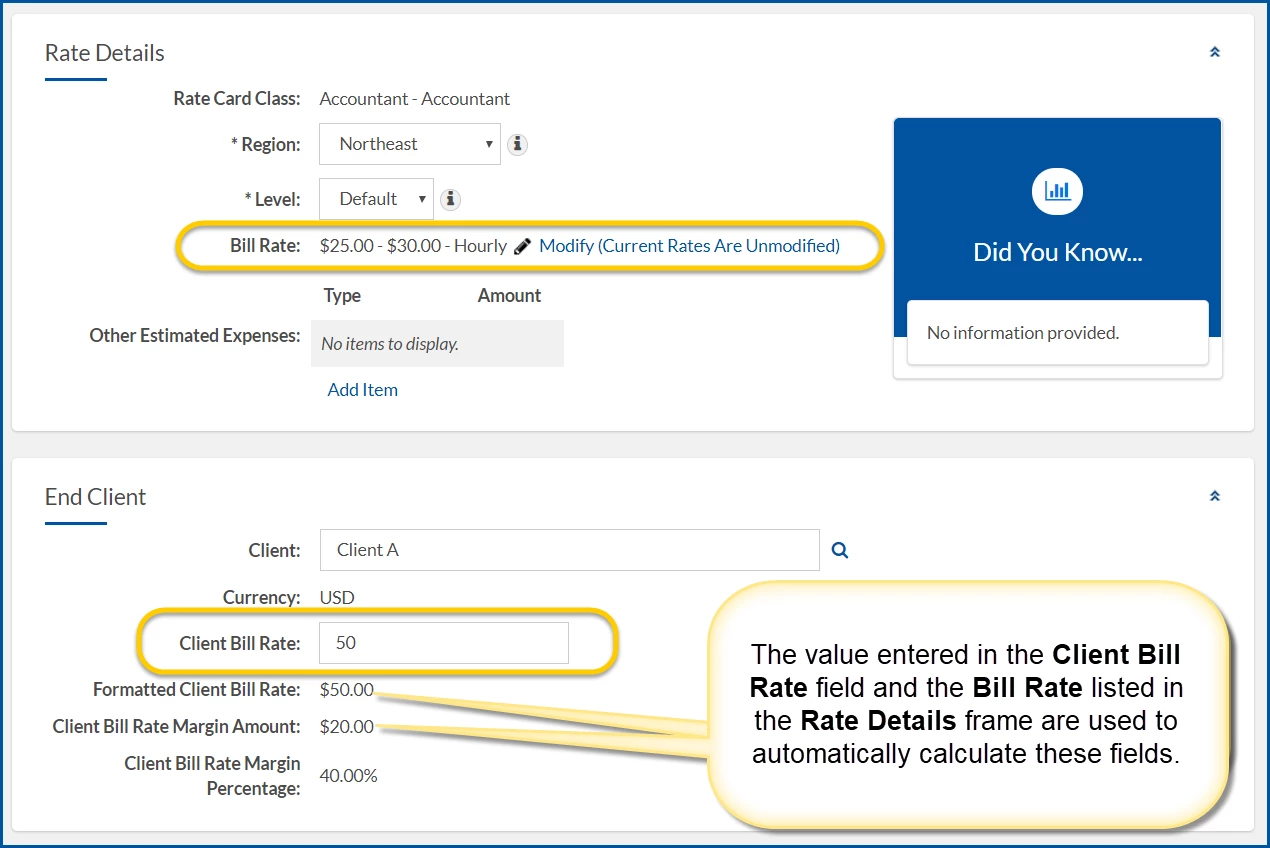
-
Follow your organization’s business process for completing the fields on the Create New Request page and submitting your requisition.
Editing end client data on a request
You can alter end client data on a requisition before you submit it for approval.
To edit end client data on a requisition, complete these steps from your Enterprise dashboard.
-
From the Simple Search option at the upper right of your dashboard, select Search Requests, enter the request ID, and then select the requisition you want to view. A Request page displays.
-
From the Request menu, select More Actions > Edit.
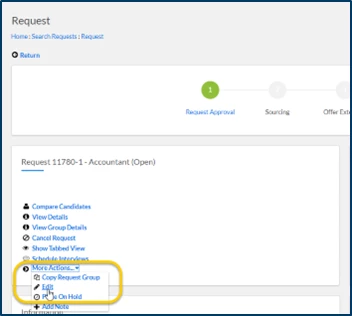
An Edit Request—Details page displays.
-
Change the end client details you want, and then select OK.
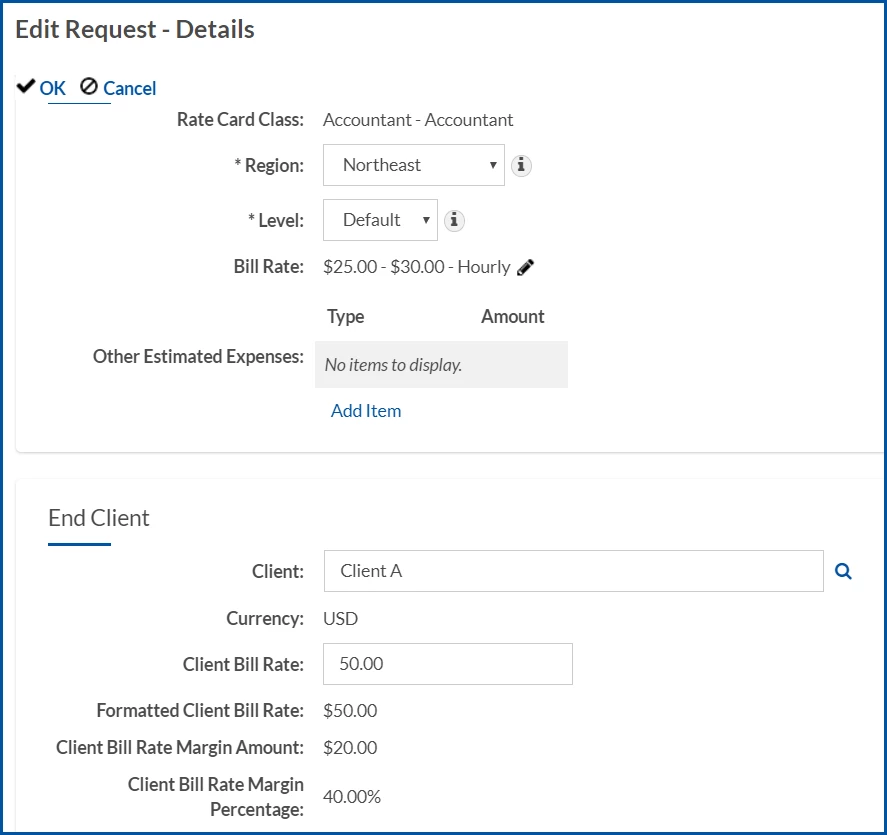
You’re returned to the Request page.
Viewing and editing end client data on an assignment
You can view or alter end client data on an assignment whenever you need to.
To view or edit end client data on an assignment, complete these steps from your Enterprise dashboard.
-
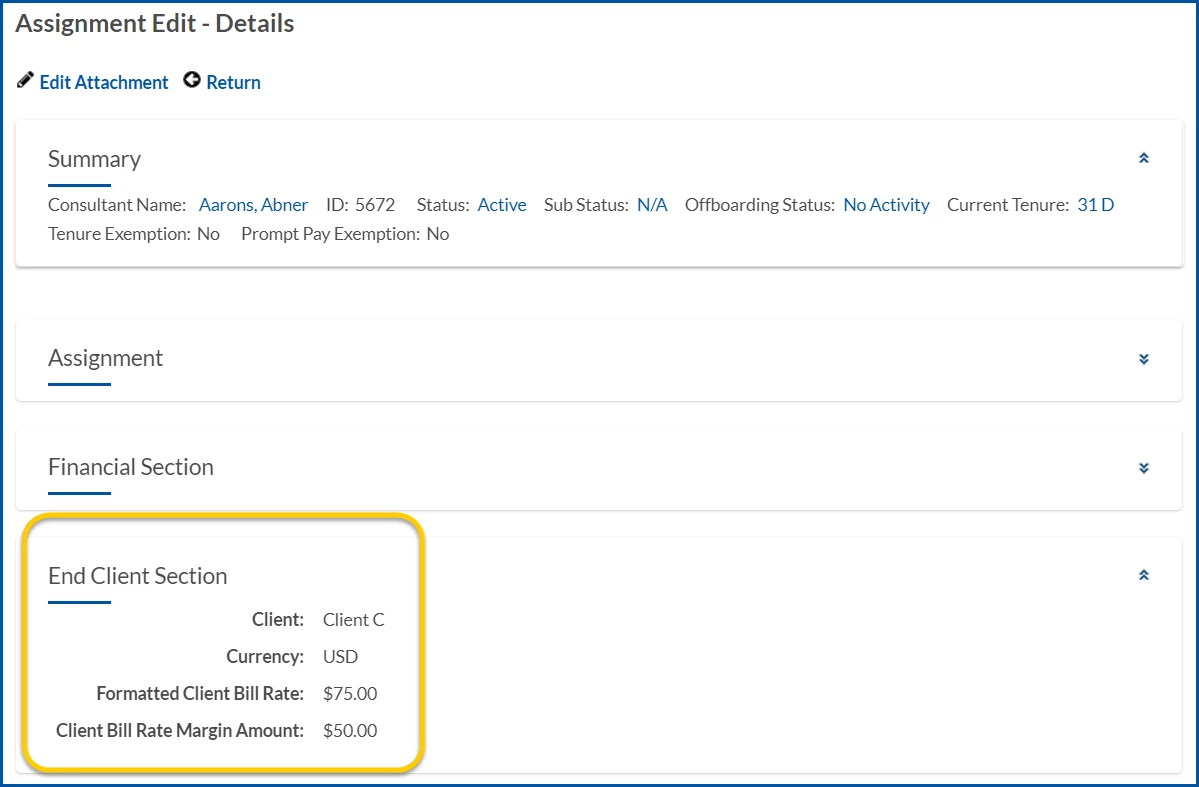
From the Simple Search option at the upper right of your dashboard, select Search Assignments, enter the assignment ID, and then select the assignment you want to view. An Assignment Details page displays.
-
Scroll down to view client details in the End Client Section.
-
From the Assignment Edit—Details page, select Return to go back to the Assignment page.
-
From the Assignment # frame in the Assignment page, select Amend.
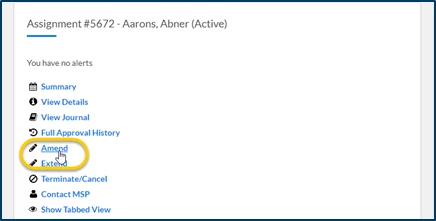
A Modify Assignment page displays.
-
In the Modification Type frame, select the Amend checkbox, and then select Next.
-
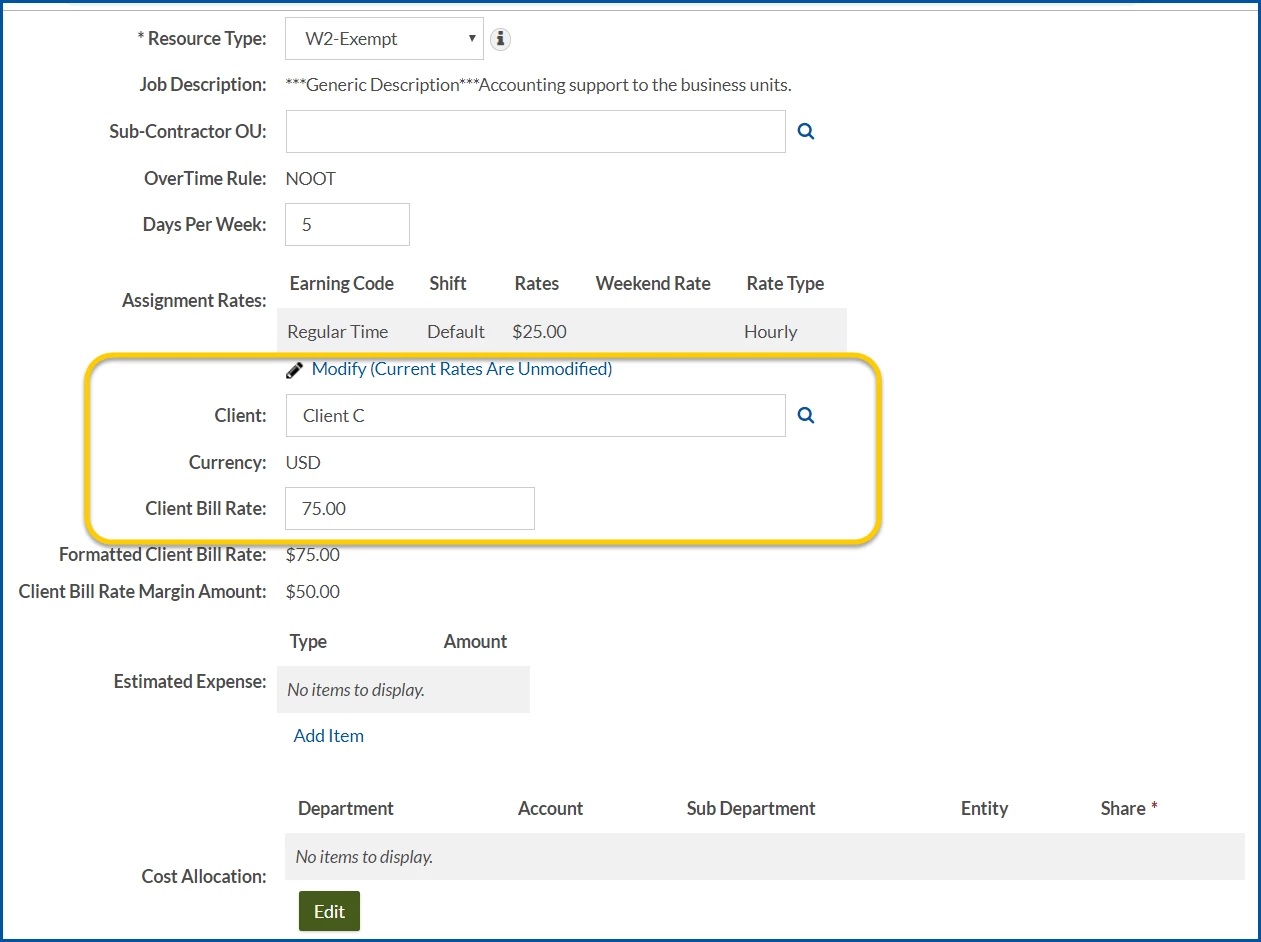
In the Amendment section, change the client details you want.
-
Optional. If you want to change the assignment rate, take these actions.
a. Select the Modify (Current Rate Are Unmodified) link. A Rate Card Screen page displays.
b. Complete any required fields, and then change the values you want.
c. Click Save. The rates in the Amendment section on the Modify Assignment page are updated using your changes. -
Follow your organization’s business process for amending an assignment.
Viewing End Client details on a candidate offer
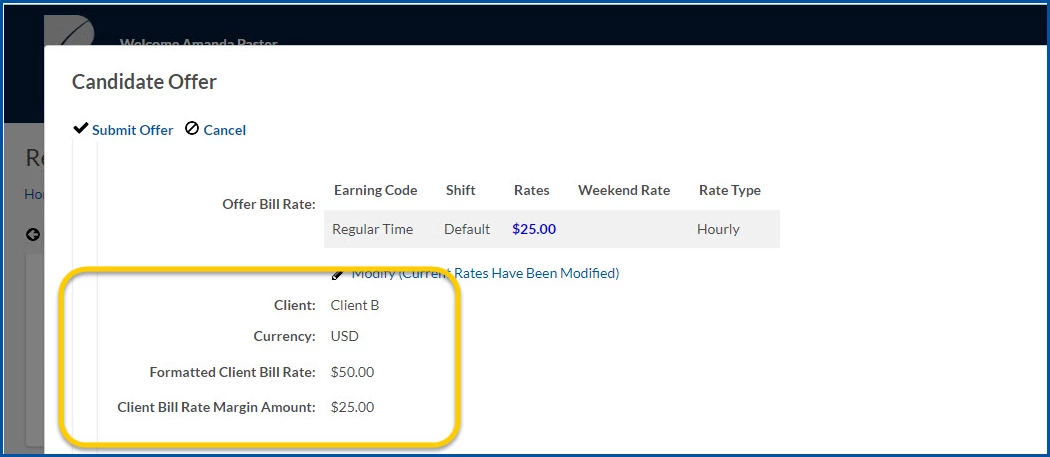
You can also view End Client details when creating a candidate offer, but you cannot edit them.
Documentation release: Beeline Enterprise | Q2 2019