


Topics on this page
Track Smarter. Manage Better.
Your organization’s contingent workforce may comprise a variety of contingent workers. You may have a hybrid contingent workforce that includes contractors managed by a program office and contractors who perform onsite services or specialized tasks sourced from a third-party provider.
Regardless of labor type, location or circumstance, you need visibility into all your contingent workers to reduce compliance risks, protect assets and streamline processes.
Resource Tracking provides complete visibility and control over your entire contingent workforce. It automates onboarding and offboarding, integrates with HR and security systems, and standardizes processes for identifying, classifying and reporting on contingent workers.
With accurate contact data, a single repository for tracking and real-time insights, you can ensure compliance, enhance security, reduce manual work, and adapt as your sourcing strategies evolve.
Your program can choose to use Resource Tracking as a standalone solution or integrate it with Beeline Enterprise for comprehensive workforce visibility and management.
Why it matters
-
Gain visibility into contractors, spend, and bill rates.
-
Secure facilities, networks, and data during onboarding and offboarding.
-
Eliminate duplicate data entry through HRIS and security integrations.
-
Detect uncontrolled spending and identify cost-saving opportunities.
-
Mitigate tenure, access, and policy risks for untracked resources.
-
Maintain accurate contact details for emergency response.
How it helps
-
Full visibility: Track all contingent workers across locations and labor types.
-
Strengthened security: Protect facilities, networks, and data with consistent access management.
-
Compliance assurance: Automate onboarding/offboarding and enforce policies.
-
Cost control: Identify unmanaged spend and reduce costs.
-
Operational efficiency: Centralize operations and eliminate manual processes.
-
Standardization: Ensure consistent identification and reporting for non-employees.
-
Emergency readiness: Keep accurate contact information for rapid response.
Persona
Hiring managers, program office users and suppliers
Action required
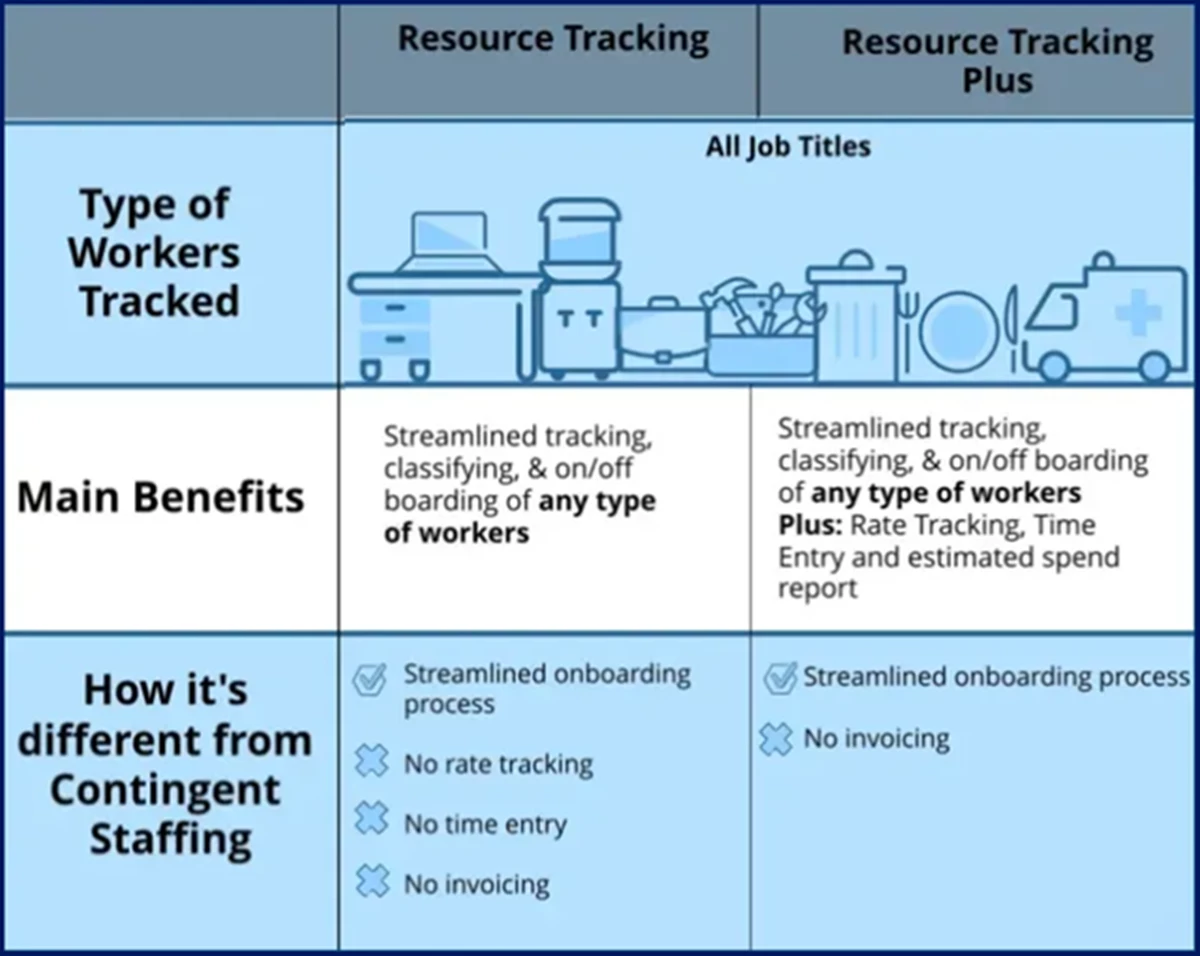
Resource Tracking records overall business headcount for all worker types. Adding Resource Tracking to your Enterprise VMS requires a Make a Change ticket and Enterprise configuration. Contact your Client Operations Managers (COM) to learn more.
The module is available in two versions: Resource Tracking and Resource Tracking Plus. Resource Tracking Plus captures contractor rates and supports time entry, offering additional insights.
How to steps
Steps in this article outline creating a new Resource Tracking Worker request using Beeline Classic. It is intended for Hiring Managers who do not use the Hiring Manager Experience, Program Office staff who need to act on behalf of a Hiring Manager, or Supplier users.
Information in this article reflects a standard Enterprise configuration. Your Enterprise platform is based on your organization’s configuration. Settings and/or data visibility rules may vary slightly from what is described.
To create a new tracked worker request
- Navigate to your Beeline Enterprise Home screen.
- Expand the New menu in the Header menu bar and click the New Tracked Worker text box to select a job title from the list of recently created requests. OR, begin typing to search for a job title by name or job description keyword. The auto suggestion/type-ahead functionality recommends job titles that match what you type.
To review job title related details, hover over the iBubble. To perform an enhanced search, click the Advanced Search link at the bottom of the list of suggested job titles. Advanced Search allows a user to expand their search by job title, job class, job description, or industry.
- Select a job title from the list of options. The Create New Request screen appears.
- Enter/Update information as displayed. Required fields are indicated by an asterisk (*).
The Supplier field is pre-populated for Supplier users. Other user roles should click the search icon to locate and select the supplier.
- Select worker.
To select a worker already in the supplier’s resource pool
- In the Worker section, begin typing in the Search for Resource box to search for a worker by first name, last name, or supplier.
- Select a worker from the displayed list. The worker information appears in the Worker section.
To add a new worker
- In the Worker section, click Add New. An Add Candidate – Details screen appears.
- Complete all of the required fields. Required fields are indicated by an asterisk (*).
- Click OK to save the new worker record and return to the new request screen.
To add multiple workers at one time
- In the Worker section, skip the Search for Resource box and the Add New link, click the Add Item link located under the Attachment header.
- Browse to locate your completed resource import template and click Upload to import your template or select individual resources from the selection box provided.
- Make adjustments as indicated in the displayed prompts.
- Check the information in the Background Checks section of the worker’s record and adjust as needed. Provide information as requested in the Additional Information section. Required fields are indicated by an asterisk (*).
- Review the request details. Make adjustments as needed.
- Click Submit. The Resource Tracking profile screen appears and your changes are saved.
- Click Return to exit the Resource Tracking profile and return to your Home screen.
To onboard a tracked worker:
- Navigate to your Beeline Enterprise Home dashboard.
- In the My To Do quadrant, click the number link located within the alert sentence, “You have # Pending Onboarding tasks awaiting action.” A list of tracked workers ready for onboarding appears.
- Click the Action drop-down arrow for the specific tracked worker, then click View Details. The Candidate Offer screen appears.
- Click Onboard. The Candidate Offer-Onboard dialog box opens.
- Complete all relevant fields. Required fields are indicated by an asterisk (*).
- Optional. Enter comments.
- Click Onboard to confirm your intention. The system returns to the Review Alerts list.
- Select the next tracked worker to onboard or click Close to return to your Home screen.
To offboard a tracked worker:
- Navigate to your Beeline Enterprise Home dashboard.
- In the My To Do quadrant, click the number link located within the alert sentence, “You have # Assignment – Complete Offboarding tasks awaiting action.” A list of tracked workers ready for offboarding appears.
- Click the Action drop-down arrow for the specific tracked worker.
To review the tracked worker assignment information and event reason information prior to completing the task, click View Details.
- Click Task Completed. The Task Completed dialog box opens.
- Optional. Enter comments.
- Click Task Completed. The tracked worker is removed from the list and has been offboarded. The system returns to the Review Alerts list.
- Select the next service worker to offboard or click Close to return to your Home screen.
Documentation release: Beeline Enterprise | Q4 2025