


Topics on this page
Stay audit-ready by enforcing the right number of suppliers for every competitive bid.
Meet your organization’s sourcing policies with less manual effort. Minimum supplier thresholds let you define how many suppliers must be invited based on bid value, then automatically check compliance at submission. You get a consistent, policy-aligned bidding process without slowing down your team.
Why it matters
Compliance gaps can delay approvals and create audit risk. This feature embeds your rules directly into the workflow, so every bid aligns with corporate standards. You strengthen governance, reduce exceptions, and avoid last-minute corrections.
Who it’s for
- Buyers who create and submit competitive bids
- Program office users who review and release bids and enforce sourcing policies
Meet your organization’s sourcing policies with less manual effort. Minimum supplier thresholds let you define how many suppliers must be invited based on bid value, then automatically check compliance at submission. You get a consistent, policy-aligned bidding process without slowing down your team.
How it helps
- Enforces policy automatically: Applies minimum supplier requirements based on budget thresholds
- Provides clear guidance: Communicates required supplier counts tied to bid value
- Flags noncompliance at submission: Alerts users before approval to prevent delays
- Improves consistency across bids: Standardizes supplier participation across your program
- Supports audit readiness: Creates a reliable, repeatable compliance check
How it works
- Apply global rules: Use one configuration across your entire program rather than by template
- Evaluate budget thresholds: Require suppliers when the estimated budget equals or falls within defined threshold ranges
- Check at submission: Evaluate supplier count when the bid is submitted for approval
- Notify on gaps: Alert users if the number of invited suppliers does not meet the minimum requirement
- Default when unspecified: Require at least one supplier if no threshold is defined for the selected currency
- Enable correction: Allow users to add suppliers and resubmit for approval
Action steps
- Enable the feature: Work with your Beeline Client Operations Manager (COM) to turn on minimum supplier thresholds
- Assign permissions: Ensure system administrators have access to VMS Settings
- Define thresholds: Establish budget ranges and required supplier counts by currency
- Complete configuration: Set up thresholds before users can benefit from enforcement
- Capture budget values: Ensure bids include estimated budget amounts for accurate evaluation
How to steps
Information in this article reflects a standard Enterprise configuration. Your Enterprise platform is based on your organization’s configuration. Settings and/or data visibility rules may vary slightly from what is described.
To accomplish your task, complete these steps from your Enterprise dashboard.
As a System Administrator, you set up the Minimum Supplier Thresholds option for your program from the VMS Settings menu. This option is a global setting; you cannot configure it for a specific template.
You must configure the Minimum Supplier Thresholds option before users can take advantage of the feature.
- Select Preferences > VMS Settings > Competitive Bid.
- Select Minimum Supplier Thresholds. The Minimum Supplier Thresholds page displays.
- Select Edit.
- Select the currency type from the Currency list.
- Select Add Currency.
- In the Thresholds field, enter a monetary value in the Amount field.
When the estimated cost of a competitive bid equals the currency type and monetary value you defined here, the user creating the bid must invite the minimum number of suppliers you define in the next step. - In the Thresholds field, enter the required minimum number of suppliers in the Minimum Number of Suppliers field.
- Repeat steps 3 through 7 to define as many thresholds as your program needs.
- Select OK to apply your thresholds.
Once configured, your thresholds apply globally and automatically support compliance during bid submission.
Buyer/MSP actions
If you’re a buyer or MSP submitting a competitive bid that doesn’t comply with your program’s policies, you’ll see this message after you select Submit for Approval > Approve from an Approval page.
Adjust the number of vendors you’ve invited to your bid and then resubmit your bid.
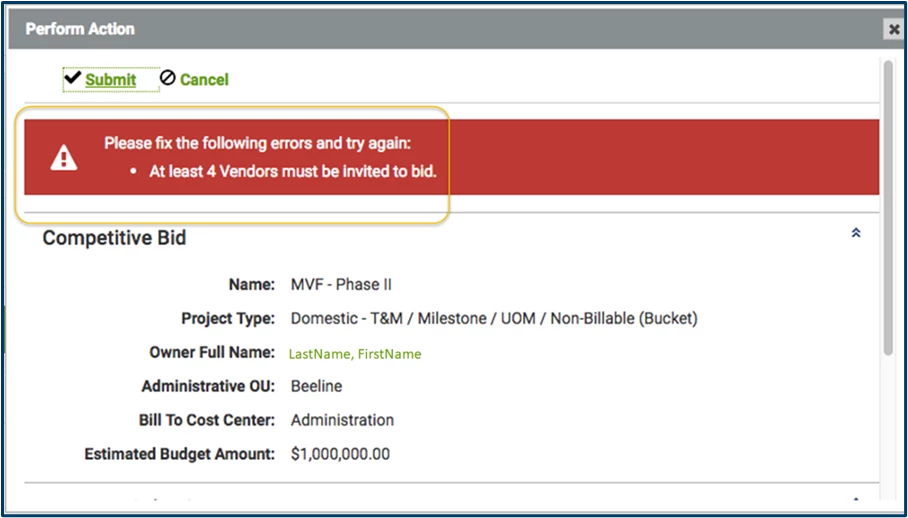
Note: Users are notified they haven’t met the minimum supplier requirement only after they click Submit for Approval>Approve from an Approval page. Additional supplier fields do not display on the Competitive Bid page while the user is creating a bid.
| Persona Clients, program office users | Modules Services Procurement | Documentation release Beeline Enterprise | Q3 2017 | Feedback? Email us: |