


The Skills Proximity feature helps users quickly evaluate how well candidates align with job requirements. It compares a candidate’s skill set to the skills defined in a requisition or job description and provides a clear alignment view.
The feature displays:
- A skill alignment match
- An optional alignment score
- A breakdown of matched, inferred, and missing skills
Skills Proximity uses an AI-powered analytics engine to standardize skill comparisons and improve candidate evaluation.
Action steps
Before enabling Skills Proximity, ensure the following requirements are met:
- Your organization must subscribe to the Premium AI package.
- A Make a Service Request ticket is required to:
- Add the Premium AI package to your Enterprise environment
- Configure the necessary APIs for Skills Proximity
For assistance, contact your Relationship Manager.
How to steps
As a system administrator, you can control how Skills Proximity is applied within your Enterprise VMS.
Information in this article reflects a standard Enterprise configuration. Your Enterprise platform is based on your organization’s configuration. Settings and/or data visibility rules may vary slightly from what is described.
To accomplish your task, complete these steps from your Enterprise dashboard.
- Select Preferences > VMS Settings > Artificial Intelligence. An Artificial Intelligence page displays.
- Under the Premium section, select the Skills Proximity link. A Skills Proximity page displays
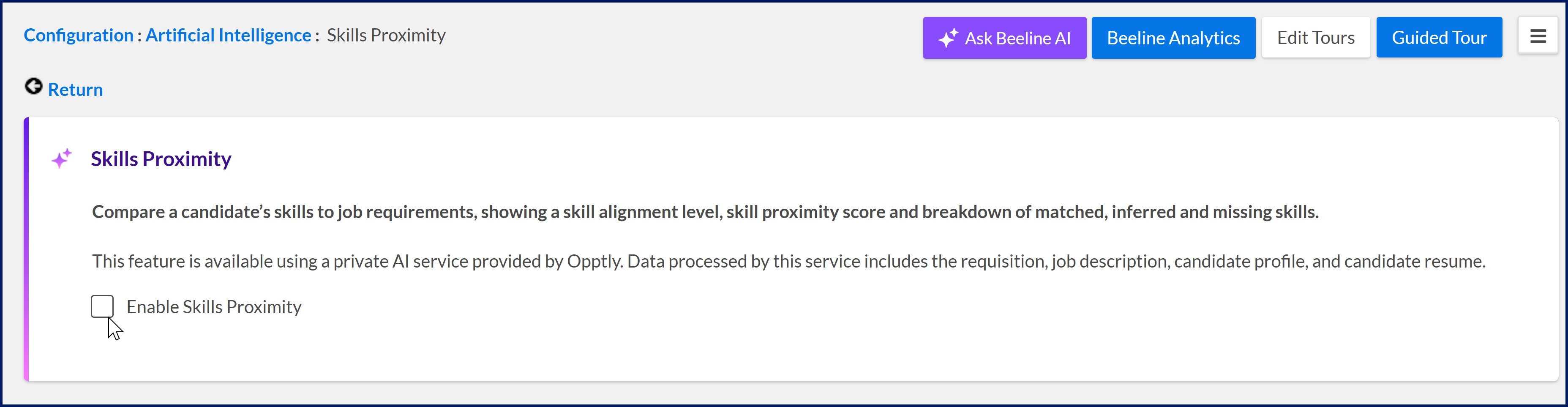
- In the Skills Proximity section, select the Enable Skills Proximity checkbox to turn on the feature.
- Optional. In the Skills Alignment Score section, select the Display Skill Alignment Score checkbox to include alignment scores in your VMS user interface.

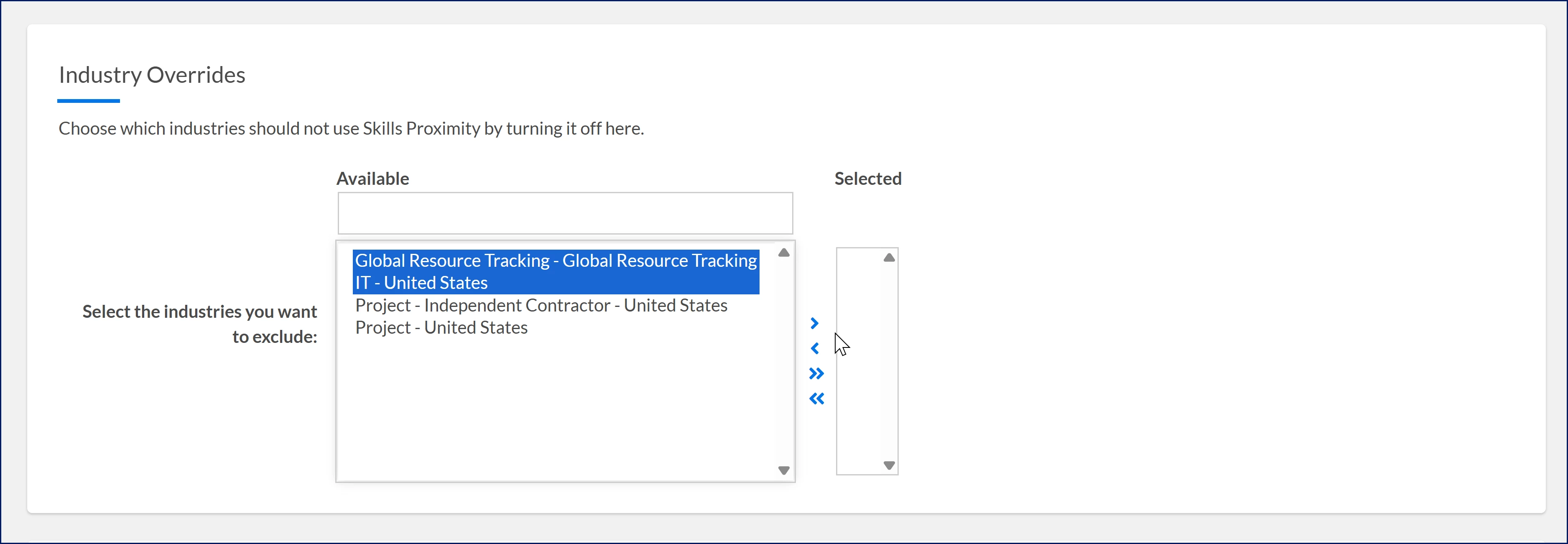
- Optional. From the Available list in the Industry Overrides section, select the industries you want to exclude, and then use the Arrows to move your selections to the Selected list.
- Select Save to apply your choices and go back to the Artificial Intelligence page.
| Persona Clients, program office users | Modules Contingent Staffing Services Procurement Resource Tracking Artificial Intelligence | Documentation release Beeline Enterprise | Q2 2026 | Feedback? Email us: |