


Empower suppliers to import timesheets faster with secure self-service!
Give designated suppliers more control over timesheet processing with Self-Service Web Import. Using predefined templates, suppliers can upload, validate, and import new timesheets directly into Beeline Enterprise, helping reduce manual effort while improving efficiency and accuracy. For more information about the Web Import tool, supported file formats, and import processing, see the Web Import section.
Most suppliers can import new timesheets in a Submitted status. Organizations can also enable suppliers that operate as master vendors to import timesheets in an Approved status when business requirements allow.
Why it matters
- Simplifies management of supplier-owned timesheet processes and data.
- Reduces manual effort by allowing suppliers to load timesheets directly into Enterprise.
- Improves processing speed and data accuracy through template-based validation.
- Supports timely financial processing, invoicing, and billing activities.
- Helps keep timesheet data current without relying on manual entry.
Who it’s for
- Organizations that want suppliers to manage time capture and timesheet submissions.
- Designated suppliers responsible for collecting and processing worker time.
- Master vendors that need the ability to import approved timesheets.
- Administrators seeking to streamline timesheet intake and reduce administrative workload.
How it helps
- Enables suppliers to submit timesheet data directly through Self-Service.
- Validates data before import to help reduce errors and rework.
- Standardizes imports through reusable templates.
- Accelerates timesheet processing and downstream financial activities.
- Provides flexibility to support both submitted and approved timesheet import scenarios.
How it works
| Step | What happens |
|---|---|
| 1. Prepare data | The supplier enters timesheet information using the approved import template. |
| 2. Upload the file | The supplier uploads the completed file through the Web Import tool in Self-Service. |
| 3. Validate data | The system validates the file and identifies any issues that need correction. |
| 4. Import timesheets | After validation succeeds, the supplier imports the timesheet records into Enterprise. |
| 5. Continue processing | Imported timesheets move through standard Enterprise processing and billing workflows. |
Prerequisites
Your organization must enable supplier timesheet imports before designated suppliers can use the Web Import tool.
- A Make a Change ticket is required to enable the feature.
- Designated suppliers must be granted permission to use the Web Import tool through Self-Service.
- Organizations can optionally grant eligible master vendors permission to import timesheets in an Approved status.
Before you begin
Before importing timesheets:
- Ensure you have access to the Web Import tool in VMS Settings.
- Obtain the approved timesheet import template.
- Verify that the timesheet data is complete and ready for import.
- For most suppliers, ensure the timesheets being imported are new records and imported in a Submitted status.
- If your organization has enabled approved timesheet imports, confirm you are authorized to import timesheets in an Approved status.
How to steps
Information in this article reflects a standard Enterprise configuration. Your Enterprise platform is based on your organization’s configuration. Settings and/or data visibility rules may vary slightly from what is described.
To accomplish your task, complete these steps from your Enterprise dashboard.
Importing timesheets as a supplier
- Select VMS Settings > Data Management.
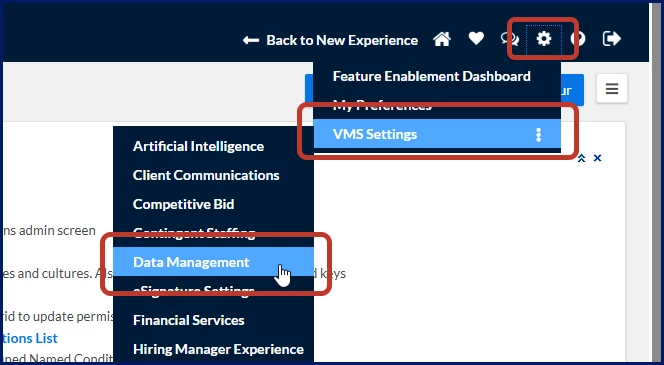
A Data Management page displays. - Select Web Import.
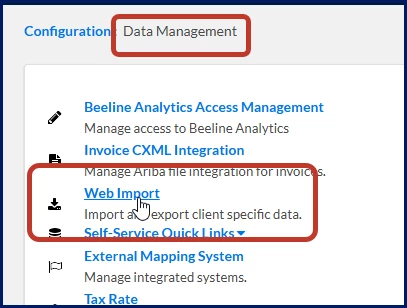
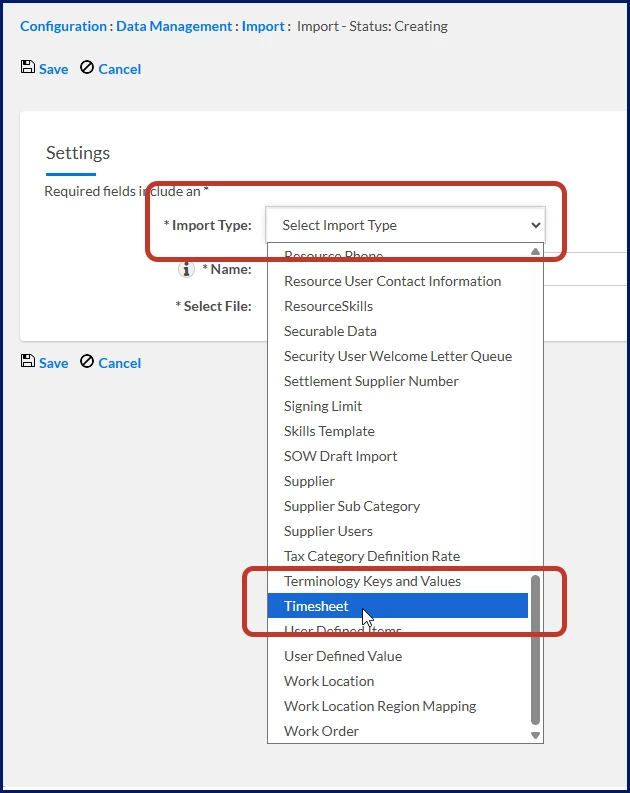
An Import page displays. - Select Add New. A Creating page displays.
- Select Timesheet from the Import Type list.
- Upload the completed template file.
- Review and resolve any validation errors.
- Import the validated timesheet records into Enterprise.
- Verify that the imported timesheets were successfully created.
Frequently asked questions
Who can import timesheets?
Designated suppliers with Web Import permissions can import timesheets through Self-Service.
What timesheet statuses can suppliers import?
Most suppliers can import new timesheets in a Submitted status. Authorized master vendors can also import timesheets in an Approved status.
What file formats are supported?
Use the approved timesheet import template provided by your organization. Refer to the template instructions for supported file format requirements.
What happens if my file contains errors?
The Web Import tool validates uploaded files before import. If validation identifies errors, correct the issues and upload the file again before importing.
Can suppliers update existing timesheets through Web Import?
No. Suppliers can import only new timesheets. Existing timesheets must be managed directly in Enterprise.
What should I do if the timesheet import template changes?
Always use the latest version of the approved import template provided by your organization. Using an outdated template may result in validation errors or import failures.
How do I get access to the Web Import tool?
Your organization must enable the feature and grant the appropriate permissions to designated suppliers. Contact your program administrator if you need access.
| Persona Program office users, suppliers | Modules Contingent Staffing Services Procurement | Documentation release Beeline Enterprise | Q1 2025 | Feedback? Email us: |