


Your program may be using Beeline’s cost allocation methodology to capture and track extended workforce costs effectively and precisely. As a program office user, you can include cost allocation string details in timesheet and expense approval emails based on an Advanced Notification Template using the Expense or Timesheet core entity type.
Adding cost allocation string details to email notifications gives approvers instant access to comprehensive breakdowns of unit-based and percentage-based cost allocations before they approve a timesheet or an expense. Approvers can quickly see the hours or amounts associated with each cost allocation distribution.
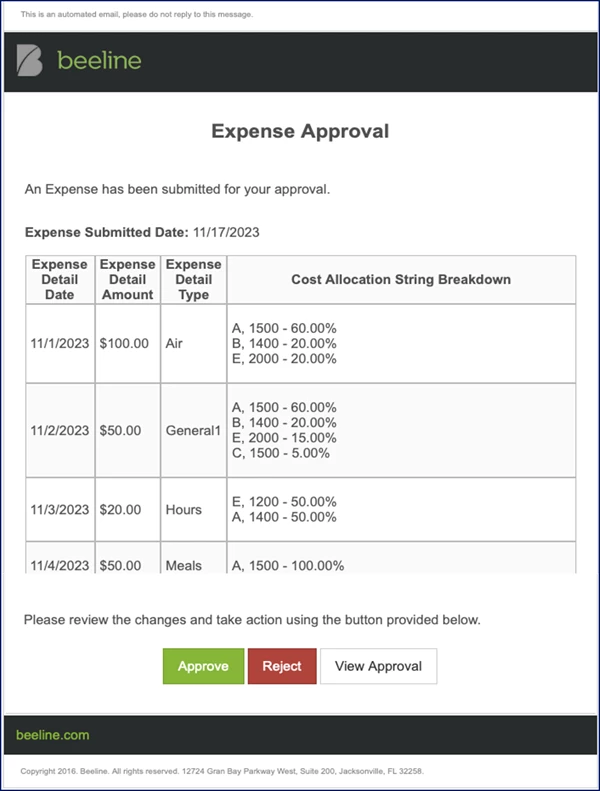
The cost allocation-related fields are automatically available in Enterprise. However, your program office must configure your Advanced Notification Templates to include them.
To add cost allocation fields to an Advanced Notification Template, complete these steps from your Enterprise dashboard.
This topic uses the Timesheet core entity type as an example.
- Select Admin > Notifications. A Notifications Administration page displays.
- Select Advanced Notification Templates.
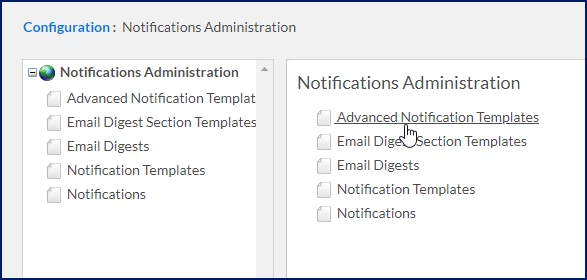
An Advanced Notification Templates page displays. - Select Add New.
- Enter a title for your template in the Name field.
- Optional. Enter an explanation for when and how your template is used in the Description field.
- From the Core Entity Type list, select Expense or Timesheet.
- In the Associated Approval Steps section, select Add Item. An Approval Step Select dialog displays.
- Use the Search options to locate an approval step or select a step from the list that displays at the bottom of the dialog, and then select OK.
- Optional. In the Associated Approval Steps section, select the Display Approval History In Notifications checkbox to include prior approval history in your notification.
- From the Recipient list, designate who should receive the notification, such as client, PMO or supplier.
- Optional. In the Templates section, select the High Priority Email checkbox to mark the notification as urgent.
- In the Subject section, select Add Item.
- From the Subject Culture list, choose a language for your notification, and enter the corresponding text in the Subject field.
- Optional. Repeat step 13 for each culture you want to set up.
- In the Body section, select Add Item.
- From the Body Header Culture list, choose a language for your notification, and enter the corresponding text in the Body Header field.
- Optional. Repeat step 16 for each culture you want to set up.
- In the Body Template Field Visibility select the fields you want to include and choose which recipients can view them.
- In the Conclusion section, select Add Item.
- From the Conclusion Culture list, choose a language for your notification, and enter the corresponding field codes in the Conclusion field.
- In the Attachment section, navigate to and include any files you want to attach.
- In the Document Template Generation section, include any files your organization uses with verbiage specific to your program, such as contractual notifications.
- Select OK.
Your email notifications are set up and the approvers you designated automatically receive timely notifications about cost allocations.
Ready to explore?
- Overview
- Terms you should know
- Understanding the components
- Managing cost data with imports
- Your users’ experience
- Reporting
Documentation release: Beeline Enterprise | Q4 2024