


Enable secure, reliable eSignature workflows throughout Enterprise
Connect your organization's Docusign account to Beeline Enterprise so you can support electronic signature workflows for Talent Management and Services Procurement. Use self-service tools to connect Demo and Production environments, validate configuration changes, and manage your Docusign Connect Key.
Jump to what you want
Why it matters
- Connect Docusign and Enterprise to support electronic signature workflows.
- Test configuration changes before introducing them to production.
- Validate document templates and workflow behavior in a controlled environment.
- Maintain a secure integration through Connect Key management.
- Support candidate, assignment, and SOW-related eSignature processes.
Who it's for
Your designated Enterprise administrator who has administrator access or permissions to manage your organization's Docusign integration.
How it helps
- Connect Demo and Production Docusign environments.
- Manage your organization's Docusign Connect Key.
- Test document templates and approval workflows.
- Validate end-to-end eSignature processing.
- Support both manual and automated Docusign workflows when enabled.
Availability and setup
- Available as a Docusign add-on integration for Enterprise.
- Configured in partnership with your Client Operations Manager (COM) or Relationship Manager (RM).
- Supported for Talent Management workflows, Services Procurement workflows, or both, depending on your organization's configuration.
-
Requires a Service Request ticket to complete the workflow and approval-step configuration needed for Template-Based Document Automation.
- Supports self-service management of account connections, Connect Keys, and templates after activation.
Before you begin
- Verify that you have access to eSignature Settings.
- Verify that you have administrator access to the appropriate Docusign account.
- Obtain the Docusign Connect Key (HMAC key) for the environment you're configuring.
- Open the Enterprise environment you want to configure.
- Open the corresponding Docusign environment before beginning the procedure.
Information in this article reflects a standard Enterprise configuration. Your Enterprise platform is based on your organization’s configuration. Settings and/or data visibility rules may vary slightly from what is described.
To accomplish your task, complete these steps from your Enterprise dashboard.
Connect your Demo account
Set up and test your Demo account before configuring Production.
-
Select Preferences > VMS Settings > eSignature Settings.
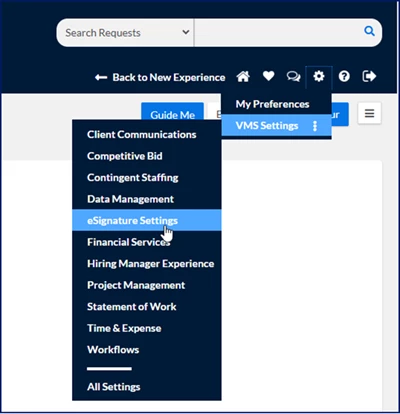
An eSignature Settings page displays.
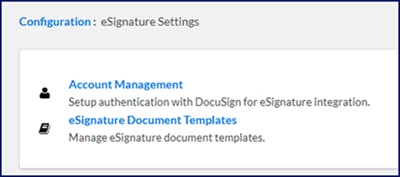
-
Select Account Management. A different eSignature Settings page displays.
TIP: This eSignature Settings page includes a configuration for your default DocuSign Signature page. If you have questions about that setting, please contact your COM or RM. -
Select the Edit icon next to DocuSign Account.
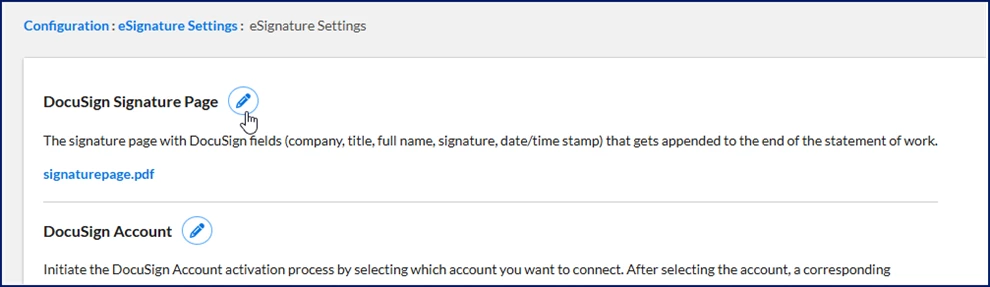
What this does: Opens the Docusign account configuration page.
Why this matters: This page controls the connection between Enterprise and Docusign.
In simple terms: You're opening the settings used to link the two systems.
A DocuSign Account page displays. -
Select Connect Demo Account.
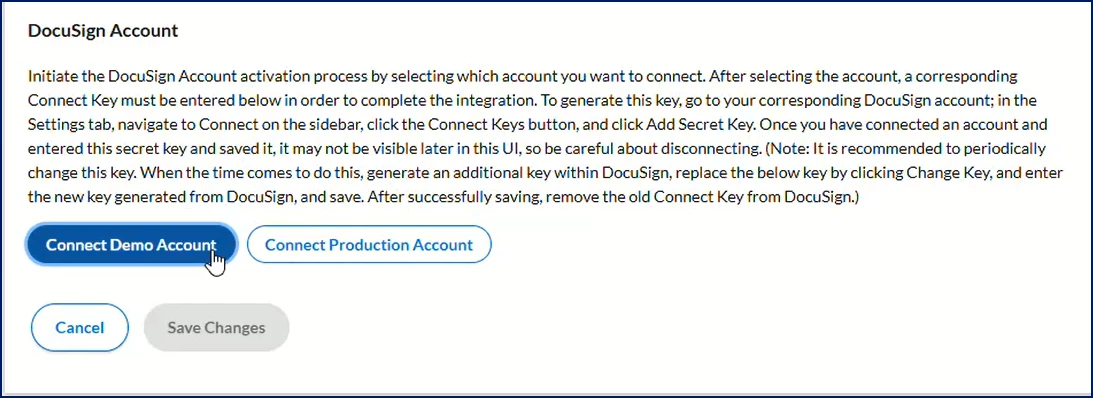
What this does: Connects a non-production Docusign account to Enterprise.
Why this matters: Testing in Demo helps you validate templates and workflows before making changes in Production.
In simple terms: You're connecting your Docusign test environment.
A Select Demo Account dialog displays.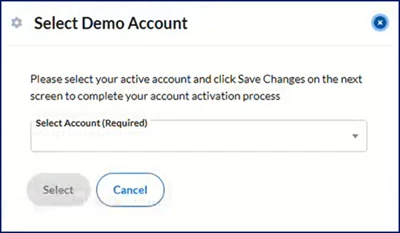
- Choose your account from the Select Account list, and then click Select.
-
In a separate browser tab, sign in to your Docusign account.
- Choose the Admin tab from the Home page.
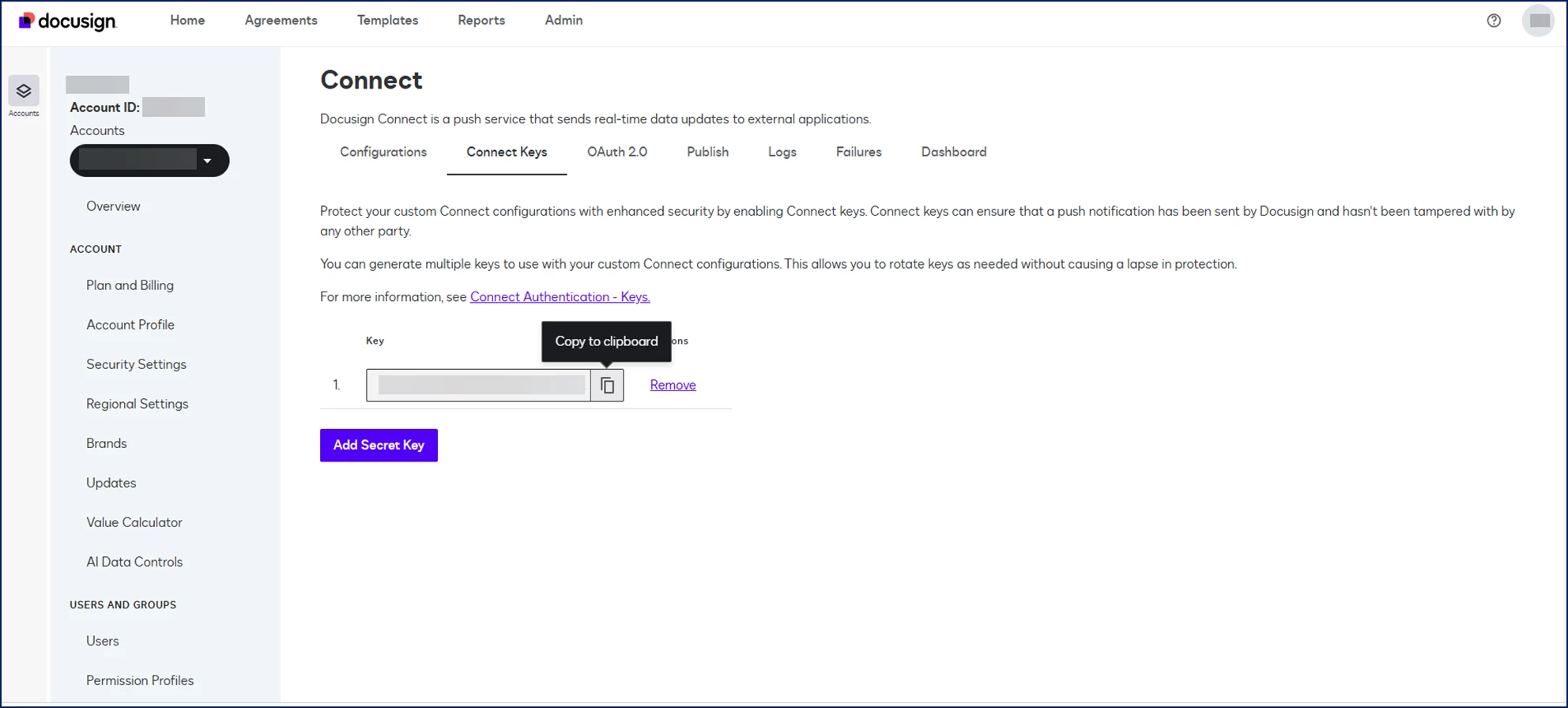
- Scroll down to Integrations and then select Connect. A Connect page displays.
- Select the Connect Keys tab.
- Select Add Secret Key.
-
What this does: Generates a new Connect Key.
Why this matters: Enterprise requires this key to securely communicate with Docusign.
In simple terms: You're creating the password that connects Enterprise and Docusign.
-
Select the Key field and then select Copy to clipboard.
-
Return to Enterprise and paste the key into the Connect Key field.
-
Select Save Changes.
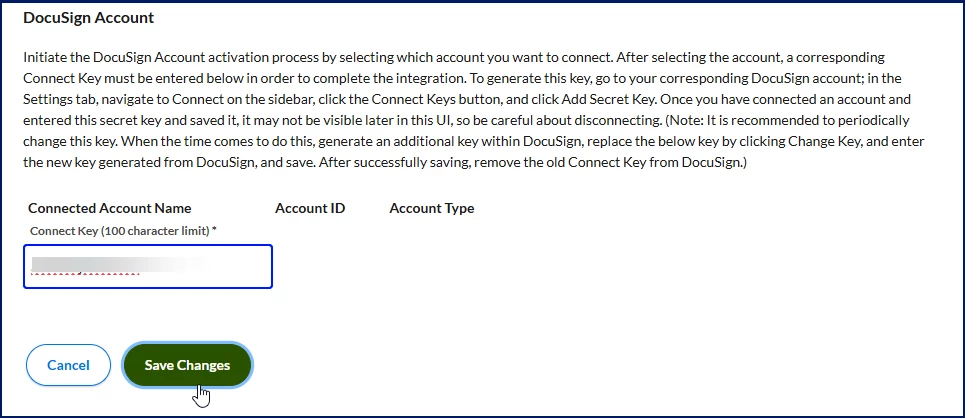
What this does: Saves the connection between Enterprise and the selected Docusign account.
Why this matters: Enterprise cannot send or receive Docusign information until the connection is saved.
Your Demo account is now connected.
Test your integration
Before replicating your Demo configuration in Production, validate that your Docusign integration, templates, and workflows behave as expected.
Complete these tasks before testing
| Task | Why it matters |
|---|---|
| Connect your Demo account | Establishes communication between Enterprise and Docusign. |
| Create test templates | Validates document generation, routing, and signing for each workflow, industry, and request type your organization uses. See Administering talent management templates. |
| Update eSignature email addresses | Ensures test notifications are delivered to the intended testers. See Overseeing talent management documents. |
Caution: Although you are testing in a Demo environment, Docusign processing is live. Test activities generate actual documents and email notifications.
Test candidate workflows
- Create a requisition for an industry and request type configured to use Docusign.
-
Submit an offer and verify that the appropriate candidate templates are initiated when you submit an offer.
-
Complete onboarding and verify that the appropriate onboarding templates are initiated.
-
Add any additional documents you want to test.
What this does: Allows you to validate ad hoc and supplemental document scenarios.
Why this matters: Users may need documents that aren't part of a predefined template library.
In simple terms: You're testing documents that weren't automatically included.
-
Send the documents for eSignature.
What this does: Routes documents through the Docusign signing process.
Why this matters: Verifies that document delivery and signature collection work as expected.
In simple terms: You're testing the complete signing experience.
-
Complete the workflow task.
-
Monitor document statuses from the eSignature Management tab for the Candidate workflow.
-
Review and sign each test document.
Test assignment workflows
- Locate an assignment configured to use Docusign.
- Create an assignment extension and verify that the expected templates are initiated.
- Create an assignment amendment and verify that the expected templates are initiated.
- Complete the signing process and verify document status updates.
Test rejection handling
-
Open an email requesting approval on an eSignature document.
-
Reject the document from within Docusign.
What this does: Simulates a signer declining a document.
Why this matters: Organizations should verify that rejection workflows function correctly before going live.
In simple terms: You're testing what happens when a signer says no.
-
Verify that Enterprise generates the appropriate review task.
-
Verify that the responsible program office user receives the notification.
-
Confirm that the workflow follows your organization's expected review process.
- Make sure the managed service provider owner received an eSignature Review notification in their My To Do List.
Test delegation scenarios (optional)
- Open an eSignature document.
- Use the delegation or assignment features available in Docusign, if applicable to your process.
- Verify that document processing and status tracking continue as expected.
Test Template-Based Document Automation (if enabled)
Template-Based Document Automation generates document packages and applies template-based signatory assignments from configured templates.
Important: If Template-Based Document Automation is enabled, Enterprise can generate document packages and apply template-based signatory assignments automatically when Template-Based Document Automation is enabled.
Verify that document packages, signatory assignments and document delivery align with the template configuration. Templates with configured default signatory roles can apply signatory assignments automatically. Templates without configured default signatory roles require manual signatory assignment.
-
Initiate a workflow configured for Template-Based Document Automation.
-
Verify that the expected document packages are generated automatically.
What this does: Generates document packages from the configured templates.
Why this matters: Incorrect package generation can prevent required documents from being routed for signature.
In simple terms: Verify that the correct documents are included automatically.
-
Verify that signatories are assigned according to the signatory roles configured on the templates.
What this does: Applies template-based signatory configuration to the generated package.
Why this matters: Signatory assignment must align with business and compliance requirements.
In simple terms: Verify that the correct signers are assigned automatically.
-
Verify that documents are routed to the assigned recipients.
What this does: Sends generated document packages through the Docusign integration.
Why this matters: Successful document delivery is required for signature collection.
In simple terms: Verify that documents reach the intended recipients.
-
Verify that document statuses update correctly throughout the signing process.
-
Verify that completed documents are returned and tracked successfully.
See Template-Based Document Automation for configuration and setup information.
Best practice: Complete all testing activities successfully in your Demo environment before connecting or modifying your Production account.
Connect your Production account
After successful testing, connect your Production environment.
-
Select Preferences > VMS Settings > eSignature Settings.
-
Select Account Management.
-
Select the Edit icon next to DocuSign Account.
-
Select Connect Production Account.
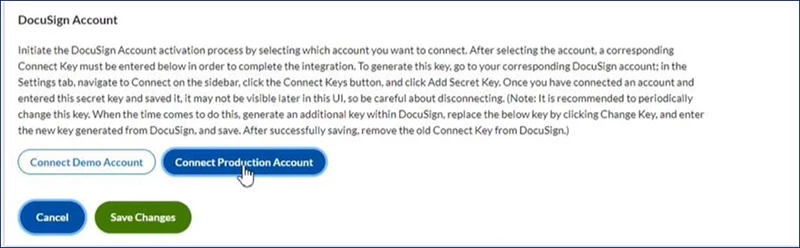
What this does: Connects your live Docusign environment to Enterprise.
Why this matters: Production workflows rely on this connection to process actual business transactions.
In simple terms: You're connecting the Docusign account your users will use every day.
-
Sign in to your Production Docusign account.
-
Navigate to Admin > Connect > Connect Keys.
-
Select Add Secret Key.
-
Copy the generated key.
-
Return to Enterprise.
-
Paste the key into the Connect Key field.
-
Select Save Changes.
What this does: Activates the Production connection.
Why this matters: Enterprise cannot send live documents to Docusign until the connection is saved.
In simple terms: You're making the live integration available.
- Create and configure your Docusign templates. See Administering talent management templates via self-service.
Update your Connect Key
Periodically updating your Connect Key helps maintain the security of your integration.
-
Select Preferences > VMS Settings > eSignature Settings.
-
Select Account Management.
-
Select the Edit icon next to DocuSign Account.
-
In Docusign, navigate to Admin > Connect > Connect Keys.
-
Select Add Secret Key.
What this does: Creates a replacement Connect Key.
Why this matters: Regular key rotation helps reduce security risks.
In simple terms: You're replacing the existing connection key with a new one.
-
Copy the new key.
-
Return to Enterprise.
-
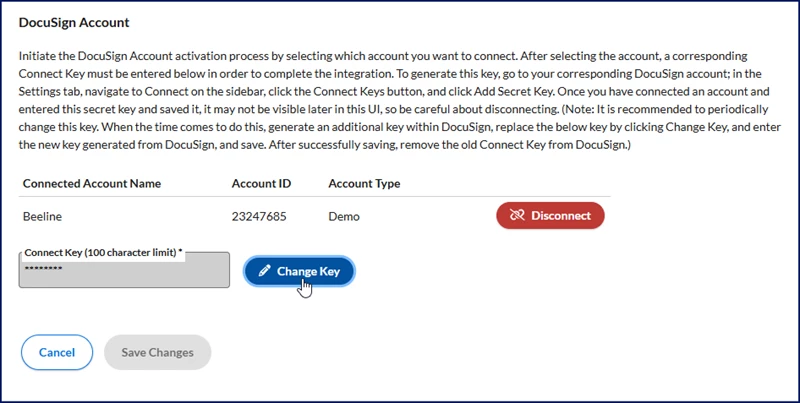
Select Change Key.
-
Enter the new key in the Connect Key field.
-
Select Save Changes.
- Go back to your Docusign Admin account and then remove the previous key from the DocuSign Key list on the Connect Keys tab on the Connect page.
Your integration now uses the new Connect Key.
| Persona Admins | Modules Docusign eSignature Integrations | Documentation release Beeline Enterprise | Q3 2026 | Feedback? Email us: |