Quickly view highlights about a miscellaneous fee from the GeneratedMiscFees section on an Assignment Edit –MiscFee page. You can also view a summary of the fee by using the Help icon to the left of the EffectiveDate link in the GeneratedMiscFees section on an Assignment Edit –MiscFee page.
To view an overview and a summary of a miscellaneous fee, complete these steps from your default dashboard.
From the Simple Search option at the upper right of your dashboard, enter an assignment ID or a resource name for the active assignment to which you want to add a miscellaneous fee. An Assignment page displays.
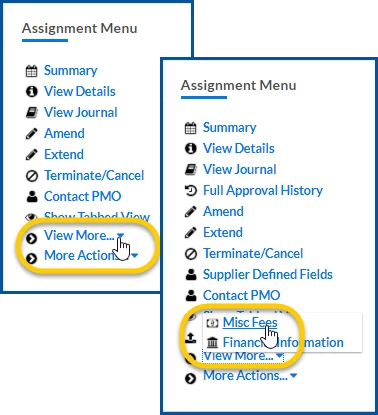
From the AssignmentMenu in the lower left corner, select ViewMore > Misc Fee. An Assignment Edit –MiscFee page displays.
From the GeneratedMiscFees section, locate the miscellaneous fee you want to view. The GeneratedMiscFee section shows you the following information:
EffectiveDate. The date the fee was in effect.
TransactionID. A unique process ID assigned to the fee as it’s processed through your Beeline platform.
FeeCategory. The type of fee.
FeeCode. The code for the fee, which is an unique identifier on an invoice that usually aligns with your account payable (AP) system.
Units. The unit assigned to a fixed cost, such as a fixed number of deliverables associated with a project or the hours a contractor works at the specified bill rate.
Amount. The total amount assessed; may include multiple instances of an individual fee.
FeeStatus. The system processing state for the fee, such as Processed, Pending, Scheduled, and more.
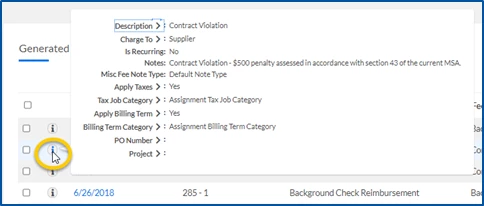
Select the Help icon to the left of the EffectiveDate link for a miscellaneous fee in the GeneratedMiscFees section. The Help information that displays shows you the following information:
Description. An explanation about the fee.
Charge To. Who pays the fee, such as the Supplier or Client.
IsRecurring. Whether the fee is single or recurring.
Notes. Any comments associated with the fee.
MiscFeeNoteType. Database notation indicating the comments are linked to a miscellaneous fee.
ApplyTaxes. Whether taxes were applied to the fee.
TaxJobCategory. Determines whether various labor taxes were applied to the miscellaneous fee.
ApplyBillingTerm. Indicates whether a billing term was applied.
BillingTermCategory. The type of billing term applied, which determines whether a Beeline administration fee is assessed on an assignment.
PONumber. Shows the purchase order (PO) number, if your Beeline platform is set up to track POs with a miscellaneous fee.
ProjectNumber. Shows the project number, if your Beeline platform is set up to track project numbers with a miscellaneous fee.
Please complete the following fields as part of your Beeline Community registration. Unless noted as private, this information will be displayed on your user profile within the community.