


Review, respond to and attend interviews with confidence
Interview Manager helps you review interview requests, respond to proposed interview times, prepare for upcoming interviews, and access interview details from one location.
Jump to what you want
Why it matters
- Respond quickly to interview requests.
- Keep interview schedules moving forward.
- Reduce delays caused by scheduling conflicts.
- Improve communication between clients, suppliers, and attendees.
- Stay informed about upcoming interview activities.
Who it's for
- Hiring managers
- Program office users
- Suppliers
- Interview attendees
How it helps
With Interview Manager, you can:
- Review proposed interview times.
- Accept interview requests.
- Suggest alternate interview times.
- Reject interview requests when necessary.
- Access interview details and notifications.
- Prepare for and attend scheduled interviews.
Before you begin
Before responding to interview requests:
- Verify that you have access to Interview Manager.
- Review the interview details before responding.
- Keep your calendar availability up to date.
- Respond promptly so interview scheduling can continue.
Understanding interview notifications
Interview Manager sends notifications throughout the interview process to help keep participants informed.
Outlook Calendar Invite Notifications
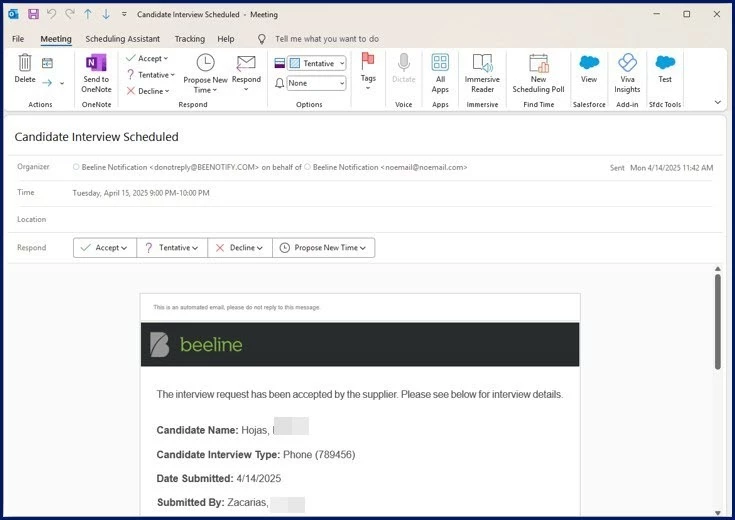
Depending on your organization's configuration, interview invitations may be delivered through Outlook Calendar Invite Notifications.
Calendar invitations
If Outlook Calendar Invite Notifications are configured:
- Invitations may be sent automatically to attendees.
- Required and optional attendee status may be included.
- Calendar invitations may be added automatically depending on configuration.
If Outlook Calendar Invite Notifications aren't configured:
- You receive an
.icsfile. - You must manually add the
.icsfile to your calendar application.
Calendar file attachments
An .ics file is a standard calendar file format supported by applications such as:
- Microsoft Outlook
- Google Calendar
- Apple Calendar
Required and optional attendees
Interview invitations indicate whether your participation is required or optional. This information helps participants prioritize and manage interview schedules.
Information in this article reflects a standard Enterprise configuration. Your Enterprise platform is based on your organization’s configuration. Settings and/or data visibility rules may vary slightly from what is described.
Supplier names are shown in graphics in this article. If your system is configured to mask supplier names, they won’t display in any of the Interview Manager pages.
Accessing Interview Manager
Use one of the following methods to review and respond to interview requests.
From Beeline Classic
- From your My To Do List quadrant, select the Interview Alert link. A Review Alerts page displays.
- Locate the candidate interview you want to review.
- From the Action list, select View Details. Interview Manager displays.
TIP: The Manage Candidates tab displays by default showing only the interview request you selected. Select the Show All Candidates link in the upper-right corner to view all candidates submitted by your organization for a specific request.
From the Hiring Manager Experience
- Select the Candidates app, and then select the open request you want to view.
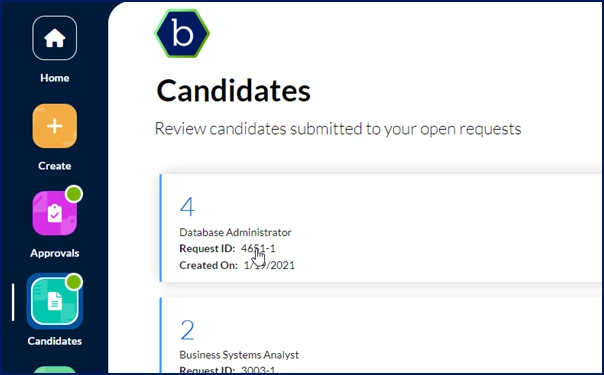
- Locate the candidate you’re interested in, and then select Manage Interviews from the Take Action list. Interview Manager displays showing you only the candidate you selected. To see all of the candidates submitted to a request, select Show All Candidates in the upper right corner.
Accepting a timeslot
When a proposed interview time works for you, accept the timeslot to confirm your availability.
What this does: Confirms the interview time.
Why this matters: Helps move scheduling forward and notifies the appropriate participants.
- Select a proposed date and time slot.
- Optional. In the Status Comments field, enter any remarks you’d like to send to your client.
- Select Accept Time Slot.
Result
A notification is sent to your client with your response and any comments you included. In addition, these actions occur.
| With Outlook Calendar Invite Notification | Invitations are automatically sent to attendees, the supplier and/or the program office based on your Enterprise configuration. |
|---|---|
| Without Outlook Calendar Invite Notification | Your organization can choose to automatically add interviews to users’ calendars after a supplier accepts a timeslot for an interview. That option is set up via self-service.
Notifications are sent to the attendees with an .ics file attachment that they can add to their calendar application. Attendees must manually save and add the .ics file to their calendar application. The notification also informs the attendee whether their attendance is required or optional. TIP: You cannot add the .ics file to your My Calendar feature on your Enterprise dashboard. |
Proposing new interview times
If the proposed interview times don't work, you can suggest alternative times.
What this does: Provides alternative availability for consideration.
Why this matters: Helps keep the interview process moving without rejecting the interview entirely.
- Select Don’t see a time that works. A New Times For dialog box displays.
- Select Date, and then select the date when you want the interview to occur from the Calendar control.
- Select Start, and then select the time you want the interview to begin.
- From the End list, select an interview duration and the end time is automatically calculated for you.
- Select Time Zone, and then select the local time for the region or country where the interview is taking place.
- Select Suggest New Interview Times.
Result
A notification is sent to your client. After your client reviews and accepts a new timeslot, the interview is scheduled, and you receive a notification.
Rejecting an interview
If you're unable to participate, you can reject the interview request.
What this does: Declines the interview request.
Why this matters: Helps coordinators understand that a new interview plan is needed.
- In the Status Comments field, enter any remarks you’d like to send to your client.
- Select Reject Interview. A Reject Interview dialog displays.
- In the Comments field, enter an explanation for declining the interview.
- Select Reject Interview.
Result
A notification is sent to your client.
Preparing for an interview
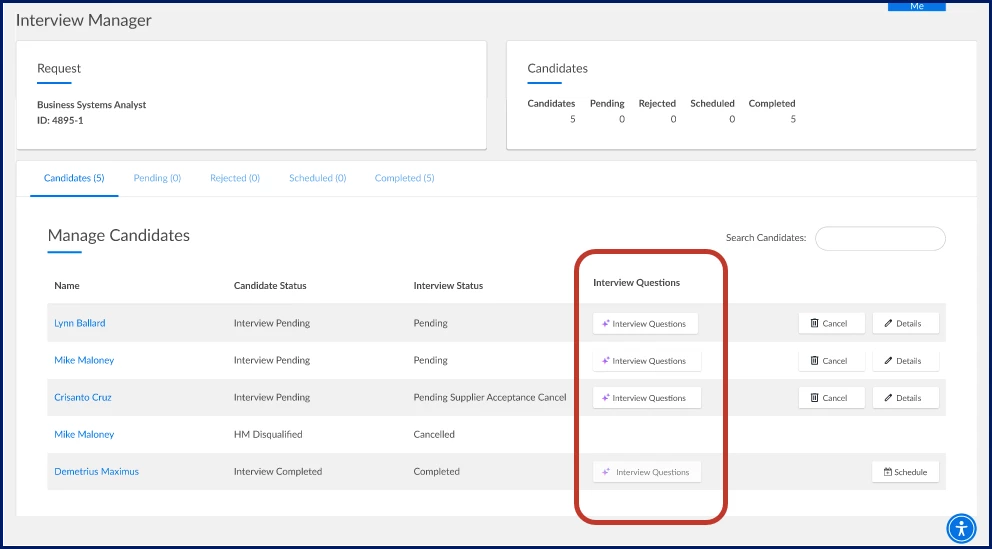
Hiring managers and program office users can generate interview questions using the Interview Question Generator in Interview Manager.
What this does: Provides access to interview details and supporting information.
Why this matters: Helps you prepare more effectively before meeting with candidates.
To prepare for an interview
- Open the candidate record.
- Select Take Action > Manage Interviews.
- Select Interview Questions. You’ll be taken to the Interview Questions tab on the Candidate Evaluation page.
Result
The Interview Questions tab opens and displays interview questions available for the candidate.
To learn more about the Interview Question Generator, read this article. The Interview Question Generator feature is a premium AI feature.
Attending an interview
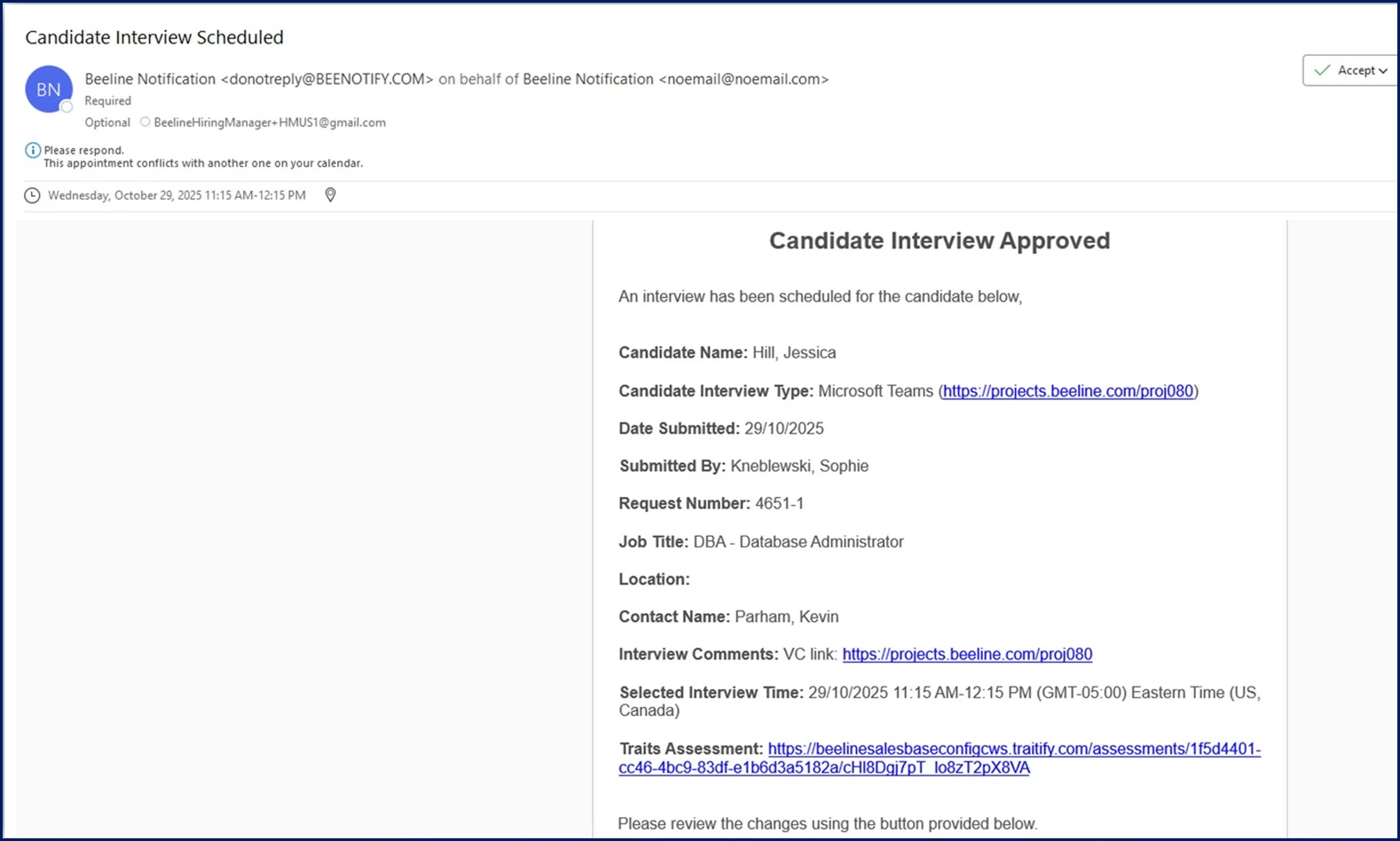
Once the interview is confirmed, use the meeting details included in your email or calendar invitation to join the interview. When your email includes an Interview Type field and the Interview Type is a Video Conference (such as Teams or Webex), your email includes a clickable link. Simply select the Interview Type link in your email or calendar invite to join your video interview.
What this does: Provides access to interview meeting information.
Why this matters: Helps you quickly join the interview at the scheduled time.
Result
The video conference application opens and connects you to the interview.
Explore more…
| Persona Hiring managers, program office users, suppliers, contractors | Modules Contingent Staffing | Documentation release Beeline Enterprise | Q3 2026 | Feedback? Email us: |