Create, schedule, and manage interviews throughout the hiring process
Interview Manager helps you create, schedule, and manage interviews from a centralized workspace. You can coordinate interview participants, generate interview time recommendations, review interview details, and track interview activity throughout the hiring process.
Depending on your organization's configuration, Interview Manager may also provide interview time recommendations based on attendee calendar availability.
Custom interview types used in the past are no longer supported. Contact your Client Operations Manager (COM) if you have questions about custom interview type mappings.
Candidate- or supplier-provided information
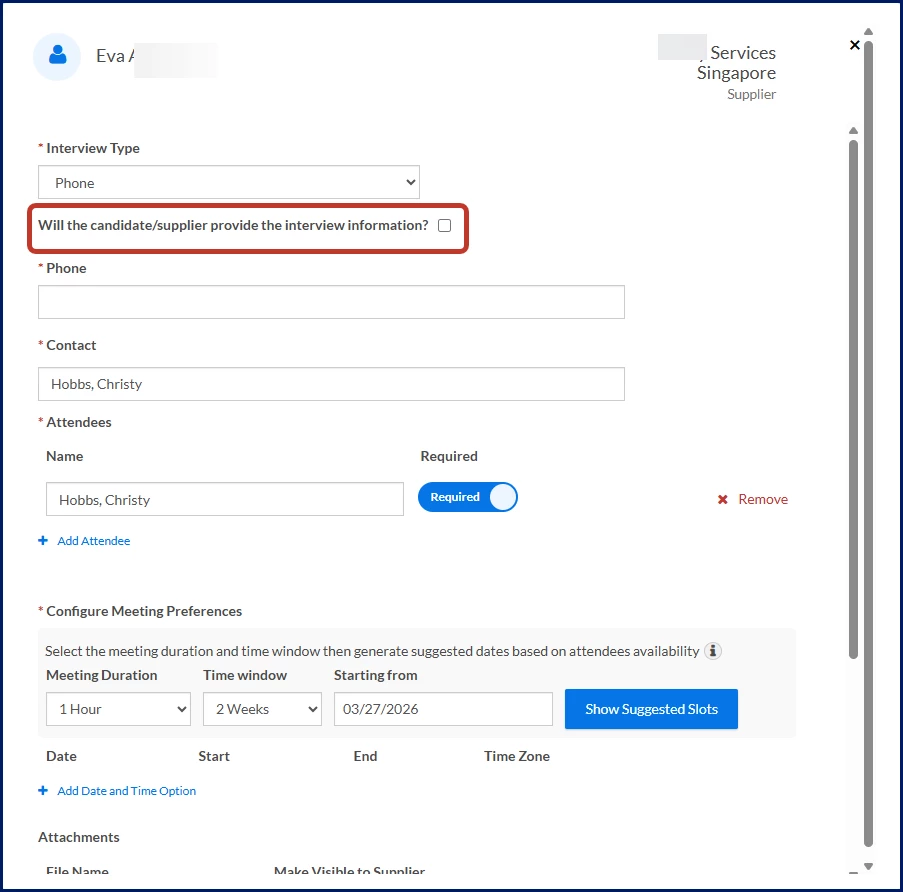
You can choose whether the candidate or supplier provides the information needed to complete interview scheduling. This flexibility allows you to support different scheduling workflows and accommodate your organization's preferred interview coordination process.
Multiple interview rounds
Depending on your organization's configuration, you may be able to schedule multiple interview rounds for the same candidate without waiting for a previous interview to be completed.
This option can help streamline the hiring process by allowing interview activities to be planned in advance. If a candidate is disqualified during an interview, any remaining scheduled interviews for that candidate are automatically canceled.
Note: Multiple interview rounds must be enabled for your organization before they can be scheduled.
Schedule recommendations
Interview Manager can use calendar availability information to suggest interview times that work for attendees.
Schedule recommendations can help reduce manual calendar review, identify available interview times more quickly, and minimize scheduling conflicts.
Note: Schedule recommendations are available only when a supported calendar integration has been configured for your organization.
How recommendations work
When you request suggested interview times, Interview Manager evaluates attendee availability and recommends interview times based on participant calendars. Schedule recommendations are based on client attendee availability only. Supplier availability isn't considered when recommendations are generated.
Recommendation priority
Priority
Recommendation criteria
1
All attendees are available
2
Most attendees are available
If Interview Manager can't identify a recommended time, you can manually add one or more interview time options.
Availability information used
Interview Manager evaluates:
Availability status
Free and busy time blocks
Working hours
Time zone information
For more information about calendar-based scheduling recommendations, see:
The accuracy of schedule recommendations depends on the availability information maintained in the calendar platform used by your organization. Review the following recommendations to help ensure Interview Manager generates the most accurate interview time suggestions.
Microsoft Outlook
Interview Manager uses Microsoft Outlook® time zone and working-hour settings when generating schedule recommendations. Custom time zone configurations aren't supported and can prevent Interview Manager from accurately identifying working hours, attendee availability, and suitable interview times.
To help ensure accurate recommendations:
Keep your Outlook calendar up to date.
Use a standard Microsoft Outlook time zone.
Ensure your working hours reflect your normal availability.
Maintain accurate busy, tentative, and out-of-office events.
Google Calendar
Google Calendar® recommendations rely on calendar availability information. To improve recommendation accuracy, ensure calendar events accurately reflect attendee availability.
Verify your availability settings
Interview Manager uses Outlook time zone and working hour settings when generating recommendations. Custom time zone configurations aren't supported and can prevent Interview Manager from accurately identifying working hours, availability, and available interview times.
Incorrect Outlook calendar settings can reduce the accuracy of schedule recommendations, so calendar availability, time zones, and working hours should be kept current.
For the best results:
Keep your Outlook calendar up to date.
Use a standard Microsoft Outlook time zone.
Ensure your working hours reflect your normal availability.
Maintain accurate busy, tentative, and out-of-office events.
If Interview Manager can't find expected interview times or availability appears incorrect, review your Outlook settings before manually scheduling an interview.
To review your availability settings
Verify that you're using a standard Microsoft Outlook time zone.
Confirm that your Outlook working hours reflect your normal availability.
Review your calendar and verify that availability information is current.
Generate recommendations again.
If recommendations still aren't available, manually add interview time options.
To update your Outlook time zone
Open Settings in Outlook.
Go to Calendar > Working hours and location or Time zones.
Select a standard Microsoft Outlook time zone.
Save your changes.
Generate recommendations again.
Using a standard Outlook time zone helps Interview Manager accurately align working hours, attendee availability, and scheduling recommendations.
Information in this article reflects a standard Enterprise configuration. Your Enterprise platform is based on your organization’s configuration. Settings and/or data visibility rules may vary slightly from what is described.
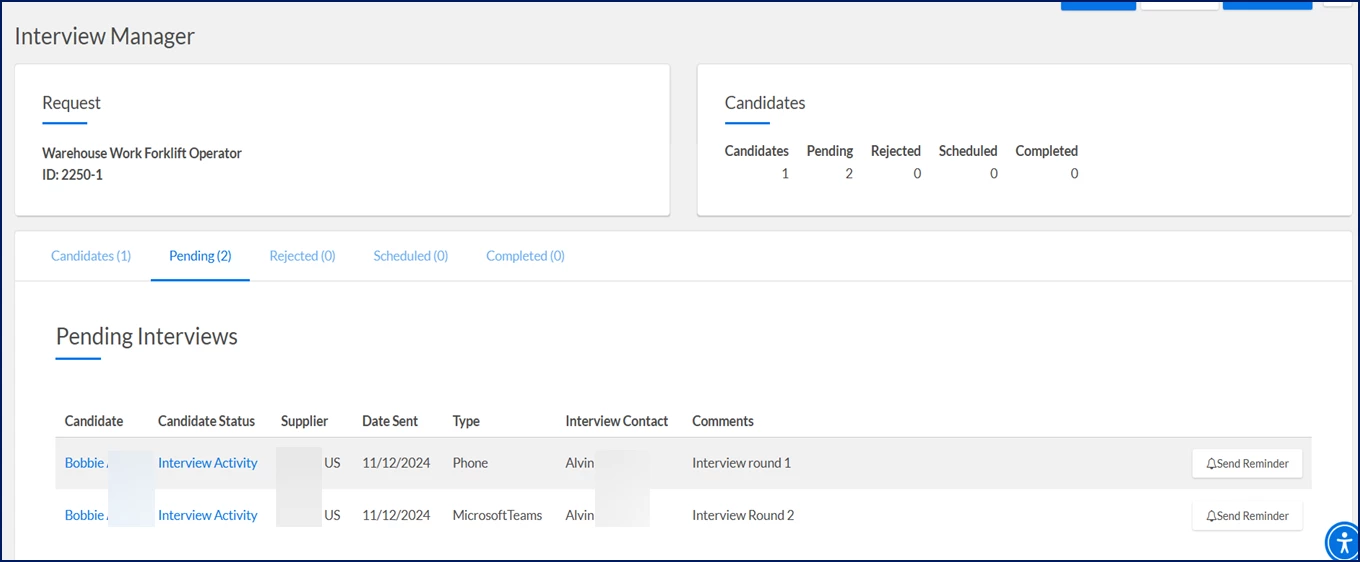
Supplier names are shown in graphics in this article. If your system is configured to mask supplier names, they won’t display in any of the Interview Manager pages.
Accessing Interview Manager
As your program’s interview coordinator, you’re the primary user of the Interview Manager. You might be a hiring manager, a managed service providers or a program office user. You can find step-by-step instructions for managing interviews in this section.
From Beeline Classic
From the Request page, take one of these actions.
Select the ScheduleInterviews link from the RequestMenu. Interview Manager displays. OR
Select Schedule Interview from the Action list available from the Candidates pane. Interview Manager displays showing you only the candidate you selected. To see all of the candidates submitted to a request, select ShowAll Candidates in the upper right corner.
From the Hiring Manager Experience
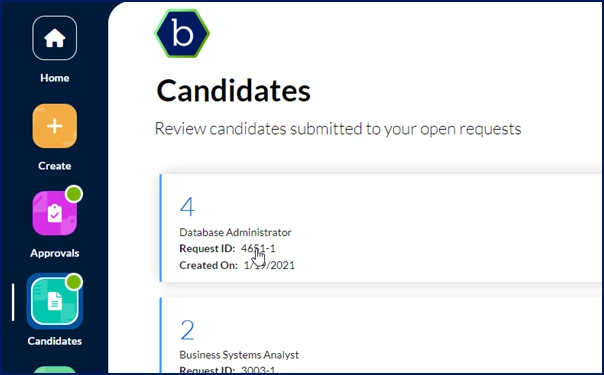
Select the Candidates app, and then select the open request you want to view.
Locate the candidate you’re interested in, and then select Manage Interviews from the Take Action list. Interview Manager displays showing you only the candidate you selected. To see all of the candidates submitted to a request, select ShowAll Candidates in the upper right corner.
Scheduling an interview
Interview Manager helps you create interview requests, invite attendees, generate suggested interview times, and manage interview details from a single workspace.
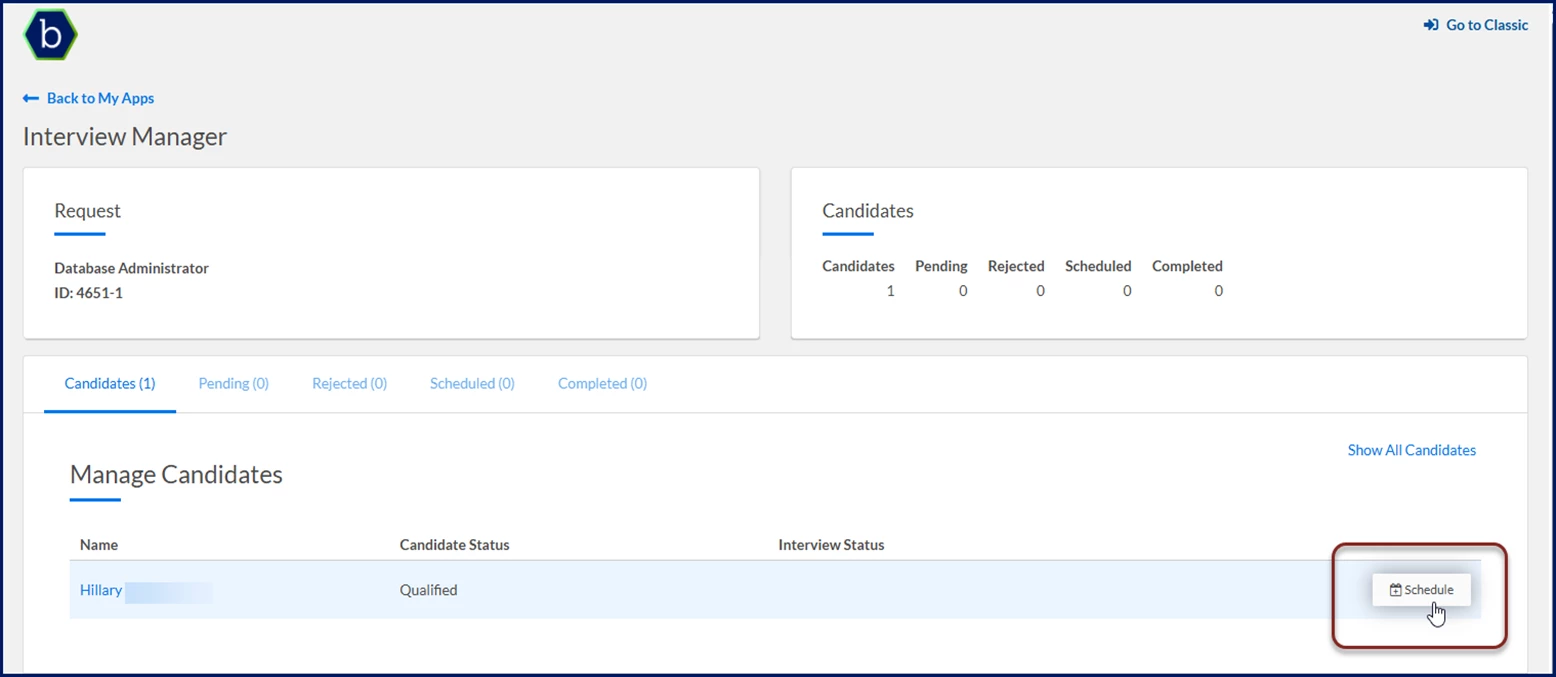
From the Manage Candidates section on the Candidates tab, locate the candidate. TIP: Use Search Candidates to find candidates by name, candidate status, interview status, or supplier.
Select Schedule. The Schedule Interview dialog opens.
Select an option from the Interview Type list.
What this does: Determines how the interview will take place. Why this matters: Different interview types require different information, such as a physical location or an online meeting URL.
Complete the interview details. Depending on the interview type, enter a location, meeting URL, or other required information.
Optional. Choose whether the candidate or supplier provides interview details.
What this does: Identifies who provides the information needed to complete scheduling.
Why this matters: Gives you flexibility to support different interview scheduling workflows.
Verify the primary contact in the Contact field. Your name displays automatically. Select another contact if needed.
Optional. Remove yourself from the attendee list if you do not need to attend.
Select Add Attendee.
Add attendees.
Specify whether each attendee is Required or Optional.
What this does: Defines who participates in the interview and who must attend. Why this matters: Availability recommendations are based on the attendees you include, and attendees can better manage their schedules when participation requirements are clear.
Repeat as needed to add additional attendees.
Optional. Remove attendees who are no longer needed.
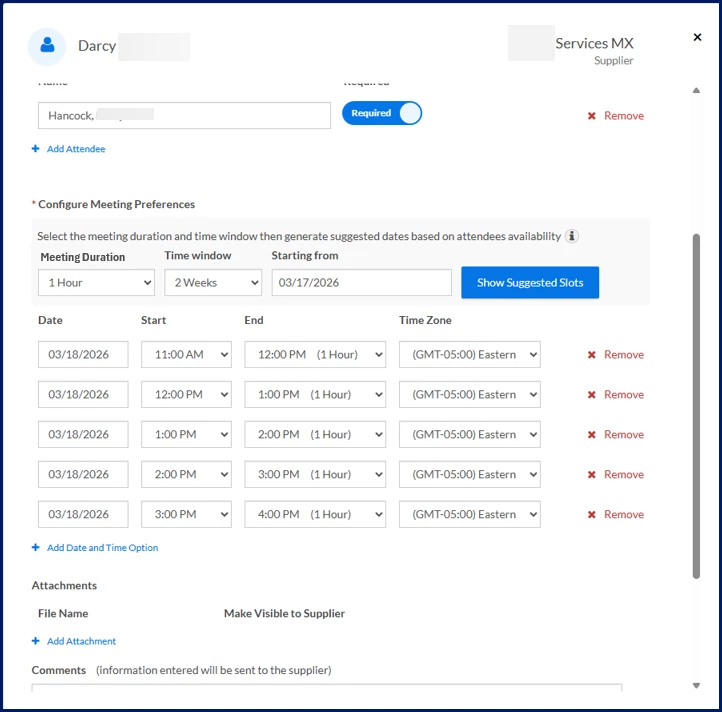
Optional. Generate interview time recommendations.
a. Select Add Date and Time Option.
b. Select a meeting duration.
c. Select a time window.
d. Enter a start date.
e. Select Show Suggested Slots.
What this does: Identifies potential interview times based on attendee availability.
Why this matters: Helps you find available interview times more quickly without manually reviewing calendars.
Optional. Remove suggested times you do not want to offer.
TIP: Time zones are automatically considered when recommendations are generated. Invitations are delivered using attendees' local time zones.
Optional. Manually add interview time options:
Select Add Date and Time Option. Additional fields automatically display in the Date and Time Options frame.
Use the Date Calendar to select the date for the interview.
Select the time you want the interview to begin from the Start list.
Select an interview duration from the End list. The end time is automatically calculated for you.
Select the local time for the region or country where the interview is taking place from the Time Zone list.
Optional. Schedule additional interview rounds.
What this does: Allows you to schedule multiple interviews for the same candidate.
Why this matters: Helps move candidates through the interview process faster.
TIP: This option may or may not be available based on your Enterprise configuration.
Optional. Add attachments:
Select Add Attachment.
Navigate to the file you want to attach and then select Upload.
Add a label for the attachment in the Title field.
Select Save. By default, the attachment is hidden from the supplier.
Optional: Toggle the Make Visible to Supplier button to make the attachment available to the supplier.
What this does: Provides interview participants with supporting files such as résumés and CVs.
Why this matters: Gives attendees access to information they may need to prepare for the interview.
Optional. Add comments you want to send to the supplier.
Optional. Select Save for Later if you need to complete scheduling later.
Select Send Invite.
Result
The interview request is sent to the supplier. After the supplier confirms the interview, attendees receive interview notifications based on your organization's configuration. The notification also indicates whether their attendance is required or optional.
Viewing interview details
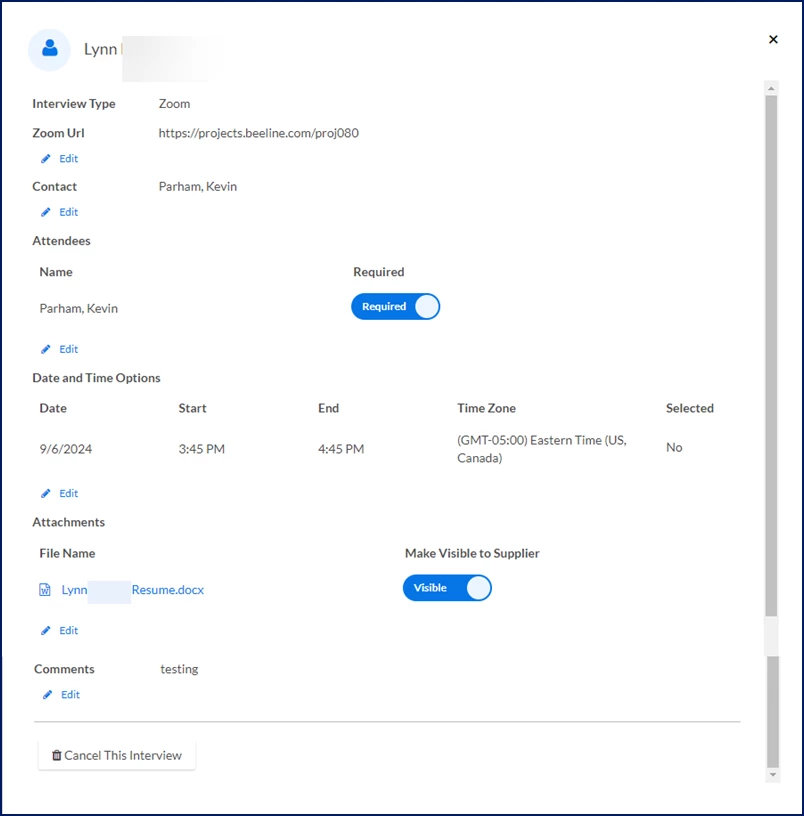
Use interview details to review interview schedules, attendees, locations, interview methods, and other interview information.
Why it matters
Confirm interview details before meetings occur.
Verify locations, attendees, and interview times.
Review interview information without editing the interview.
To view interview details
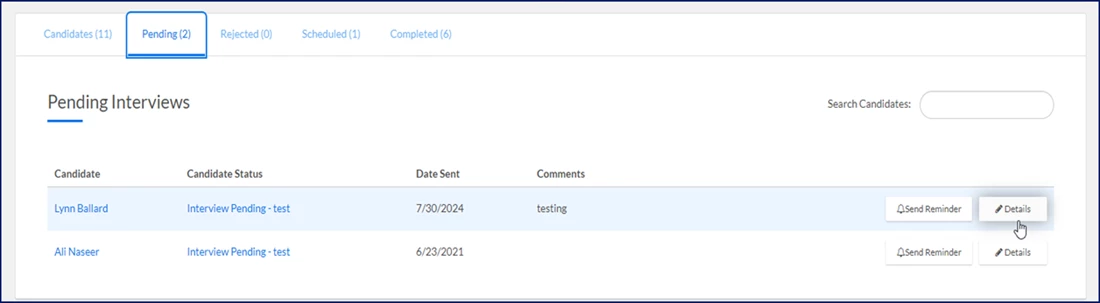
Select the Pending tab, and then select the Details button. OR
Select the Scheduled tab, and then select the Interview link.
Result
The Interview Details dialog opens and displays the interview information.
Modifying an interview
Modify interview details when plans, attendees, locations, or interview times change.
Why it matters
Keep interview information accurate.
Update attendees when schedules change.
Ensure participants receive the most current interview details.
To modify an interview
Navigate to the InterviewDetails dialog by taking one of these actions:
Select the Pending tab, and then select the Details button. OR
Select the Scheduled tab, and then select the Interview link.
Select the Edit link for any information you want to modify.
Change the information
Select Save.
Close the dialog.
Result
Interview Manager saves the updated interview information.
Canceling an interview
If an interview is no longer needed, you can cancel it and notify the appropriate participants.
If an interview is no longer needed, you can cancel it and notify the appropriate participants.
Why it matters
Prevent unnecessary interview activity.
Notify affected participants.
Keep interview records current.
To cancel an interview
Navigate to the InterviewDetails dialog by taking one of these actions:
Select the Pending tab, and then select the Details button. OR
Select the Scheduled tab, and then select the Interview link.
Select Cancel this Interview. A CancelInterview dialog box displays.
What this does: Stops the interview from moving forward.
Why this matters: Ensures attendees, suppliers, and other participants know the interview is no longer taking place.
Enter remarks explaining why you’re canceling the interview in the Comments field.
Select OK.
Result
Interview Manager cancels the interview and sends notifications based on the interview's status and your organization's configuration.
Reviewing supplier-proposed interview times
Suppliers can propose alternate interview times when the original options do not work.
What this does: Confirms the selected interview time.
Why this matters: Allows scheduling to move forward and informs participants of the selected interview time.
Optional. If none of the proposed times work, select Cancel and edit the interview.
Result
The selected time is accepted and the interview continues through the scheduling process. Notifications are sent according to your organization's configuration.
Please complete the following fields as part of your Beeline Community registration. Unless noted as private, this information will be displayed on your user profile within the community.