Transactions processed through your Beeline Enterprise (such as requisitions, timesheets, expenses, fees and more) frequently require approval by various users in your organization. ApprovalWorkflows are set up for your organization to automate the flow of a transaction to the appropriate approvers as the transaction is processed through Enterprise.
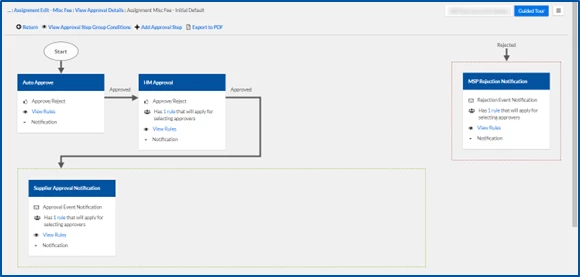
You can drilldown into the status of a miscellaneous fee and quickly see the VisualApprovalWorkflow the fee is configured to follow. You also see further details, such as the workflow schema and the rules after you drilldown.
To view the Visual Approval Workflow associated with a miscellaneous fee, complete these steps from your Enterprise dashboard.
From the Simple Search option at the upper right of your dashboard, enter an assignment ID or a resource name for the active assignment to which you want to add a miscellaneous fee. An Assignment page displays.
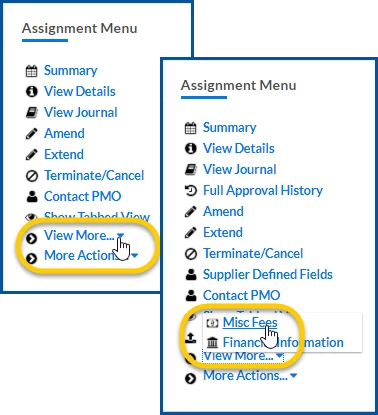
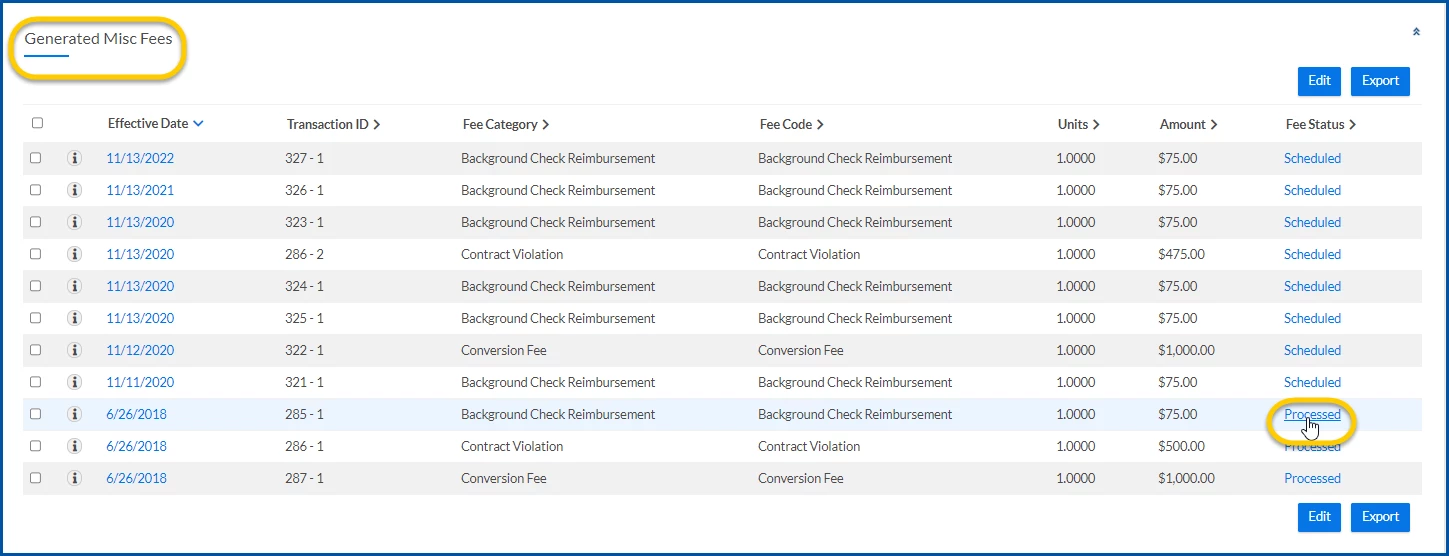
From the AssignmentMenu in the lower left corner, select ViewMore > Misc Fee. An Assignment Edit –MiscFee page displays.
Select the link in the FeeStatus column. A ViewApprovalDetails page displays.
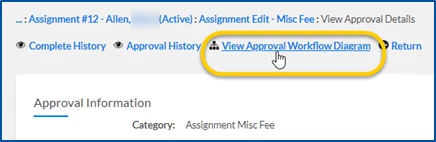
From the ViewApprovalDetails page, select ViewApprovalWorkflow Diagram to view the approval workflow steps in an Assignment Misc Fee Workflow page.
Optional. From the Assignment Misc Fee Workflow page, you can take these additional actions:
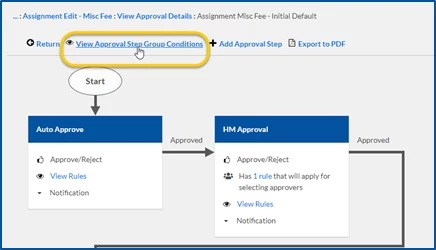
View approval step group conditions.
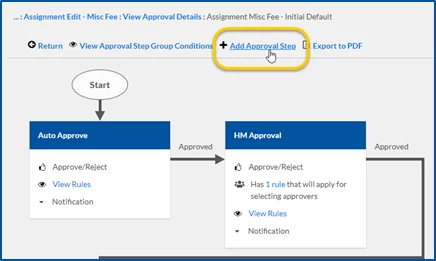
Add an approval step.
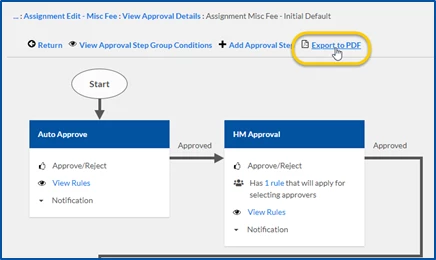
Export the workflow to PDF.
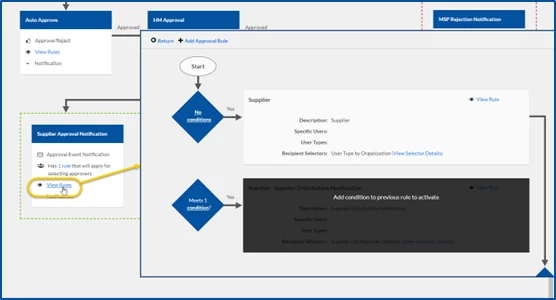
Drilldown to see the rules behind an approval step.
Select Return to go back to the ViewApprovalDetails page. TIP: If you drilled down to get additional details, you may need to select Return more than once.
Please complete the following fields as part of your Beeline Community registration. Unless noted as private, this information will be displayed on your user profile within the community.