


Approve SOWs faster with clear, efficient insights
The SOW Scope Summary feature uses AI to extract and present key details from a Statement of Work (SOW) so approvers can quickly understand scope, financials, and role‑based considerations. Users get a concise summary directly in their approval workflow, along with optional role‑specific considerations to help them evaluate risk, alignment, and completeness before approving.
To learn more about your user’s experience with the SOW Scope Summary feature, go to this article.
Action required
Your organization must have subscribed to the Premium AI package before you can add the SOW Scope Summary feature to Beeline Enterprise. Contact your Relationship Manager for details on adding AI packages.
Persona
Clients, program office users, system administrators
How to steps
You can turn on the SOW Scope Summary feature via self-service from VMS Settings. You can also designate where the AI-generated content displays. Plus, you can turn off SOW Scope Summary feature for specific industries if your organization wants to limit where it’s available.
Information in this article reflects a standard Enterprise configuration. Your Enterprise platform is based on your organization’s configuration. Settings and/or data visibility rules may vary slightly from what is described.
To accomplish your task, complete these steps from your Enterprise dashboard.
- Select Preferences > VMS Settings > Artificial Intelligence. An Artificial Intelligence page displays.
TIP: After you navigate to the Artificial Intelligence page, you may see features you cannot configure. Although all AI features display, what’s available to you varies based on the specific AI package to which your program subscribes. - Under the Premium section, select the SOW Scope Summary link.
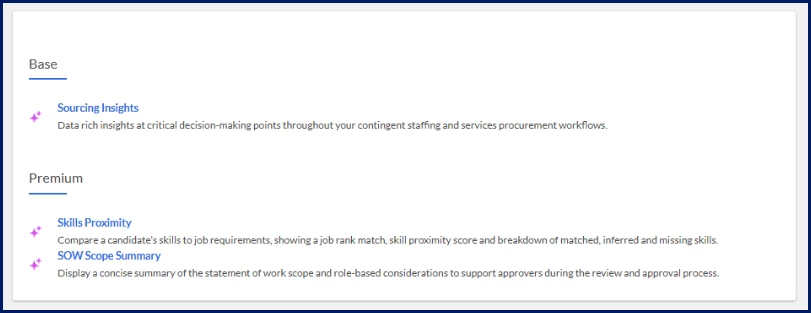
An SOW Scope Summary page displays.
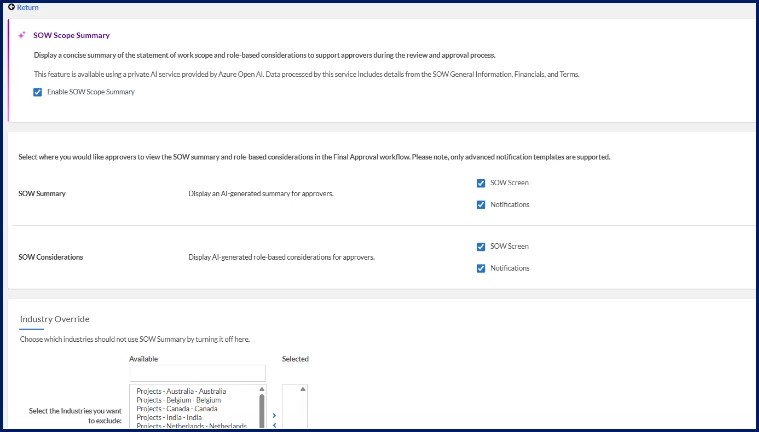
- Select the Enable SOW Scope Summary checkbox.
- Optional. To choose where you want the AI-generated scope summary to display, complete these steps:
- Select the SOW page checkbox in the SOW Summary section to display the AI-generated scope summary to approvers in the Action Step tab on an SOW dashboard.
- Select the Notifications checkbox in the SOW Summary section to include the AI-generated scope summary to approvers in any Advanced Notification Template emails set up in the final approval workflow for your organization.
- Select the Notifications checkbox in the SOW Summary section to include the AI‑generated scope summary in any Advanced Notification Template emails used in your organization’s final approval workflow.
- Select the SOW page checkbox in the SOW Considerations section to display the AI-generated role-based considerations to approvers in the Considerations section.
- Select the Notifications checkbox in the SOW Considerations section to include AI‑generated role-based considerations in any Advanced Notification Template emails used in your organization’s final approval workflow.
- Optional. From the Available list in the Industry Overrides section, select the industries you want to exclude, and then use the Arrows to move your selections to the Selected list.
- Select Save to apply your selections and go back to the Artificial Intelligence page.
The SOW Summary feature is set up for your site, is not available in any industries you excluded, and AI-generated content displays in the user interface locations you specified.
| Persona Clients, program office users, system administrators | Modules Intelligence & Automation Services Procurement | Documentation release Beeline Enterprise | Q1 2026 | Feedback? Email us: |