Occasionally, you might need to reprocess a miscellaneous fee after the fee is invoiced. You might need to reprocess a miscellaneous fee for any number of reasons.
The miscellaneous fee was taxed incorrectly.
The miscellaneous fee amount should have been more or less than what was invoiced.
The miscellaneous fee was inadvertently charged to the Supplier instead of the Client.
You can reprocess both single and recurring fess. Because you can reprocess a unique record for the miscellaneous fee only once, make sure you locate the correct miscellaneous fee you want to update and reprocess.
Before you reprocess a miscellaneous fee, make sure the miscellaneous fee was processed and invoiced. You’ll see a Processed status for miscellaneous fees that have been processed and invoiced.
To reprocess a miscellaneous fee, complete these steps from your default dashboard.
From the Simple Search option at the upper right of your dashboard, enter an assignment ID or a resource name for the active assignment to which you want to add a miscellaneous fee. An Assignment page displays.
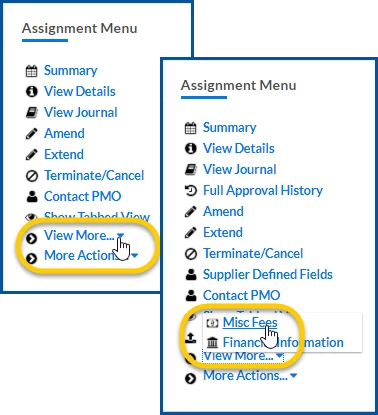
From the AssignmentMenu in the lower left corner, select ViewMore > Misc Fee. An Assignment Edit –MiscFee page displays.
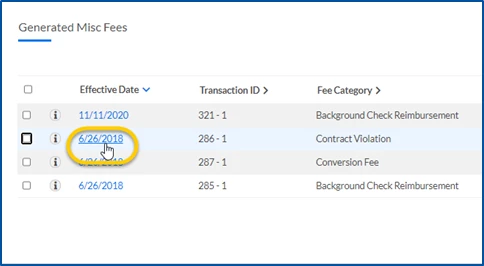
From the GeneratedMiscFees section, locate the miscellaneous fee you want to reprocess, and verify the fee has been processed and invoiced. Processed and invoiced miscellaneous fees have a Processed status.
From the GeneratedMiscFees section, locate and select the EffectiveDate link for the miscellaneous fee you want to reprocess. A MiscFee page displays.
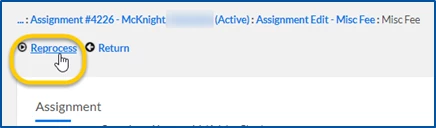
Select Reprocess. A MiscFee Reprocessing page displays.
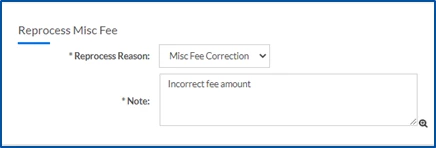
From the ReprocessReason list, select the purpose for reprocessing the miscellaneous fee.
In the Note field, enter an explanation about why you’re reprocessing the miscellaneous fee. Make sure information in the remaining fields on the MiscFee Reprocessing page is correct. Caution: Because you can reprocess a unique record for the miscellaneous fee only once, make sure you have located the correct miscellaneous fee before proceeding.
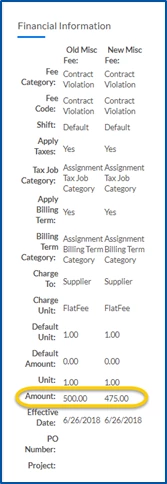
Select Next. The MiscFee Reprocessing page refreshes and a summary in the of the original miscellaneous fee and the new miscellaneous fee display.
Verify you’ve correctly updated the information for the miscellaneous fee.
Take one of these actions:
Select Return if you want to make additional changes.
OR
Select OK to submit your changes. A dialog box displays asking you to confirm reprocessing the miscellaneous fee.
Select OK to continue with reprocessing. Your miscellaneous fee is added with a Scheduled status to the Generated Misc Fees section of the MiscFee Reprocessing page.
Select Return to close the MiscFee Reprocessing page and return to the assignment record.
Your miscellaneous fee changes are processed with the next invoice. The debit or credit displays in subsequent lines in invoicing system reports available from Beeline’s ReportBuilder, such as Financial Invoice Summary and Beeline Invoice and Accrual. The financial and invoicing reports available to you and the report names vary based on your organization’s configuration.
Please complete the following fields as part of your Beeline Community registration. Unless noted as private, this information will be displayed on your user profile within the community.