Occasionally, you might need to cancel a miscellaneous fee after the fee is invoiced. You might need to cancel a miscellaneous fee for any number of reasons. For example,
An incorrect fee amount may have been inadvertently entered.
An incorrect purchase order number or an incorrect project number may have been inadvertently entered.
The fee may have been inadvertently assigned to an incorrect payor.
You can cancel a fee in any status except Processed.
To cancel a miscellaneous fee, complete these steps from your Enterprise dashboard.
From the Simple Search option at the upper right of your dashboard, enter an assignment ID or a resource name for the active assignment to which you want to add a miscellaneous fee. An Assignment page displays.
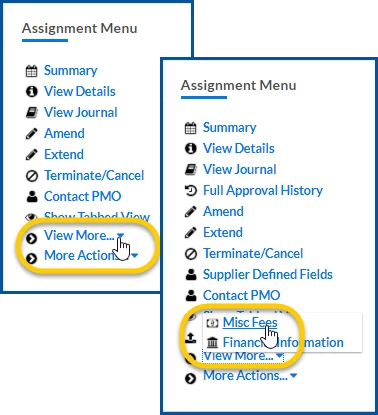
From the AssignmentMenu in the lower left corner, select ViewMore > Misc Fee. An Assignment Edit –MiscFee page displays.
From the GeneratedMiscFees section, locate and select the miscellaneous fee you want to cancel. TIP: Make sure the fee is not in a Processed status.
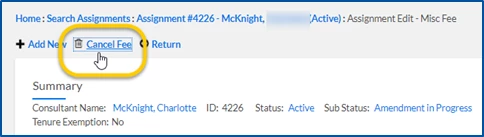
Select the CancelFee icon. A confirmation dialog displays.
Please complete the following fields as part of your Beeline Community registration. Unless noted as private, this information will be displayed on your user profile within the community.