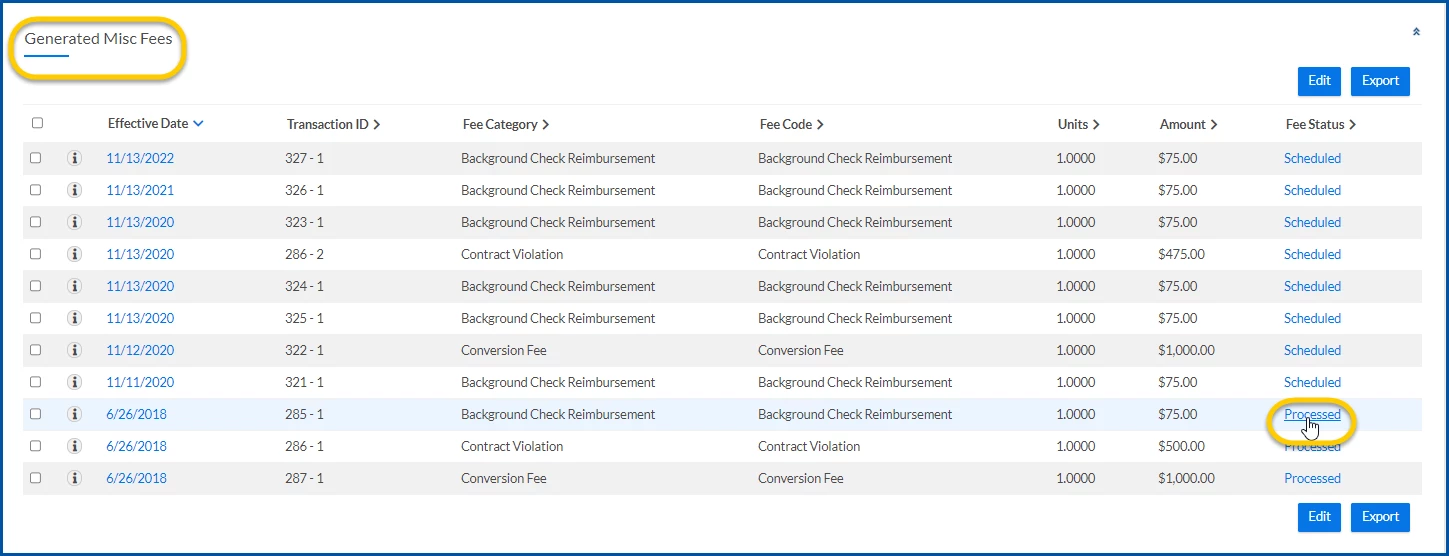
When you want to view approval details, select the link in the FeeStatus column in the GeneratedMiscFees section on an Assignment Edit –MiscFee page to open a ViewApprovalDetails page. From a ViewApprovalDetails page, you can see approval information and approval steps. Or use controls on the ViewApprovalDetails page to drilldown into additional details about a miscellaneous fee, such as a complete history, approval notes, and more.
To view approval steps for a miscellaneous fee, complete these steps from your default dashboard.
From the Simple Search option at the upper right of your dashboard, enter an assignment ID or a resource name for the active assignment to which you want to add a miscellaneous fee. An Assignment page displays.
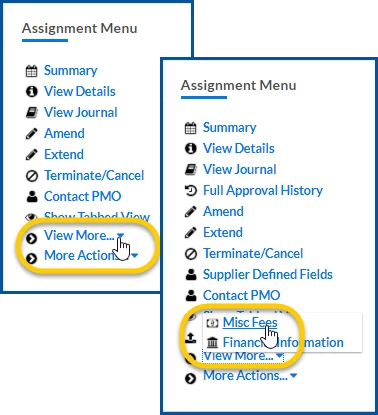
From the AssignmentMenu in the lower left corner, select ViewMore > Misc Fee. An Assignment Edit –MiscFee page displays.
Select the link in the FeeStatus column. A ViewApprovalDetails page displays.
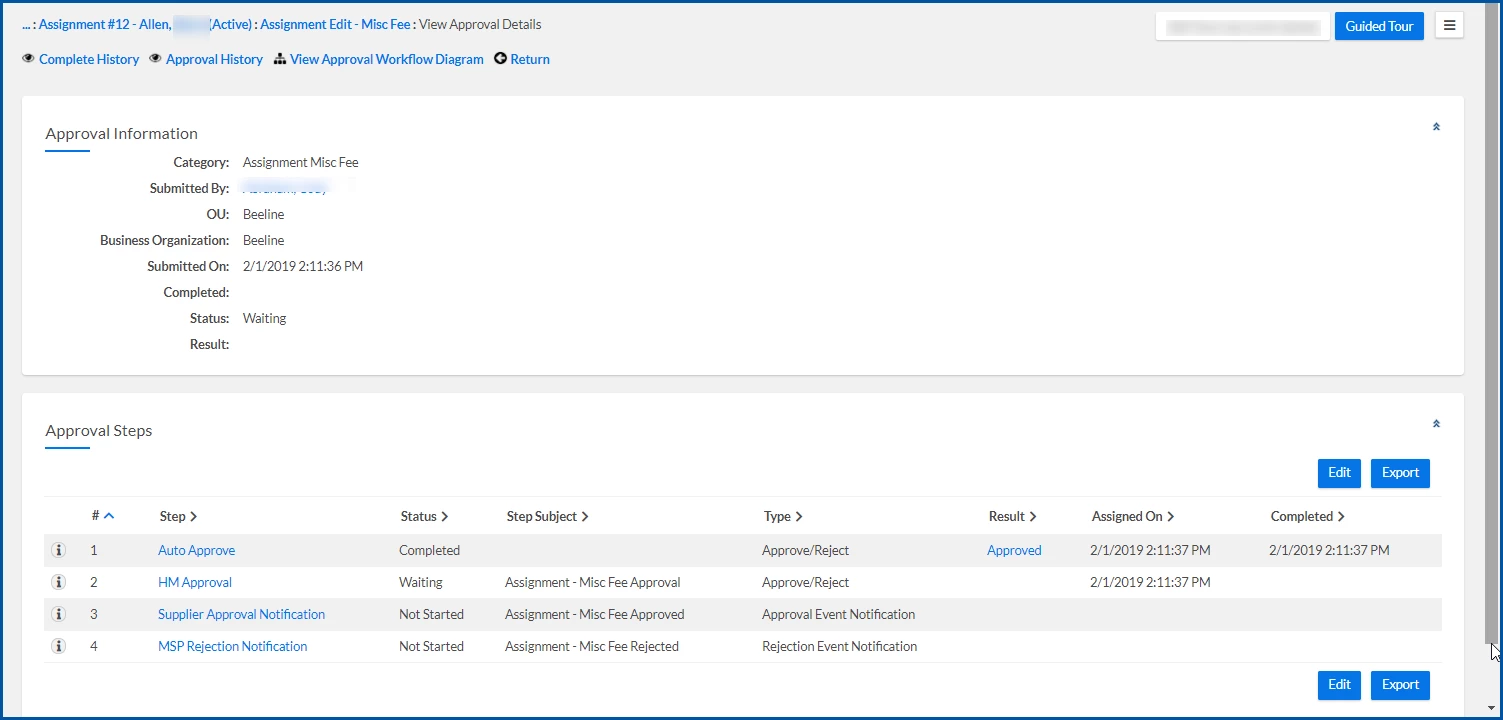
From the ViewApprovalDetails page, you can see these additional details about a miscellaneous fee.
Approval Information
Category. Type of miscellaneous fee, such as background checks, conversion, non-standard compensation, contractual penalties.
SubmittedBy. User who submitted the fee.
OU. Displays the Organizational unit (OU), which can be used in your Beeline hierarchy to group labor types, such as IT, accounting, sales, marketing, HR, finance, and more.
BusinessOrganization. Displays the business unit (BU), an organizational structure which can be used in your Beeline hierarchy, such as a department or team that produces revenues and is responsible for costs.
SubmittedOn. Date the fee was submitted for approval.
Completed. Yes/No indicator whether all approval steps are finished.
Status. System processing state for the approval of the fee, such as Waiting, Approved.
Result. The outcome of the approval, such as Completed, Rejected, and more.
Approval Steps
#. Numerical hierarchy of the approval step.
Step. The name of the approval workflow stage configured for your organization, such as Hiring Manager Approval, Supplier Approval Notification, and more.
Step. State of the approval workflow step, such as Completed, Waiting, Not Started.
StepSubject. Action needed from the user.
Type. Indicates the kind of process, such as Approve/Reject, Event Notification, associated with the step.
Result. Indicates the disposition for or outcome of the step, such as Approved, Rejected.
AssignedOn. Date and timestamp when the notifications were sent to approvers.
Completed. Date and timestamp the workflow step finished.
Please complete the following fields as part of your Beeline Community registration. Unless noted as private, this information will be displayed on your user profile within the community.