


Importing miscellaneous fees eliminates the task of manually adding them on individual assignments and reduces potential data entry errors. Importing miscellaneous fees streamlines transactions and payments between clients and suppliers and saves your organization time and money.
You can import assignment miscellaneous fees via self‑service using the Web Import tool. Navigate to that tool by selecting VMS Settings > Data Management > Web Import. If you need assistance with importing assignment miscellaneous fees, contact your COM.
Things to consider/Import criteria
These criteria apply to all assignment miscellaneous fees imported to your Beeline Workforce Management System. Check the assignment miscellaneous fees in the file you intend to use during your import against these criteria before importing.
- Fees can be single and/or recurring.
- Fees must include a status that is either Scheduled, Cancelled or Pending.
- Use the Scheduled status for new records.
- Use the Canceled status for an existing miscellaneous fee with a Scheduled status that you want to withdraw.
- Use ReadyForValidation for fees you want to put into a Pending status.
- Fees can be backdated, but the date must be during the period the assignment was active.
- Fees uploaded via an import are not checked for potential duplicate miscellaneous fees.
- Fees uploaded via an import do not trigger an approval workflow.
- Cost allocations, import reversals and data exports are not supported.
Beeline Best Practice: Include the Assignment Number as part of your import to ensure the miscellaneous fee is associated with the correct assignment.
To import assignment miscellaneous fees, complete these steps from your Enterprise dashboard.
- Select Preferences > VMS Settings > Data Management. A Data Management page displays.
- Select Web Import. An Import page displays.
- Select Add New. An Import—Status: Creating page displays.
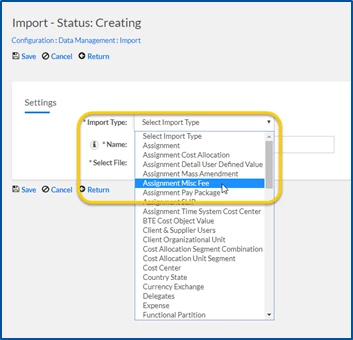
- From the Import Type list, select Assignment Misc Fee.
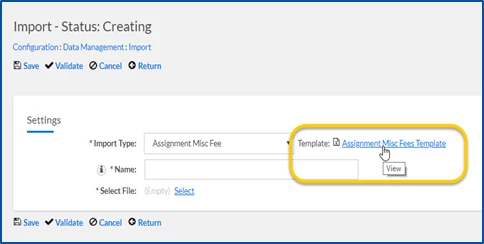
- Select the link next to the Assignment Misc Fees Template to download a prototype file for your import.
- Navigate to the file you downloaded, complete the template with the fees you want to import, and then save the file.
Beeline Best Practice: Include the Assignment Number in your import file to ensure the miscellaneous fee is associated with the correct assignment. - Enter a label for your import in the Name field.
- Select the Select link in the Select File field. A Select Import Attachment dialog displays.
- Select Choose File, and then navigate to the import file you just saved.
- From the Select Import Attachment dialog, select Upload.
- Add a label for your import in the Title field on the Select Import Attachment dialog, and then select Save.
- Optional. Define any additional file options on the Import—Status: Creating page.
- Select Validate.
- Select Save, and then select Return.
The assignment miscellaneous fees you included in your template file are uploaded to Beeline Enterprise.
Related articles
- About miscellaneous fees
- Tips on working with miscellaneous fees
- Understanding processing & statuses
- Adding a fee
- Adding a recurring fee
- Cancelling a fee
- Reprocessing a fee
- Researching miscellaneous fee details
Documentation release: Beeline Enterprise | Q4 2021